Server tools and modalities
Each capability on this page extends the standard chat path, and each stays off until you add it. Web Search and Web Fetch are elements in the Tools palette group, and Audio File, Audio Stream, Image File, and Document File are elements in the Inputs palette group. Drag an element onto the canvas and it attaches to the LLM node, switched on. Turn off its switch, or delete the element, to turn the capability off. Context management is set in the surface’s Config JSON view instead (see Context management). See Inputs and modalities → for how the Inputs elements decide what a surface accepts.
Server tools
The Web Search and Web Fetch elements let the gateway itself execute web search and web fetch tool calls inside the request, so the model can pull in live information without your application having to implement or govern that tool call itself. The model emits a tool call, the gateway runs it under OPA, per-surface domain policy, address checks (a fetch can’t reach localhost or a cloud provider’s instance-metadata address), metering, and governance, injects the result, and re-invokes the model. A model-initiated fetch is no less controlled than any other request.
- Add Web Search when the model needs to look things up, and Web Fetch when it needs to retrieve a specific known URL.
- Pick a domain policy based on which list is shorter for your use case: Allow all URLs (a block-list) when you mostly trust the open web and just want to exclude a few domains; Block all URLs (an allow-list) when the model should only ever reach a small, known set of domains.
- Choose a search engine based on what you already have an account with; Tavily is the default if you don’t have a preference.
| Field | What it does | Default |
|---|---|---|
| Max tool iterations | Maximum model⇄tool round-trips before the model must answer, bounding cost and latency. Set on the Web Search element’s panel, from 1 to 10. | 3 |
Web Search fields:
| Field | What it does | Default |
|---|---|---|
| Enabled | Per-tool switch. | On when the element is added |
| Search engine | Search engine, picked from a dropdown: Tavily, Brave Search, or Google Programmable Search. | Tavily |
| Engine API key | A secret holding the engine’s API key. Tavily, Brave, and Google each issue this from their own developer console. Create an account and an API key with whichever engine you select here, then create a secret on the Secrets page holding it before picking it here. Required. | Not set |
| Google Programmable Search id (cx) | Google Programmable Search Engine id (cx). Shown and required when the search engine is Google Programmable Search. Created in Google’s Programmable Search Engine console, separately from the API key above. | Not set |
| Max results | Maximum results returned, from 1 to 20. | 5 |
| Domain policy | The domain-policy baseline and exceptions, opened with Configure domains… (see Domain policy). | Allow all URLs |
Web Fetch fields:
| Field | What it does | Default |
|---|---|---|
| Enabled | Per-tool switch. Web Fetch needs no external API key. | On when the element is added |
| Max content size (KB) | Cap on fetched page content passed back to the model. Fetched pages are reduced to readable text and truncated to this size. | 60 KB |
| Domain policy | The domain-policy baseline and exceptions, opened with Configure domains… (see Domain policy). | Allow all URLs |
Domain policy
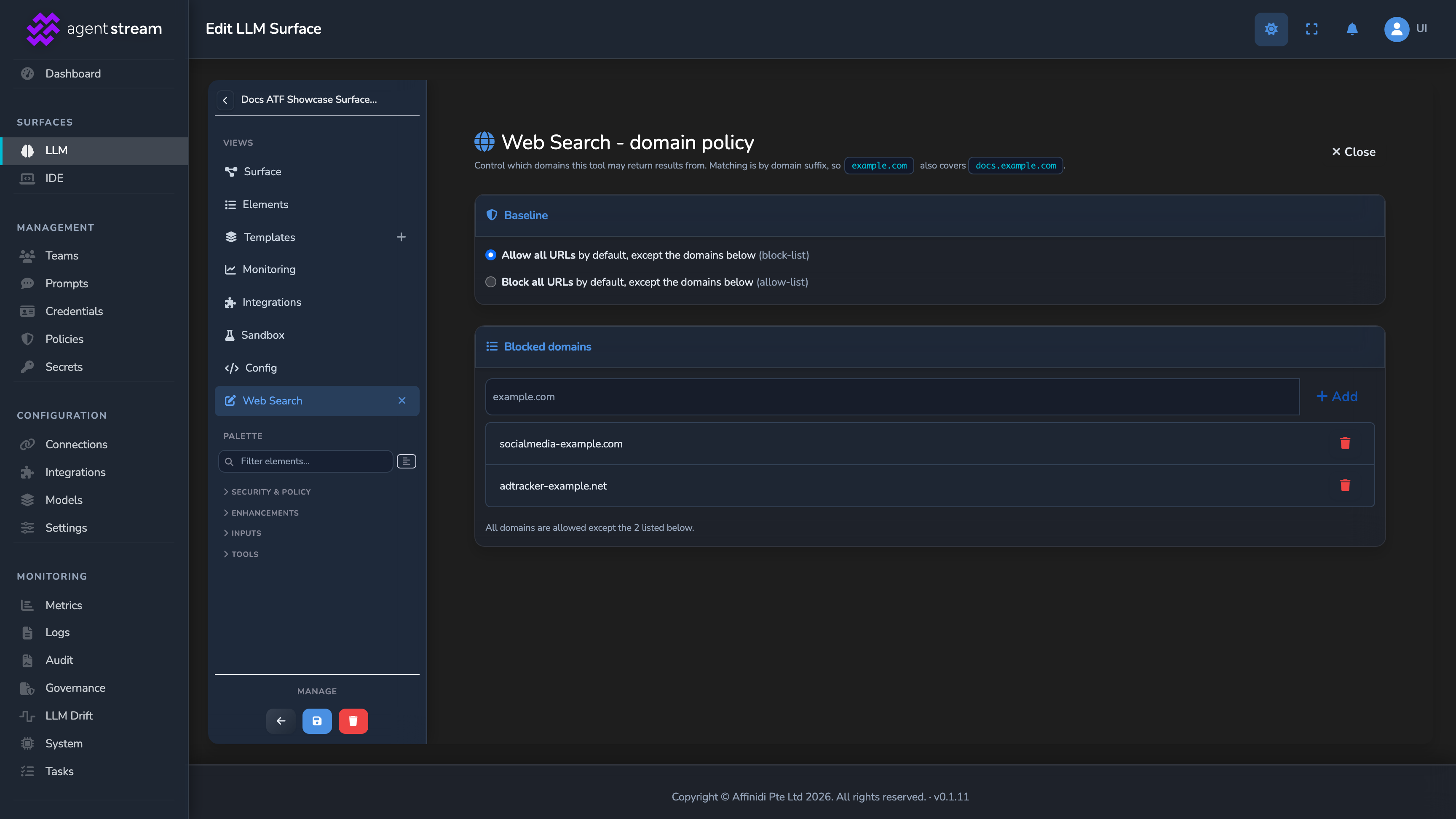
Configure domains… on either tool’s panel opens a full-page editor with a Baseline card and an exceptions list.
| Field | What it does | Default |
|---|---|---|
| Baseline | Allow all URLs by default, except the domains below (a block-list), or Block all URLs by default, except the domains below (an allow-list). | Allow all URLs |
| Blocked domains / Allowed domains | The exception domains, headed Blocked domains under an allow-all baseline and Allowed domains under a block-all baseline. Matching is by domain suffix, so example.com also covers docs.example.com. | None added |
Context management
Context management guards against an over-long conversation failing once it exceeds the model’s context window: instead of an error, older messages are trimmed to make room before the upstream call, while the most recent turns and every system message are preserved. Set it in the surface’s Config JSON view, in the context_management object:
"context_management": {
  "enabled": true,
  "context_window_tokens": 128000,
  "keep_recent_messages": 4,
  "reserve_output_tokens": 1024
}- Set
context_window_tokensto your upstream model’s real window size. Compression needs this value, since there’s no budget to compress against without it. - Set
enabledtotrueif you want compression to happen automatically for any request that would exceed the window. With itfalse, callers opt in per request withtransforms: ["middle-out"]. - Raise
keep_recent_messagesif your use case depends on more than the last few turns staying verbatim. The rest of the budget is still filled from the middle of the conversation outward.
| Key | What it does | Default |
|---|---|---|
enabled | Applies “middle-out” compression when a request would exceed the window, even if the caller didn’t ask for it. A request’s own transforms field always takes precedence; an empty list turns compression off for that request. | false |
context_window_tokens | The upstream model’s context window, in tokens. The compression budget is this minus the reserved output tokens (below). | Not set |
keep_recent_messages | Always preserve the last N messages (the most recent turns). | 4 |
reserve_output_tokens | Tokens reserved for the completion when the request doesn’t name a max-tokens value, so the prompt budget leaves room for the reply. | 1024 |
Document ingestion
The Document File element checks documents a caller attaches to a chat message and, depending on its mode, extracts their text and injects it as ordinary prompt content. Extracted text runs through the same PII masking, guardrails, and context-window guard as any other prompt text, so a model without document support can still read the document. A document embedded in the request is checked against the allowed types and file size, and a request that fails either check is rejected with HTTP 400. A document given by reference, such as a provider file ID, is forwarded as it is. Without the element, documents are passed to the provider as sent, without checks or extraction.
- Auto, the default, extracts Text, Markdown, CSV, JSON, and DOCX files and forwards any other allowed type, such as PDF, to the model as a file.
- Extract extracts the same types and rejects the request for any allowed document it can’t extract, such as a PDF.
- Use Passthrough when you’re forwarding to a model that reads documents natively; the allowed types and size limit still apply.
| Field | What it does | Default |
|---|---|---|
| Accept and extract attached documents | The element’s switch. | On when the element is added |
| Mode | Extraction strategy, picked from a dropdown: Auto — extract parseable types, forward the rest, Extract — extract all allowed types (error if unable), or Passthrough — forward to a document-native model (above). | Auto |
| Allowed document types | The document types accepted: TEXT, MARKDOWN, CSV, JSON, DOCX, and PDF, which is forwarded as a file rather than extracted (see the modes above). An embedded document of any other type is rejected. | TEXT, MARKDOWN, CSV, JSON, and DOCX (PDF unticked) |
| Max file size (MB) | Maximum decoded size of a single embedded document. | 5 MB |
| Max extracted characters | Maximum extracted characters injected per document, from 1,000 upwards; longer text is truncated. | 100,000 characters |
The detected document types are passed to policy as input.resource.document_types.
Audio input
The Audio File element accepts audio files attached to a chat message for a model that accepts audio input. Audio input is strictly opt-in: without an enabled Audio File element, a request carrying audio is rejected with HTTP 400. With the element in place, audio is still rejected when the surface’s model doesn’t accept audio input, or when a file’s format or the total audio size falls outside the settings below. For live, two-way voice, use the Audio Stream element instead (see Realtime voice).
| Field | What it does | Default |
|---|---|---|
| Accept audio files | The element’s switch. | On when the element is added |
| Accepted formats | Accepted audio formats: WAV and MP3. | WAV and MP3 |
| Max total audio (MB) | Cap on the total decoded audio in a single request. | 25 MB |
The detected formats are passed to policy as input.resource.audio_formats. Governance records keep a digest of the request and the text prompt, not the audio itself.
Image input
The Image File element accepts images attached to a chat message for a vision-capable model. Image input is strictly opt-in: without an enabled Image File element, a request carrying an image is rejected with HTTP 400.
| Field | What it does | Default |
|---|---|---|
| Accept image files | The element’s switch. | On when the element is added |
| Accepted inline formats | Accepted formats for images embedded in the request: PNG, JPEG, GIF, and WEBP. | PNG, JPEG, GIF, and WEBP |
| Max total inline images (MB) | Cap on the total decoded size of embedded images in a single request. | 20 MB |
Format and size checks apply to images embedded in the request. An image URL is forwarded as it is, because the appliance can’t inspect a remote image without fetching it. The detected formats are passed to policy as input.resource.image_formats.
Realtime voice
The Audio Stream element turns on realtime voice: a caller opens a WebSocket connection to the surface’s /v1/realtime path, and the appliance relays live audio in both directions between the caller and the model. Without an enabled Audio Stream element, a realtime session is refused. The surface’s model must be realtime-capable, an OpenAI realtime model (for example gpt-realtime) or a Gemini Live model; with any other model, the session is refused with realtime_not_supported. A surface or variant whose model is a realtime model accepts only realtime sessions and rejects chat requests, which is why voice usually belongs on its own variant (see Routing and variants → Routing rules).
Before a session opens, the caller is authenticated with the surface’s source authentication and checked against the appliance-wide policies and the surface’s own policy, as a chat request would be. While governance recording is on, each turn, one user input and the model’s reply, is recorded as its own governance record.
Select the element to see its Enable realtime voice switch, then use Configure session, safety & audio streams… to open the full-page editor.
- With Review realtime model replies on, voice safety reviews each model reply with the surface’s Jury. The Judge doesn’t run on realtime voice, because caller audio reaches the model before any transcript exists, and the dashboard won’t save a canvas with both an enabled Judge and an enabled Audio Stream element.
- Gated guarantees no unsafe reply audio reaches the caller, at the cost of a short delay on each turn. Barge-in is low-latency, but a fragment can play before a cut-off.
- Set Max session length (seconds) based on how long a legitimate session should realistically run; it’s a hard ceiling so a stuck connection can’t hold resources indefinitely.
- Configure Audio streams if you want callers to hear something during a Gated pause or on a blocked or failed turn, rather than silence.
| Field | What it does | Default |
|---|---|---|
| Realtime voice (streaming) | The session switch in the Realtime voice card. The element’s sidebar shows the same setting as Enable realtime voice. | On when the element is added |
| Max session length (seconds) | Hard ceiling on a session’s duration. Values outside 10 seconds to 1 hour (3,600 seconds) are clamped to that range when the session opens. | 600 seconds (10 minutes) |
| Voice (optional) | Optional default voice forwarded to the provider session, for example alloy. | Not set |
| Review realtime model replies | Switch in the Realtime response safety card. Reviews the transcript of each model reply with the surface’s Jury, which must be enabled. | Off |
| Enforcement | How a reviewed reply reaches the caller (below). | Gated |
| Refusal message | Text used when a turn is blocked, spoken only when no refusal clip plays. | A built-in refusal message |
Enforcement options:
| Option | Behaviour |
|---|---|
| Gated — hold each reply, release only if it passes (guaranteed) (default) | Holds each reply until the Jury approves it, and releases it only if it passes. |
| Barge-in — stream live, cut off on a violation (best-effort) | Streams the reply live and cuts it off when the Jury flags it. |
A blocked turn, or a Jury that fails to return a verdict, ends that reply with a refusal. While governance recording is on, a blocked turn is recorded as a Block record.
Audio streams
The Audio streams card picks pre-recorded clips the appliance plays to the caller. Clips are chosen by id from the appliance’s audio-stream catalogue, and the card header shows how many clips the catalogue holds.
| Field | What it does | Default |
|---|---|---|
| Minimum gap after filler (seconds) | Under Filler (Gated pauses). How long a held reply waits after a filler clip’s playback before release. | 2 seconds |
| Filler tiers | Each tier plays one of its clips once the wait passes “After N seconds of waiting”. Add a tier with Add filler tier. | None added |
| Refusal buckets | Under Refusal (blocked turns). Each bucket plays one of its clips when a turn is blocked for its Category; default catches any category. Add a bucket with Add refusal bucket. | None added |
| On upstream failure | The clip played when the provider call fails. | Not set |
Related
- Inputs and modalities: How client API formats, the Inputs elements, and realtime voice sessions work.
- Core configuration: Where these blocks sit on a surface, and the reasoning budget governor, the sibling limit for reasoning-token spend.
- Routing and variants: The Router element’s attachment-type rules, which send each kind of input to a variant whose model accepts it.
- Guardrails: The Jury configuration that reviews realtime voice replies.
Glad to hear it. Thanks for letting us know.
Sorry to hear that. Thanks for letting us know.