LLM drift
This is the field-level detail behind LLM drift detection →: the surface’s Drift Harness settings, the LLM Drift page, the nine dimensions it tracks, how a baseline turns into a stable, warn, or drift verdict, and how long runs and sessions are kept.
Surface configuration
Turning this on feeds everything else on this page: the nine dimensions, alerting, and replay evaluation all depend on drift monitoring being switched on for a surface. It turns “does this surface still behave the way it did” into an ongoing measurement, rather than something you only learn from a support ticket or a quality complaint. While monitoring is off, the surface emits no drift data.
Drift monitoring is set on the surface’s Drift Harness element in the surface builder. The element’s sidebar has a Monitor drift switch and a Configure drift harness… button, which opens the full editor shown below. The editor has two cards: Drift Harness — behavioural drift monitoring, for monitoring and replay evaluation, and Drift alerts. Monitoring is on at a 100% sample rate once the surface is saved with the element in place; on a newly added element, the Monitor drift switch can show off until you turn it on. The results appear on the LLM Drift page.
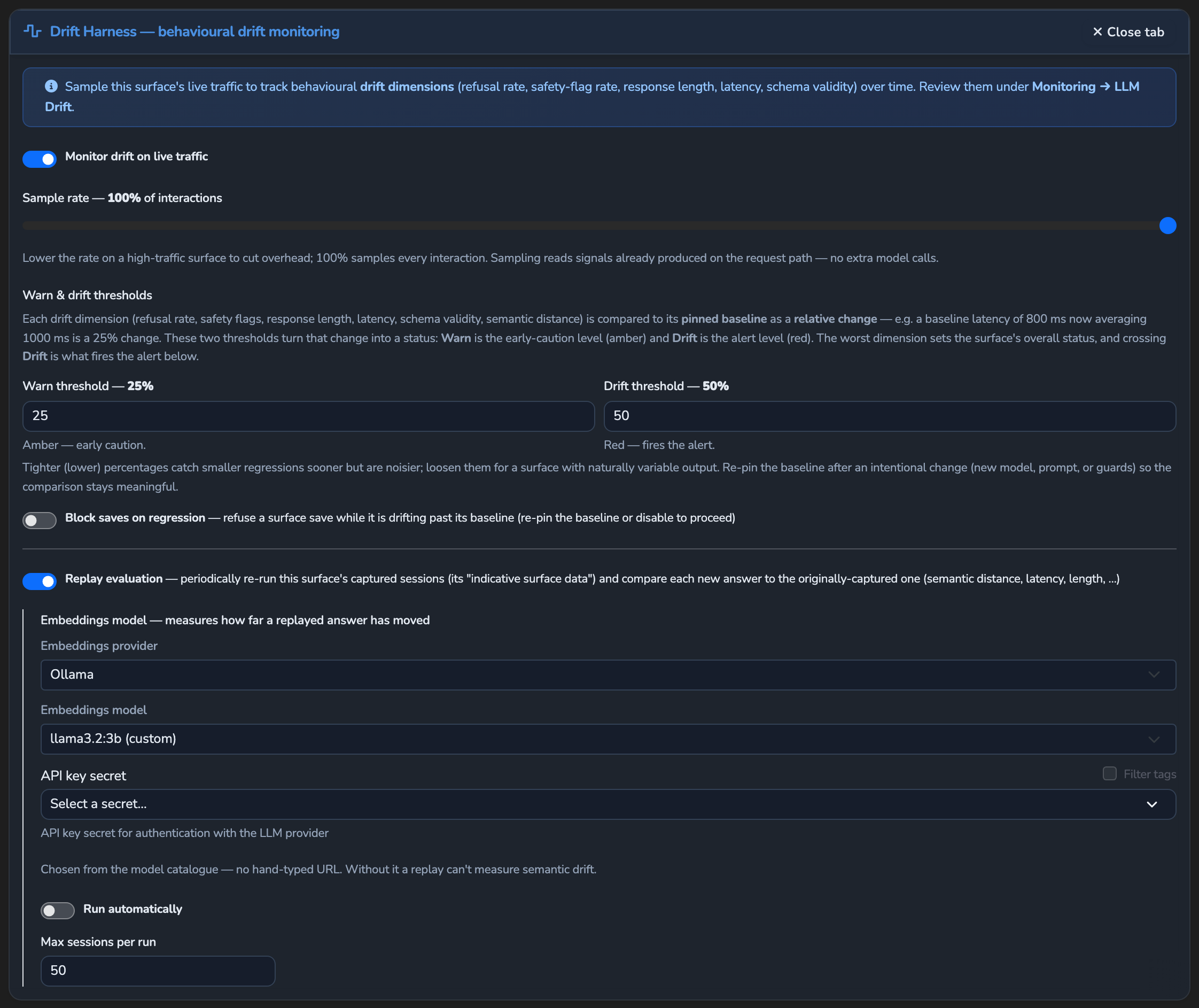
- Customer-facing, compliance-sensitive, or otherwise high-stakes surfaces are the best candidates for Monitor drift on live traffic, since a quiet quality regression there is costly to miss. A low-stakes or experimental surface may not need the always-on sampling overhead.
- Warn threshold and Drift threshold start at 25% and 50%. Adjust them once you’ve seen how the surface actually behaves; Choosing thresholds below covers when to tighten or loosen them.
- Block saves on regression suits a surface where a drifting configuration should stay unchanged until the regression is addressed. Details in Regression gating.
| Field | Default | Description |
|---|---|---|
| Monitor drift on live traffic | On once the surface is saved with the element in place | Master switch, the same setting as the sidebar’s Monitor drift switch. Off means no drift data is emitted. The other settings appear once it is on. |
| Sample rate | 100% | Share of interactions sampled for the production dimensions, shown as “Sample rate — N% of interactions” on a slider in 5% steps. 100% samples everything; 0% samples nothing. |
| Warn threshold | 25% | Relative change at which a dimension is flagged warn. |
| Drift threshold | 50% | Relative change at which a dimension is flagged drift. Reaching drift is what fires the drift alert. |
| Block saves on regression | Off | When on, saving the surface is refused while it is drifting past its baseline. |
| Replay evaluation | Off | Turns on replay evaluation. Its settings are in the replay evaluation table below. |
Drift threshold always ends up at or above Warn threshold: if you set Drift below Warn, Drift is raised to match it when the thresholds are applied, and the field keeps showing the value you typed.
Replay-based evaluation settings
These settings appear once Replay evaluation is on. Set an Embeddings model to measure semantic distance: without one, semantic distance stays empty and every replayed answer counts as stable in the quality score.
- Turn on Run automatically if you want drift evidence to build up on a schedule without someone remembering to run it. Leave it off if you’d rather run replays yourself after a prompt or model change.
- Lower Max sessions per run or Cost ceiling per run if replay runs take too long or cost too much. Each replayed session is a real upstream call, billed to the target surface and counted against its usage limits.
| Field | Default | Description |
|---|---|---|
| Embeddings model | Not set | The embeddings model used to measure semantic distance, chosen from the model catalogue by Embeddings provider, Embeddings model, and API key secret. |
| Run automatically / Every | Off; 60 minutes once switched on | When on, the evaluation runs on a schedule. Set the interval in the Every field, in minutes, with a minimum of 5. |
| Max sessions per run | 50 | Most captured sessions a single evaluation replays, from 1 to 200. |
| Cost ceiling per run | Blank (uses the appliance default) | Most provider spend, in USD, one run can use. A run stops part-way, with status stopped, once it reaches this amount. 0 removes the ceiling; the session cap and the target surface’s usage limits still apply. |
Drift alerts
The Drift alerts card decides where drift alerts go and how often they repeat. Leave both cadence fields blank to use the appliance defaults.
- Leave Alert integrations empty to send drift alerts through the surface’s own integration mappings. Pick integrations only to route drift alerts somewhere different, such as a dedicated on-call channel.
- Change the Alert cadence only when a surface needs faster or slower repeat alerts than the rest of the appliance.
| Field | Default | Description |
|---|---|---|
| Alert integrations | None (uses the surface’s own integration mappings) | Integrations the drift.detected and drift.resolved events go to, chosen as checkboxes. Only active integrations in the LLM Drift category are listed. While none exist, the card shows Create one instead, which opens the integration wizard with that category selected. |
| Re-alert every (minutes) | Blank (uses the appliance default) | Minutes between repeat drift.detected alerts while the surface stays in drift. Part of Alert cadence. |
| Max alerts per baseline | Blank (uses the appliance default) | Most drift.detected alerts sent during one drift episode, from entering drift until leaving it. 0 means no limit. Part of Alert cadence. |
LLM Drift page
The LLM Drift page, under Monitoring in the sidebar, shows the results. It lists only surfaces with drift monitoring on, and only an Administrator can open it by default (see RBAC).
| Tab | What it shows |
|---|---|
| Drift over time | One chart per dimension for the surface chosen in Surface, each with a Stable, Warn, Drift, or No baseline badge, and the surface’s overall status beside the page title. The 1H, 6H, 24H, 7D, and 30D buttons set the time range, which defaults to 24 hours. Refresh reloads the charts, and Set baseline pins a new baseline. |
| Evaluation | Runs a replay evaluation for the selected surface and shows the result. Surface Source Data to Replay picks the surface whose captured sessions are replayed, and Evaluation Target Surface and Target Variant pick what runs them. The button reads Run evaluation for a self-run and Run experiment otherwise. A run in progress shows “Replaying N/M” and can be cancelled. |
| History | Recent replay evaluations across every surface, manual or scheduled, in a table you can filter and sort. Selecting a row opens the run’s detail panel. |
Nine dimensions
| Dimension | Unit | Source |
|---|---|---|
| Quality score | ratio | Replay evaluation only |
| Refusal rate | ratio | Production sampling |
| Safety-flag rate | ratio | Production sampling |
| Response length | chars | Production sampling |
| Output tokens | tokens | Production sampling |
| Cost | usd | Production sampling |
| Latency | ms | Production sampling |
| Schema validity | ratio | Production sampling |
| Semantic distance | distance | Replay evaluation only |
The seven production dimensions fill in from ordinary traffic, with no extra model calls. Quality score and semantic distance stay empty until a replay evaluation has run against the surface’s captured sessions. Response length and refusal rate need the completion text, which a streamed call provides only when Agent Stream reassembles the stream. Schema validity comes from buffered calls that asked for structured output, and a streamed call always counts as unflagged in the safety-flag rate. A completed self-run adds samples to every dimension it measured, including quality score and, when an Embeddings model is set, semantic distance.
Baseline and verdict mechanics
A baseline is a per-surface snapshot: the mean of each dimension over the time range selected on the Drift over time tab when Set baseline is pressed. Pinning fails when that range has no drift data.
A dimension’s verdict compares how far its mean over a window has moved from the pinned baseline, as a share of the baseline’s size. Alerts and regression gating use the trailing hour; the Drift over time tab uses its selected time range. If that change reaches the Drift threshold the dimension is drift; if it reaches only the Warn threshold, warn; otherwise stable. A near-zero baseline is raised to a small per-dimension floor before the change is computed, so a tiny absolute move can’t read as a huge relative one. A dimension with no pinned baseline value or no samples in the window is unknown, shown as No baseline.
A surface’s overall status is the worst verdict among the dimensions that could be judged, in the order stable, warn, drift. Dimensions that are unknown are left out, so a judged result always shows through. The overall status is unknown only when no dimension could be judged.
Choosing thresholds, and what to do about warn/drift
Picking Warn threshold and Drift threshold. Start at the defaults (25% warn, 50% drift) and adjust from what you observe:
- Tighten both thresholds for a surface where subtle quality regressions matter a lot (customer-facing answers, compliance-sensitive output, anything where a quiet drop in quality is expensive to catch late). Lower thresholds surface smaller relative changes sooner.
- Loosen both thresholds for a noisy or low-volume surface where the defaults produce false alarms. Fewer samples per window means more variance in the computed means, so ordinary noise can look like drift at default sensitivity.
- Keep Drift threshold at or above Warn threshold.
Responding to a warn or drift verdict. Treat this as an investigation prompt, not a false alarm to dismiss:
- Investigate first. Check whether a prompt, model, provider, or routing change landed on this surface around the time the dimension moved. Most real drift traces back to a change someone made.
- Re-baseline once you’ve confirmed the new behaviour is intentional. Pin a new baseline so future comparisons measure against the current normal, not the old one.
- Keep the baseline in place until you can explain the change. An unexplained regression is exactly what this feature exists to catch.
- Consider Block saves on regression when a bad save compounding on top of an existing regression would be costly to unwind.
Regression gating
When Block saves on regression is on, saving the surface’s configuration is refused while its overall status over the last hour, compared with its pinned baseline, is drift. A surface with no pinned baseline, or no data in that hour, is unknown, so gating blocks only on a measured regression. To save, pin a new baseline, or turn off Block saves on regression in the same save.
Alerting
Every drift-monitored surface with a pinned baseline is evaluated every 5 minutes, comparing its trailing 1-hour window with the baseline:
- Entering
driftsendsdrift.detectedstraight away. - While the surface stays in
drift, it sends again no more often than Re-alert every (minutes). - Sending stops once Max alerts per baseline is reached for the current drift episode (
0means no limit). - Leaving
driftfor any other status sendsdrift.resolvedand ends the episode, so the next entry intodriftstarts a new alert sequence.
Both events carry the surface, its overall status, the 1-hour window, and the verdict for every dimension. drift.detected also names the worst-drifting dimension with its baseline value, current value, and change. Both go to the Alert integrations, or to the surface’s own integration mappings when none are chosen. See Notifications and alerts → for the variables each event sets.
Replay evaluation
While monitoring is on, sampled interactions are captured as recorded sessions: the real prompts and completions a replay evaluation re-runs. The Evaluation tab shows them as Indicative surface data.
The replay separates the source of the captured sessions from the target surface or variant that runs them, defaulting to the same surface as a self-check. A self-run, where the target is the source surface itself with no variant, folds its measurements into that surface’s dimensions when it completes. Any other run is an experiment: it is saved to History and compared with the target surface’s baseline, but leaves the dimension charts unchanged. Use an experiment to test a candidate model or prompt change against real recorded traffic before rolling it out. Only a completed self-run changes the charts.
A scheduled run skips a surface with no captured sessions. After several failed runs in a row, scheduled evaluation is suspended for that surface. Only failed runs count towards this; cancelled and stopped runs are excluded. A manual run still works while the schedule is suspended, and a successful run clears the suspension.
Each run appears on the History tab and in its detail panel with these fields:
| Field | Description |
|---|---|
| Surface | The source surface whose captured sessions were replayed. In an experiment’s detail panel it is shown as Source data from Surface, and the panel title names the evaluated surface. |
| Trigger | Manual or Scheduled. |
| Status | pending, running, completed, failed, cancelled, or stopped. stopped means the run reached its cost ceiling or the target surface’s usage limits; the Evaluation tab shows it as Stopped on cost. A failed, stopped, or cancelled run shows the reason under its status, and its detail panel adds a suggested next step. |
| Verdict | The worst dimension verdict for the run, judged against the target surface’s baseline. |
| Quality | Share of replayed sessions whose answer stayed close to the captured one. Also shown as a “Stable N%” badge on the Evaluation tab. |
| Passed | Sample counts, shown as “passed/total”. |
| Semantic | Mean semantic distance of the replayed answers from the captured ones. Shown as Semantic distance in the detail panel and on the Evaluation tab. |
| Ran at | When the run finished. |
| Experiment | A badge on a run whose target was a different surface or a variant. The variant appears after the surface name as “→ variant”. |
| Dimension verdicts | The run’s measured means judged against the target surface’s pinned baseline. Section in the detail panel. |
| Replayed records | Per-session replay results, shown as “Replayed records (N)”. Section in the detail panel. |
Retention
Each surface keeps a limited history of evaluation runs and captured sessions, and the oldest are removed as new ones are recorded. Runs and sessions are encrypted at rest.
Related
- LLM drift concept: Why drift monitoring exists and how the Drift Harness fits into the surface builder.
- Notifications and alerts: The
drift.detectedanddrift.resolvedvariables and integration routing. - Variants and progressive rollout: The variants an experiment’s target can point at.
- Cost and usage limits: The usage limits a replay run is counted against like any other call.
- Detect LLM drift and set a baseline: Add the Drift Harness to a surface, pin a baseline, and route drift alerts.
Glad to hear it. Thanks for letting us know.
Sorry to hear that. Thanks for letting us know.