Attribute usage to members and teams
This guide creates a team and a member, then enables a surface’s team-attribution block so every request resolves to both, turning shared surface spend into per-caller and per-team accountability. For the conceptual model, see Teams and attribution →.
Without attribution, a surface’s spend is one shared number: nobody can say which caller, team, or department actually drove it, and every caller has equal, unmetered access with no way to enforce a personal quota.
Use this guide when:
- More than one caller, team, or customer shares the same surface, and you need to know who is responsible for spend.
- You want per-caller quotas enforced, not just a surface-wide budget.
- You plan to restrict a surface to specific teams rather than leaving it open to every caller.
You do not need this if a surface has exactly one known caller; a surface-wide budget from Cap spend per pipeline stage already answers “how much did this surface cost.”
Prerequisites
- An active LLM Surface.
- Administrator role in the dashboard. Team and member management is administrator-only.
- To identify callers by JWT claim, mTLS client certificate, or API key owner, the surface must already authenticate its callers with that method. See Validate bearer tokens on a surface and the Source authentication reference.
Steps
Create a team
The name sits on the form’s Details tab; the team-wide caps sit on a separate Caps & Limits tab:
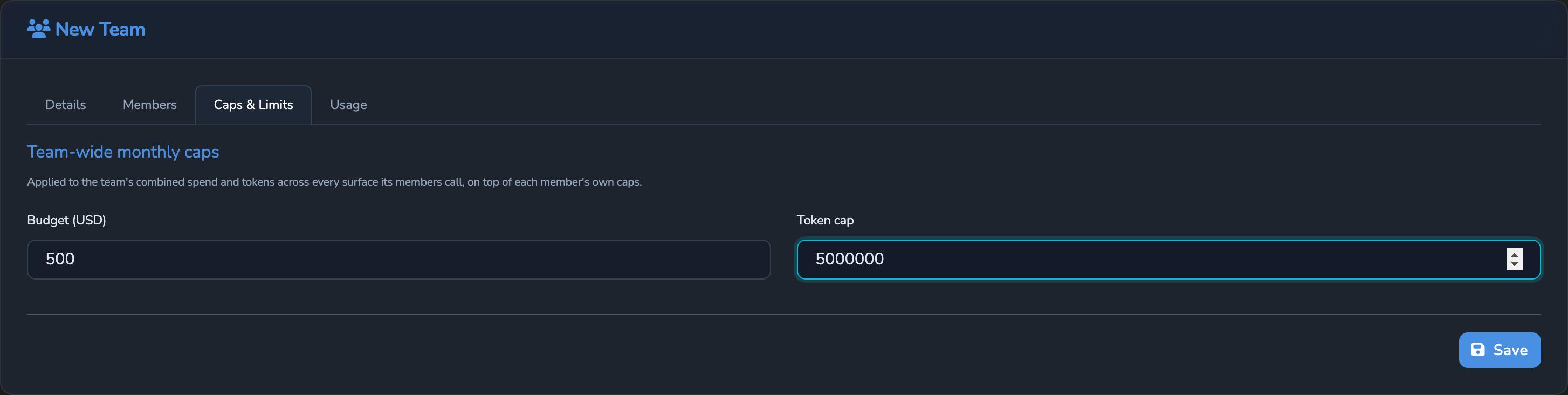
Select Teams in the dashboard sidebar and select Add Team. Set Name, and optionally a team-wide Budget (USD) and Token cap across every member’s combined spend. Team caps reset on the first of each month (UTC). Save.
Create a member
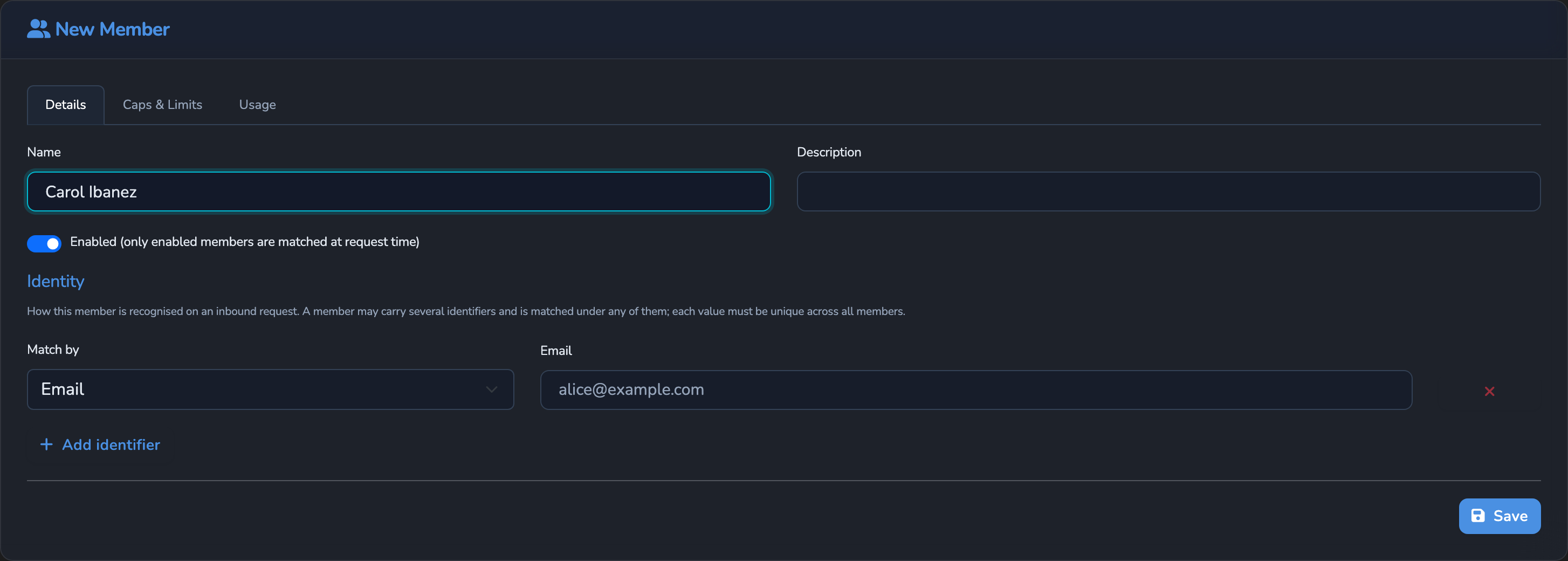
On the Teams page, switch to the Members tab and select Add Member. Set Name, then add at least one identifier using the Match by dropdown: Email, JWT subject, API key name, or Custom value. Select Add identifier to add more. This is the credential a caller presents to be recognised as this member.
Add the member to the team
Open the team you created and switch to its Members tab. Pick the new member from the Select a member to add… dropdown, select Add, then select Save. A member can belong to more than one team.
Enable team attribution on the surface
Under SURFACES in the dashboard sidebar, select LLM, open your surface, select its Surface node (the root container the rest of the pipeline sits inside), and select Configure Surface Features in its side panel. Scroll to Team usage attribution and turn on Surface use contributes to team quotas.
Configure caller identity sources
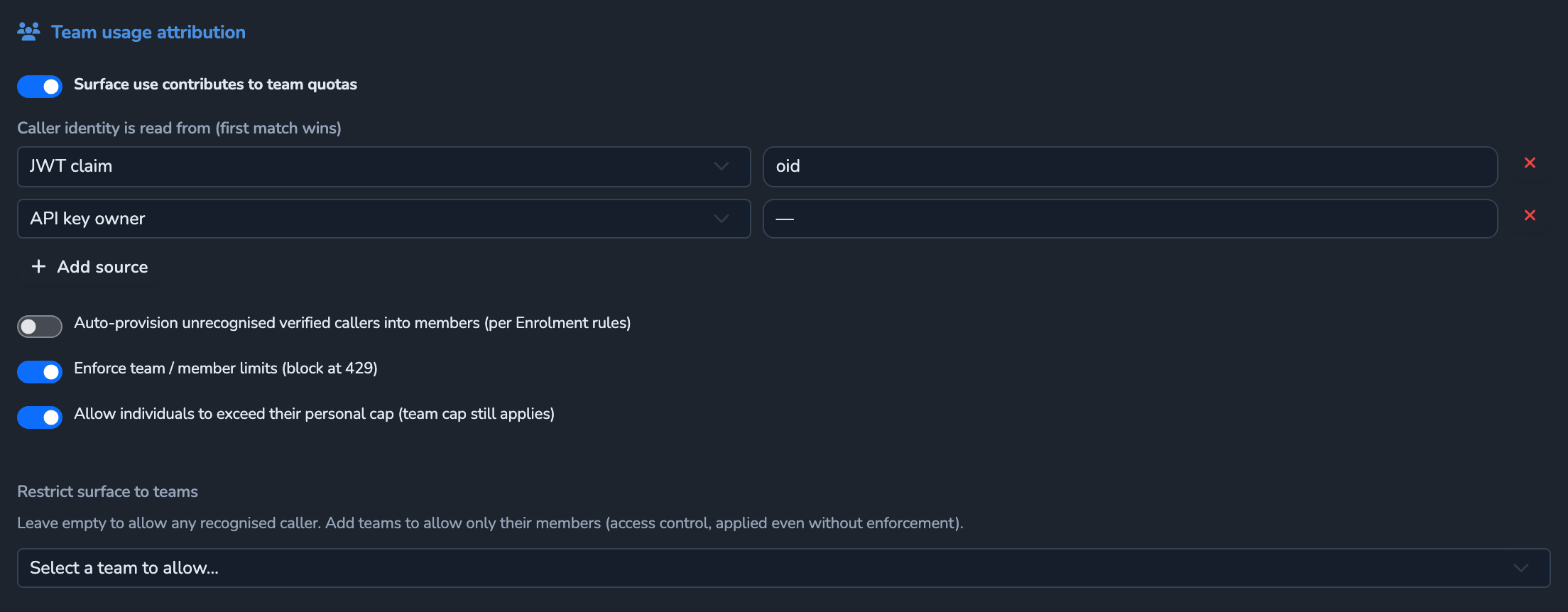
Under Caller identity is read from (first match wins), list the ordered sources the gate checks in turn. Turning on attribution adds a Request header source for x-user-email by default. Callers can set a request header themselves, so if callers must not choose their own identity, change that source’s type, or remove it and add it back with Add source after your verified sources.
Select Add source to add more. Each source is a Request header, JWT claim, Request body (JSON path), mTLS client certificate, or API key owner, for example a JWT claim oid, then a JWT claim email, then API key owner. The gate uses the first source that yields a non-empty value.
Optional: auto-provision unrecognised callers
Turn on Auto-provision unrecognised verified callers into members (per Enrolment rules) to create a new member automatically the first time a verified caller (JWT, mTLS, or API key, never a caller-controlled header or body field) matches no existing member, instead of falling back to the anonymous member. Provisioning follows the appliance-wide enrolment rules, not per-surface settings.
Decide whether to enforce quotas yet
Leave Enforce team / member limits (block at 429) off at first to record attribution for reporting only, without blocking any request. Turn it on once you are ready for a member’s or team’s cap to actually block traffic with a 429. A member’s Allowed models list applies even while enforcement is off.
Optional: restrict the surface to specific teams
Under Restrict surface to teams, select one or more teams from the dropdown to deny every caller not belonging to at least one selected team, with 403 and the error code team_not_permitted. Leave this empty to allow every resolved caller.
Save the surface
Select the save button (Save changes) under Manage. The change applies immediately.
Confirm
Replace <YOUR_APPLIANCE_HOST> and <YOUR_SURFACE_ROUTE> with your surface’s values, and present a credential matching the identifier you configured on your member.
Test 1: a recognised caller’s usage attributes to its member and team
curl -k -X POST "https://<YOUR_APPLIANCE_HOST><YOUR_SURFACE_ROUTE>/v1/chat/completions" \
  -H "Authorization: Bearer <TOKEN_MATCHING_YOUR_MEMBER_IDENTIFIER>" \
  -H "Content-Type: application/json" \
  -d '{
    "messages": [
      { "role": "user", "content": "Say hello." }
    ]
  }'
The -k flag disables TLS certificate verification. Use this for local testing only. Remove it in production.
Expected: 200 OK. Open the member’s Usage tab and the team’s Usage tab. Both should show non-zero spend and tokens from this request.
Test 2: an unrecognised caller resolves to the anonymous member
Resend the same request with a credential that matches no configured identifier. Expected: the request still succeeds (unless Restrict surface to teams excludes the anonymous team), and its usage appears under the built-in anonymous member and team instead.
Troubleshooting
| Symptom | Likely cause | Fix |
|---|---|---|
Every caller resolves to anonymous, even one with a member configured. | The configured caller identity sources don’t match how this caller actually authenticates, for example expecting a JWT claim the token doesn’t carry. | Confirm the first matching source in order actually appears in the caller’s real request; add the correct source. |
A real caller is unexpectedly denied with 403. | The error code names the cause: team_not_permitted when Restrict surface to teams is non-empty and the caller’s team isn’t selected, team_required when the caller has no enabled team, member_not_permitted when the resolved member is disabled, or model_not_allowed when the member’s Allowed models list excludes the requested model. | Add the caller’s team under Restrict surface to teams, add the member to an enabled team, re-enable the member or team, or add the model to the member’s Allowed models. |
A request returns 429 after you turn on Enforce team / member limits (block at 429). | The member’s or team’s monthly budget or token cap is reached, which returns error code team_quota_exceeded. A member over its per-minute limit returns member_rate_limit_exceeded. | Raise the cap on the member or team, or wait for the monthly reset or the per-minute window to roll forward. |
| Spend never appears per-member, even for a recognised caller. | Team attribution’s Surface use contributes to team quotas switch is off entirely; this is separate from Enforce team / member limits, which only gates blocking. | Turn on Surface use contributes to team quotas on the surface. |
| Two callers who should be different members keep merging into one. | Both present the same identifier value, or the wrong identifier kind is configured for one of them (for example matching on subject when they actually differ only by email). | Add a more specific identifier to each member, or add a second identifier kind to disambiguate. |
Next steps
- Cap spend and rate per member: Give the member you just created its own budget, rate limits, and model allow-list.
- Control access to a surface with an OPA policy: Combine identity-based access control with the attribution this guide sets up.
Related
- Teams reference: The Team record, the team gate’s step-by-step resolution order, and caller-identity-source kinds.
- Teams and attribution: The conceptual model this guide is built on.
- Members reference: The Member record, identifier kinds, and the full auto-provisioning configuration.
- Cost and usage governance: How attribution figures feed budgets and alerts.
Glad to hear it. Thanks for letting us know.
Sorry to hear that. Thanks for letting us know.