Rotate provider credentials without downtime
This guide rotates the API key a surface uses to authenticate to its own upstream LLM provider: the credential selected in the LLM node’s API key field (for OpenAI, OpenAI API Key). It works by creating a new secret and repointing the surface at it, so no surface ever sees a moment with no valid credential. For the conceptual model, see Security and access control →.
A secret’s value has no dedicated “rotate” operation the way a managed API key does. For a surface’s inbound caller authentication (the source authentication API Key (secret store) method, which checks a caller-presented key against a secret’s value), a comma-separated value is split into a list of interchangeable credentials, so holding old and new values side by side in one secret works there. See Source authentication reference. The LLM node’s API key field works in the opposite direction: the surface sends that secret’s stored value to the provider exactly as stored. A comma-joined old-key,new-key value reaches the provider as one literal API key and fails every request through the surface. To rotate an outbound provider credential without downtime, create a new secret for the new credential, repoint the LLM node at it, confirm it works, and only then retire the old secret.
Use this guide when:
- A provider credential (the key a surface uses to call its own upstream LLM provider) needs to change on a schedule, or in response to a suspected leak, without an outage while surfaces switch over.
- More than one surface references the same secret, so every one of them needs to move to the new credential before the old one is revoked.
- You want to confirm the new credential works before revoking the old one, rather than the other way around.
You do not need this if only one surface references the credential and a short window of failed requests during the switch is acceptable; updating the existing secret’s value directly is simpler.
Never paste a provider credential into a policy, prompt, or shared document. Rotate it only through the secrets store, and confirm the new value never appears in surface request logs or debug output before enabling logging on a surface that references it.
Prerequisites
- Administrator role in the dashboard. Viewing, creating, editing, and deleting a secret are administrator-only.
- A newly issued credential from the provider, generated before you touch any secret.
- The name of the secret selected in the LLM node’s API key field of each surface that uses the credential you’re rotating.
Steps
Generate the new credential on the provider’s side
Create the new credential with your provider first, without revoking the old one yet. Keep both available for the next steps.
Create a new secret for the new credential
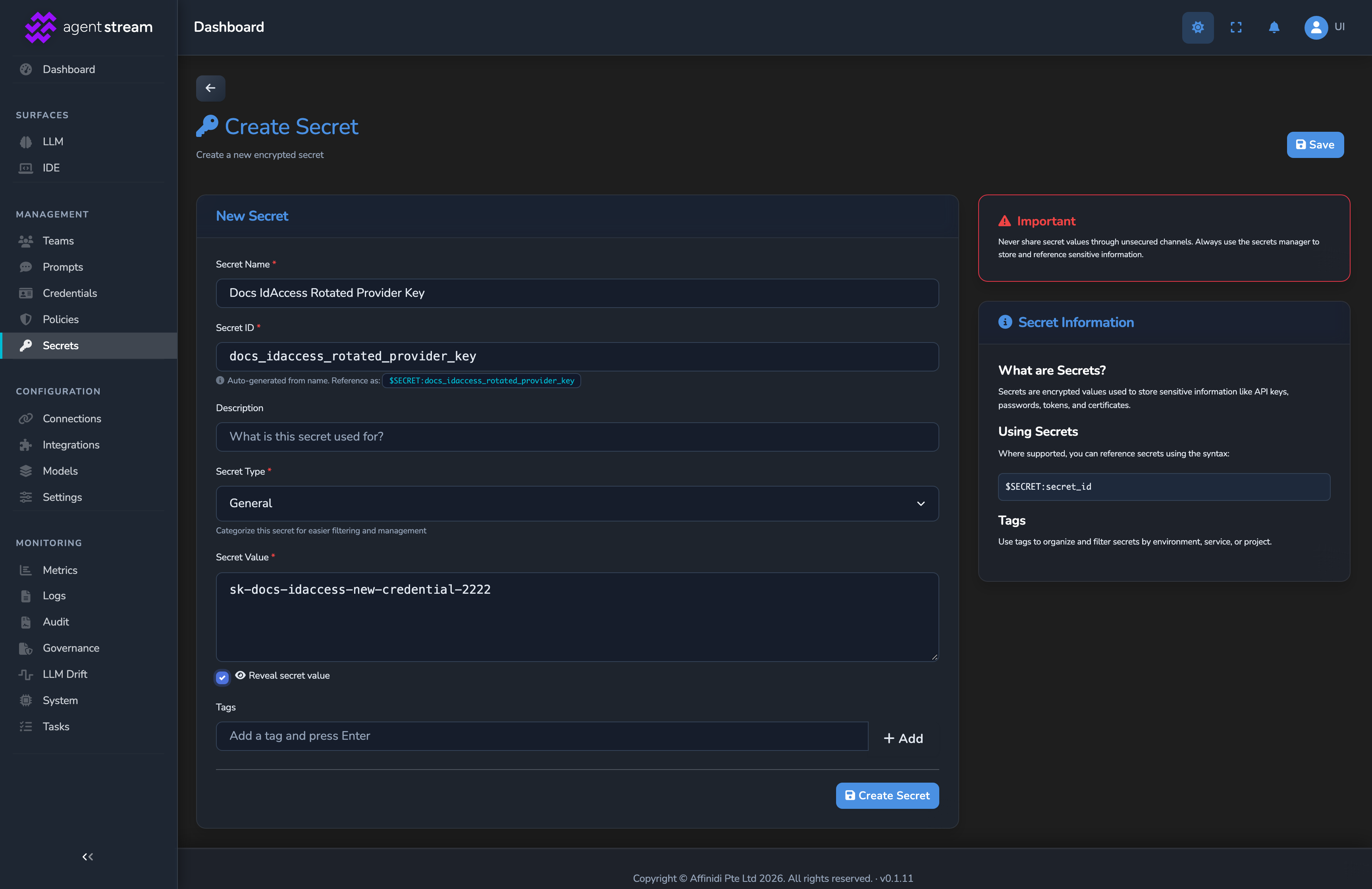
Select Secrets in the dashboard sidebar, then select New Secret, and fill in the form:
- Secret Name: a distinct name, so the secret is easy to tell apart from the one it replaces.
- Secret ID: fills in from the name. Keep it or edit it now, because it can’t be changed after the secret is created.
- Secret Value: the new credential.
- Tags: the same tags as the old secret, such as the provider name (for example
openai), so the secret appears in the LLM node’s filtered list.
Select Create Secret. Leave the old secret’s value untouched for now.
Point the LLM node at the new secret
Under SURFACES in the dashboard sidebar, select LLM, open a surface that references the old secret, and select its LLM node. In the provider’s API key field (for OpenAI, OpenAI API Key), select the new secret in place of the old one, then select the save button (Save changes) under Manage. The change applies immediately. If the new secret isn’t listed, untick Filter tags above the field to show every secret.
If the LLM node’s Mode is not LLM Direct, the models and their keys are set on the Decider node and on each Candidate node instead. Select Open decider… and change the key there. Then select each Candidate node, select Configure candidate…, and change its key.
The same secret can also be selected elsewhere on a surface, for example on backup or load-balancing providers, Judge and juror models, Prompt Guard AI matching, upstream headers in the surface’s Config JSON view, and the surface’s variants. Change each of these too.
Repeat this step for every other surface that references the old secret.
Confirm every surface still succeeds
Send a request through each surface you just repointed. A surface’s LLM node change takes effect as soon as it is saved, so the next request already authenticates with the new credential.
Delete the old secret once every surface is confirmed
Once you have confirmed successful traffic from every surface that used to reference it, open the old secret from the Secrets list and select Delete Secret. Delete it only after the previous step, because any surface that still selects it stops working.
Revoke the old credential on the provider’s side
Only now revoke or delete the old credential with your provider. No surface references it anymore, so revoking it no longer affects any live traffic.
Confirm
Replace <YOUR_APPLIANCE_HOST> and <YOUR_SURFACE_ROUTE> with your surface’s values. If the surface authenticates its callers, add your caller credential header to each request.
Test 1: a request returns 200 immediately after repointing the LLM node
curl -k -i -X POST "https://<YOUR_APPLIANCE_HOST><YOUR_SURFACE_ROUTE>/v1/chat/completions" \
  -H "Content-Type: application/json" \
  -d '{
    "messages": [
      { "role": "user", "content": "Say hello after rotation." }
    ]
  }'
The -k flag disables TLS certificate verification. Use this for local testing only. Remove it in production.
Send this immediately after saving the surface in step 3, without waiting. Expected: 200 OK, with x-agent-stream-provider and x-agent-stream-model naming the surface’s primary provider and model, and x-agent-stream-cache reading miss. Together they show the primary model answered with the new secret, rather than a cached response or a backup on a different model.
Test 2: traffic still returns 200 after the old secret is deleted
After completing step 5, resend the same request with a different prompt, so the response cache can’t answer it. Expected: 200 OK, with x-agent-stream-provider and x-agent-stream-model naming the primary provider and model, confirming the surface no longer depends on the old secret at all, before you revoke its credential with the provider.
Troubleshooting
| Symptom | Likely cause | Fix |
|---|---|---|
Requests return 502 with An upstream credential this surface needs is unavailable right after the old secret is deleted. | A surface’s LLM node was never actually repointed at the new secret before deletion, or a different surface altogether still references the old secret’s ID. | Re-open each surface’s LLM node and confirm its API key field names the new secret, then repeat steps 3 and 4 for it. |
| Saving a surface fails with Secret reference is not accessible. | A node or variant on the surface still selects the deleted secret. | Select the new secret in that field, then save again. |
| A secret’s value looks unchanged when you re-open it. | The Edit Secret page masks the stored value. | Tick Show secret value to see it. To replace it, tick Update Secret Value first. |
| A surface still fails after every step above. | The new credential itself is invalid or was revoked at the provider, independent of anything in Agent Stream. | Confirm the new credential authenticates directly against the provider, outside Agent Stream, before troubleshooting further here. |
| A surface still uses the old credential after you saved it. | The LLM node’s API key field was left unchanged, or the save did not apply. | Re-open the surface, confirm the API key field now names the new secret, and select the save button (Save changes) under Manage again. |
Next steps
- Validate bearer tokens on a surface: Apply the same credential-hygiene discipline to caller-facing authentication.
- Limit dashboard actions with RBAC roles: Restrict who can view and edit secrets in the first place.
- Alert on budget breaches and cost spikes: Get notified of an error-rate spike if a rotation ever does go wrong.
Related
- Secrets reference: The secret record’s fields, value-disclosure rules, and update semantics.
- Security and access control: The conceptual model this rotation procedure is built on.
- Source authentication reference: Where the comma-separated overlap technique applies instead: a surface’s inbound caller API-key check.
- RBAC reference: The secrets-management permissions this guide’s prerequisites depend on.
- Backup and encryption: The encryption-at-rest guarantee protecting a secret’s stored value.
Glad to hear it. Thanks for letting us know.
Sorry to hear that. Thanks for letting us know.