Limit dashboard actions with RBAC roles
This guide assigns the Administrator, Power User, or User role to a dashboard account, so its access to secrets, surfaces, and administrative views matches what its job actually requires. For how roles and permissions work, see Security and access control →.
Every dashboard account defaults to the User role, which can work with surfaces and view their logs but cannot reach secrets, credentials, policies, teams, user management, or the Audit, Governance, and LLM Drift views. Without deliberately assigning Power User or Administrator where it is genuinely needed, accounts end up over-provisioned as administrators just to reach one of those areas, gaining secrets and RBAC access they do not need.
Use this guide when:
- An account needs to perform operational tasks, such as managing mediators or connection points, without full administrator access to secrets and RBAC.
- An account genuinely needs administrator-only capabilities: secrets, API keys, certificates, RBAC itself, or governance and drift views.
- You are auditing who currently holds administrator access and want to reduce it to the accounts that need it.
You do not need to change an account’s role if the default User role, with its view access and its edit and delete permission on surfaces and notifications, already covers what that account does.
Prerequisites
- Administrator role in the dashboard. Only an Administrator can change another account’s role or status.
- The account whose role you want to change, already created or signed up.
Steps
Open the account to change
Open Settings in the dashboard sidebar and switch to its Users tab. If the account is a new signup awaiting approval, select its Approve button first. Then select the account’s edit (pencil) button to open its Edit User page.
Choose the role that matches the account’s job
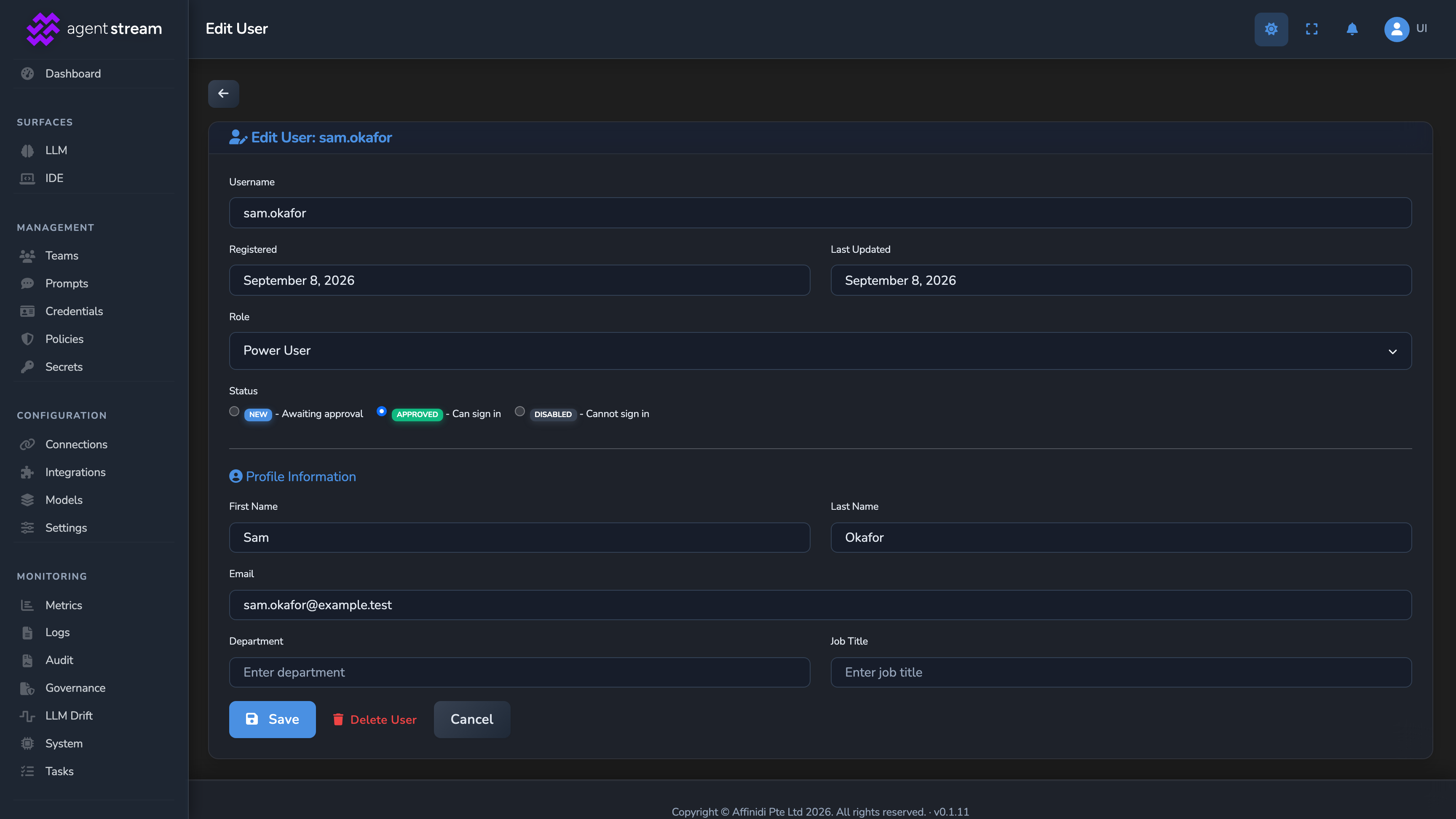
Select one of these in the Role field:
| Role | Grants |
|---|---|
| User | View access to surfaces, prompts, gateways, mediators, connection points, integrations, surface metrics, logs, and the dashboard, with edit and delete also granted for surfaces and notifications. Changing a surface’s price and editing the model catalogue stay with Administrator. |
| Power User | Everything User grants, plus operational write access: mediators and connection points. No access to secrets, API keys, certificates, RBAC, or administrator-only views. |
| Administrator | Every permission in the permission map, including secrets, users and roles, settings, teams and members, policies, access tokens, publishing a policy globally, terms, surface pricing, and model catalogue edits, plus administrator-only views such as Audit, Governance, LLM Drift, and attributed metrics. |
Save the change
Select Save. A role change signs the account out of every active session, and the new role applies from its next sign-in.
Confirm
Test 1: a Power User account is redirected away from Secrets, API Keys, and Certificates
Sign in to the dashboard as the Power User account. Confirm Secrets does not appear in the sidebar, and that navigating directly to Secrets, API Keys, or Certificates redirects back to the dashboard instead of loading. Confirm the Users tab under Settings, where roles are assigned, is equally unreachable. Governance and LLM Drift should likewise be missing from the sidebar, and redirect back to the dashboard if navigated to directly.
Test 2: a User account can still view and execute surfaces, while the Users tab stays inaccessible
Sign in to the dashboard as the User account. Confirm it can still open, edit, and run surfaces, and that the bell icon in the header (View notifications) opens its notifications, since these feature families grant edit/delete access even at the base User role. Settings itself still appears in the sidebar, but only its User and Limits tabs are available to this role. The Users tab, where roles are assigned, does not appear.
Troubleshooting
| Symptom | Likely cause | Fix |
|---|---|---|
| A Power User account can still reach Secrets, API Keys, Certificates, or the Users tab. | The account’s role was not actually changed, or reads Administrator rather than Power User. | Re-open the account under Settings → Users and confirm the role picker shows Power User. |
| A User-role account cannot view or execute any surface. | Surfaces are accessible to the User role, so a block here is unlikely to be RBAC itself; an OPA policy or a team gate is a more likely cause. | Check the surface’s OPA policy and team attribution configuration separately; RBAC and OPA are independent mechanisms. |
| Save fails with Cannot change own role or status. | No account can change its own role or status. | Ask another Administrator to change it. |
| The Role field is disabled. | The account is the primary administrator account, whose role and status are fixed. | Choose a different account. |
| A feature seems unavailable to Power User or User, but reachable for Administrator. | The feature needs a higher role than the account has. Some features need Administrator. Others need Power User, which a User account doesn’t have. | Assign the lowest role that grants the feature. Contact Affinidi if a feature should be reachable below Administrator. |
Next steps
- Rotate provider credentials without downtime: Confirm only the accounts that need it can reach the secrets store this rotation depends on.
- Validate bearer tokens on a surface: Restrict who can create JWT verification strategies, gated the same way as secrets.
- Teams and attribution: What attributed-metrics access unlocks.
Related
- RBAC reference: The full permission map, feature by feature.
- Security and access control: How RBAC fits alongside source authentication and secrets management.
- Governance records: Administrator-only.
Glad to hear it. Thanks for letting us know.
Sorry to hear that. Thanks for letting us know.