Route requests to a capable model by attachment type
This guide adds the Router element to an LLM Surface and gives it Attachment type rules, so a request carrying an image, an audio file, a document, or a realtime voice session goes to a variant set up for that input. For the conceptual model, see Inputs and modalities →.
A surface accepts an image or audio only when its model and its Inputs elements allow it, and a text-only model is often the cheaper choice for everything else. Without routing, callers who attach an image or audio file either get a 400 rejection from a text-only surface, or every caller pays for a multimodal model on plain text.
Use this guide when:
- One surface route serves text callers and callers who attach images, audio files, documents, or open realtime voice sessions.
- Each kind of input needs its own model, and optionally its own guardrails, without callers choosing a variant themselves.
- You want the choice made by a fixed rule, with no extra model call to decide.
You do not need the Router if every caller already addresses the right variant with $alias in the route, because an explicit alias always takes precedence over a routing rule.
Prerequisites
- An LLM Surface whose default model handles your plain-text traffic.
- A variant for each kind of input you want to route, with a model that accepts that input, such as a vision-capable model for images. To create one, follow the first three steps of Roll out a model with a canary split.
- The User role or higher in the dashboard, which can edit surfaces by default.
Steps
Add the matching Inputs element to each variant
Under SURFACES in the dashboard sidebar, select LLM and open your surface. Open the canvas’s Variant widget and select the variant. Expand the Inputs group in the palette and drag the element that matches the variant’s input onto the surface:
| Variant handles | Inputs element |
|---|---|
| Images | Image File |
| Audio files | Audio File |
| Documents | Document File |
| Realtime voice sessions | Audio Stream |
Each variant keeps its own copy of these elements, so add the element while that variant is selected. A variant without the element rejects image and audio requests, even when the base surface accepts them. Repeat for each variant, then select the save button (Save changes) under Manage.
Add the Router to the base surface
Open the Variant widget again and select base. From the Inputs group, drag Router onto the edge that leaves the Access Point. The Router sits first on the request path, because the variant is chosen before authentication, policy, and guardrails run.
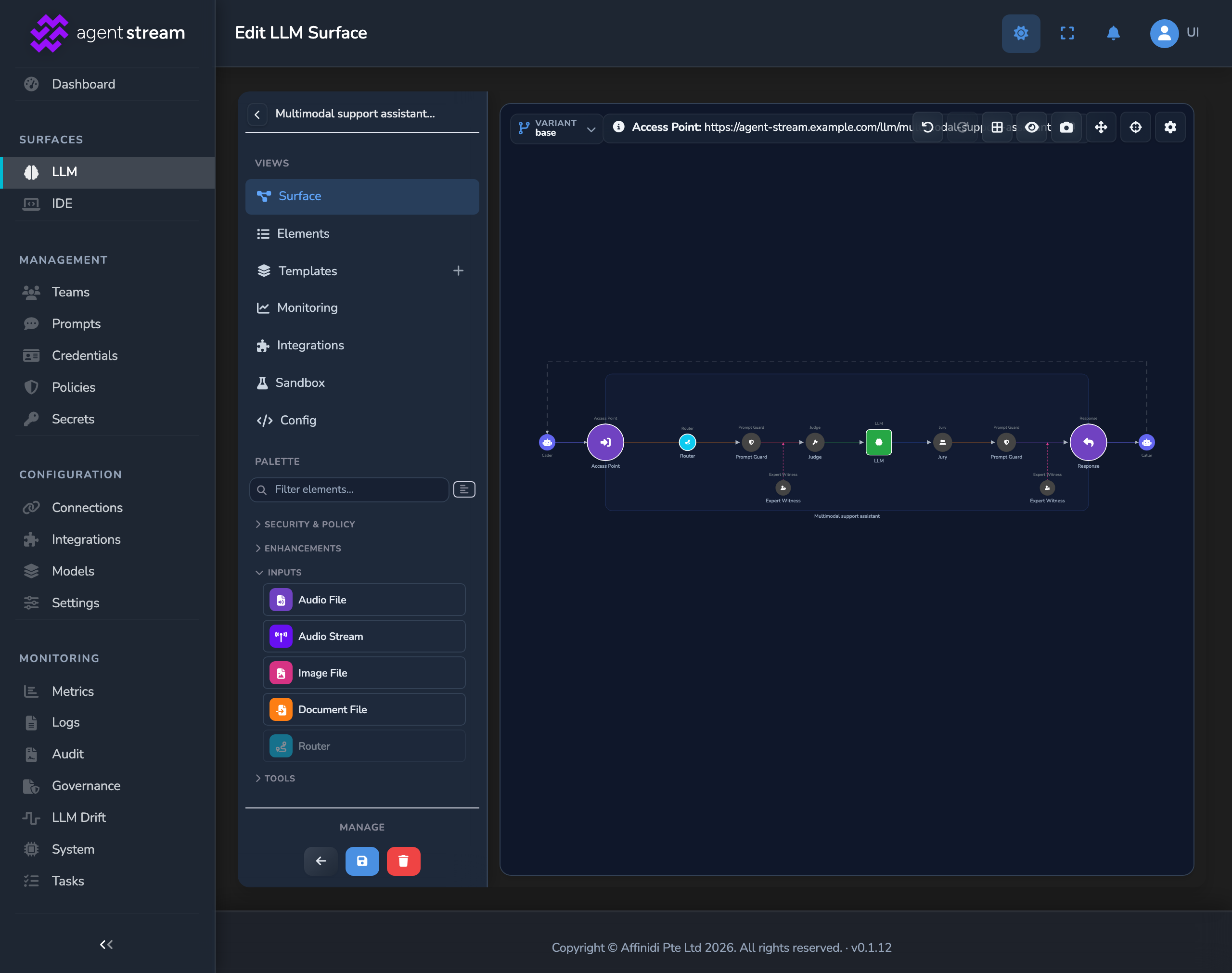
Open the routing rules editor
Select the Router element. In its side panel, leave Enforce routing on, then select Configure routing rules…. The Router — attribute-based request routing editor opens, listing any rules the surface already has.
Add a rule for each attachment type
In the rule row, set the first dropdown to Attachment type, then choose Image file, Audio file, Document file, or Realtime voice (WebSocket). In → variant, choose the variant that handles that input. Select Add routing rule for the next attachment type.
Every rule must name a variant: a rule left on Base surface stops the surface from saving while Enforce routing is on. Plain text has no rule of its own, because a request that matches no rule already goes to the surface’s default.
Rules are checked in order and the first match wins, so a request carrying both an image and an audio file goes to the variant of whichever of those rules comes first.
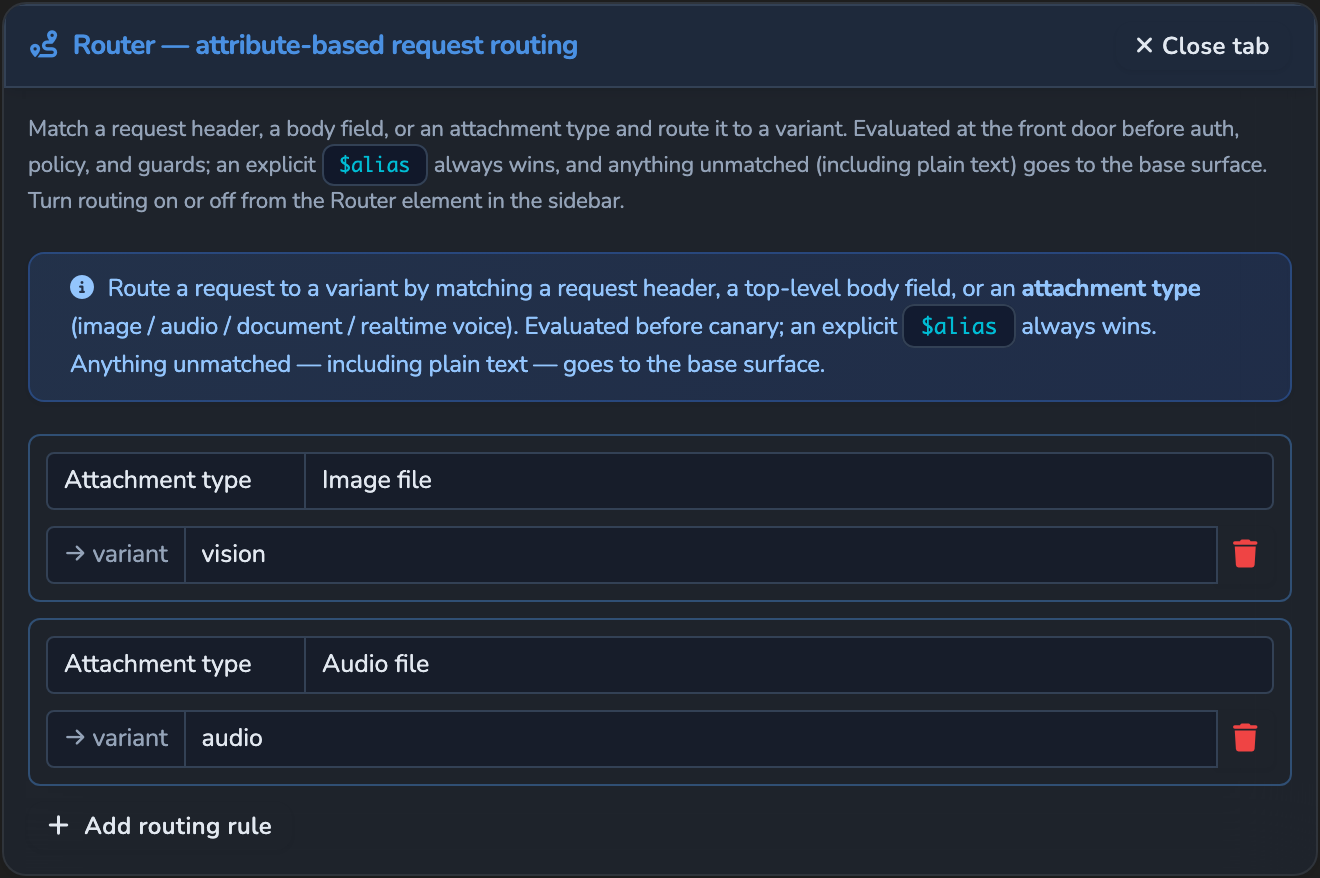
Save the surface
Select Close tab, then select the save button (Save changes) under Manage. The rules apply to the next request.
Confirm
Replace <YOUR_APPLIANCE_HOST> and <YOUR_SURFACE_ROUTE> with your surface’s values. The image in Test 1 is a 1 × 1 pixel PNG, so the request is small enough to paste.
Test 1: a request with an image returns 200 from the image variant
curl -k -i -X POST "https://<YOUR_APPLIANCE_HOST><YOUR_SURFACE_ROUTE>/v1/chat/completions" \
  -H "Content-Type: application/json" \
  -d '{
    "messages": [
      {
        "role": "user",
        "content": [
          { "type": "text", "text": "What colour is this image?" },
          { "type": "image_url", "image_url": { "url": "data:image/png;base64,iVBORw0KGgoAAAANSUhEUgAAAAEAAAABCAYAAAAfFcSJAAAADUlEQVR42mP8z8BQDwAEhQGAhKmMIQAAAABJRU5ErkJggg==" } }
        ]
      }
    ]
  }'
The -k flag disables TLS certificate verification. Use this for local testing only. Remove it in production.
Expected: 200 OK. The x-agent-stream-model response header names the image variant’s model, and x-agent-stream-images reports the accepted image as parts=1, its size in bytes, and formats=png.
Test 2: a plain-text request returns 200 from the surface’s default
Send the same request with "content": "Say hello." in place of the content array.
Expected: 200 OK, with x-agent-stream-model naming the default model and no x-agent-stream-images header. If the surface also runs a canary split, a share of plain-text requests goes to the canary variant instead.
Troubleshooting
| Symptom | Likely cause | Fix |
|---|---|---|
Saving fails with an error that starts Failed to update surface: Invalid LLM configuration: routing rule 1:. | The rule’s → variant is still Base surface, or names a variant that no longer exists. | Open Configure routing rules… and choose a variant on every rule, or delete the rule. |
| Saving fails with Router: Attribute-based routing is enabled but has no rules. | The Router is on the canvas with Enforce routing on and every rule deleted. | Add a rule, or turn off Enforce routing on the Router’s side panel. |
An image request returns 400 with the error code image_not_supported and the message “this surface does not accept image input”. | The variant the rule names has no enabled Image File element. | Select the variant on the Variant widget, add or enable Image File, and save. |
An audio request returns 400 with the error code audio_not_supported. | The variant has no enabled Audio File element, or its model does not accept audio input. | Add Audio File to the variant, and choose a model that accepts audio. |
| An image request is answered by the default model. | Enforce routing is off, an earlier rule matched first, or the request named a variant with $alias. | Turn on Enforce routing, reorder the rules in the editor, or remove the $alias from the route. |
Next steps
- Roll out a model with a canary split: Test a new text model on a share of the requests that no rule matches.
- Variants and progressive rollout: How an explicit alias, routing rules, and a canary split take turns choosing a variant.
Related
- Routing and variants reference: Every routing-rule field, match kind, and validation rule.
- Server tools and modalities reference: The settings on the Image File, Audio File, Document File, and Audio Stream elements.
- Inputs and modalities: What each Inputs element accepts, and what happens to a request without it.
Glad to hear it. Thanks for letting us know.
Sorry to hear that. Thanks for letting us know.
Still stuck? Ask the community on Discord or contact us.