Detect LLM drift and set a baseline
This guide adds the Drift Harness to an LLM Surface, pins a baseline of the surface’s normal behaviour, and sends an alert when the surface drifts away from it. For how drift is measured and judged, see LLM drift detection →.
A provider can update the model behind an API, or a prompt edit can change how a surface answers, while every request still returns 200. Without drift monitoring, a rise in refusals, latency, or cost after such a change goes unnoticed until a caller reports it.
Use this guide when:
- A surface’s model or provider can change behind the same API, and you need to know when the surface’s behaviour shifts.
- You want a known-good reference point to compare the surface against after a prompt, model, or guardrail change.
- Someone should be notified when the surface drifts, or saves to the surface should be refused while it is drifting.
You do not need drift monitoring on an experimental surface where a change in behaviour affects no one. Leave the Drift Harness off there to avoid sampling its traffic.
Prerequisites
- An active LLM Surface that receives representative traffic.
- The Administrator role. By default, only an Administrator can open the LLM Drift page and pin a baseline. See RBAC →.
- Optional, for alerts: a Slack webhook URL, SMTP credentials, or a webhook endpoint to receive them.
Steps
Add the Drift Harness to the surface
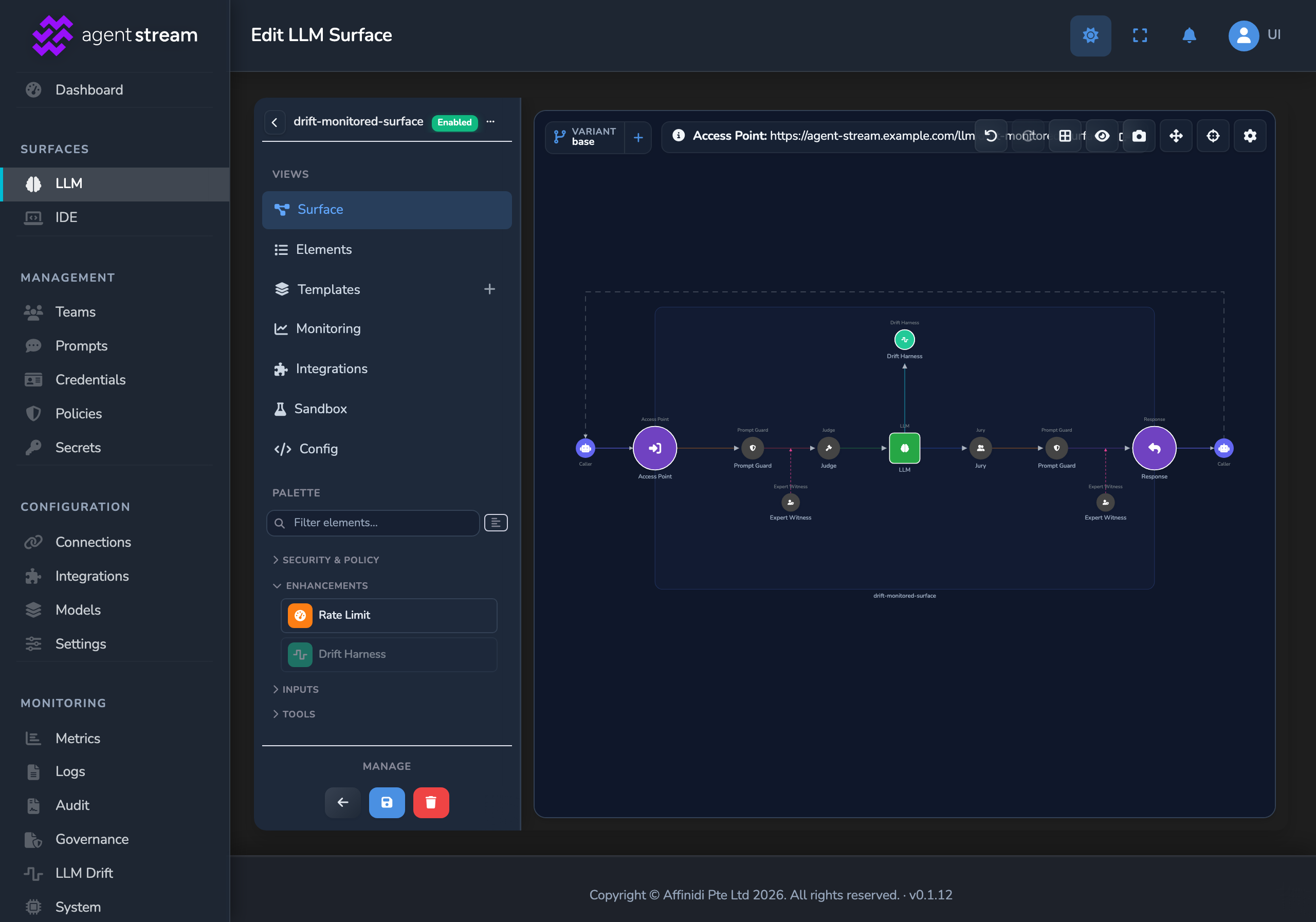
Under SURFACES in the dashboard sidebar, select LLM and open your surface. From the Enhancements group of the element palette, drag Drift Harness onto the area just above the LLM node. It binds to the LLM node.
Open the Drift Harness editor
Select Drift Harness on the canvas and turn on Monitor drift in its side panel. On a newly added element the switch can show off until you turn it on. Then select Configure drift harness…. The full-page editor opens with two cards: Drift Harness — behavioural drift monitoring and Drift alerts.
Set the sample rate
With Monitor drift on live traffic on, drag the Sample rate slider to the share of interactions to sample. It moves in 5% steps and starts at 100%, which samples every interaction. Lower it on a high-traffic surface to sample a representative share instead.
Set the warn and drift thresholds
Under Warn & drift thresholds, enter a Warn threshold and a Drift threshold, as a percentage change from the baseline. They start at 25% and 50%. A dimension that crosses the Drift threshold puts the surface into drift, which is what fires a drift alert. Keep the Drift threshold at or above the Warn threshold.
For guidance on tightening or loosening them, see Choosing thresholds →.
Optional: block saves while the surface is drifting
Turn on Block saves on regression to refuse any save to this surface while it is drifting past its baseline. A save goes through again once you pin a new baseline, or turn off Block saves on regression as part of the save.
Choose where drift alerts go
In the Drift alerts card, under Alert integrations, tick each integration that should receive drift alerts. Only active integrations in the LLM Drift category are listed. If none exist yet, select Create one and create an integration with Category set to LLM Drift. The form is the same as in Alert on budget breaches and cost spikes, and the message can use variables such as ${SURFACE_NAME}, ${DRIFT_STATUS}, and ${DRIFT_DIMENSION}.
Leave every integration unticked to send drift alerts through the surface’s own integration mappings instead.
Under Alert cadence, optionally set Re-alert every (minutes) and Max alerts per baseline to control how often the alert repeats while the surface stays in drift. 0 in Max alerts per baseline means no limit. Leave a field blank to use the appliance default.
Save the surface
Select the save button (Save changes) under Manage.
Send representative traffic
Send the surface its normal traffic, or wait for callers to do so. The sampled interactions fill in the production dimensions without any extra model calls. Output tokens, cost, and latency fill in from every sampled interaction. Response length and refusal rate need the completion text, so a streamed response counts only when Agent Stream reassembles it. Schema validity fills in only for non-streamed requests that ask for structured output.
Pin a baseline
Under Monitoring in the dashboard sidebar, select LLM Drift. On the Drift over time tab, choose your surface in Surface, then select a time range (1H, 6H, 24H, 7D, or 30D) that covers the traffic you consider normal. Select Set baseline. The mean of each dimension over that range becomes the surface’s baseline.
Confirm
Test 1: sending traffic through the surface returns sampled points on the LLM Drift page
Under Monitoring, select LLM Drift and choose your surface in Surface. Expected: one chart per dimension, with sampled points on the production dimensions for the traffic you sent. Before a baseline is pinned, the caption reads “No baseline pinned yet — set one to start detecting drift against it.” and the badge next to LLM Drift reads No baseline.
Test 2: pinning a baseline returns a Stable, Warn, or Drift status
After selecting Set baseline, a “Baseline pinned to the current window” message appears. Expected: the caption reads “Baseline pinned date and time. Charts show the current window against the baseline (dashed line).”, and the badge next to LLM Drift reads Stable, Warn, or Drift. Each chart carries its own badge, and the surface’s overall status is its worst dimension.
Troubleshooting
| Symptom | Likely cause | Fix |
|---|---|---|
| The LLM Drift page reads “No surfaces are being monitored for drift yet.” | The surface was not saved after adding the Drift Harness, or Monitor drift is off. | Open the surface, turn on Monitor drift on the Drift Harness, and save the surface. |
| LLM Drift is missing from the sidebar, or Set baseline is missing from the page. | The signed-in account does not have the drift permissions, which only the Administrator role holds by default. | Ask an Administrator to change the account’s role, as in Limit dashboard actions with RBAC roles. |
| Set baseline reports that there is no drift data in the window. | No sampled traffic reached the surface during the selected time range. | Send traffic to the surface, or select a longer time range, then select Set baseline again. |
| The Schema validity chart stays empty. | Only non-streamed requests that ask for structured output record this dimension, and none reached the surface. | Expected for traffic without structured-output requests. To track it, send non-streamed requests that set response_format to json_schema. |
| The Quality score and Semantic distance charts stay empty. | Both dimensions come only from replay evaluation, not from live traffic. | Run a replay evaluation, as in Replay captured traffic against a candidate model. |
| Saving the surface fails with “Save blocked: surface ‘…’ has regressed past its drift baseline. Re-pin the baseline or disable regression gating to proceed.” | Block saves on regression is on and the surface is currently in drift. | Find the cause of the drift first. Once the new behaviour is intended, pin a new baseline, or turn off Block saves on regression in the same save. |
| No drift alert arrives although the surface shows Drift. | No Alert integrations are ticked and the surface’s own integration mappings do not route drift events, or the chosen integration is inactive. | Tick an active LLM Drift integration under Alert integrations and save the surface. |
Next steps
- Replay captured traffic against a candidate model: Run the surface’s captured sessions through another model or variant and compare the answers with this baseline.
- Roll out a model with a canary split: Send a small share of live traffic to a candidate variant once its replay results look right.
Related
- LLM drift reference: Every Drift Harness field, the nine dimensions, and how a verdict is reached.
- Notifications and alerts: The variables the
drift.detectedanddrift.resolvedevents set. - LLM drift detection: Why drift monitoring exists and how baselines work.
- RBAC: Which role can view the LLM Drift page and pin a baseline.
Glad to hear it. Thanks for letting us know.
Sorry to hear that. Thanks for letting us know.