Alert on budget breaches and cost spikes
This guide creates an integration and attaches a usage alert to a surface, so a budget breach or a cost anomaly reaches the people who need to act on it. For the conceptual difference between this and a hard cap, see Cost and usage governance →.
A usage limit, such as the one added in Add guardrails and a budget, blocks a request once a hard ceiling is reached. Without a usage alert, everything short of that hard ceiling, a rising error rate or a single execution far above a surface’s typical cost, produces no signal until someone happens to check a dashboard.
Use this guide when:
- You want to know about a cost or token threshold being crossed, or a rising error rate, before it becomes a hard block.
- A single anomalous execution, far more expensive than a surface’s typical call, should page someone rather than pass silently.
- Alerts need to reach an existing channel your team already watches, such as Slack, email, or a webhook into your own system.
You do not need usage alerts if a hard usage limit already gives you the coverage you need and nobody needs to be notified before it triggers.
A Slack webhook URL or SMTP password entered on an integration is a credential. Never paste it into a policy, prompt, or shared document. Rotate it by editing the integration directly, and confirm it never appears in surface request logs or debug output.
Prerequisites
- An active LLM Surface.
- Dashboard access with permission to create integrations and edit surfaces.
- A destination for alerts: a Slack incoming-webhook URL, SMTP credentials for email, or a webhook endpoint.
Steps
Create an integration
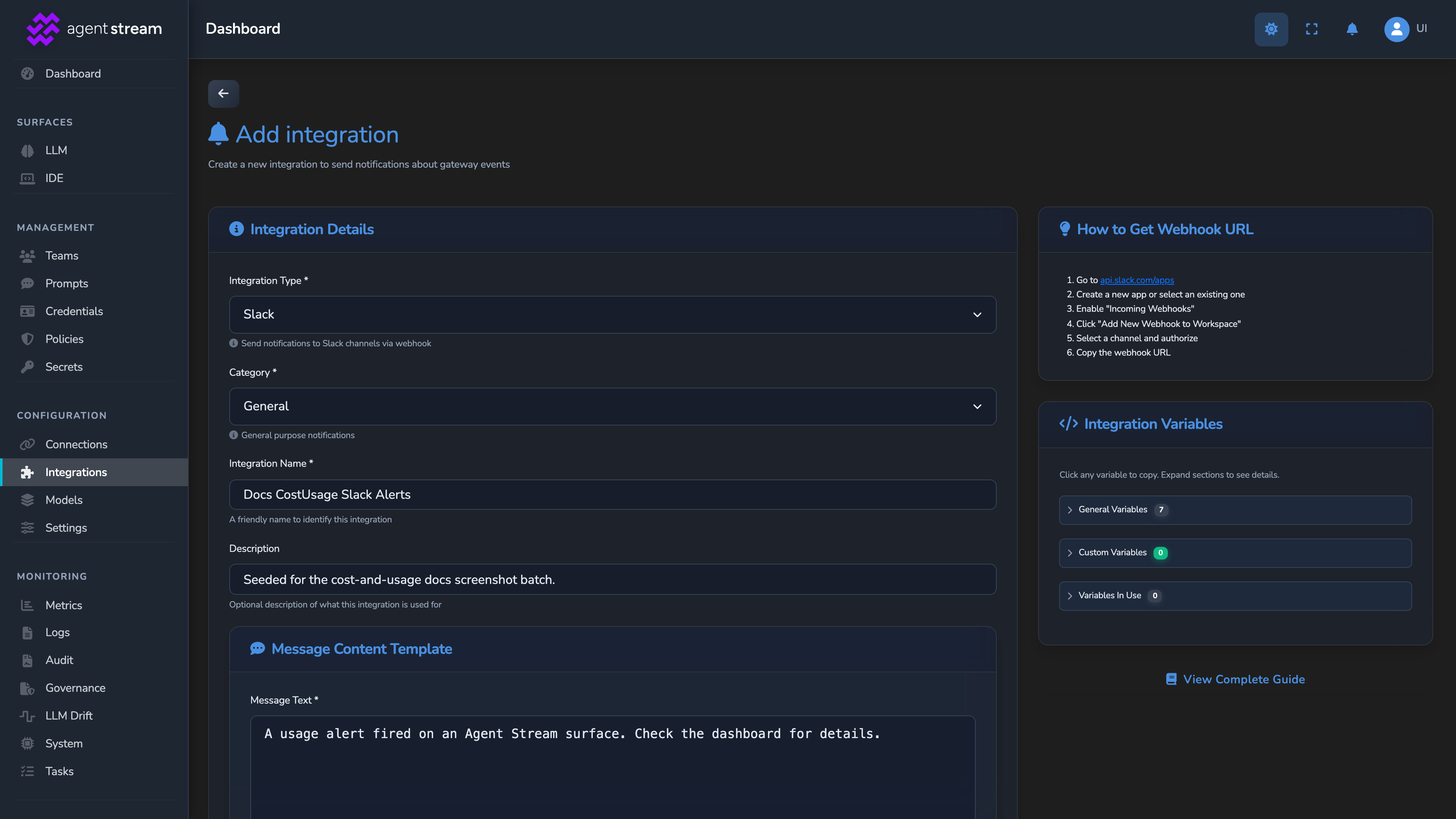
Select Integrations in the dashboard sidebar, then select Add Integration. Fill in the form:
- Integration Type: Slack, Email, or Webhook.
- Category: LLM Surface, the category for surface events such as usage alerts.
- Integration Name: a name you’ll recognise when choosing where alerts go.
- The message the alert sends: Message Text for Slack, Subject and Body for email, or Payload Template for a webhook. Variables such as
${ALERT_TYPE},${THRESHOLD},${OBSERVED}, and${MESSAGE}are filled in when the alert fires. - The delivery settings: the Webhook URL under Slack Webhook Configuration for Slack, the SMTP Configuration fields, including From Address and Recipient Email(s), for email, or the Webhook URL for a webhook.
Select Create integration. A new integration is active immediately, and its Enabled switch appears when you edit it later.
Add a usage alert to the surface
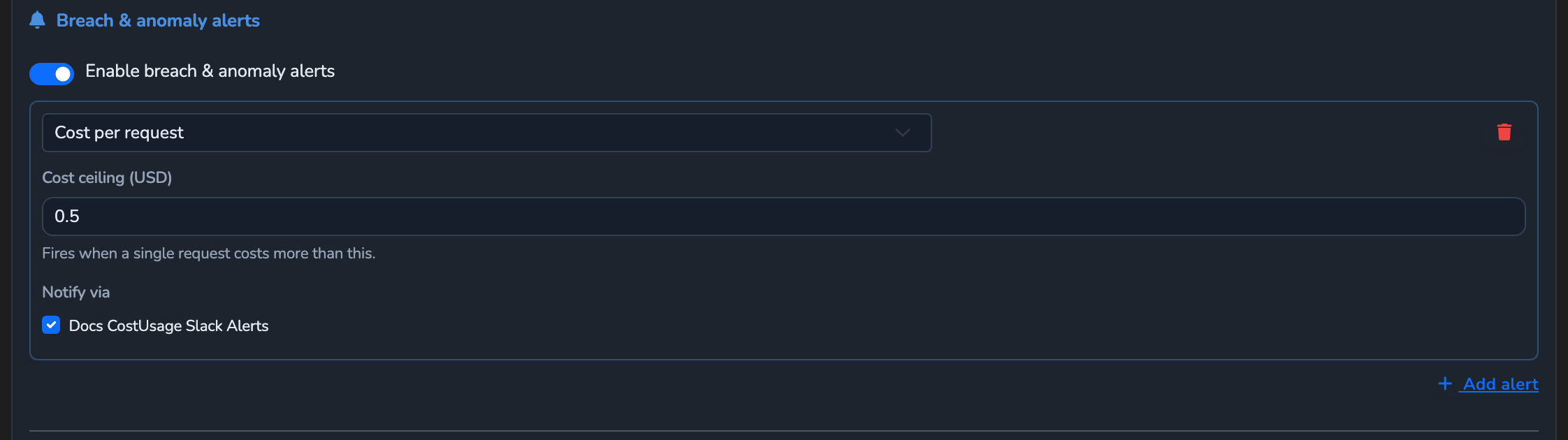
Under SURFACES in the dashboard sidebar, select LLM, and open your surface. On the canvas, select the Surface node (the root container the rest of the pipeline sits inside) and select Configure Surface Features in its side panel to open the full-page editor. Scroll to Breach & anomaly alerts and turn on Enable breach & anomaly alerts. A first alert is added automatically, set to Cost per request. Use its type dropdown to choose Cost per request, Tokens per request, Error rate, or Cost spike, and select Add alert to add another.
Set the threshold
The threshold field’s label changes with the alert type: Cost ceiling (USD) for cost per request, Token ceiling for tokens per request, Error-rate ceiling (0–1) for error rate, or Spike multiplier (× mean) for cost spike. A cost-spike multiplier must be strictly greater than 1.0; an error-rate ceiling must be a positive fraction no greater than 1.0.
Select where the alert is delivered
Under Notify via, select the integration you created. You can add more than one usage alert, each with its own type, threshold, and delivery channels.
Save the surface
Select the save button (Save changes) under Manage. Alerts are evaluated for buffered and streamed requests alike. Usage alerts are sent separately from the response, so they add no latency to the request that triggered them.
Confirm
Replace <YOUR_APPLIANCE_HOST> and <YOUR_SURFACE_ROUTE> with your surface’s values. Set a low Cost ceiling (USD) for this test, so a single ordinary request is enough to cross it.
Test 1: a request that crosses the threshold still returns 200, and a notification arrives
curl -k -X POST "https://<YOUR_APPLIANCE_HOST><YOUR_SURFACE_ROUTE>/v1/chat/completions" \
  -H "Content-Type: application/json" \
  -d '{
    "messages": [
      { "role": "user", "content": "Say hello." }
    ]
  }'
The -k flag disables TLS certificate verification. Use this for local testing only. Remove it in production.
Expected: 200 OK. The request completes normally; a usage alert never blocks it. Check the integration’s destination, your Slack channel, inbox, or webhook receiver, for a message carrying ALERT_TYPE, THRESHOLD, OBSERVED, and MESSAGE.
Test 2: a cost-spike alert fires only after 5 baseline requests exist
Send at least 5 ordinary requests within 5 minutes to establish a rolling baseline, then, within the same 5 minutes, send one unusually expensive request (for example, a much longer prompt or a pricier model). Expected: the cost-spike alert fires only after the baseline exists; a single early request against an empty history cannot trip it.
Troubleshooting
| Symptom | Likely cause | Fix |
|---|---|---|
| No alert fires even though the threshold was clearly crossed. | Enable breach & anomaly alerts is off, or the usage alert was never attached to an integration. | Confirm Enable breach & anomaly alerts is on in the surface’s Breach & anomaly alerts section, and that Notify via names at least one integration. |
| A cost-spike or error-rate alert never fires, even under sustained load. | Each needs at least 5 requests in its rolling 5-minute window before it can trip: the baseline for a cost spike, or the window for an error rate. | Send at least 5 requests within 5 minutes, then retry. |
| A cost alert never fires, although the model is called. | The model has no catalogue price and the surface declares none, so each request’s cost counts as $0. | Use a model with catalogue pricing, or alert on Tokens per request instead. |
The alert fires, but the destination message shows unsubstituted ${VARIABLE} placeholders. | The integration’s content template references a variable name that does not match this event’s runtime variables. | Confirm the template uses ${ALERT_TYPE}, ${THRESHOLD}, ${OBSERVED}, ${MESSAGE}, or ${SURFACE_NAME} (plus ${BASELINE} for a cost spike) rather than a different event type’s variables. |
| The integration shows Enabled, but nothing ever arrives. | The stored webhook URL, SMTP credentials, or Slack URL are incorrect. | In the Integrations list, select the integration’s Test (paper-plane) button to send a test message, then correct its configuration if nothing arrives. |
Next steps
- Cap spend per pipeline stage: Pair this alert with a hard ceiling on the stage it is watching.
- Cache repeated responses to cut cost and latency: Reduce the spend a cost alert would otherwise be watching.
- Cost and usage governance: Why usage limits and breach alerts are two different mechanisms.
Related
- Notifications and alerts reference: Every integration field and event type.
- Cost and usage limits reference: Every alert type and its threshold.
- Observability: Where usage telemetry and per-request cost headers are exposed alongside these alerts.
Glad to hear it. Thanks for letting us know.
Sorry to hear that. Thanks for letting us know.