Create your first LLM Surface
By the end of this guide, you will have an active LLM Surface that accepts OpenAI-compatible chat completion requests, forwards them to OpenAI, and measures the cost of every call.
Prerequisites
- You are signed in to the dashboard.
- An API key from an LLM provider. This guide uses OpenAI. The same steps apply for Anthropic, Google Gemini, AWS Bedrock, and the other providers listed in Providers →. Azure OpenAI is listed in the provider catalogue but isn’t available on this appliance.
Steps
Store your API key as a secret
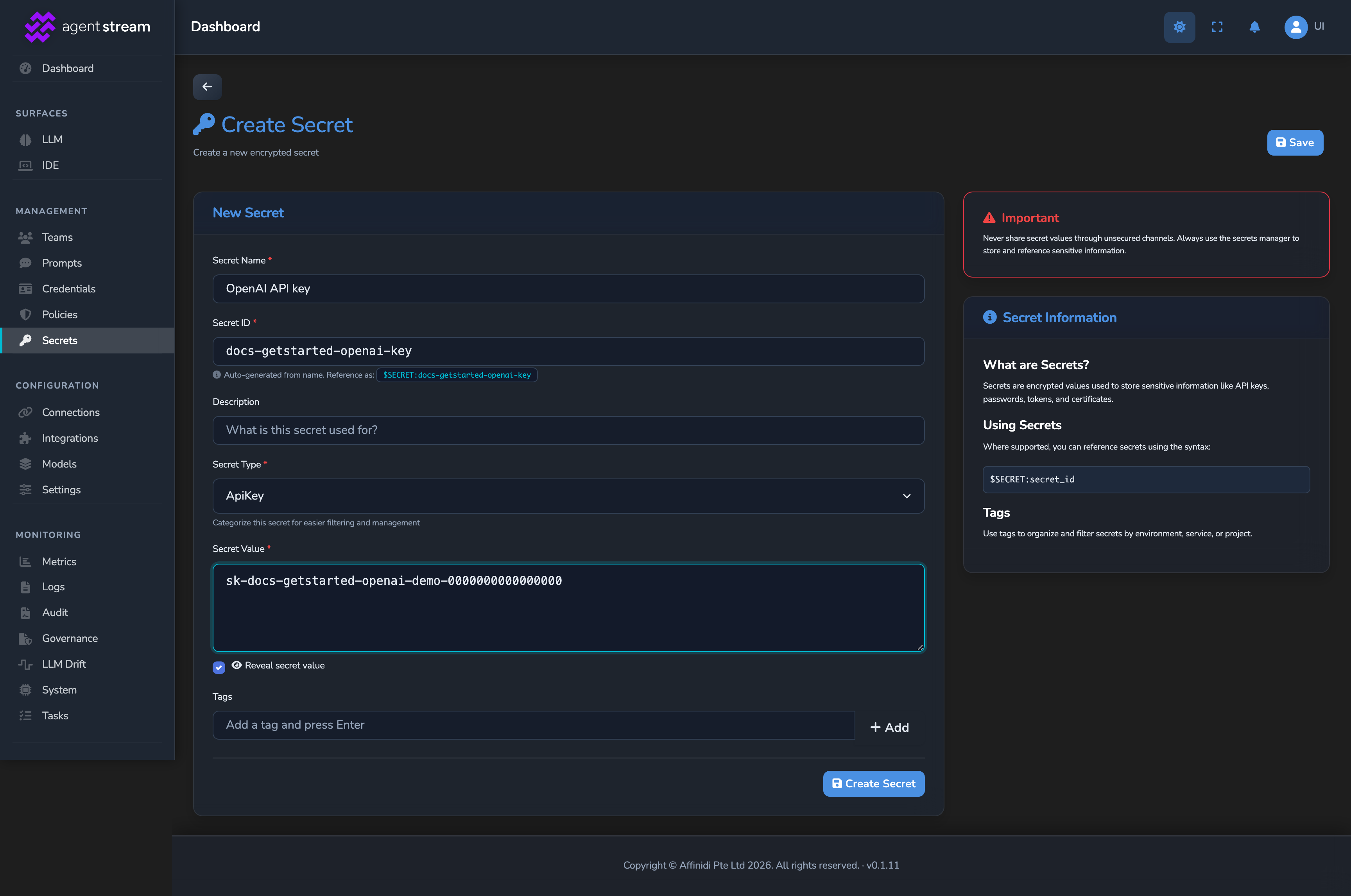
Select Secrets in the dashboard sidebar, then select New Secret. Fill in the fields:
| Field | Value |
|---|---|
| Secret Name | OpenAI API key |
| Secret Type | ApiKey |
| Secret Value | Your OpenAI API key. |
| Tags | openai, so the LLM node’s key picker lists this secret for the OpenAI provider. |
Select Create Secret. Note the Secret ID, auto-derived from the name and shown live as you type it, even before you save. You select it in the LLM node’s OpenAI API Key field in step 3.
Start a new surface
Under SURFACES in the sidebar, select LLM. On the LLM Surfaces page, select Add LLM Surface. The Create new LLM Surface dialog shows a list of starter templates, which varies by appliance. Select Start blank.
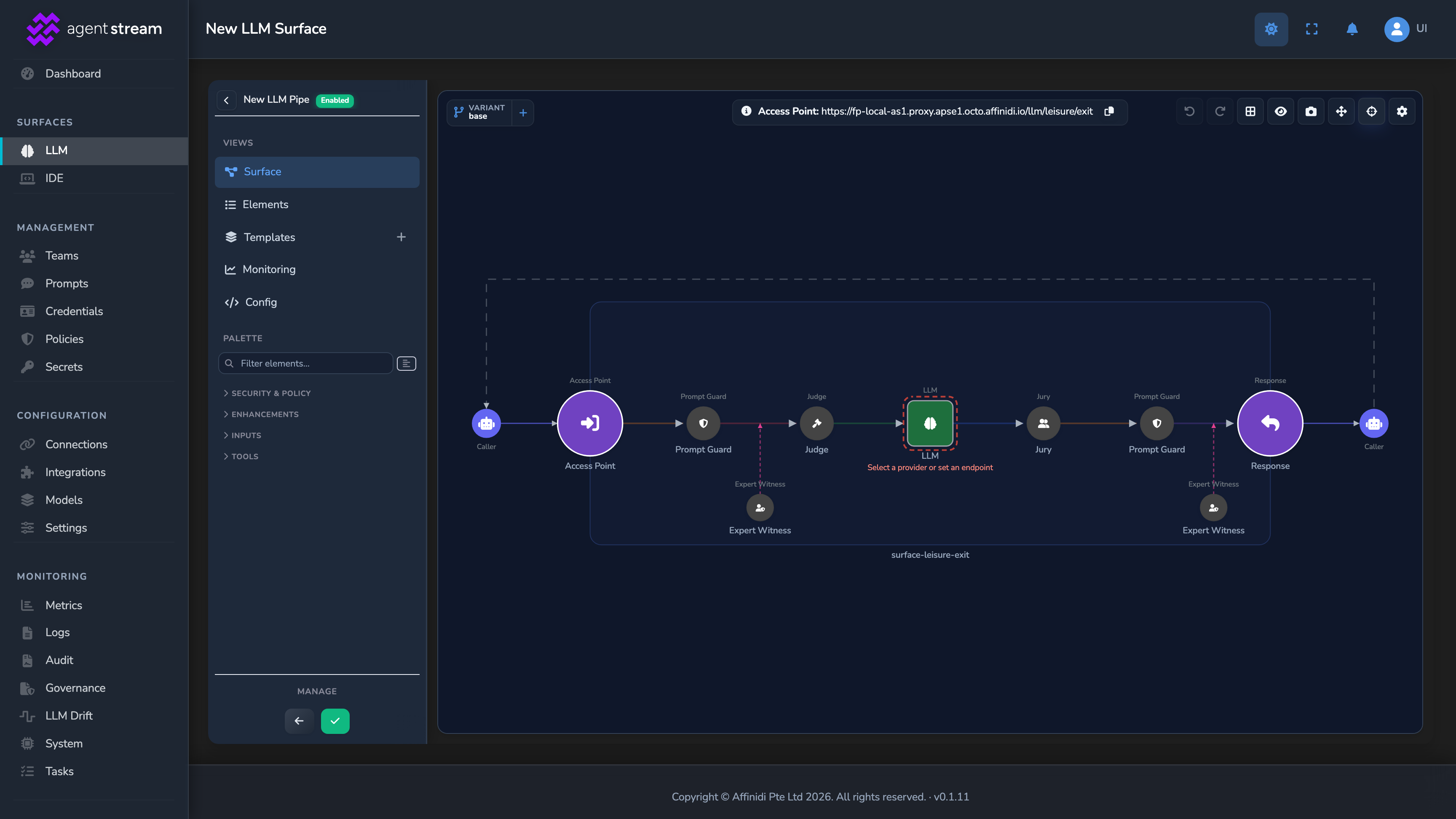
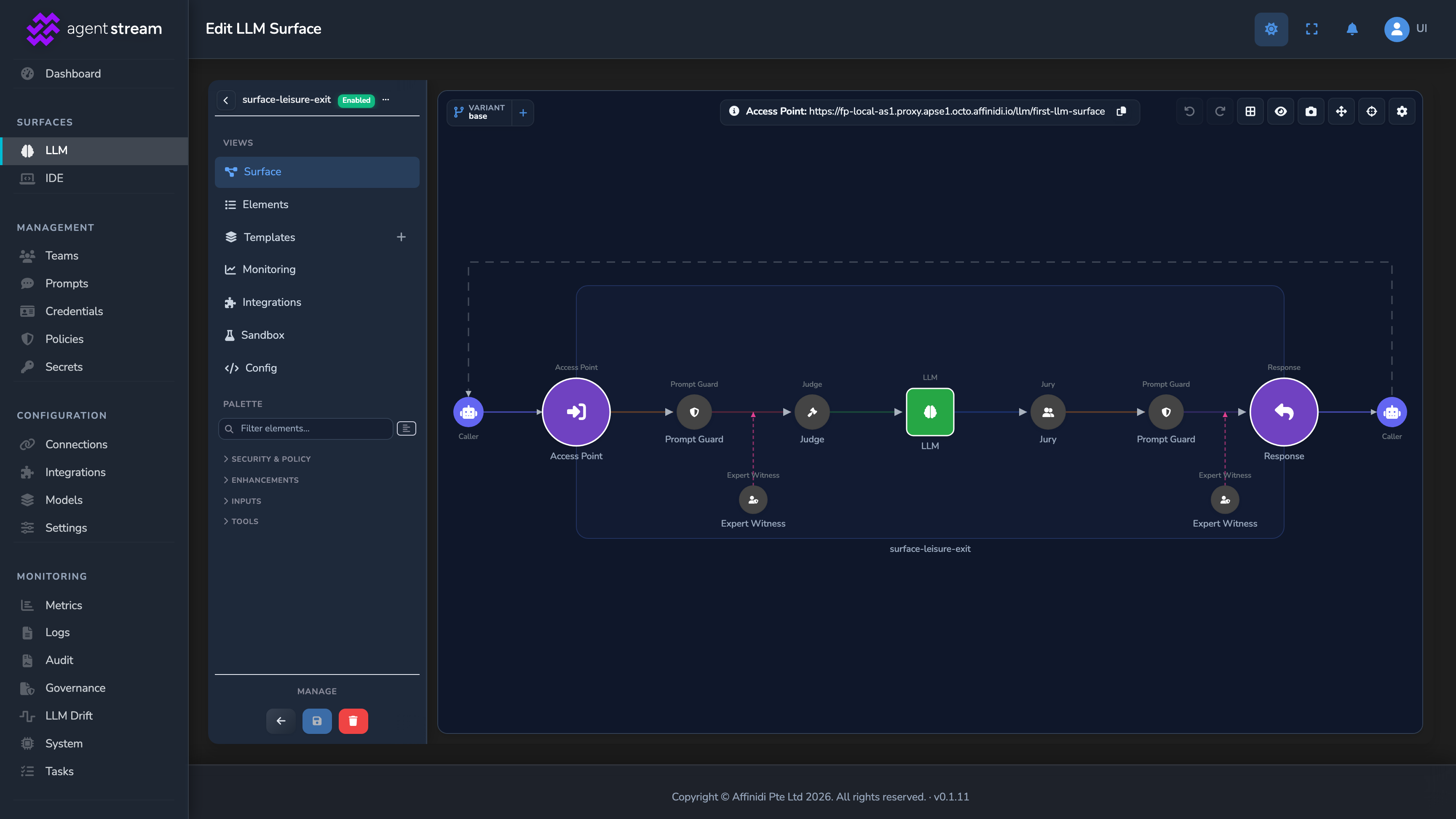
The surface builder opens with the full request and response chain already on the canvas and connected: Access Point, Prompt Guard, Judge, the LLM node, Jury, a second Prompt Guard, and Response, plus two Expert Witness slots. Every stage besides the Access Point and LLM nodes starts disabled. Only those two need configuring for a working surface, and later guides cover turning the others on.
The surface is given a default name automatically. To rename the surface, select the cog (Surface settings) in the canvas toolbar and change its name. The Access Point panel’s Name field labels only the node on the canvas.
Configure the LLM node
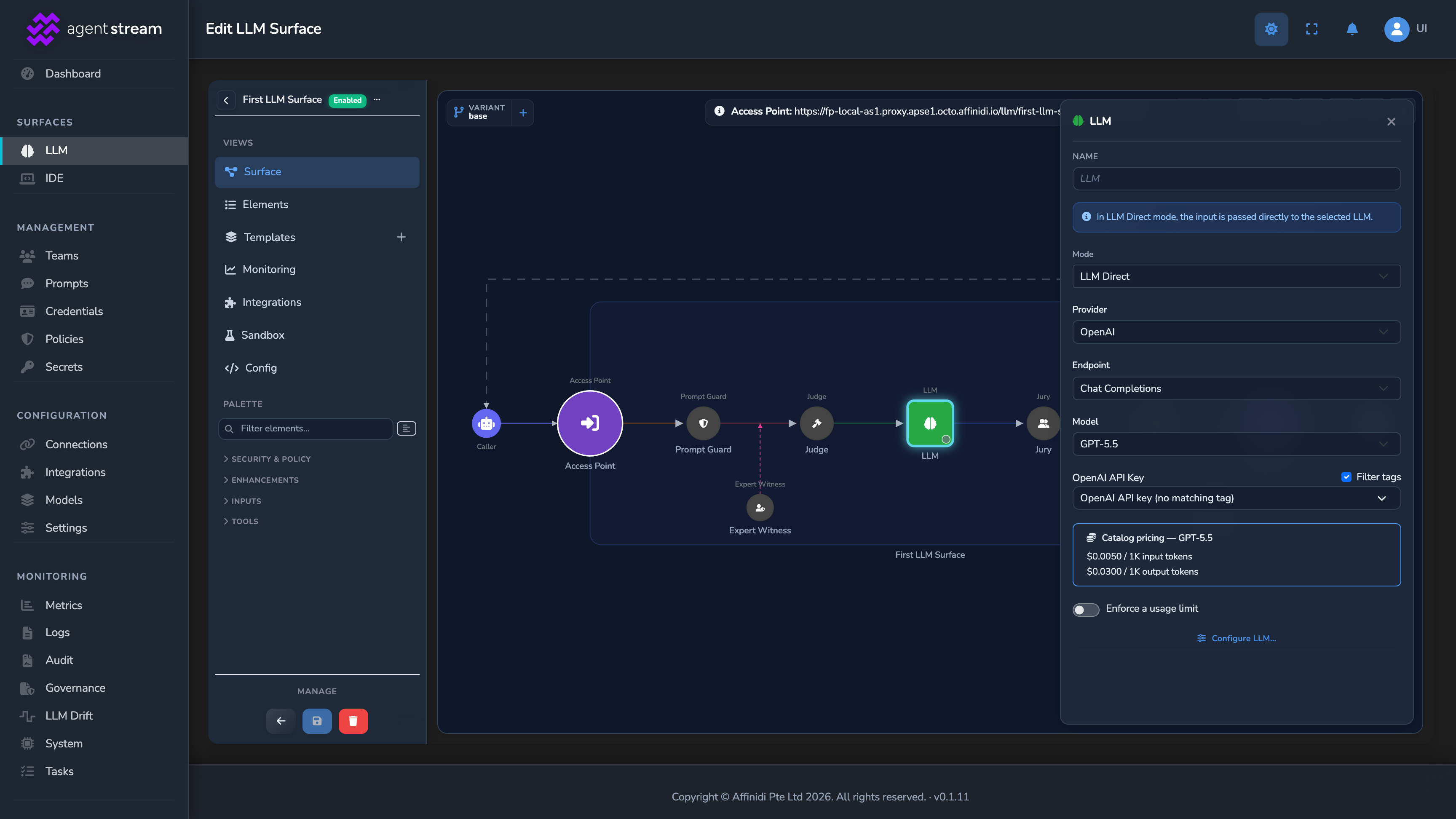
The LLM node defines which provider and model this surface calls. Select it in the canvas to open its settings panel.
Leave Mode as LLM Direct. Set Provider to OpenAI and Endpoint to Chat Completions, then pick any model from the Model list, for example GPT-5.5. The exact model list on your appliance may differ. Set OpenAI API Key to the secret you created in step 1. The field takes its label from the selected provider, and the secret is preselected when it’s the only one that applies.
Configure the Access Point node
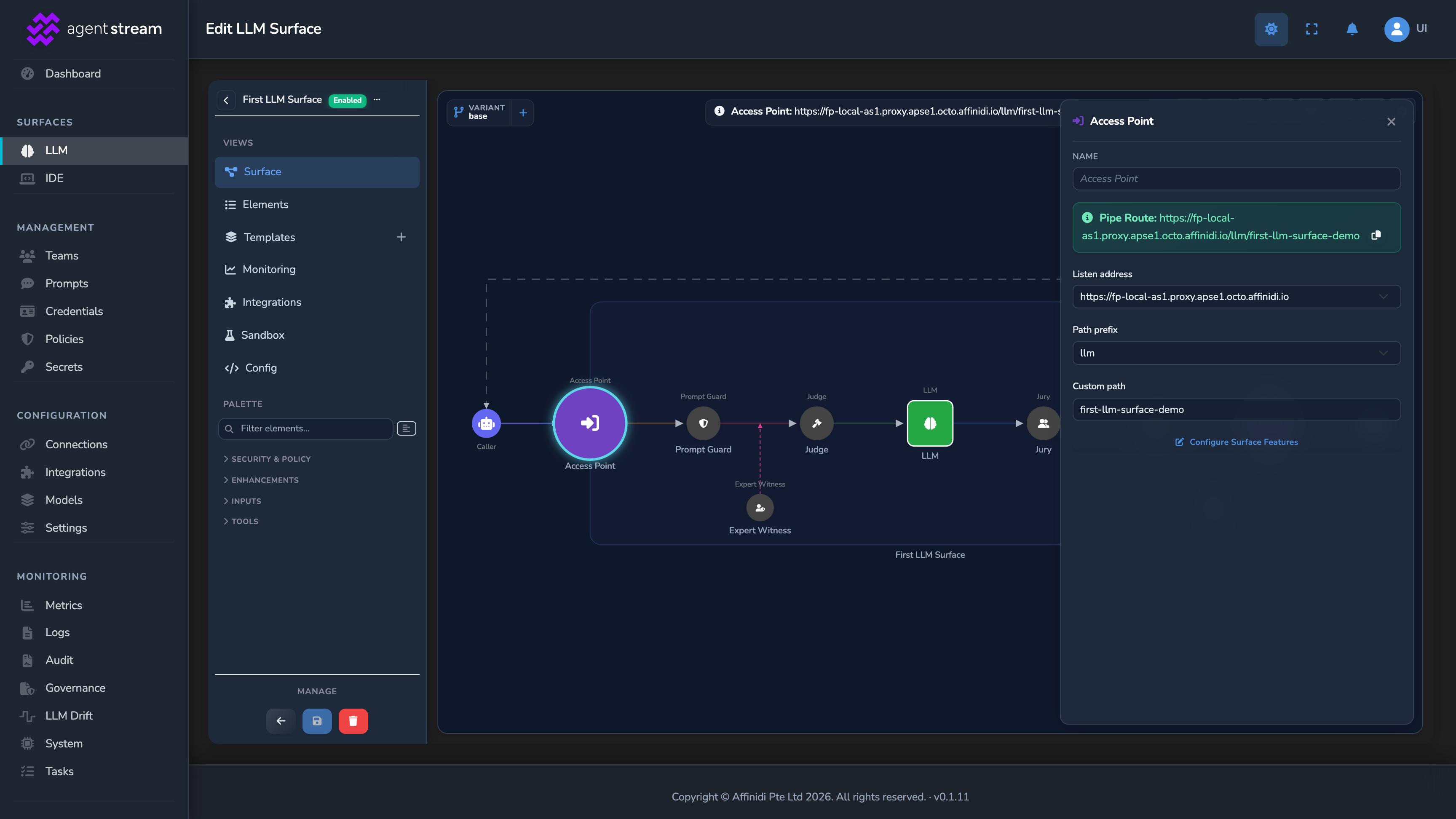
The Access Point node defines how incoming requests reach the surface. Select it in the canvas to open its settings panel.
The panel shows a Pipe Route banner followed by these fields:
| Field | Value for this guide | Notes |
|---|---|---|
| Listen address | (auto-seeded) | Pre-filled for your appliance. Accept the default. |
| Path prefix | (auto-seeded) | Pre-filled for your appliance. Accept the default. |
| Custom path | first-llm-surface | Identifies this surface in the full route. Update the auto-seeded random value to something meaningful. |
The Pipe Route banner at the top of the panel shows the composed full URL: the listen address, path prefix, and custom path combined. Copy this URL. You will use it in step 6.
Save the surface
Select the green check button (Create LLM surface) under Manage. The surface is saved and becomes active immediately.
Send a test request
Replace <YOUR_APPLIANCE_HOST> and <YOUR_SURFACE_ROUTE> with the values from the route banner in step 4:
curl -k -X POST "https://<YOUR_APPLIANCE_HOST><YOUR_SURFACE_ROUTE>/v1/chat/completions" \
  -H "Content-Type: application/json" \
  -d '{
    "model": "gpt-5.5",
    "messages": [
      { "role": "user", "content": "Say hello from the Agent Stream quickstart." }
    ]
  }'
Replace gpt-5.5 with whichever model you actually selected in step 3, if different.
The -k flag disables TLS certificate verification. Use this for local testing only; remove it in production.
A successful response returns 200 OK with the OpenAI chat completion body, plus x-agent-stream-* response headers carrying the trace ID, provider, model, token counts, and cost for this call. See Observability → for the full header list.
Confirm
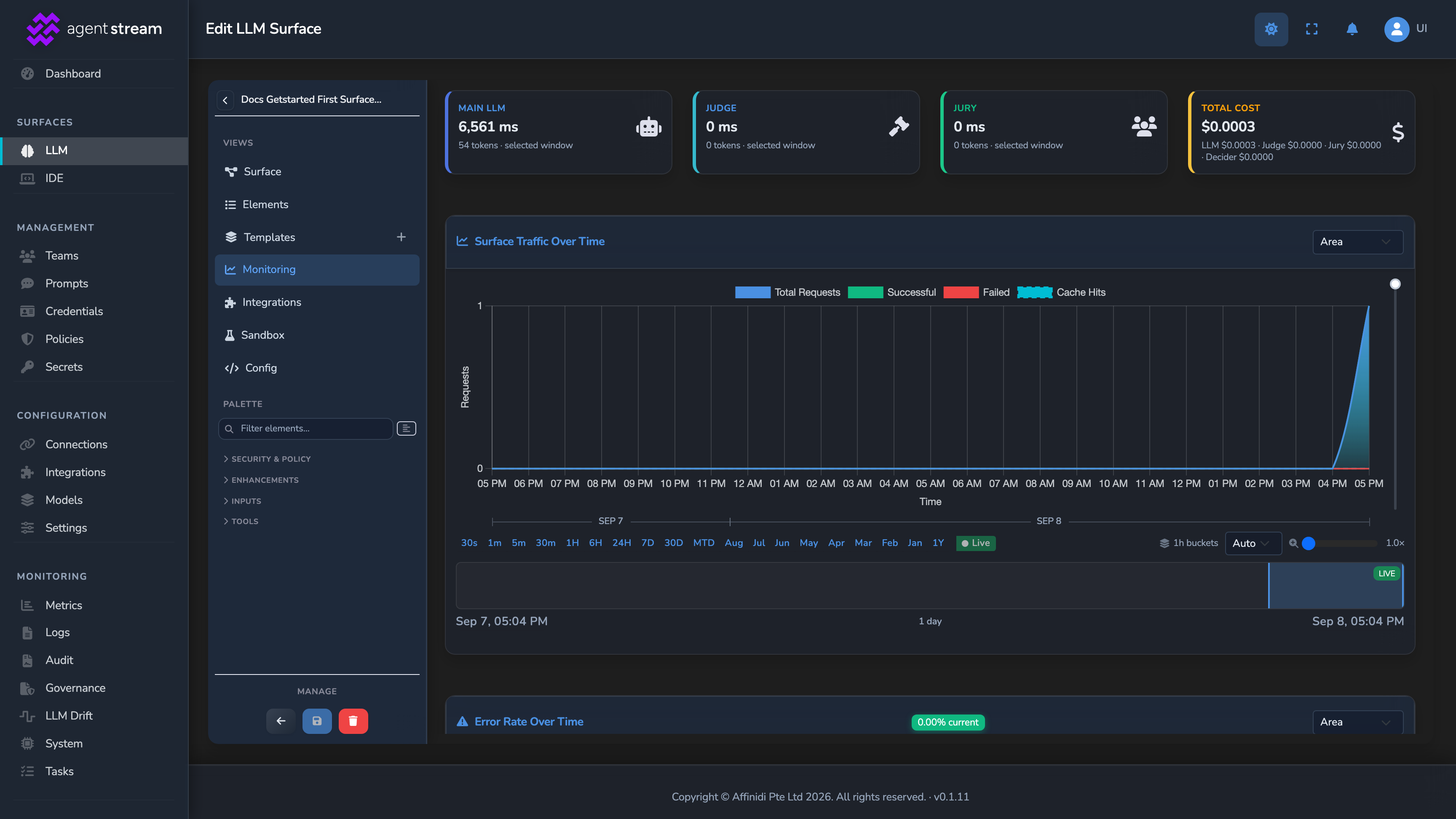
Open the surface’s Monitoring tab. A request entry should appear with a non-zero cost, confirming the call reached OpenAI and cost tracking is active.
Troubleshooting
| Symptom | Likely cause | Fix |
|---|---|---|
401 Unauthorized from OpenAI | The API key stored in the secret is incorrect or expired. | Open the secret under Secrets, update its value, and save. |
404 Not Found | The URL in the curl command does not match the surface route. | Copy the exact route from the Access Point node’s route banner and retry. |
Connection refused | The appliance hostname or port in your command is incorrect. | Confirm the URL uses the correct listen address. Contact your administrator if the appliance appears to be unavailable. |
| Request succeeds but no cost appears on the Monitoring tab | The Monitoring tab hasn’t refreshed yet, or you’re viewing a different surface. | Wait a few seconds and refresh the Monitoring tab, and confirm you’re viewing the surface you just created. |
Saving a secret or surface fails with Appliance limit reached | The appliance size caps the number of secrets and surfaces, and the cap is reached. | Check usage on Settings → Limits, and delete an unused item or upgrade your appliance tier. |
Next steps
- Add guardrails and a budget: Continue the tutorial with PII redaction and a spend ceiling.
- Surfaces: Understand the LLM Surface and IDE Surface routing model.
- Pipeline and stages: Understand the Prompt Guard, Judge, Jury, and Expert Witness stages the canvas already wired up for you.
Glad to hear it. Thanks for letting us know.
Sorry to hear that. Thanks for letting us know.