Prompt Management
When prompt text is hard-coded into application or agent code, changing a single word means shipping a new build, and there is no shared place to test the change before it reaches production. Prompt Management centralises prompt engineering and versioning within Agent Stream. Rather than embedding raw system and user prompts into application code or agent frameworks, clients reference a managed template by ID and variable map, while operators manage, test, and version prompt templates from the dashboard. Pipeline and stages →
What a Prompt Template renders into a request
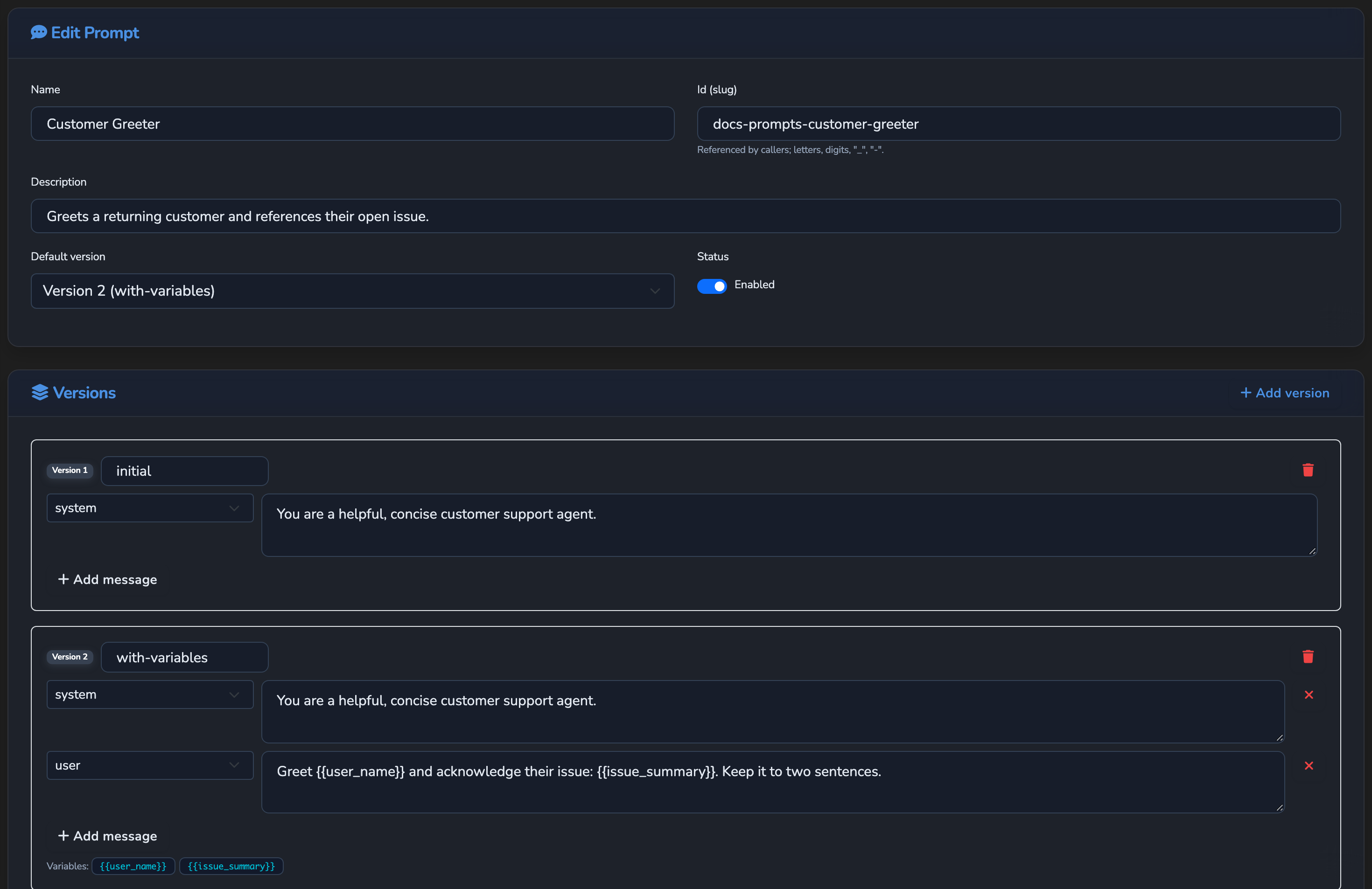
A Prompt Template is a versioned, reusable OpenAI messages array with {{variable}} placeholders and an optional default version. Clients reference a prompt in an OpenAI Chat Completions request ("prompt": { "id", "version?", "variables" }), and the prompt-reference expansion stage renders it into messages before the response-cache lookup and Prompt Guard run. The "prompt" block is stripped so it never reaches the provider.
{
  "prompt": {
    "id": "customer-support-agent",
    "version": 2,
    "variables": {
      "user_name": "Alice",
      "issue_summary": "Password reset request"
    }
  }
}
The rendered messages participate in response caching and PII protection as if supplied directly by the caller.
A request can also include its own "messages" array alongside the "prompt" block. When both are present, the rendered prompt’s messages come first, and the client’s "messages" are appended after them. This lets a client supply, for example, a final user turn following a rendered system prompt and few-shot examples, without having to reproduce the template itself.
How a Prompt Version stays stable once published
A Prompt Version is a numbered, point-in-time snapshot of a Prompt Template’s messages. A prompt request may pin a specific version number. If it names none, the template’s default version is used, or the highest-numbered version when no default is set.
Publishing a new default version does not by itself break an existing client that pins a specific version number, since the client’s request still names that number explicitly. An editor with permission to edit the template can overwrite an existing version’s content in place, so version pinning keeps a client on a named version number rather than guaranteeing that the version’s content never changes.
Playground
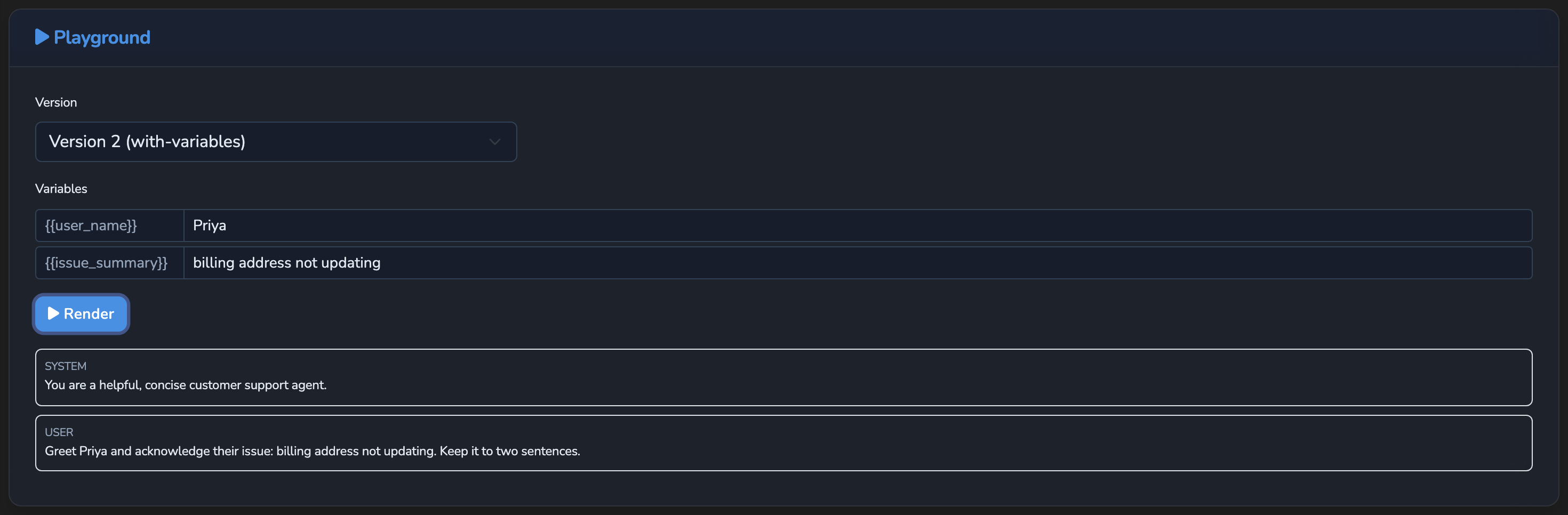
The Playground is the live preview surface on a prompt’s own edit page, within the dashboard’s Prompts section, which renders a template into messages against a supplied variable map so an operator can confirm behaviour before publishing.
Related
- Pipeline and stages: Where Prompt Reference Expansion sits in the inbound pipeline.
- Guardrails: How Prompt Guard inspects rendered messages for sensitive data.
- Governance records: How rendered prompts and template metadata are recorded for audit.
- Resilience and caching: How rendered prompt messages participate in response caching.
- PII protection: How rendered prompt messages are checked for sensitive data.
Glad to hear it. Thanks for letting us know.
Sorry to hear that. Thanks for letting us know.