API keys
API keys authenticate specific external clients to a single surface. Each key is bound to one surface at creation time and carries a secret the client presents on every request. Use this page to view, issue, revoke, and rotate the keys that authenticate external clients to a specific surface.
Overview
Surface-scoped API keys let you identify and control individual clients independently. Creating a separate key per client means you can revoke one without affecting others. The key secret is shown once, at creation, and cannot be retrieved afterwards; if it is lost, rotate the key to issue a new one.
API keys differ from Secrets. A secret stores a raw credential value that the gateway uses internally, for example a token or password for header injection or transit point target authentication. An API key authenticates an external client calling the gateway.
For a step-by-step walkthrough of adding API key authentication to a surface, see Restrict surface access with API key authentication.
Fields
| Field | Required | Description |
|---|---|---|
| Surface | Yes | The surface this key grants access to. Selected from a dropdown at creation time. Cannot be changed after the key is created. |
| Client ID | Yes | A label identifying the external client, for example mobile-agent or partner-service. Displayed in logs and the API keys list. |
| Key ID | Auto-generated | Unique identifier for the key. Shown after creation. |
| Secret | Auto-generated | The credential value the client presents on every request. Shown once, in the creation modal. It cannot be retrieved afterwards; rotate the key to issue a new one if it is lost. |
| Rotated From | Auto-generated | Shown after a rotation: the ID of the key this one replaced. |
Key states
| Status | Description |
|---|---|
| Active | The key is valid. Clients presenting this key to the bound surface are authenticated. |
| Revoked | The key has been suspended and no longer authenticates its client. The key record is retained. A revoked key does not block a caller’s request by itself; whether the request proceeds depends on the surface’s policy configuration. See OPA policies reference for how a failed authentication reaches policy. |
| Rotation required | The key predates hashed-secret storage and can no longer authenticate. Rotate it to issue a new secret. |
Operations
Create an API key
In the sidebar, select Secrets, then select the API Keys tab, then select New API Key. Choose the surface from the Surface dropdown, then enter a Client ID. Select Create. Copy the Secret from the confirmation modal immediately: it is not shown again.
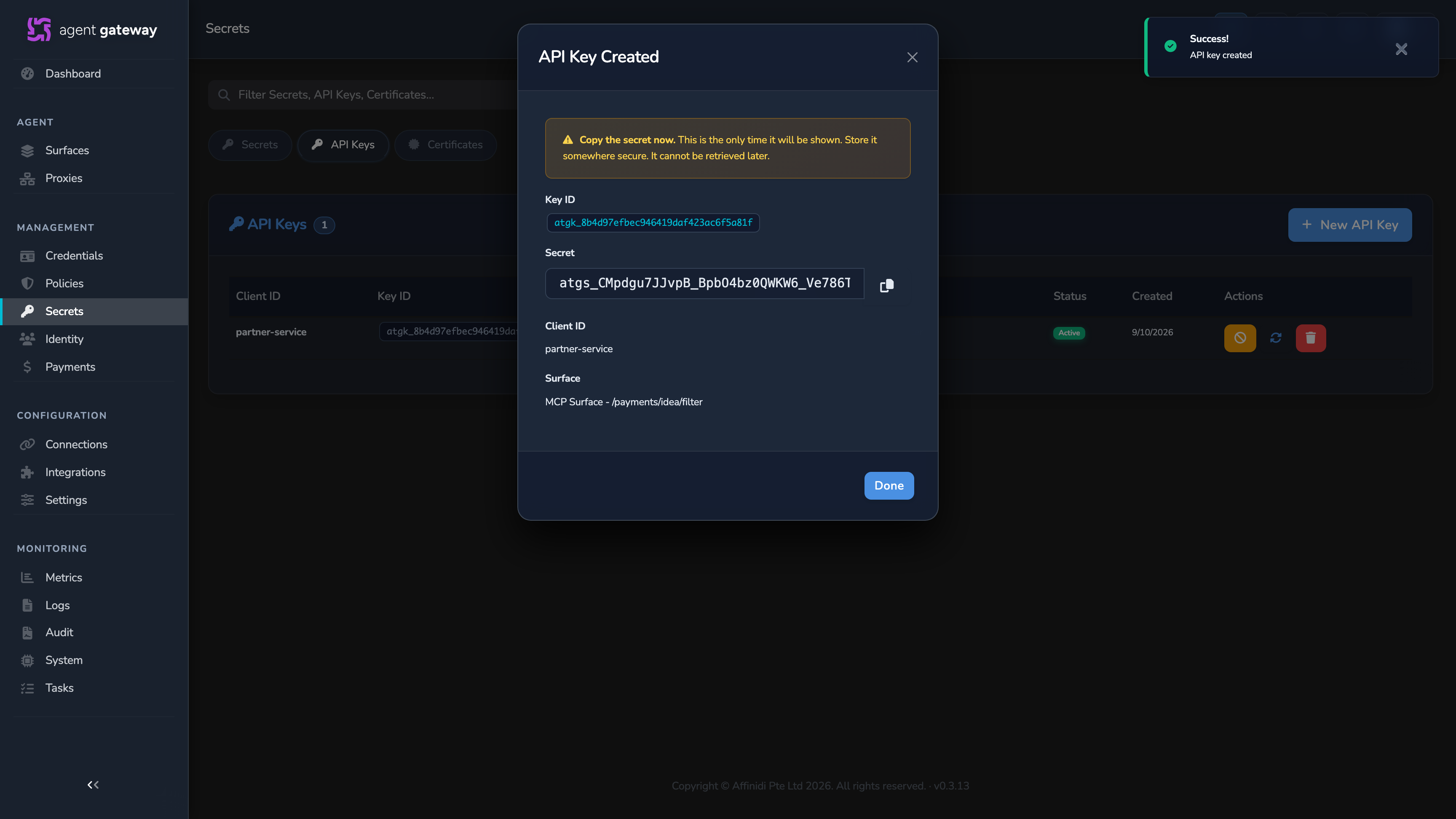
Never hardcode the API key secret in source code or configuration files. Store it in a secrets manager or encrypted environment variable. If you suspect the value has been exposed, revoke the key immediately.
Revoke a key
Select the ban icon (tooltip: Revoke) on the key row. The key status changes to Revoked and it can no longer be used for authentication. The record is retained for audit purposes.
Rotate a key
Select the sync icon (tooltip: Rotate) on the key row. The current key is revoked and a new key is generated in a single operation. A modal displays the new Secret. Copy it immediately. The new key is bound to the same surface and Client ID as the original.
Delete a key
Select the delete icon on the key row and confirm. Deletion is permanent. Delete revoked keys that are no longer needed to keep the list clean.
Related
- Restrict surface access with API key authentication: end-to-end guide adding API key auth to a surface.
- Secrets: encrypted credential values used in surface configuration and transit point authentication.
- Access tokens: personal access tokens that authenticate automation to the management API, rather than clients to a surface.
Glad to hear it. Thanks for letting us know.
Sorry to hear that. Thanks for letting us know.