Expose a REST API as MCP tools
This guide configures an MCP proxy that reads an OpenAPI specification and generates one MCP tool per REST endpoint. Agents can then call those tools through the gateway without knowing the underlying HTTP API.
Agents that communicate over MCP cannot call REST APIs natively. The MCP proxy bridges that gap by translating each REST endpoint into an MCP tool, so your existing API becomes accessible to any MCP-compatible client.
Use this guide when you have a REST API with an OpenAPI 3.0 specification and want agents to call it through the gateway. If you need authentication, policies, or observability on the generated tools, an optional step attaches the proxy to an existing MCP surface.
Prerequisites
- A running Agent Gateway instance with the dashboard accessible.
- Power User or Administrator role on the gateway.
- The base URL and OpenAPI 3.0 specification (YAML format) of the REST API you want to expose.
Steps
Register the MCP proxy
In the dashboard, navigate to MCP Proxies and select Add MCP Proxy. This opens a five-step creation wizard: three data-entry steps, followed by a creation step and a confirmation screen.
Name
Fill in the proxy identity:
- Name: A descriptive label, for example
Weather API. - Description: Optional context for other gateway administrators.
Select Next.
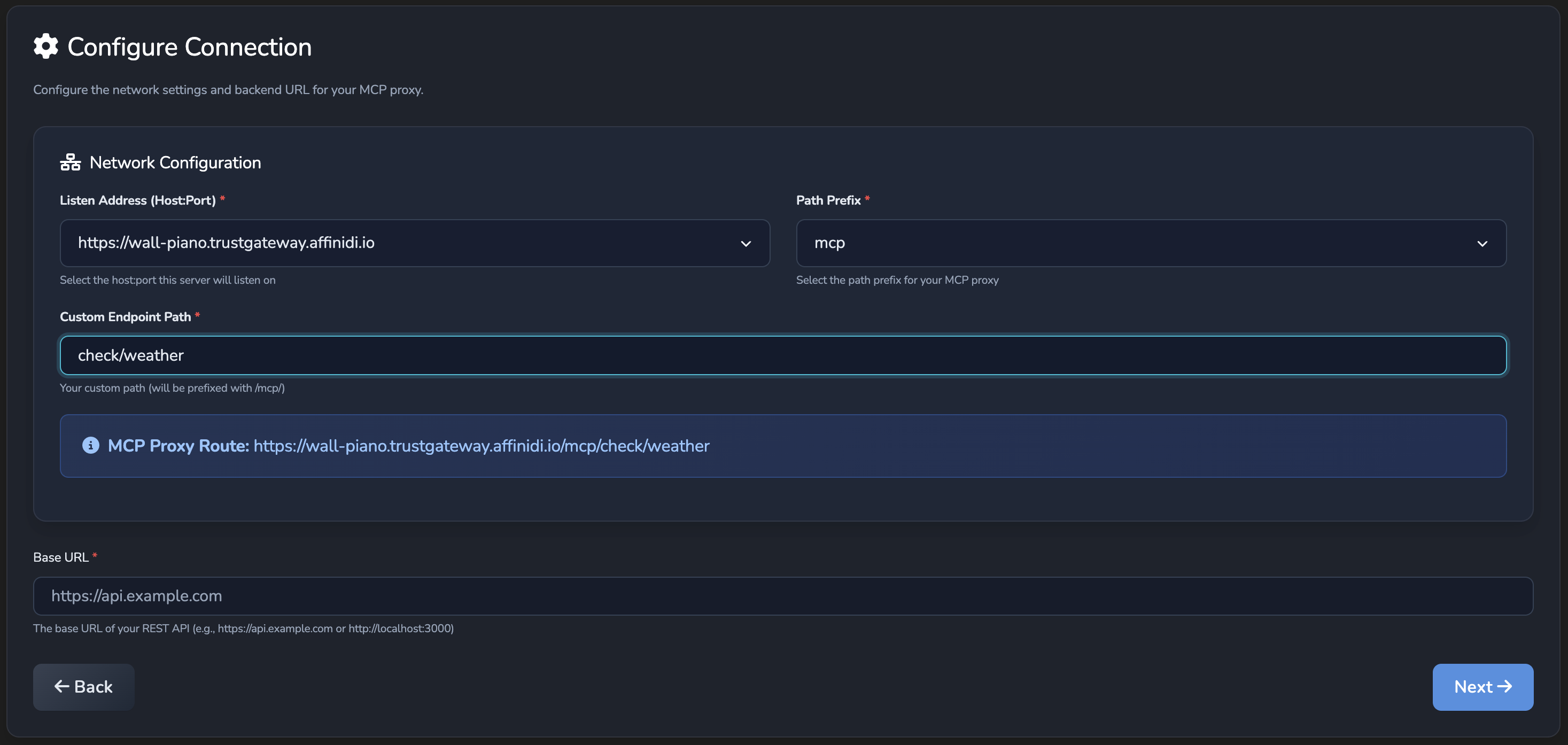
Configure Connection
Set the routing and backend for the proxy:
- Listen Address (Host:Port): Select the address the proxy listens on.
- Path Prefix: Select the URL prefix for this proxy.
- Custom Endpoint Path: Enter the final path segment, for example
weather-mcp. - Base URL: The base URL of your REST API, for example
https://api.weather.example.com.
The MCP Proxy Route preview shows the full address agents will use to call the proxy.
Select Next.
OpenAPI Specification
Paste your OpenAPI 3.0 specification in YAML format into the OpenAPI Spec (YAML) field.
Select Next. The gateway parses the specification and creates one MCP tool per API endpoint. The gateway shows a confirmation screen once the proxy is created.
If the confirmation screen reads MCP Proxy Created with Warnings, the proxy serves its tools to MCP 2026-07-28 clients only, and 2024-11-05 clients receive errors. Read the listed warning, correct the specification on the proxy’s REST API tab, and save it again. See Saved with warnings.
Attach to an MCP surface (optional)
Skip this step if the standalone proxy route is sufficient and you do not need surface-level features.
Attach the proxy to an MCP surface when you need authentication, policies, or observability on top of the generated tools.
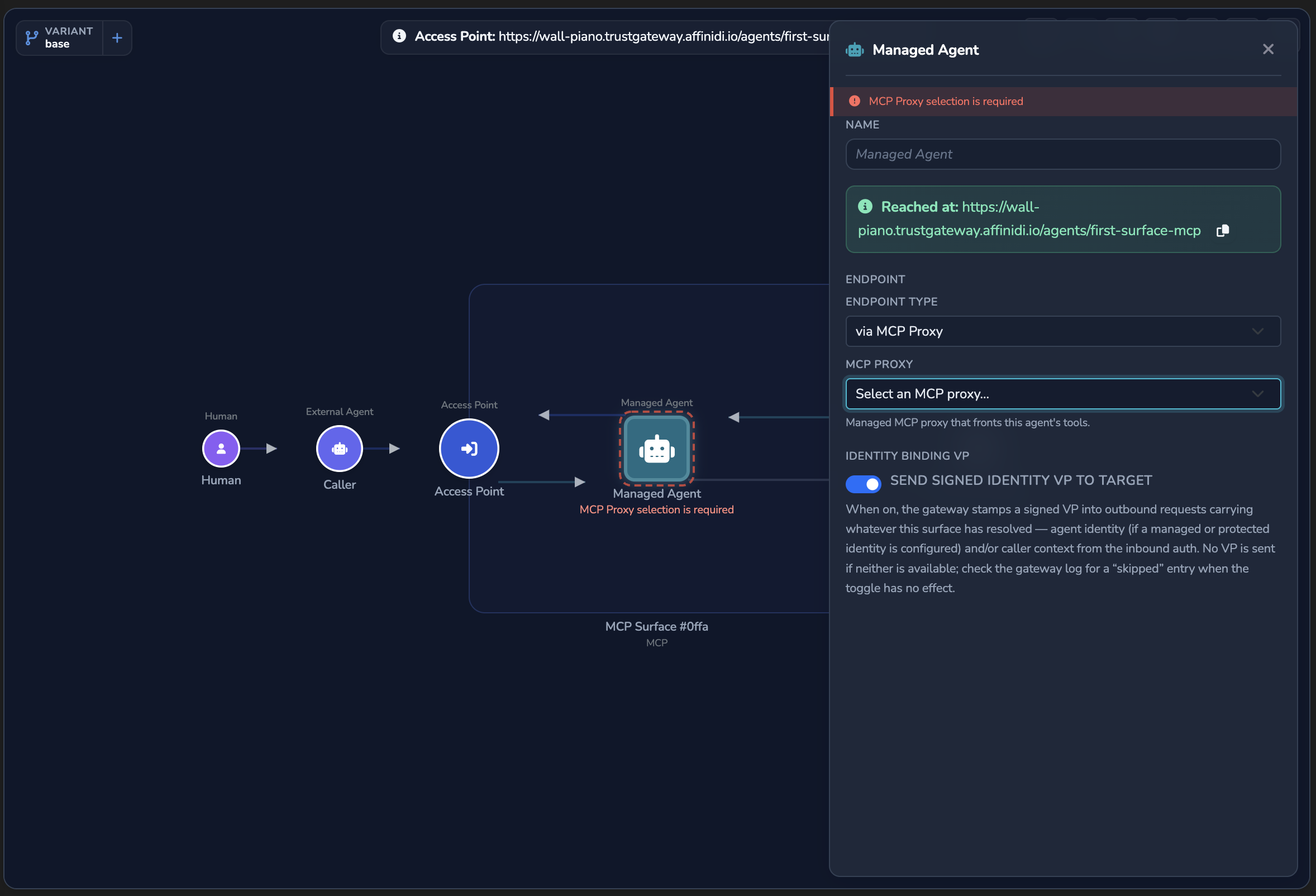
- Open the MCP surface in the canvas editor.
- Select the Managed Agent node to open its panel.
- Under Endpoint, set Endpoint Type to via MCP Proxy.
- From the MCP Proxy dropdown, select the proxy you created.
- Select the blue disk-icon Save button in the toolbar (tooltip: Save changes), or press Cmd+S (macOS) / Ctrl+S (Windows/Linux).
The surface now serves all generated tools at its configured route with authentication, policies, and observability applied.
To create an MCP surface first, see MCP surface starter.
Configure tool access control (optional)
If the proxy is attached to an MCP surface, you can restrict which tools specific callers can invoke using per-tool Rego policies. See Control MCP tool access with per-tool policies.
Confirm
Send a tools/list request to the proxy route configured in Step 1.
curl -k -X POST https://GATEWAY_HOST/PROXY_PATH \
  -H "Content-Type: application/json" \
  -d '{"jsonrpc":"2.0","method":"tools/list","id":1,"params":{}}'
The -k flag disables TLS certificate verification. Use this for local testing only. Remove it in production.
Replace PROXY_PATH with the full proxy route shown in the MCP Proxy Route field during Step 1, or the surface route if you completed Step 2.
Expected response: a tools array with one entry per REST API endpoint defined in your OpenAPI specification.
The gateway captures metrics for proxy traffic at the surface level, not the proxy level. To view request counts and latency, open the MCP surface that routes to this proxy and select the Monitoring tab.
Update the OpenAPI specification
To update the specification after the proxy is created:
- In the dashboard sidebar, select MCP Proxies, then select the proxy.
- Open the REST API tab.
- Edit the specification in the editor. Select Validate Specification to confirm the gateway can parse it. A green confirmation shows how many tools were found.
- Select Save.
The proxy immediately serves the updated tool definitions. Any MCP surface attached to this proxy reflects the changes without reconfiguration.
Test tools with the MCP Sandbox
The proxy editor includes a built-in sandbox for testing tool calls directly from the dashboard.
The Sandbox tab is only visible when the proxy is saved and its status is active. If you have unsaved changes, save them first.
- Open the proxy in the proxy editor and select the Sandbox tab.
- Select Connect & List Tools. The sandbox calls
tools/listand lists all available tools. - Select a tool from the list.
- Fill in the input parameters. Required parameters are marked.
- Select Run Tool. The sandbox displays the raw JSON-RPC response.
Use the sandbox to verify your OpenAPI specification produces the expected tools before connecting an agent client.
Troubleshooting
| Symptom | Likely cause | Fix |
|---|---|---|
tools/list returns an empty list. | The proxy is not linked to the surface, or the OpenAPI spec generated no tools. | In the surface canvas, confirm the Managed Agent node has Endpoint Type set to via MCP Proxy with your proxy selected. Check that the OpenAPI spec contains at least one operation. |
| The wizard shows MCP Proxy Created with Warnings, or the edit page shows Saved with warnings. | The gateway could not convert the specification for MCP 2024-11-05 clients, so only 2026-07-28 clients can use the proxy. | Read the converter error in the warning, fix the specification on the REST API tab, and select Save. The warning clears once both protocol revisions can be served. |
| OpenAPI import fails. | The specification contains unsupported or malformed syntax. | Open the proxy, select the REST API tab, and select Validate Specification to see specific parse errors. |
| 502 on all requests. | The REST API base URL is unreachable from the gateway. | Verify the Base URL is accessible and the downstream service is running. |
| Tool calls return unexpected errors. | Tool name or parameters do not match the OpenAPI spec. | Review the generated tool definitions in the REST API tab against your OpenAPI specification. |
Next steps
- MCP surface starter: Set up an MCP surface to serve the proxy’s tools with authentication and policies.
- MCP protocol: Understand how the gateway processes MCP traffic.
Glad to hear it. Thanks for letting us know.
Sorry to hear that. Thanks for letting us know.