Use JWT claims to control access to a surface
This guide uses Policy elements to filter which requests are forwarded to your managed agent, based on JWT claims or other available context.
The Caller Context element establishes who the caller is. A Policy element decides what they are allowed to do, based on JWT claims, request attributes, or other available context. Without one, every authenticated caller has the same level of access to your managed agent.
Use this guide when your surface already uses authentication and you need to restrict specific callers or request types. You create a policy definition in Policies, drop the Policy element onto a canvas edge, and confirm with three targeted requests.
Prerequisites
- A surface already created in the dashboard with at least an Access Point and a Managed Agent configured.
- The surface must have a Caller Context element using JWT bearer auth. The sample policy checks JWT claims. If your surface uses API key auth instead, adapt the policy to check
input.source_auth.subjectonly. - Administrator or Power User role in the dashboard.
- Basic familiarity with Rego. See OPA policies for the input schema and examples.
Where a policy can be attached
The surface canvas connects nodes with edges. Each edge carries a request side and a response side of the pipeline. A Policy element dropped on an edge evaluates your Rego rule at that step, before the pipeline continues in that direction.
| Drop target | What it gates | Config field |
|---|---|---|
| Access Point → Managed Agent edge, request side | Inbound requests before they are forwarded to the managed agent. | target.policy |
| Access Point → Managed Agent edge, response side | Responses from the managed agent before they reach the caller. | target.response_policy |
| Managed Agent → Transit Point edge, request side | Outbound calls from the managed agent before they leave the gateway. | transit.points[n].policy |
| Managed Agent → Transit Point edge, response side | Responses from the external Transit Point destination before they return to the managed agent. | transit.points[n].response_policy |
Each position holds one Policy element. A surface saved with an inbound policy (access_point.inbound_policy) shows it as a second Policy element on the Access Point → Managed Agent edge, evaluated before the target policy. New surfaces can’t add one in the dashboard.
You can attach policies to multiple positions on the same surface. Each runs independently: a deny at any position blocks that request or response at that step.
Steps
Create a policy definition
This guide uses the following sample policy throughout. It allows requests only when the caller presents a valid JWT that contains role = "admin" in its claims. Requests without a token, or with a token that carries a different role, are denied.
package surface.policy

default allow = false

# Allow callers whose JWT contains role = "admin".
allow if {
    input.source_auth.subject
    input.source_auth.claims.role == "admin"
}
Create this policy definition before attaching it to the surface:
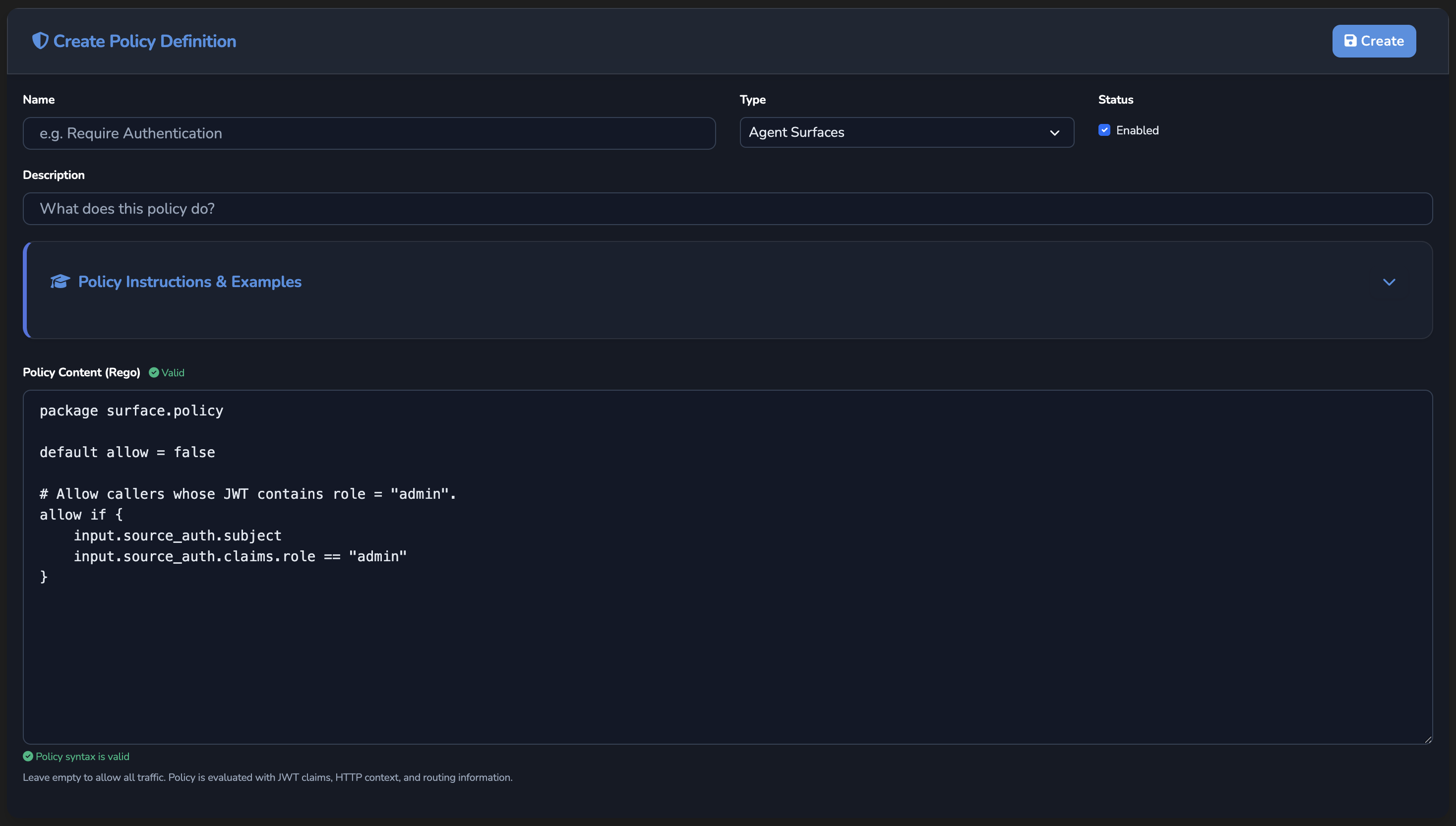
- In the sidebar, select Policies.
- Select the Agent Surfaces tab.
- Select Define Agent Surface Policy.
- Fill in the form:
- Name:
require-admin-role. - Type: pre-set to Agent Surfaces.
- Enabled: on.
- Policy Content (Rego): paste the Rego above.
- Name:
- Select Create.
The policy appears in the list with Enabled status.
Open the surface canvas
- Open Surfaces in the dashboard.
- Select the surface to configure.
- The canvas opens showing the current element layout.
Drag a Policy element onto an edge
- In the left palette, find Policy under the Security & Policy category.
- Drag Policy onto the edge where you want to evaluate it.
- Drop it on the request side of the Access Point → Managed Agent edge to gate requests before forwarding.
- Drop it on the response side of that edge to gate what the caller receives.
- Drop it on the request side of a Managed Agent → Transit Point edge to gate outbound calls from the managed agent.
- Drop it on the response side of that edge to gate what returns from the external destination.
The element appears on the edge. Each position holds one Policy element, so put rules that must all pass into one policy definition.
Configure the Policy element
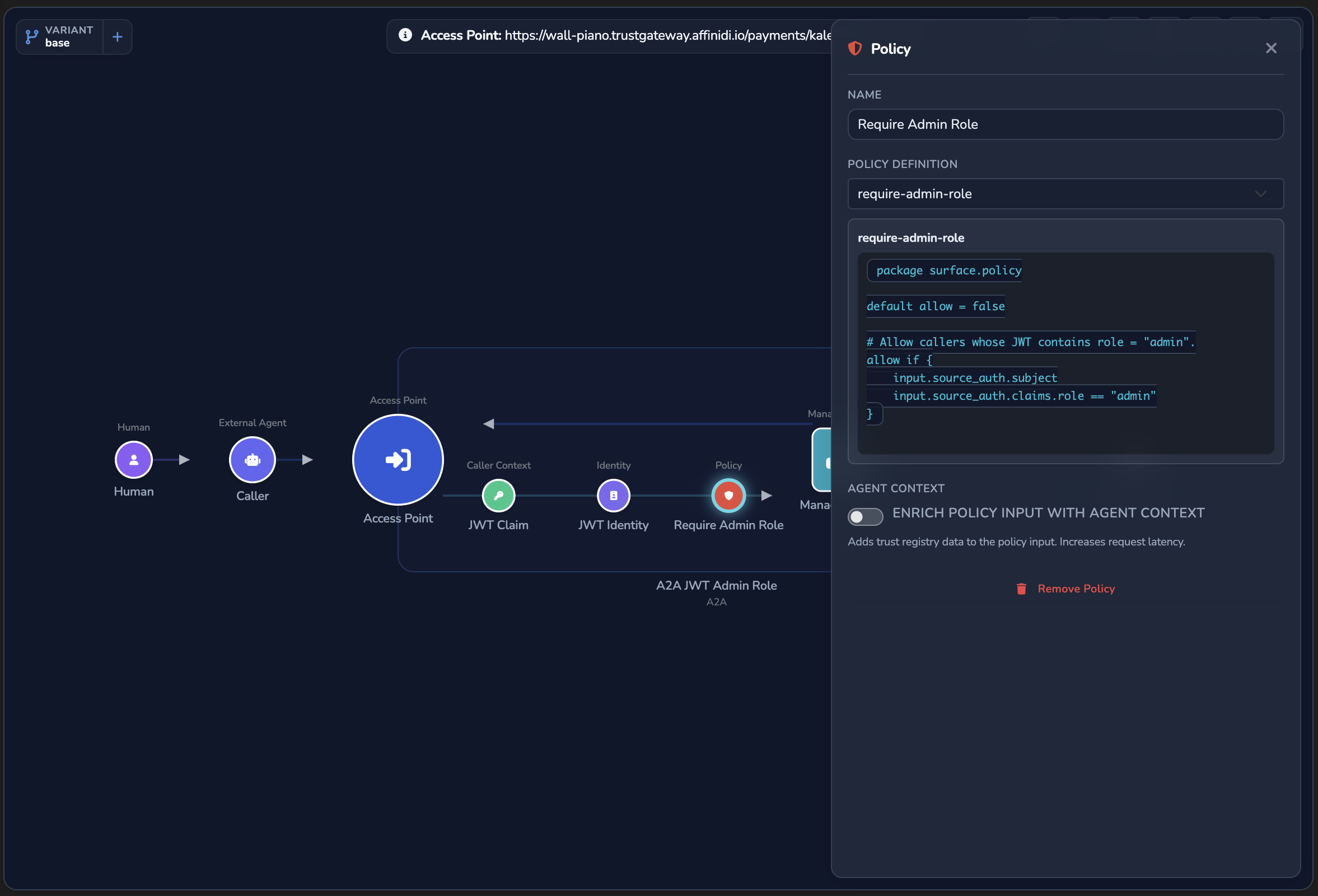
- Select the Policy element on the canvas to open its config panel.
- In the Policy Definition dropdown, select require-admin-role (the definition you created in Step 1).
- Leave Enrich policy input with agent context disabled. The sample policy does not reference
input.agent.*fields.
Enabling Enrich policy input with agent context adds a trust registry query to every request that hits this policy position. Only enable it when the policy rule explicitly references input.agent.* fields.
Save the surface
Select the blue disk-icon Save button in the toolbar (tooltip: Save changes), or press Cmd+S (macOS) / Ctrl+S (Windows/Linux).
The gateway applies the new policy attachment immediately through hot reload.
Confirm
Replace <ENTRY_POINT_URL> with the Entry point URL shown at the top of the Access Point panel.
The three tests below map to the three outcomes on a closed Access Point, the default for surfaces created from version 1.0.4. Each test shows the request condition, the check it triggers, and the expected response.
| Test | What the request sends | Policy condition | Expected response |
|---|---|---|---|
| 1 | No Authorization header | The closed Access Point refuses the caller before the policy runs. | 401 Unauthorized |
| 2 | JWT with "role": "developer" | input.source_auth.subject is present, but claims.role != "admin". Policy denies. | 403 Forbidden |
| 3 | JWT with "role": "admin" | Both conditions met. Policy allows. | 200 OK |
Test 1: no token (refused before policy, 401)
The closed Access Point refuses a missing or invalid token before the Policy element runs.
curl -k -X POST "<ENTRY_POINT_URL>" \
  -H "Content-Type: application/json" \
  -d '{"jsonrpc":"2.0","method":"message/send","id":"test-1","params":{"message":{"role":"user","messageId":"msg-001","parts":[{"kind":"text","text":"Hello"}]}}}'
The -k flag disables TLS certificate verification. Use this for local testing only. Remove it in production.
Expected response: 401 Unauthorized with the detail “Caller credential missing or invalid”.
On a public or legacy Access Point, the request reaches the policy instead. A failed authentication has no subject field, so the rule fails to match, default allow = false denies the request, and the response is 403 Forbidden. See Access Point readiness.
Test 2: wrong role token (policy denies, 403)
The Caller Context accepts the request because the token is valid. The policy then evaluates and finds claims.role == "developer", which does not satisfy claims.role == "admin". The policy returns allow = false.
Generate a JWT whose payload contains "role": "developer" using your identity provider or jwt.io. The token must be accepted by the JWT bearer strategy configured on your surface.
// JWT payload required for this test
{
  "sub": "user@example.com",
  "role": "developer"
}
curl -k -X POST "<ENTRY_POINT_URL>" \
-H "Content-Type: application/json" \
-H "Authorization: Bearer <jwt-with-role-developer>" \
-d '{"jsonrpc":"2.0","method":"message/send","id":"test-2","params":{"message":{"role":"user","messageId":"msg-002","parts":[{"kind":"text","text":"Hello"}]}}}'The -k flag disables TLS certificate verification. Use this for local testing only. Remove it in production.
Expected response: 403 Forbidden. The Caller Context passed. The policy denied because input.source_auth.claims.role was "developer", not "admin".
Test 3: correct role token (policy allows, 200)
The Caller Context accepts the request. The policy evaluates input.source_auth.subject (present) and input.source_auth.claims.role == "admin" (true). Both conditions are met, so allow = true.
Generate a JWT whose payload contains "role": "admin":
// JWT payload required for this test
{
  "sub": "admin@example.com",
  "role": "admin"
}
curl -k -X POST "<ENTRY_POINT_URL>" \
-H "Content-Type: application/json" \
-H "Authorization: Bearer <jwt-with-role-admin>" \
-d '{"jsonrpc":"2.0","method":"message/send","id":"test-3","params":{"message":{"role":"user","messageId":"msg-003","parts":[{"kind":"text","text":"Hello"}]}}}'The -k flag disables TLS certificate verification. Use this for local testing only. Remove it in production.
Expected response: 200 OK. The gateway forwarded the request to the managed agent.
Open the surface Monitoring tab. The Connections Over Time chart counts the requests over time: test 2 adds to the Rule Denies series and test 3 to Rule Accepts. Scroll to Channel Logs at the bottom of the tab to see the log lines of each request.
Policy input reference
All Policy element positions use package surface.policy and receive the same PolicyInput structure. The fields available depend on the pipeline position and request direction.
| Field | Inbound positions | Response positions |
|---|---|---|
input.source_auth.* | Present if authenticated | Present |
input.http.method / input.http.path | Present | Present |
input.gateway.direction | "inbound" | "outbound" |
input.mcp.* | Present for MCP protocol | Not present |
input.agent.* | Present when Enrich policy input with agent context is enabled | Present when enabled |
input.extension_identity.* | Present if VP provided | Not present |
input.payment.* | Present if x402 verified | Not present |
For the full input schema and example policies, see OPA policies.
Troubleshooting
| Symptom | Likely cause | Fix |
|---|---|---|
403 Forbidden on every request, including expected-allow cases. | The policy evaluates allow = false for all input. | Open the policy in Policies and test it in the OPA Playground with a representative input document. |
| Policy element is visible on the canvas but has no effect. | The surface was not saved after attaching the element. | Select Save and retry. |
| Policy definition not visible in the element dropdown. | The definition was created with type Gateway instead of Agent Surfaces. | Create a new definition with type Agent Surfaces and select it. |
| High latency on every request after attaching the policy. | Enrich policy input with agent context is enabled but the policy does not use input.agent. | Open the Policy element config and disable Enrich policy input with agent context. |
403 only on some requests for the same caller. | The policy references a field that is present on some requests but absent on others (for example, input.mcp.* on non-MCP methods). | Add a guard in the policy to check the field exists before testing its value, or split the rule by method. |
403 on responses, not requests. | A response-position policy is attached and is evaluating allow = false on the response. | Check whether a Policy element is attached to the response side of an edge. Response policies gate what returns to the caller, not what enters the surface. |
Next steps
- OPA policies: the full input schema for each policy scope and example Rego rules.
- Control MCP tool access with per-tool policies: gate individual MCP tools behind separate Rego policies.
- Apply OPA policies to your gateway and surfaces: create and manage policy definitions, and apply gateway-wide policies.
Glad to hear it. Thanks for letting us know.
Sorry to hear that. Thanks for letting us know.
Still stuck? Ask the community on Discord or contact us.