Control MCP tool access with per-tool policies
This guide assigns Rego policies to individual tools exposed through an MCP Proxy, configured from the proxy hop’s own panel on the canvas.
Without per-tool policies, any caller that passes surface-level authentication can invoke every tool your MCP proxy exposes. Once you add at least one tool entry, a tool with no matching entry and no Default Tool Policy is denied outright.
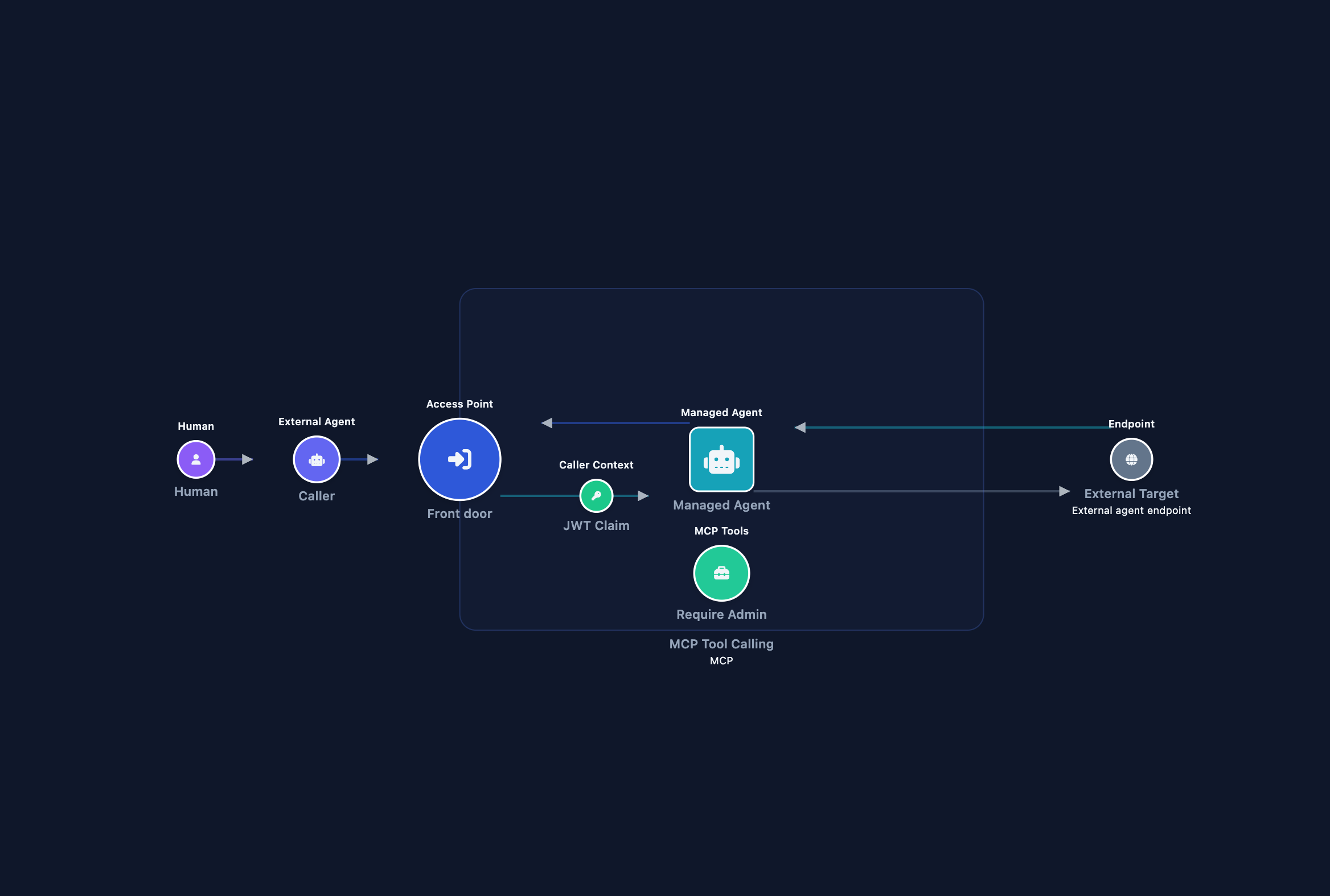
Use this guide when you have an MCP surface whose Managed Agent targets an MCP Proxy and need to control which tools specific callers can invoke. You create a policy definition in the Policies section, bind it to individual tools on the proxy hop’s panel, and confirm with three targeted requests.
Prerequisites
- An MCP surface already created and reachable, with its Managed Agent targeting an MCP Proxy (Endpoint Type via MCP Proxy). If you have not built one yet, complete Expose a REST API as MCP tools or Restrict surface access with API key authentication first.
- Dashboard access with permission to manage policies and surfaces.
- Basic familiarity with Rego, the OPA policy language. See OPA policies for an introduction.
- If your policies check caller identity (for example,
input.jwt.role), the surface must use JWT bearer auth on its Caller Context element. Without JWT bearer auth,input.jwtis absent at evaluation time and any JWT-based rule denies every request.
Steps
Create a policy definition
All policy definitions are created in Policies before being attached to a surface.
- In the sidebar, select Policies.
- Select the Agent Surfaces tab.
- Select Define Agent Surface Policy.
- Fill in the form.
- Name: a short identifier such as
mcp-admin-onlyormcp-safe-tools. - Type: select Agent Surfaces.
- Description (optional): a one-line note about what this policy enforces.
- Policy Content (Rego): paste your Rego policy. See Example policies below for ready-to-use starting points.
- Name: a short identifier such as
- Select Create.
The policy appears in the list with Enabled status.
Repeat this step for each distinct policy you need. A surface can bind different tools to different policies.
Bind policies to tools on the MCP Proxy hop
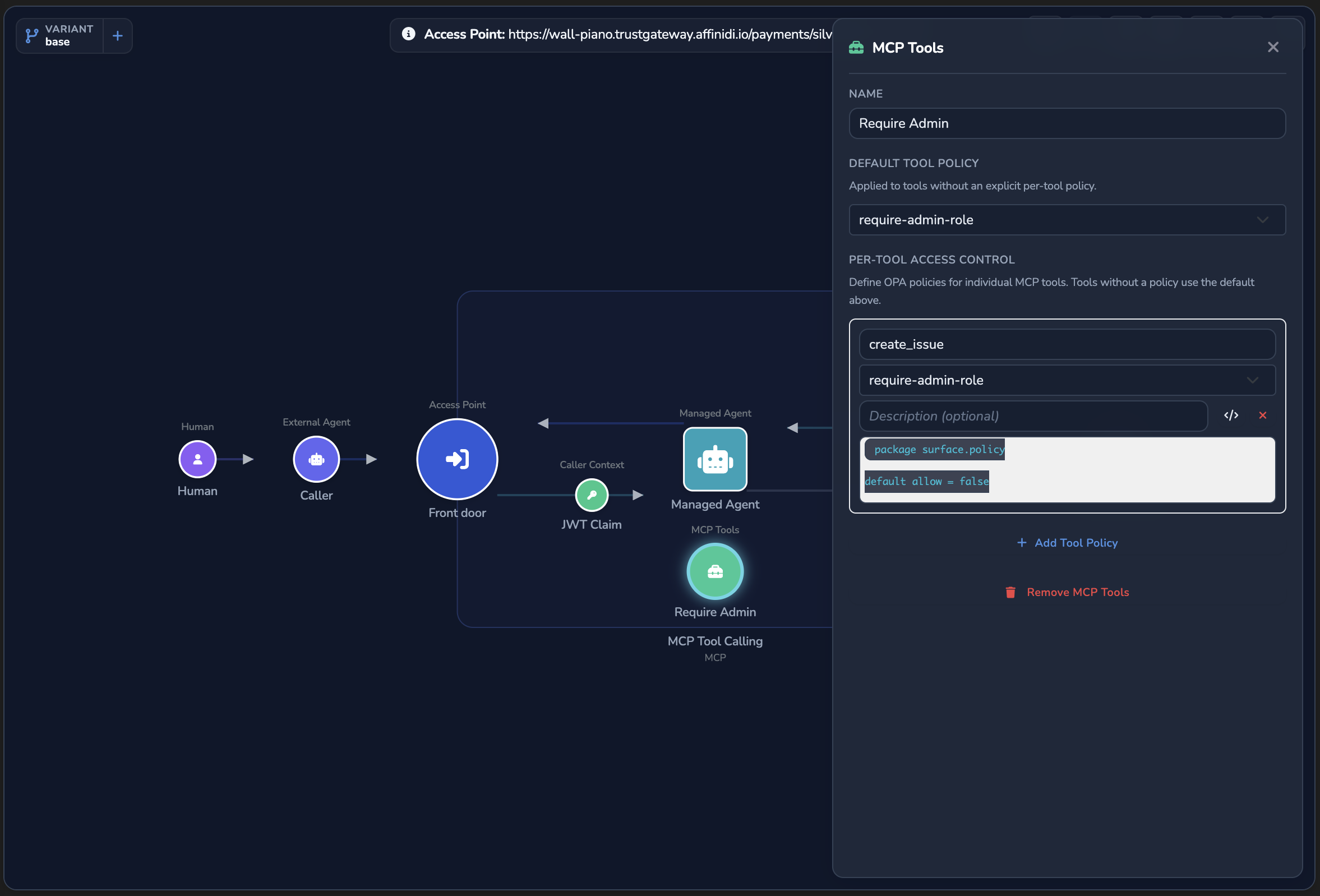
- Open Surfaces and select the MCP surface to configure.
- Select the Managed Agent node. Confirm Endpoint Type is set to via MCP Proxy with your MCP Proxy selected. The canvas synthesises a small chain of nodes on the surface boundary once this is set, labelled MCP Proxy → REST API → MCP Tools.
- Select the node labelled MCP Proxy to open its panel. The node labelled MCP Tools further along the chain is a different, read-only view of tools discovered from the proxy; it has no policy fields.
- Under Per-Tool Access Control, select Add Tool Policy.
- Fill in the tool entry.
- In the tool name field, enter the exact MCP tool name as your server declares it, for example
searchorexecute_query. Names are case-sensitive. - In the policy dropdown, select the policy definition you created in Step 1.
- In the description field (optional), enter a note explaining why this tool has this policy.
- In the tool name field, enter the exact MCP tool name as your server declares it, for example
- Repeat steps 4–5 for each tool you want to permit.
- Select the blue disk-icon Save button in the toolbar (tooltip: Save changes), or press Cmd+S (macOS) / Ctrl+S (Windows/Linux).
The tool policy gate applies only to tools/call requests. Methods such as initialize, tools/list, and resources/list pass through without evaluation. If you also need to hide tools from tools/list rather than only gating tools/call, use the MCP Tool Gating firewall element instead, which matches tool names by regular expression and applies to both methods.
Any tools/call for a tool not listed here is denied, unless you set Default Tool Policy above the tool list to evaluate uncovered tools against a shared policy instead of denying them outright.
Confirm
Replace <ENTRY_POINT_URL> with the Entry point URL shown at the top of the Access Point panel.
These tests use the local echo server (http://localhost:8080) as a stand-in target. HTTP status codes match the expected values. Response bodies reflect the echo server output rather than a real MCP response. Start the echo server with python3 echo-server.py if it is not already running (copy the script from Echo server).
Test 1: calling a listed tool should succeed
Replace search with a tool name you added in Step 2.
The Authorization: Bearer header carries the JWT. The gateway validates it (using the JWT bearer Caller Context on the surface) and extracts the payload claims into input.jwt. A policy that checks input.jwt.role == "admin" therefore requires the JWT payload to contain "role": "admin".
To generate a test JWT with specific claims, use a tool such as jwt.io or your identity provider’s token API. The token must be signed and accepted by your configured JWT strategy.
curl -k -X POST "<ENTRY_POINT_URL>" \
  -H "Content-Type: application/json" \
  -H "Authorization: Bearer <your-jwt-with-required-claims>" \
  -d '{"jsonrpc":"2.0","method":"tools/call","id":1,"params":{"name":"search","arguments":{"query":"test"}}}'
The -k flag disables TLS certificate verification. Use this for local testing only. Remove it in production.
Expected response: 200 OK. The policy passed and the gateway forwarded the request to the target.
Test 2: calling a tool not in the list should be denied
Replace unlisted_tool with any tool name you did not add in Step 2.
curl -k -X POST "<ENTRY_POINT_URL>" \
  -H "Content-Type: application/json" \
  -H "Authorization: Bearer my-jwt-token" \
  -d '{"jsonrpc":"2.0","method":"tools/call","id":2,"params":{"name":"unlisted_tool","arguments":{}}}'
The -k flag disables TLS certificate verification. Use this for local testing only. Remove it in production.
Expected response: 403 Forbidden. The tool has no policy entry, no Default Tool Policy is set, and the request was denied.
Test 3: non-tools/call methods should pass through
initialize is not a tools/call request and is not evaluated by the tool policy gate.
curl -k -X POST "<ENTRY_POINT_URL>" \
  -H "Content-Type: application/json" \
  -d '{"jsonrpc":"2.0","method":"initialize","id":3,"params":{"protocolVersion":"2024-11-05","clientInfo":{"name":"test","version":"1.0"},"capabilities":{}}}'
The -k flag disables TLS certificate verification. Use this for local testing only. Remove it in production.
Expected response: 200 OK. The gateway forwarded the request without tool policy evaluation.
Example policies
Each policy uses package surface.policy. The input context for MCP tool policies differs from gateway and surface policies in one important way.
How input.jwt is populated: when a caller sends Authorization: Bearer <token>, the gateway validates the JWT using the JWT bearer Caller Context on the surface, then extracts all payload claims into input.jwt as a flat key-value map. A policy rule such as input.jwt.role == "admin" is satisfied when the token’s payload contains "role": "admin". If the surface has no JWT bearer Caller Context, or the caller sends no token, input.jwt is absent and any rule that references it evaluates to undefined, which counts as false.
// Example JWT payload that satisfies input.jwt.role == "admin"
{
  "sub": "user@example.com",
  "role": "admin",
  "org": "acme"
}
Do not use input.source_auth.* fields in MCP tool policies: those fields are absent from this input context. For the full input schema for each policy scope, see OPA policies.
Allow any authenticated user
Permits any caller that provided a JWT token. The tool name is already controlled by the policy entry. This policy adds an authentication requirement on top of the allowlist.
package surface.policy

default allow = false

allow if {
    input.jwt.sub
}
Admin-only access
Restricts the tool to callers whose JWT contains role = "admin".
package surface.policy

default allow = false

allow if {
    input.jwt.role == "admin"
}
Role-based access with a structured denial reason (audit log only)
Defining deny_reason adds context to the structured audit log event emitted on denial. The caller always receives the same hardcoded JSON-RPC error (code: -32000, message: "Access denied: insufficient permissions for this tool"). deny_reason does not appear in the HTTP response.
package surface.policy

default allow = false

allow if {
    input.jwt.role == "admin"
}

deny_reason = "Only admin users can call this tool." if {
    not input.jwt.role
}

deny_reason = sprintf("Role '%v' is not authorised for this tool.", [input.jwt.role]) if {
    input.jwt.role
    input.jwt.role != "admin"
}
Subscription-based access
Grants premium subscribers access while blocking free-tier callers.
package surface.policy

default allow = false

allow if {
    input.jwt.subscription == "premium"
}
Allow unconditionally (entry list is the sole control)
When access control is determined entirely by which tools are listed, with no condition on caller attributes, a policy that always allows is the correct choice.
package surface.policy

default allow = true
Troubleshooting
| Symptom | Likely cause | Fix |
|---|---|---|
403 on every tools/call, including listed tools. | The policy is evaluating allow = false for all requests. | Open the policy in Policies and test it in the OPA Playground using the MCP tool input schema from OPA policies. |
403 with message No MCP tool policy configured for tool. | The requested tool name has no entry in the surface’s MCP Tool Policies list. | Add an entry for that tool, or check for a case mismatch between the entry and the name your MCP server declares. |
| Policy updates have no effect. | The surface was not saved after editing the tool policy entries. | Re-open the surface, confirm the entries are present, and select Save. |
403 on tools/call despite a valid JWT. | The policy references a claim that is absent from the token. | Decode the token at jwt.io to confirm the claim exists and is spelled correctly. |
403 on initialize or tools/list. | The rejection comes from the Caller Context or a surface-level policy, not the tool policy gate. | Tool policies only gate tools/call. Check the surface-level policy for non-tool-call rejections. |
| Policy definition not available in the surface editor dropdown. | The definition was created with type Gateway instead of Agent Surfaces. | Create a new definition with type Agent Surfaces and select it in the surface editor. |
Next steps
- OPA policies: understand how gateway, surface, and MCP tool policy layers interact, and explore the full input schema for each scope.
- Apply OPA policies to your gateway and surfaces: apply gateway-wide and surface-level policies alongside per-tool policies.
- Restrict surface access with API key authentication: add API key authentication and rate limiting to any surface.
Related
- Per-tool policy bindings: field reference for the Default Tool Policy and per-tool entry fields used in this guide.
- MCP Proxy: field reference for the MCP Proxy resource the Managed Agent targets.
- OPA policies reference: the full
McpPolicyContextinput schema used when a tool policy evaluates.
Glad to hear it. Thanks for letting us know.
Sorry to hear that. Thanks for letting us know.