Apply OPA policies to your gateway and surfaces
By the end of this guide, you will have OPA Rego policies active at gateway scope (all surfaces) or at individual surface scope (one surface only).
A policy definition is a named, reusable block of Rego that the gateway evaluates before forwarding a request. You create the definition once in Policies, then attach it to a gateway or surface. For background on how the gateway evaluates policies, see OPA policies.
Without a policy, the gateway forwards every authenticated request without evaluating its content or origin. Authentication confirms who is calling. A policy decides what they are allowed to do.
Use this guide when:
- You need a single access-control rule that applies to every surface on a gateway.
- You need per-surface access control that differs from your gateway-wide rule.
- You need to restrict traffic by JWT claims, caller identity, HTTP method, or surface name.
You do not need a policy if authentication alone is sufficient. A Caller Context element handles credential enforcement without Rego.
Prerequisites
- A running Agent Gateway instance with the dashboard accessible.
- Administrator role on the gateway.
- At least one surface for surface-scoped policies. See A2A surface starter or MCP surface starter to create one.
- Familiarity with OPA Rego syntax. Test your Rego logic at play.openpolicyagent.org before saving to the gateway.
Policy scopes
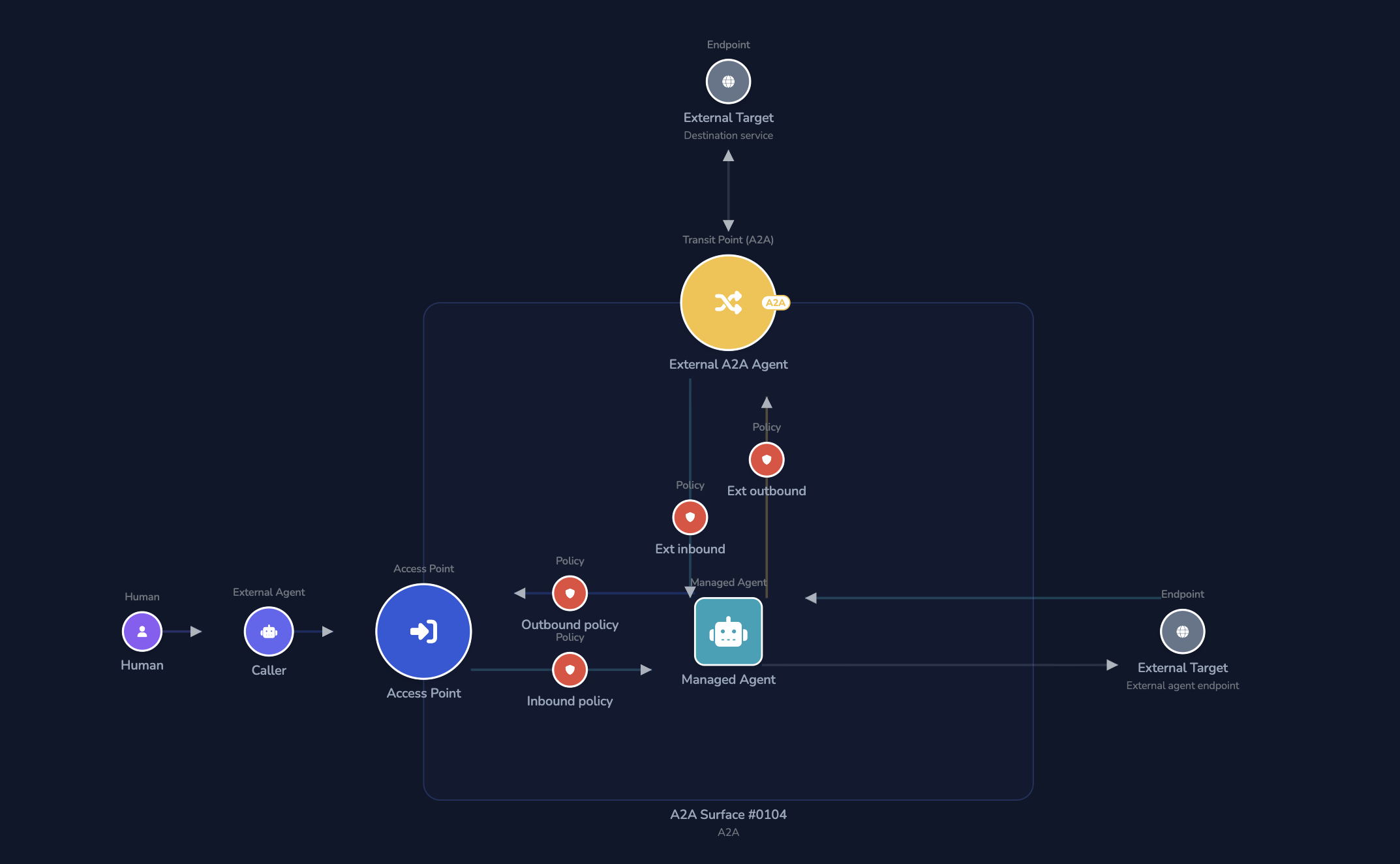
The gateway evaluates policies in order: gateway policy first, then surface policy. A request denied at gateway scope never reaches surface-level evaluation.
| Scope | Package declaration | Attached at | Applies to |
|---|---|---|---|
| Gateway | package gateway.policy | Gateway → Global Policy tab | Every request on this gateway |
| Surface | package surface.policy | Surface canvas → Policy element | Requests to one surface only |
Surface policies also support additional scopes (access point, target, response, and MCP tool), configured directly in the surface editor. See Use JWT claims to control access to a surface for surface-level policy placement.
Steps
Create a policy definition
All policies are created in Policies before being attached to a gateway or surface.
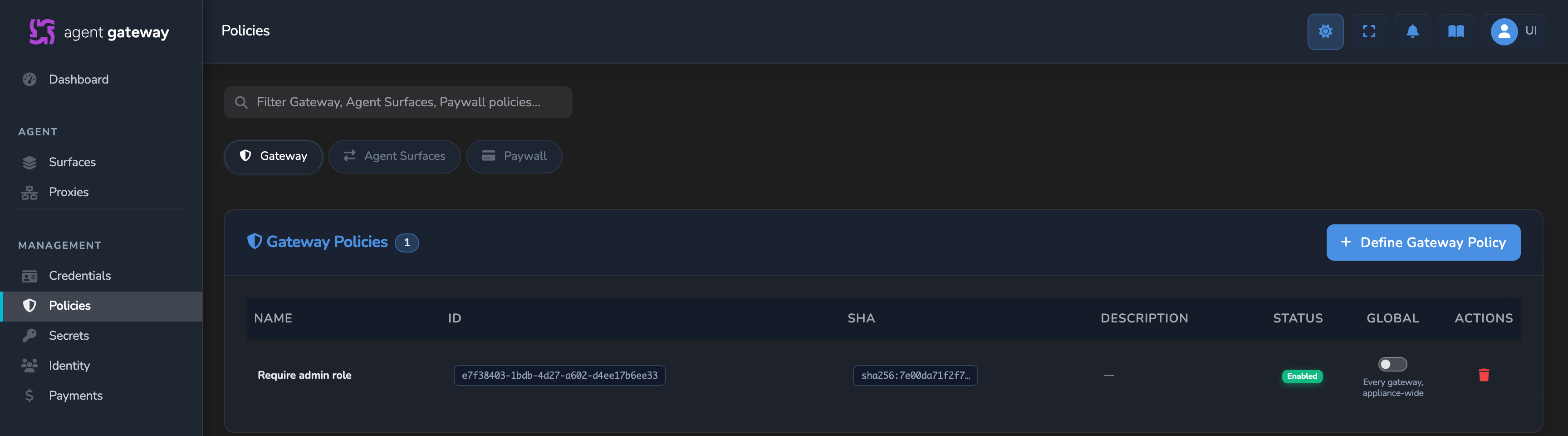
In the sidebar, select Policies.
Select the Gateway tab for a gateway-scoped policy, or the Agent Surfaces tab for a surface-scoped policy.
Select Define Gateway Policy or Define Agent Surface Policy.
Fill in the policy fields:
Field Required Description Name Yes A descriptive label, for example Require authenticationorAdmin only.Description No Free-text explanation of what the policy enforces. Type Yes Gatewayfor gateway-wide enforcement;Agent Surfacesfor per-surface enforcement. Pre-set by which button you selected.Enabled Yes When checked, the policy is evaluated on every matching request. Uncheck to save the definition without activating it. Write the Rego in the Policy Content (Rego) editor. Use the correct package declaration for the scope:
# Gateway-scoped policy
package gateway.policy

default allow = false

allow if {
  input.source_auth.subject
}
# Surface-scoped policy package surface.policy default allow = false allow if { input.source_auth.subject }The editor validates Rego syntax as you type. A green Valid indicator confirms the syntax before you save.
Start with default allow = false and explicitly allow only the conditions you need. A default of true allows all traffic, including unauthenticated requests, if no rule matches.
A misconfigured gateway policy blocks all traffic to every surface. Test your policy logic at play.openpolicyagent.org before saving to production.
For the complete field reference for input, see OPA policies reference.
- Select Create. The policy appears in the list with Enabled or Disabled status.
Common policy patterns
Restricting access to admin users only:
package surface.policy

default allow = false

allow if {
  input.source_auth.claims.role == "admin"
}
Allowing only POST requests:
package surface.policy

default allow = false

allow if {
  input.http.method == "POST"
}
Branching rules by surface name:
package surface.policy

default allow = false

allow if {
  input.channel.name == "public-mcp"
}

allow if {
  input.channel.name == "private-mcp"
  input.source_auth.subject
}
Test the policy with a dry run
Dry-run testing becomes available once the policy definition has been saved at least once.
- Below the Rego editor, find the Test (dry-run) panel.
- In Sample input JSON, edit the sample
inputdocument to match the scenario you want to check, for example a request with a specific role claim. - Select Run against the draft above.
- Review the ALLOW or DENY result, the reason when the policy provides one, and the version or content hash the dry run evaluated.
Check Auto-run to re-run the dry run automatically a moment after every change to the policy or the sample input, instead of selecting Run against the draft above each time.
The dry run evaluates the Rego currently in the editor, including unsaved changes, against the sample input above it. Nothing here touches the live policy engine or in-flight traffic, so you can test a change before selecting Save.
Apply to a gateway
Apply a gateway policy to enforce a rule on every surface on that gateway.
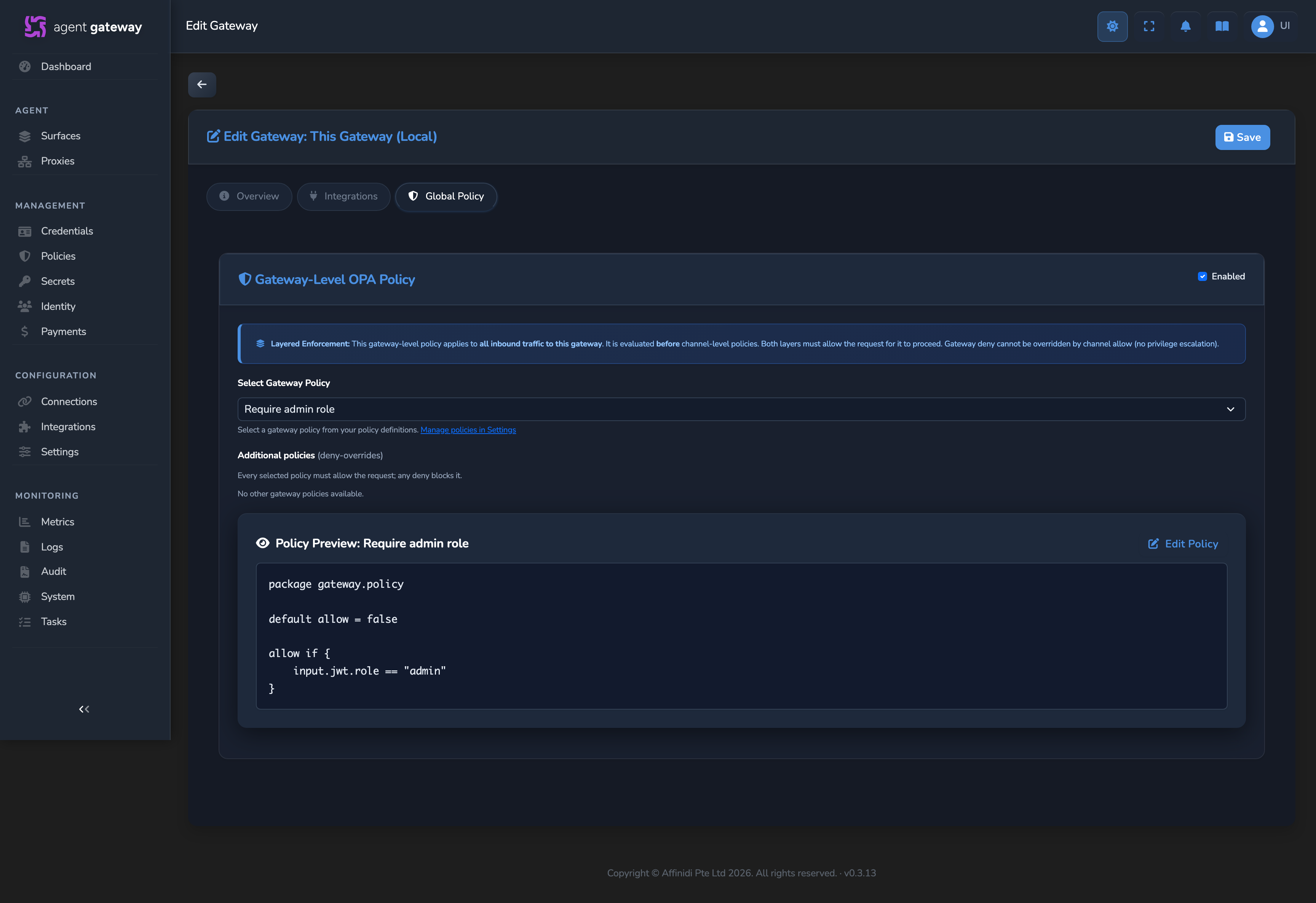
- In the sidebar, select Connections, then open the Gateways tab and select the gateway to configure.
- Select the Global Policy tab.
- Switch the toggle to Enabled.
- Select your policy from the Select Gateway Policy dropdown. Only enabled definitions of type
Gatewayappear. - Select Save Policy.
The policy takes effect on the next incoming request.
Apply to a surface
Apply a surface policy to enforce a rule on one specific surface only.
- In the sidebar, select Surfaces, then open the surface to configure.
- In the left palette, find Policy under the Security & Policy category.
- Drag Policy onto the canvas and drop it on the arrow where you want the rule evaluated, typically the arrow leaving the Access Point to gate all inbound requests before further processing.
- Select the Policy element to open its config panel. In the Policy Definition dropdown, select the definition you created in Step 1. Only enabled definitions of type Agent Surfaces appear.
- Select the blue disk-icon Save button in the toolbar (tooltip: Save changes), or press Cmd+S (macOS) / Ctrl+S (Windows/Linux).
Only requests routed to this surface are evaluated by the surface policy. Other surfaces are unaffected.
Manage policy definitions
Enable or disable a policy
- In the sidebar, select Policies.
- Select the policy name or the edit button to open the policy editor.
- Check or uncheck the Enabled checkbox and select Save.
The change takes effect immediately. Disabling a policy that is attached to a gateway or surface suspends enforcement without removing the attachment.
Delete a policy
- In the sidebar, select Policies.
- Select the delete icon on the policy row.
- Review the confirmation, which states how many gateways (for a Gateway policy) or surfaces (for an Agent Surface policy) currently reference it, then confirm the deletion.
Deletion is permanent. A referencing gateway or surface fails closed once the policy is gone: it denies the traffic that policy used to evaluate, rather than falling back to allowing it.
The reference count in this confirmation only covers the policy’s own scope: gateways for a Gateway policy, surfaces for an Agent Surface policy. It does not account for appliance-wide enforcement. Check the Global column on the policy’s row before deleting; if it is switched on, deleting the policy also affects every gateway or surface in that plane, not only the ones the count includes.
Enforce a policy across every gateway or surface
Applies the same policy definition to every gateway or every surface on the appliance at once, instead of attaching it one object at a time. For background on how this fits alongside the two policy scopes, see How appliance-wide enforcement extends a scope’s reach.
- In the sidebar, select Policies.
- On the Gateway or Agent Surfaces tab, find the policy and switch on its Global toggle.
- Review the confirmation, which states how many gateways or surfaces on the appliance will enforce it, then select Continue.
- To observe the policy without blocking traffic, check Monitor underneath the toggle.
Appliance-wide enforcement runs deny-overrides, ahead of that gateway’s or surface’s own policy. A Monitor-only assignment is evaluated and logged but never blocks a request.
If an enforced (non-Monitor) appliance-wide assignment becomes disabled, deleted, or fails to compile, every gateway or every surface in that plane denies all matching traffic until the assignment is fixed or removed.
Confirm
Replace <ENTRY_POINT_URL> in the commands below with the Entry point URL shown at the top of the surface canvas.
Test 1: blocked request returns 403
Send a request that does not satisfy the policy’s allow conditions. For a policy that requires input.source_auth.subject, send without credentials:
curl -k -X POST "<ENTRY_POINT_URL>" \
  -H "Content-Type: application/json" \
  -d '{"jsonrpc":"2.0","id":1,"method":"message/send","params":{}}'
Expected: 403 Forbidden. The policy evaluated allow = false and the gateway rejected the request.
The -k flag disables TLS certificate verification. Use this for local testing only. Remove it in production.
Test 2: allowed request is forwarded
Send a request that satisfies the policy conditions, for example a valid Authorization: Bearer header:
curl -k -X POST "<ENTRY_POINT_URL>" \
  -H "Content-Type: application/json" \
  -H "Authorization: Bearer <YOUR_TOKEN>" \
  -d '{"jsonrpc":"2.0","id":1,"method":"message/send","params":{}}'
Expected: the gateway forwards the request. Open Monitoring → Logs to confirm the policy decision event for each request.
The -k flag disables TLS certificate verification. Use this for local testing only. Remove it in production.
Troubleshooting
| Symptom | Likely cause | Fix |
|---|---|---|
| All requests are blocked after saving the policy. | default allow = false matches before any explicit allow rule fires. | Re-check your allow conditions. Validate the Rego logic at play.openpolicyagent.org against realistic input values. |
| Policy changes have no effect. | Policy is disabled, uses the wrong package declaration, or is not attached to the gateway or surface. | Confirm the Enabled checkbox is checked, the package matches the scope (gateway.policy or surface.policy), and the policy is selected in the gateway or surface editor. |
403 only on some surfaces. | A surface policy differs from the gateway policy, or one surface has no policy while another does. | Review both gateway-level and surface-level policies for each affected surface. |
input.source_auth is empty in policy evaluation. | Source auth is not enabled on the surface, or the request carries no credentials. | Enable source authentication on the surface or send valid credentials. |
| Rego editor shows a validation error and will not save. | Syntax error in the policy. | Validate the policy at play.openpolicyagent.org and paste the corrected Rego. |
| Policy definition does not appear in the gateway or surface dropdown. | The definition is disabled or uses the wrong type. | Confirm the definition is enabled and the type matches the attachment point (Gateway or Agent Surfaces). |
| Policy is saved with status disabled. | The Enabled checkbox was unchecked at creation time. | Open the policy, check Enabled, and select Save. |
| Every request on a gateway or surface is suddenly denied, with no recent change to that object’s own policy. | An appliance-wide (Global) assignment for that plane is enforced but its underlying policy was disabled, deleted, or no longer compiles. | Open Policies, find the assignment with the Global toggle on for that plane, and re-enable, restore, or fix the referenced policy, or switch the toggle off. |
| Dry-run Run against the draft above stays disabled. | The policy does not currently compile, or the sample input is not valid JSON. | Fix the compile error shown above the Rego editor, or correct the sample input; the button’s tooltip states which one is blocking the run. |
Next steps
- Restrict surface access with API key authentication: add a Caller Context element to authenticate callers before policies evaluate.
- Limit surface access by agent identity: derive a stable agent DID and write DID-based policy rules.
Related
- OPA policies: complete input context reference and evaluation model.
- Surfaces: conceptual model for how policy scopes attach to runtime surfaces.
- OPA policies reference: field reference for all
inputfields available in gateway, surface, and MCP tool policy scopes.
Glad to hear it. Thanks for letting us know.
Sorry to hear that. Thanks for letting us know.