Upgrade an Agent Gateway to the latest release
This guide moves an Agent Gateway appliance to the latest release that Affinidi Portal offers, then checks the gateway once the new release is running. For how the appliance and its dashboard fit together, see the Agent Gateway overview.
Affinidi Portal shows when a newer release is available, but it leaves the timing to you: an appliance stays on its current release until someone in your project starts the update. Some releases also change how stored settings behave. The release notes describe each change, usually under Breaking, so you can review the affected settings after the upgrade.
Use this guide when:
- The Version field in Affinidi Portal shows a newer release next to the one your gateway runs.
- You need a fix or feature from a newer release.
Prerequisites
- Access to the Affinidi Portal project that holds the Agent Gateway appliance.
- An account on the gateway’s dashboard, to check the release and review flagged settings afterwards. Backing up the gateway first needs the Administrator role.
- A time when the gateway can be unavailable for about as long as deploying a new appliance takes, typically a few minutes.
What an upgrade changes
- Target release: Portal offers one target, the latest release available for your appliance, and shows it next to the current version. The update moves the appliance to that release.
- Your data: the gateway keeps its surfaces, identities, secrets, user accounts, and other configuration. A release that changes how a setting behaves says so in its release notes. A release that needs a fresh start makes Portal warn you with Upgrade requires a fresh configuration before anything changes, because configuration from earlier releases is not carried over to it.
- Stored settings: a release can convert stored settings when it first starts, for example by copying a Trust Check onto each Transit Point and flagging the copies for review. The release notes describe each conversion and what to check.
- Connected mediator: when the release needs a newer mediator, Portal warns you with Compatibility requirement before the update starts.
- Resource limits: the gateway reads the limits configured for your appliance when the new release starts, and Settings › Limits shows them with your current usage. The upgrade keeps every surface, secret, and other record, even where their number is at or above a limit. A limit is checked only when you create a record, so it blocks new records of that kind until usage drops below it.
- Going back: take a backup before every upgrade. To go back to an earlier release, contact Affinidi support with your backup. See Rolling back to an earlier release.
Steps
Check the release your gateway runs
Find the current release in either place:
- Agent Gateway dashboard: the page footer ends with the release, for example
· v1.0.3. - Affinidi Portal: the Version field of the configuration, shown on its card in the Configurations list and under Configuration details.
When a newer release is available, the Version field shows the current release with a warning icon, an arrow, and the target release, for example v1.0.2 ⇒ v1.0.3. Select the information icon next to either release to open its Version changelog.
Read the release notes
Open the Agent Gateway releases page on GitHub and read every release between your current release and the target, not only the target. Read each release’s notes in full: changes to stored settings are usually under Breaking, but can also appear under Security or Fixed. 1.0.2, for example, describes its Trust Check copy under Security. Note each change that applies to your surfaces: these are the settings to review after the upgrade.
For example:
- 1.0.2 copies each surface-wide Trust Check onto every Transit Point of the surface and flags the copies for review.
- 1.0.3 refuses transit tokens issued before the upgrade once, so a managed agent’s Transit Point calls can fail until its next inbound request brings a new token.
- 1.0.4 and 1.0.5 change how Access Points, Transit Points, delegated credentials, API key identities, and trust registries behave. See Changes to check after 1.0.4 and 1.0.5.
- 1.0.6 makes every caller authentication method of a surface verify callers, not only the first, and requires a Subject on JWT Bearer credential providers. See Changes to check after 1.0.6.
Back up the gateway
Download a backup from the dashboard so you hold a copy of the gateway’s data from before the upgrade. Follow Back up and restore an Agent Gateway.
Start the update in Affinidi Portal
- Sign in to Affinidi Portal and, in the left sidebar, select Agent Gateway under the Affinidi Trust Fabric section.
- In the Configurations list, select the name of the appliance to open it.
- Under Configuration details, below Version, select Update to followed by the target release, for example Update to v1.0.3.
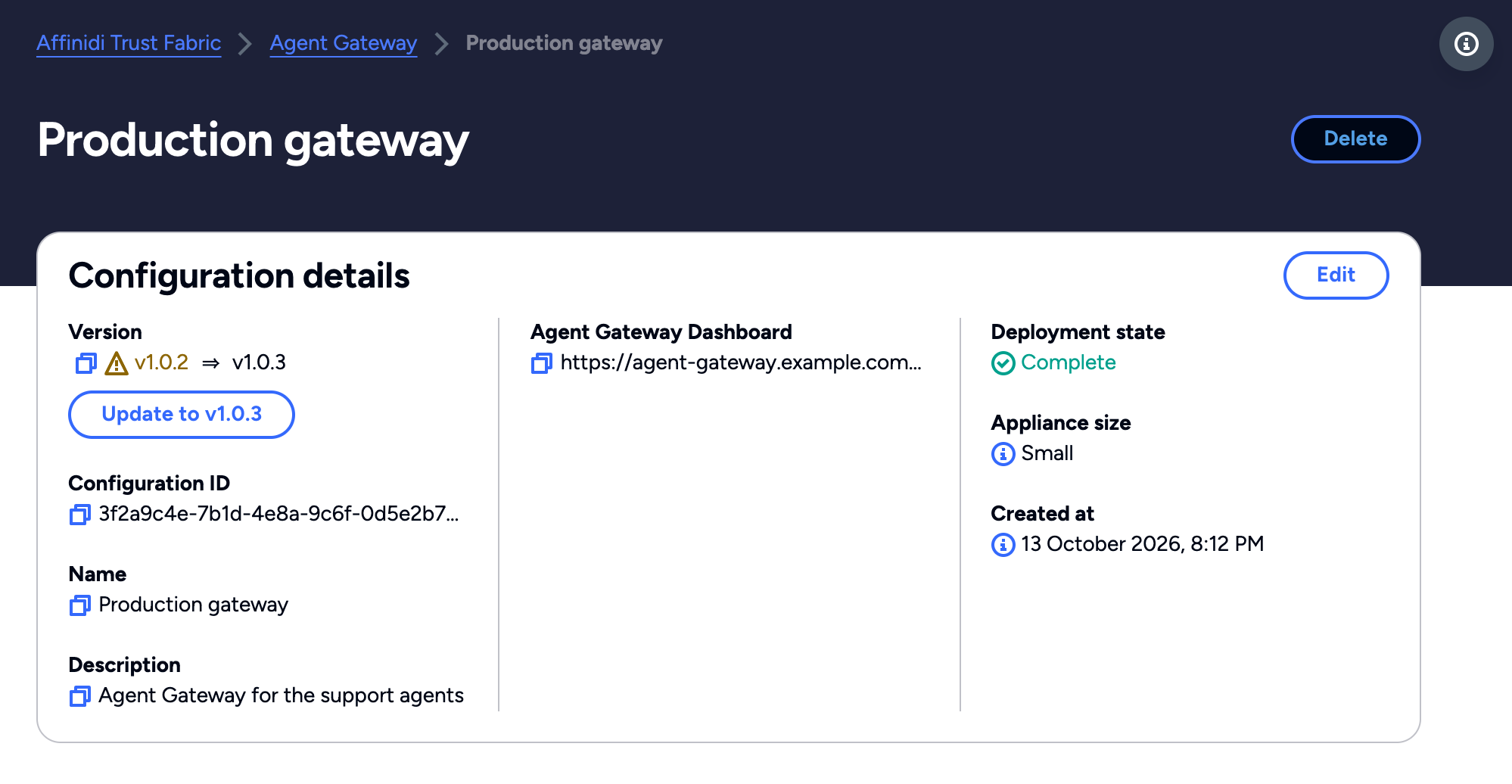
If Portal shows a warning, read it before you continue:
- Upgrade requires a fresh configuration: configuration from your current release is not carried over, and you recreate it after the upgrade.
- Compatibility requirement: the release needs a newer mediator than the one your gateway may be connected to, and that mediator needs an update for the gateway to keep working.
When both apply, Portal shows them in one Compatibility requirement dialog. When neither applies, the update starts as soon as you select Update to.
In the dialog, select Update to followed by the release to go ahead, or Cancel to leave the appliance on its current release.
Portal confirms that the Agent Gateway update has been triggered and returns you to the Configurations list.
Wait for the update to finish
The update takes about as long as deploying a new appliance. Deployment state shows Pending, then In Progress, and Agent Gateway Dashboard shows Pending. Edit and Delete stay unavailable until the update finishes.
When Deployment state shows Complete, check that Version shows the target release with no arrow. A rolled-back update also ends in Complete.
Review the settings the release flagged
Sign in to the dashboard and work through the changes you noted. For the examples above:
- Trust Checks copied to Transit Points (1.0.2): open each surface that shows a banner such as 2 Transit Points need Trust Check review, then keep or remove each copy. See Review Trust Checks copied to Transit Points.
- Transit tokens refused once (1.0.3): expect a managed agent’s first Transit Point calls after the upgrade to be refused with
401until its next inbound request, at most five minutes later. No change is needed. - 1.0.4 and 1.0.5: work through Changes to check after 1.0.4 and 1.0.5.
- 1.0.6: work through Changes to check after 1.0.6.
Changes to check after 1.0.4 and 1.0.5
From version 1.0.4, a new surface refuses every caller until you add caller authentication, unless you switch on Public access. Surfaces created before the upgrade keep the old behaviour until you select Close Access Point and save. Add a Caller Context before you close one, or the surface answers every request with 503.
After upgrading to 1.0.4 or 1.0.5, check each item that applies to your gateway. The main checks are below. For the full list of changes, read the Breaking sections of the release notes.
| Check | What to do | Release |
|---|---|---|
| Access Points stored before the upgrade | Each one shows “Not enforced (legacy)”. Add a Caller Context if the surface has none, then select Close Access Point and save, so a caller with a missing or invalid credential is refused with 401. See Access Point. | 1.0.4 |
| Transit Points that authenticate no caller | A Transit Point with Require transit token off, no Caller authentication, and Open to any caller off answers every request with 503. Choose a caller authentication method, turn the transit token back on, or open it to any caller. See Who can call this Transit Point. | 1.0.4 |
| Delegated accounts | Ask users to connect their delegated accounts again. Tokens stored before the upgrade stay on Credentials › Credential Tokens until you revoke them. See Managing delegated tokens. | 1.0.4 |
Policies that compare user_identity_hash | Update them, because each caller’s identity hash changed. See How caller identity is stored privately. | 1.0.4 |
| Rules that name an API key caller’s DID | On an API Key Provider surface, the stored key keeps its DID, and every other key now gets a DID of its own. On a plain API Key surface, callers get one DID per secret, which is new on surfaces built in the dashboard. Update policies, Trust Check entries, and grants that name an old shared DID for those callers. See Identity from a presented API key. | 1.0.5 |
Surfaces that answer 500 “Caller identity requires API key authentication” | The surface’s inbound From API Key Identity sits on a Caller Context with a method that is not an API key method: on 1.0.5 the first method, and from 1.0.6 any method. Make every method API Key (secret store) or API Key (provider), or change the Identity type. See From API Key. | 1.0.5, 1.0.6 |
| MCP surfaces with Endpoint Type via MCP Proxy and an inbound From API Key Identity | The surface keeps serving its callers, but with no caller identity, and saving it is refused until you change its inbound Identity type. See From API Key. | 1.0.5 |
| Surface variants whose Transit Points set different policies | A variant Transit Point that sets a different MCP tool gating, policy or response policy from the base surface’s Transit Point now has every request through it refused with 403. Set these on the base surface’s Transit Point instead. See Transit Points on a variant. | 1.0.5 |
| Requests to unknown or disabled variants | A request that names an unknown or disabled variant now gets 404, and a surface whose default variant is misconfigured answers 500, instead of falling back to the base surface. Fix the variant aliases your callers use and the surface’s default variant. See Requests that no variant serves. | 1.0.4 |
| Partner requests to a Target with credential bindings | A request from a connected gateway that a binding applies to needs a caller that the receiving surface verified, and a binding that holds a per-user grant refuses it with 403. See How the gateway decides which hop receives a credential. | 1.0.4 |
| Managed agents that fetch documents through a Transit Point without a transit token | Only a GET or HEAD of the listed discovery documents directly below the Transit Point skips the transit token. Any other path, such as tools/agent.json, now needs one. See Discovery reads. | 1.0.5 |
| MCP clients that receive elicit consent prompts | A tool call whose prompt is declined, cancelled, or not answered in time is now refused with 503 instead of forwarded without the credential. See Elicit (MCP-native). | 1.0.5 |
| Audit integrations that read variant or status fields | Policy change records name the variant in surface_variant, not variant, and record _base_ for the base surface. request_completed records no longer declare variant_alias. request_rejected records written on Fabric receive carry no http_status, so treat that field as optional. Update any integration or log consumer that reads these fields. See Audit log. | 1.0.4 |
| Trust registries marked FAILED before the upgrade | A registry that a dropped connection marked FAILED doesn’t recover with Reconnect. Delete it and add it again. See Connection statuses. | 1.0.4 |
Changes to check after 1.0.6
From version 1.0.6, every caller authentication method in a surface’s Caller Context verifies callers, not only the first. A surface whose Caller Context lists more than one method can therefore admit callers it refused before. Check the Caller Context of each surface and each variant after the upgrade.
After upgrading to 1.0.6, check each item that applies to your gateway. For the full list of changes, read the 1.0.6 Breaking and Security sections of the release notes.
| Check | What to do | Release |
|---|---|---|
| Surfaces whose Caller Context lists more than one method | Every method now verifies callers, so a caller presenting only a later method’s credential, refused or treated as failed before, is now authenticated by that method. A request carrying credentials for more than one method fails caller authentication. Where a surface’s methods break the new rules, for example two methods reading the same header or two DID Auth methods, the surface keeps only its first method. Select the Caller Context node on each surface and on each of its variants, check the methods under Authentication methods, and keep only the methods your callers should use. See Caller Context. | 1.0.6 |
| Identities set to From API Key or From JWT Claims | An inbound From API Key Identity now needs every Caller Context method to be API Key (secret store) or API Key (provider), and From JWT Claims needs every method to be JWT Bearer. Until you fix a surface that breaks this rule, a caller verified by a method of another type is refused, and saving the surface fails. Remove the other methods, or change the Identity type. See Identity. | 1.0.6 |
| JWT Bearer credential providers without a Subject | A JWT Bearer provider now needs a Subject. Until you add one, every change to the provider, a signing key rotation included, is refused. Under Credentials › Credential Providers, open each JWT Bearer provider and set Subject: the user the assertion is for, or, for a Google service account without domain-wide delegation, the service account’s own client_email. See Signed JWT settings. | 1.0.6 |
| Agents that rely on cookies from their callers | Access Points no longer pass the caller’s Cookie header to the managed agent, or the agent’s Set-Cookie header back to the caller. An agent that keeps sessions or session affinity in cookies needs a header instead. See Cookies. | 1.0.6 |
| Dashboard sign-in | Dashboard users who don’t have the dashboard open during the upgrade are asked to sign in once. An open dashboard stays signed in. No other action is needed. | 1.0.6 |
Rolling back to an earlier release
Take a backup before every upgrade, as in step 3. To go back to an earlier release, contact Affinidi support with your backup.
A release earlier than the one you upgraded to doesn’t load some surfaces stored after the upgrade:
- From 1.0.4, a release earlier than 1.0.4 skips surfaces created after the upgrade, surfaces whose Access Point was closed or opened to the public after the upgrade, and surfaces with a Transit Point that uses Caller authentication.
- From 1.0.5, a release earlier than 1.0.5, 1.0.4 included, skips surfaces saved on 1.0.5 with an inbound From API Key Identity.
Those surfaces answer 404 on the earlier release and disappear from the dashboard until the gateway runs the newer release again.
Before you roll back from 1.0.6 to an earlier release, remove every Caller Context method but the first on each surface and each of its variants. An earlier release verifies only the first method and passes a later method’s credential, such as a partner’s API key, on to the managed agent. Dashboard users also sign in once again after the rollback.
Confirm
Test 1: opening the configuration in Portal returns the new release with no update offered
In Affinidi Portal, open the configuration.
Expected: Deployment state is Complete, Version shows the target release with no arrow, and the Update to button is gone.
Test 2: dashboard sign-in returns the new release in the page footer
Open the Agent Gateway Dashboard address from Portal and sign in.
Expected: the page footer ends with the target release, for example · v1.0.3, and the Surfaces page lists your surfaces.
Test 3: request through a surface returns the expected response
Send the same request you use to check a surface after a change, for example the test request from the MCP surface starter or the A2A surface starter.
Expected: the same status code and response as before the upgrade, unless a change you noted affects it.
Troubleshooting
| Symptom | Likely cause | Fix |
|---|---|---|
| No Update to button under Version. | The appliance already runs the latest release, or an update is still running. | Check that Version shows no arrow and Deployment state is Complete. If an update is running, wait for it to finish. |
| Edit and Delete are unavailable, with the reason “One of the instances has an active request”. | An update or other request on one of your Agent Gateway appliances is still running. | Wait until Deployment state shows Complete. |
| Portal shows “There is an issue with update. Please try again or get support.” | Portal could not start the update. | Select Update to again. If the message repeats, contact Affinidi support. |
| Portal shows “Updating to the new version failed, but the current version is still running successfully.” | The update did not complete and the appliance returned to its previous release. | The appliance runs its previous release. If the new release had already converted stored settings, restore the backup you took before the upgrade. Try the update again later, or contact Affinidi support. |
| Deployment state shows Failed. | The appliance could not be deployed. | Portal suggests deleting the configuration and creating a new one. Contact Affinidi support first, and keep your latest backup: a backup restores only onto a gateway with the same domain and backup encryption key. |
A managed agent’s Transit Point calls fail with 401 and Transit token missing or invalid right after the upgrade to 1.0.3 or later. | Transit tokens issued before the upgrade are refused once. | Wait for the managed agent’s next inbound request, which brings a new token, at most five minutes later. |
A surface answers every request with 503 and “This Access Point is not available.” after the upgrade to 1.0.4 or later. | The surface was created after the upgrade with no caller authentication, or a legacy surface was closed without a Caller Context. | Add a Caller Context to the surface and save. See Changes to check after 1.0.4 and 1.0.5. |
A Transit Point answers every request with 503 after the upgrade to 1.0.4 or later. | It neither requires a transit token nor authenticates its callers, and isn’t open to any caller. | Set who can call it. See Who can call this Transit Point. |
A surface answers 500 with “Caller identity requires API key authentication” after the upgrade to 1.0.5 or later. | Its inbound From API Key Identity sits on a Caller Context with a method that is not an API key method: on 1.0.5 the first method, and from 1.0.6 any method that verified the caller. | Make every method API Key (secret store) or API Key (provider), or change the Identity type. |
| Saving a surface fails with “Identity ‘From API Key’ needs every Caller Context method to be API Key or API Key Provider”, or with “From JWT Claims requires a Caller Context whose methods are all JWT Bearer.”, after the upgrade to 1.0.6. | The surface’s Identity needs every Caller Context method to match its type. | Remove the other methods in the Caller Context editor, or change the Identity type. See Changes to check after 1.0.6. |
| A JWT Bearer credential provider won’t save after the upgrade to 1.0.6, and its Subject field is marked as required. | From 1.0.6, a JWT Bearer provider needs a Subject, and the provider has none. | Set Subject and save again. For a Google service account without domain-wide delegation, use the service account’s client_email. |
Callers that send a JWT and an API key together are refused after the upgrade to 1.0.6: 401 on a closed Access Point, or a policy denial. | The surface’s Caller Context has a method for each credential, and a request carrying credentials for more than one method fails caller authentication. | Have each caller send only the credential for its own method. |
| The dashboard asks you to sign in again after the upgrade to 1.0.6. | 1.0.6 changes how the dashboard keeps you signed in. | Sign in as usual. This happens once. |
| A surface shows a banner such as 2 Transit Points need Trust Check review. | The upgrade to 1.0.2 or later copied a surface-wide Trust Check onto each Transit Point. | Review each copied Trust Check and keep or remove it. |
| A create button shows Limit reached after the upgrade. | Usage of that resource is at or above its limit. Existing records keep working. | Check the row on Settings › Limits. Delete records you no longer need, or upgrade your appliance tier for a higher limit. See Limits tab. |
Next steps
- Back up and restore an Agent Gateway: keep a recent backup so you can return the gateway to a known state.
- Review Trust Checks copied to Transit Points: keep or remove each copy flagged by the 1.0.2 upgrade.
Related
- Agent Gateway releases: every release, its changes, and its upgrade notes.
- Deploy Agent Gateway appliance: the Portal configuration page and its fields.
- Transit Points: how a Transit Point checks transit tokens.
- Access Point: Public access, closing a legacy Access Point, and readiness.
- Trust Check copies on Transit Points: the review banner, badge, and Keep action.
Glad to hear it. Thanks for letting us know.
Sorry to hear that. Thanks for letting us know.
Still stuck? Ask the community on Discord or contact us.