Set up event notifications
By the end of this guide, you will have an integration delivering alerts to an external service when a gateway event occurs.
An integration joins an endpoint, where messages go, with an event set, which events it delivers, and holds the message template. You create each one on its own tab of the Integrations page, so one Slack channel or webhook can serve several integrations. For background on the event model, see Event notifications.
Without notifications, there is no automated alert path for gateway events such as a user registering or a gateway being disabled, so someone has to watch the dashboard or logs to notice them.
Use this guide when:
- You need automated alerts when specific gateway, user, connection point, or payment events occur.
- You are routing event data to an external monitoring or communication platform.
This guide covers lifecycle and payment events. Governance audit records, such as policy decisions or refused requests, add delivery limits of their own. For those, follow Send audit events to an external system instead.
Prerequisites
- Dashboard access with the Administrator role. Other roles can view the Integrations page but can’t add or test integrations.
- Credentials for the target delivery service: SMTP server details, a Slack incoming webhook URL, an HTTPS endpoint, or streaming platform connection details.
- Optional: the credential stored on the Secrets page, so the endpoint can reference it instead of holding its own copy. See Secrets.
Steps
Add the endpoint
- In the dashboard sidebar, select Integrations, open the Endpoints tab, and select Add Endpoint.
- Enter a Name and, optionally, a Description.
- From Type, select Email (SMTP), Slack, Webhook, or Stream (Kafka, Kinesis, Pulsar, Redis). The type can’t be changed after you save.
- In the Configuration card, fill in the fields for the type, for example Incoming webhook URL for Slack, or URL and an optional Signing secret for a webhook. The Endpoints reference lists every field.
- For a password, webhook URL, or signing secret held on the Secrets page, pick it from Use a stored secret below the field instead of typing the value.
- Select Save. The dashboard returns to the Endpoints tab.
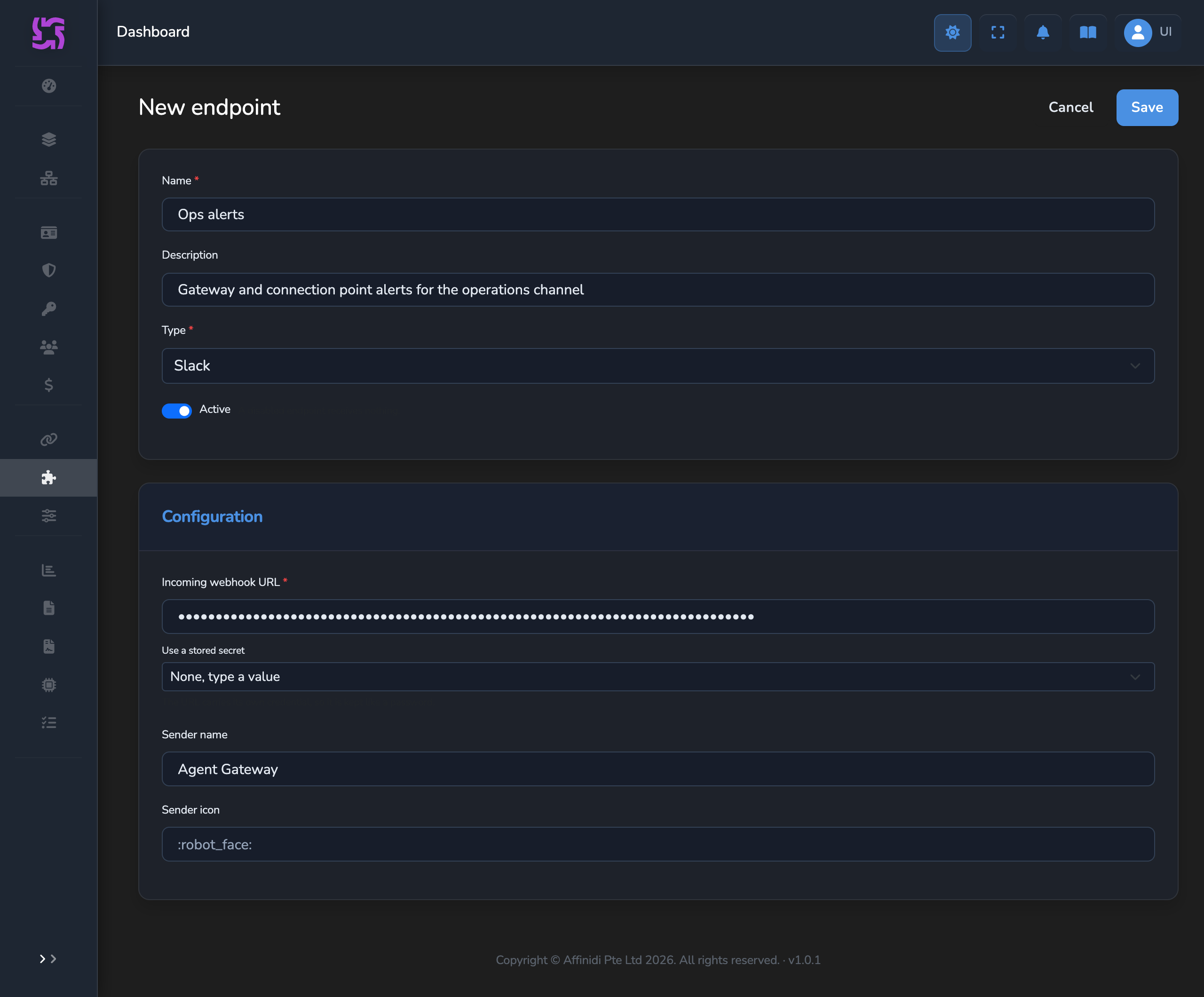
Saved credentials are never shown again, only kept, replaced, or cleared. Keep live credential values out of shared documents, tickets, and screenshots. If a credential is compromised, rotate it at its source system, such as the SMTP account or Slack app, then select Replace on the endpoint field, or update the stored secret it references.
Send a test through the endpoint
On the endpoint’s row, select the paper-plane icon. The gateway sends the endpoint type’s default message.
Expected: a Test message sent to notice appears, and the message arrives in the target service. If the notice reads Test failed:, it names the reason. Fix the endpoint and test again before continuing.
Add the event set
- Open the Event Sets tab and select Add Event Set.
- Enter a Name, for example
User changes, and, optionally, a Description. - Under Events, select the events to deliver. Select a group checkbox, such as User, to select every event in it, or use Search events to find one by name.
- Select Save. The dashboard returns to the Event Sets tab.
The integration delivers each selected event from every gateway, user, or connection point that raises it.
Add the integration
- Open the Integrations tab and select Add Integration.
- Enter a Name and, optionally, a Description.
- From Endpoint, select the endpoint from step 1.
- From Event set, select the event set from step 3.
- In the Template card, leave the fields empty to send the defaults shown in them, or write your own message. Select a variable in the Variables list to insert it at the cursor.
- Select Save.
The Variables list shows only the variables the event set’s events fill. A template that uses any other variable can’t be saved, and a warning names it. See Template variables for every variable.
Confirm
Test 1: integration status shows active
After you select Save, the dashboard returns to the Integrations tab. Find the new integration by name. Expected: its Status column shows active, and its Endpoint and Event set columns name the endpoint and event set you chose.
Test 2: a test message is delivered
On the integration’s row, select the paper-plane icon. This sends one real message for one event of the event set, the one whose event ID sorts first, filled with sample values. The notice names the event it used. It is delivered, not simulated.
Expected: a Test message for notice names the event and the endpoint, and the message appears in the target service: inbox, Slack channel, webhook endpoint, or stream.
If the notice reads Test failed:, it shows the error returned by the target service. Check the endpoint fields and confirm the target service accepts connections from the gateway.
Deliveries for real events that fail with a timeout, a 429, or a 5xx response are retried up to five times, with randomised delays that add up to at most about 30 seconds, so a destination that is down for a few seconds still receives the notification.
Troubleshooting
| Symptom | Likely cause | Fix |
|---|---|---|
| Add Endpoint, Add Event Set, or Add Integration is missing. | Your account isn’t an administrator. | Sign in as an administrator, or ask one to create the integration. |
| A test message isn’t received. | The endpoint’s credentials are wrong, or the target service is unreachable from the gateway. | Check the endpoint’s fields, then send a test from the Endpoints tab. |
| The integration is active but nothing arrives. | The endpoint is disabled. A disabled endpoint receives nothing. | Edit the endpoint, turn on Active, and select Save. |
| Saving the integration fails with a warning that no event of the event set fills a variable. | The template uses a variable the selected events don’t provide. | Remove the variable, or add an event that fills it to the event set. |
| Saving the event set fails. | An integration using it has a template variable that the changed event set no longer fills. | Edit that integration’s template first, or keep the event that fills the variable. |
| An endpoint or event set can’t be deleted. | An integration uses it. Its delete button tooltip names the integration. | Delete the integration, or change it to use another endpoint or event set. |
| Saving a webhook endpoint fails because of Headers. | The value isn’t a JSON object of header names to text values, or it sets a header the gateway sets itself, such as Content-Type. | Correct the JSON and remove Content-Type, X-Webhook-Timestamp, and X-Webhook-Signature-256. |
| Slack messages stop arriving. | The Slack incoming webhook URL has been revoked or the app was removed. | Create a new incoming webhook in Slack, then select Replace on Incoming webhook URL and save. |
Next steps
- Send audit events to an external system: deliver governance audit records, such as policy decisions and refused requests, to the same endpoints.
- Event notifications: background on endpoints, event sets, and how events are delivered.
Related
- Integrations reference: every endpoint field, the event catalogue, template defaults, and template variables.
- Secrets: store a credential once and reference it from endpoints.
Glad to hear it. Thanks for letting us know.
Sorry to hear that. Thanks for letting us know.