Restrict surface access with API key authentication
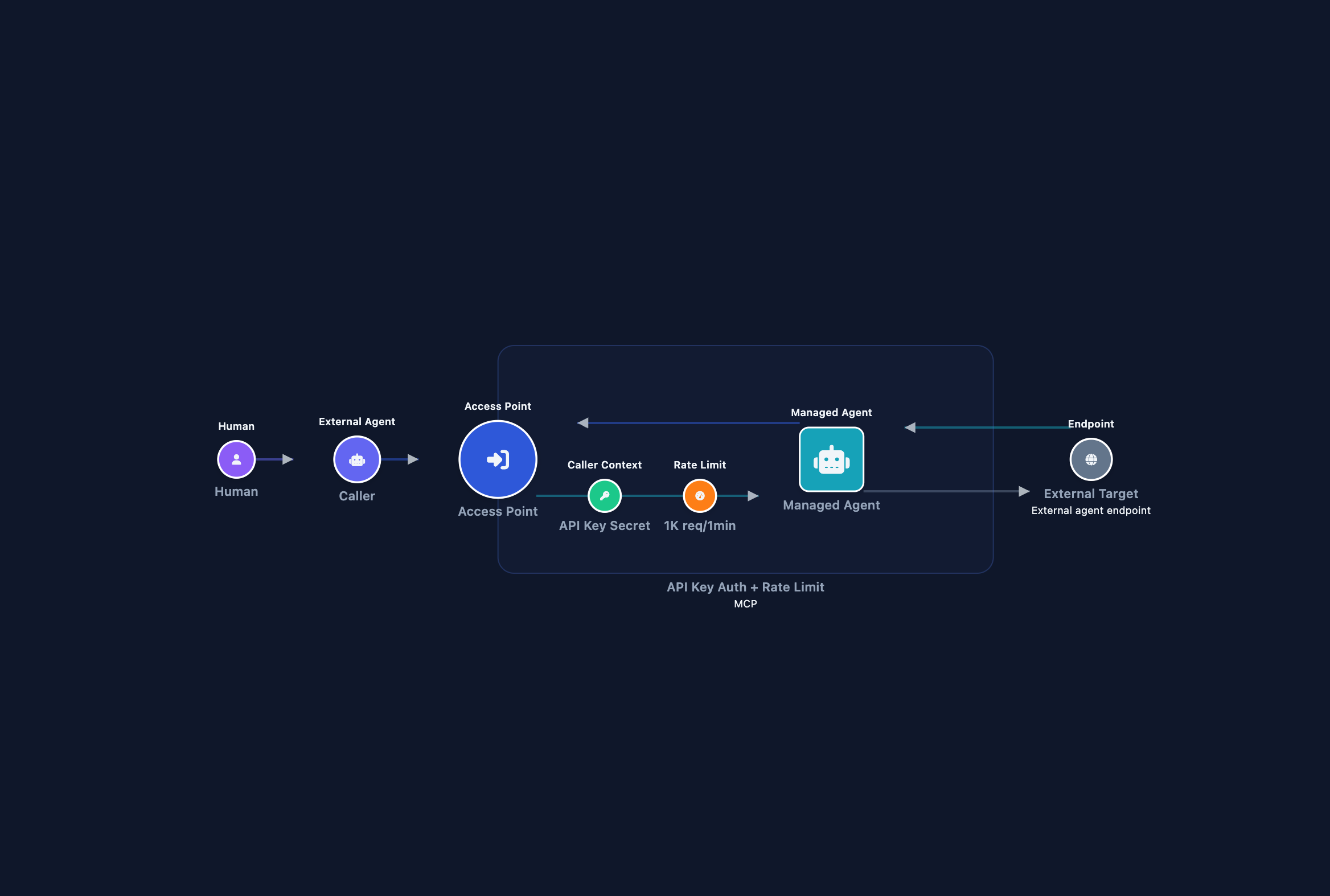
This guide adds two canvas elements to a surface: Caller Context, which enforces an API key on every inbound request, and Rate Limit, which caps requests per time window.
Without Caller Context, any caller who knows the route reaches your managed agent. Without Rate Limit, a single caller can overwhelm it with traffic.
Use this guide when your surface is exposed to external callers and you need to restrict access to authorised callers only. You add both elements from the palette, configure a secret to hold valid key values, and confirm the setup with three targeted curl tests.
Prerequisites
- Completed Create your first surface.
- You are logged in to the Agent Gateway dashboard with permission to create and edit surfaces.
- You have the echo server running locally. Copy the script from Echo server, save it as
echo-server.py, and start it withpython3 echo-server.py. - A gateway secret that holds the valid API key values. Follow Secrets to create a secret with your chosen key value (for example,
my-test-key). Note the secret ID: you will enter it in Step 4.
Steps
Create a surface from a template
Open Surfaces in the dashboard.
Select Add Surface.
In Start a new surface, select your protocol template.
- For an A2A surface, select the A2A Surface Starter template.
- For an MCP surface, select the MCP Surface Starter template.
The template sets the surface protocol. There is no separate protocol picker.
The canvas opens with a hint balloon. The Access Point is pre-configured by the template. The Managed Agent shows a red outline until its target endpoint is set.
Optionally update the surface name in the Surface panel. The generated name combines the protocol and a number, such as a2a_surface_1.
Configure the Access Point
- Select the Access Point node on the canvas.
- In the Routing section, set the following fields.
- Surface Prefix: select the path prefix for this gateway (for example,
/agents). - Custom Path: the auto-generated two-word path is ready to use as-is, or type your own path segment. The full URL is shown above the section as the Entry point URL.
- Surface Prefix: select the path prefix for this gateway (for example,
Copy the Entry point URL value: you will use it in the test commands in the Confirm section.
Configure the Managed Agent
- Select the Managed Agent node on the canvas.
- Set Target Endpoint URL to the URL the gateway should forward authenticated traffic to. For this guide, use
http://localhost:8080.
Add Caller Context (API key authentication)
The Caller Context element authenticates inbound callers before their request reaches the managed agent. Without it, anyone who knows the route can call the surface.
- In the left palette, find the Caller Context element under the Security & Policy category.
- Drag Caller Context onto the canvas and drop it between the Access Point and Managed Agent nodes.
- Select the Caller Context node to open its config panel.
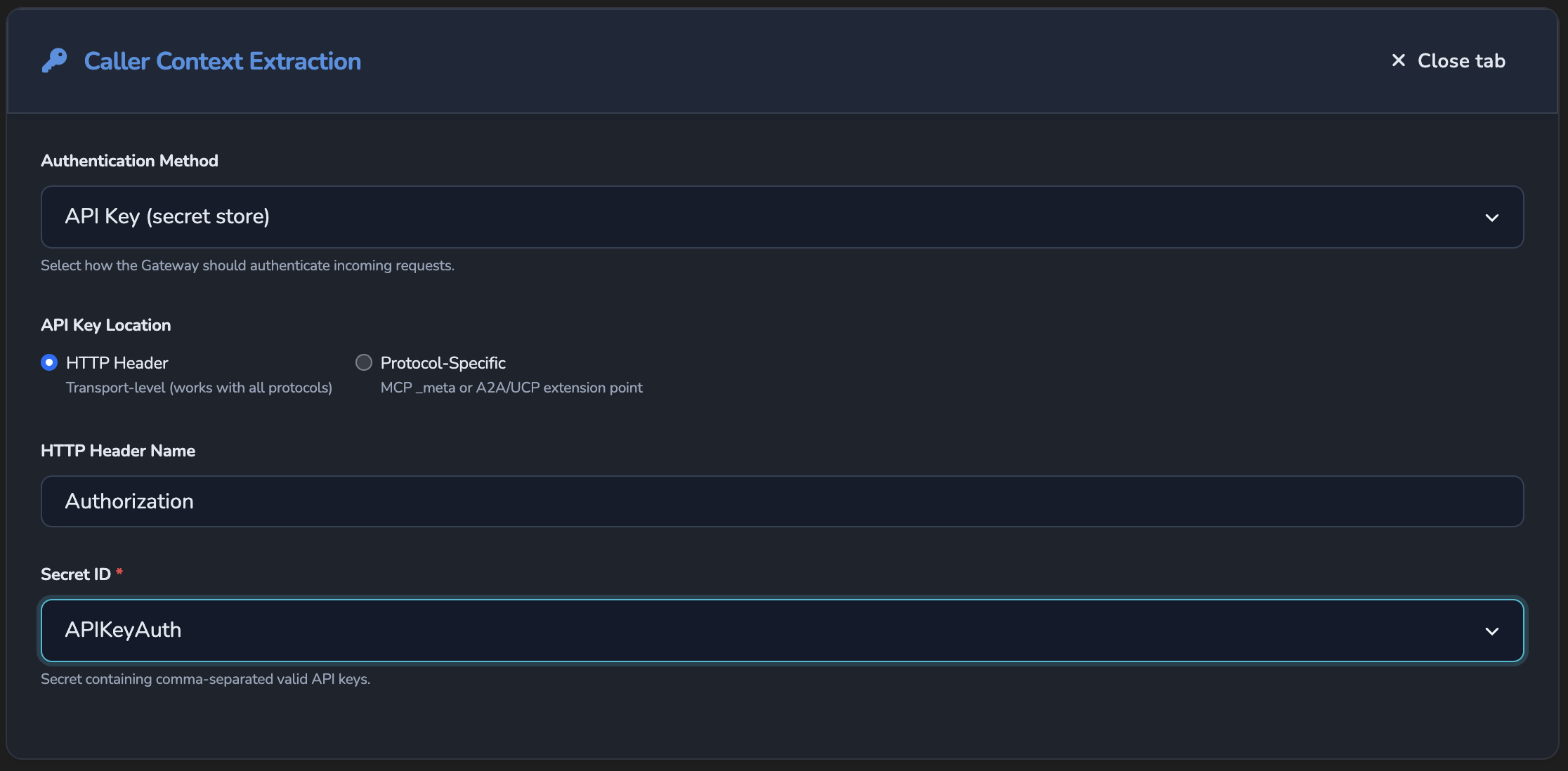
- In Authentication Method, select API Key (secret store).
- Select Configure… to open the full configuration editor.
- In the full editor, confirm or update the following fields.
- HTTP Header Name: the header callers must include in every request. Set it to
X-API-Key, which the tests in this guide use. The field showsAuthorizationwhen you switch from the element’s default JWT method. - Secret ID: enter the ID of the gateway secret you created in Prerequisites. The secret holds the comma-separated list of valid key values.
- HTTP Header Name: the header callers must include in every request. Set it to
- Close the editor.
Caller Context validates the key on every request, but a missing or invalid key does not block the request by itself. Add a Policy element in the next step so the surface actually denies those callers.
Deny requests that fail authentication
A missing or invalid API key is handed to policy rather than rejected automatically. Add a Policy element so the surface denies a caller whose key did not validate.
In the left palette, find the Policy element under the Security & Policy category.
Drag Policy onto the canvas and drop it on the same edge as the Caller Context element.
Select the Policy node to open its config panel.
In Policy Definition, select or create a policy with the following rule.
package surface.policy

default allow = false

allow if {
  input.source_auth.method == "api_key"
}
This allows the request only when the API key validated successfully. Any other outcome, including a missing or invalid key (
input.source_auth.method == "failed"), falls through todefault allow = falseand the request is denied. See OPA policies reference for the fullinput.source_authschema.Close the editor.
Add a Rate Limit
The Rate Limit element caps how many requests the surface accepts in a given time window. Requests that exceed the limit receive 429 Too Many Requests.
- In the left palette, find Rate Limit under the Enhancements category.
- Drag Rate Limit onto the canvas and drop it on the Access Point node or the edge connecting Access Point to Managed Agent.
- Select the Rate Limit node to open its config panel.
- Under Requests, set the following fields.
- Max requests per window: enter the maximum number of requests to allow in one window. For testing, use
5. - Window (seconds): enter the window duration in seconds. For testing, use
60. - Burst allowance (optional): leave empty for now. This allows short spikes above the steady rate when set.
- Max requests per window: enter the maximum number of requests to allow in one window. For testing, use
Save the surface
Select the green checkmark button (tooltip: Create surface) or press Cmd+S (macOS) / Ctrl+S (Windows/Linux).
The gateway applies the new configuration immediately through hot reload.
Confirm
Replace <ENTRY_POINT_URL> with the Entry point URL value you copied in Step 2.
These tests confirm the gateway’s authentication and rate-limiting behaviour. The target is the local echo server, which accepts any request and returns 200 OK with a JSON echo of the forwarded request. It is not a real A2A or MCP server. Replace it with your actual agent URL to test end-to-end protocol behaviour.
The request bodies below use A2A format. For MCP surfaces, replace the body with an MCP request such as {"jsonrpc":"2.0","method":"initialize","id":1,"params":{"protocolVersion":"2024-11-05","clientInfo":{"name":"test","version":"1.0"},"capabilities":{}}}.
Test 1: request without an API key should return 403
curl -k -X POST "<ENTRY_POINT_URL>" \
  -H "Content-Type: application/json" \
  -d '{
    "jsonrpc": "2.0",
    "method": "message/send",
    "id": "test-001",
    "params": {
      "message": {
        "role": "user",
        "messageId": "msg-001",
        "parts": [{ "kind": "text", "text": "Hello" }]
      }
    }
  }'
The -k flag disables TLS certificate verification. Use this for local testing only. Remove it in production.
Expected response: 403 Forbidden. Caller Context recorded the missing key as a failed authentication and the Policy element denied the request before it reached the managed agent.
Test 2: request with a valid API key should succeed
Replace my-test-key with the actual key value stored in your secret.
curl -k -X POST "<ENTRY_POINT_URL>" \
  -H "Content-Type: application/json" \
  -H "X-API-Key: my-test-key" \
  -d '{
    "jsonrpc": "2.0",
    "method": "message/send",
    "id": "test-002",
    "params": {
      "message": {
        "role": "user",
        "messageId": "msg-002",
        "parts": [{ "kind": "text", "text": "Hello" }]
      }
    }
  }'
The -k flag disables TLS certificate verification. Use this for local testing only. Remove it in production.
Expected response: 200 OK with a JSON body echoed by the local echo server. The echo server terminal shows the full forwarded request, including the X-API-Key header.
Test 3: exceeding the rate limit should return 429
Run the following to send six requests in quick succession. With a limit of 5 per 60 seconds, the sixth request should return 429 Too Many Requests.
for i in 1 2 3 4 5 6; do
  curl -k -s -o /dev/null -w "Request $i: %{http_code}\n" \
    -X POST "<ENTRY_POINT_URL>" \
    -H "Content-Type: application/json" \
    -H "X-API-Key: my-test-key" \
    -d '{"jsonrpc":"2.0","method":"message/send","id":"'$i'","params":{"message":{"role":"user","messageId":"msg-'$i'","parts":[{"kind":"text","text":"test"}]}}}'
done
The -k flag disables TLS certificate verification. Use this for local testing only. Remove it in production.
Expected output:
Request 1: 200
Request 2: 200
Request 3: 200
Request 4: 200
Request 5: 200
Request 6: 429
Open the surface Monitoring tab to see all six requests listed, with the last one marked as rate-limited.
Troubleshooting
| Symptom | Likely cause | Fix |
|---|---|---|
A request without an API key returns 200 instead of 403. | No Policy element is attached to the Caller Context edge, or the attached policy does not check input.source_auth.method, so a failed key check is forwarded rather than denied. | Add the Policy element from the Deny requests step, with a rule that only allows when input.source_auth.method == "api_key". |
Every request returns 403, even with the API key header. | The key value in the request does not match any value in the secret. | Open the secret in Secrets and confirm the stored value. Check for leading or trailing spaces. |
403 even though the key value is correct. | The HTTP Header Name in the Caller Context element does not match the header sent in the request. | Open the Caller Context fullscreen editor and confirm the HTTP Header Name field value. Update the curl command to use the same header name. |
Rate limit is not being enforced; requests above the limit return 200. | The Rate Limit element was dropped outside the surface boundary or is not connected to the Access Point path. | Remove the Rate Limit element and re-add it by dropping it directly on the Access Point node or the edge between Access Point and Managed Agent. Save and retry. |
| Rate limit fires immediately on the first request. | Max requests per window is set to 0 or an empty value. | Open the Rate Limit panel and set Max requests per window to a positive integer. |
404 Not Found on the test request. | The URL in the curl command does not match the Entry point URL value. | Copy the exact Entry point URL value from the Access Point panel and use it in the curl command. |
502 Bad Gateway. | The target endpoint is unreachable from the gateway host. | Confirm the gateway has outbound internet access, or replace the target endpoint with a reachable internal URL. |
Next steps
- Use JWT claims to control access to a surface: add Rego policy rules to enforce fine-grained access control beyond API key authentication.
- Control MCP tool access with per-tool policies: restrict which MCP tools are accessible per caller (MCP surfaces only).
- OPA policies: understand how Rego rules integrate with the gateway surface pipeline.
Glad to hear it. Thanks for letting us know.
Sorry to hear that. Thanks for letting us know.