Limit surface access by agent identity
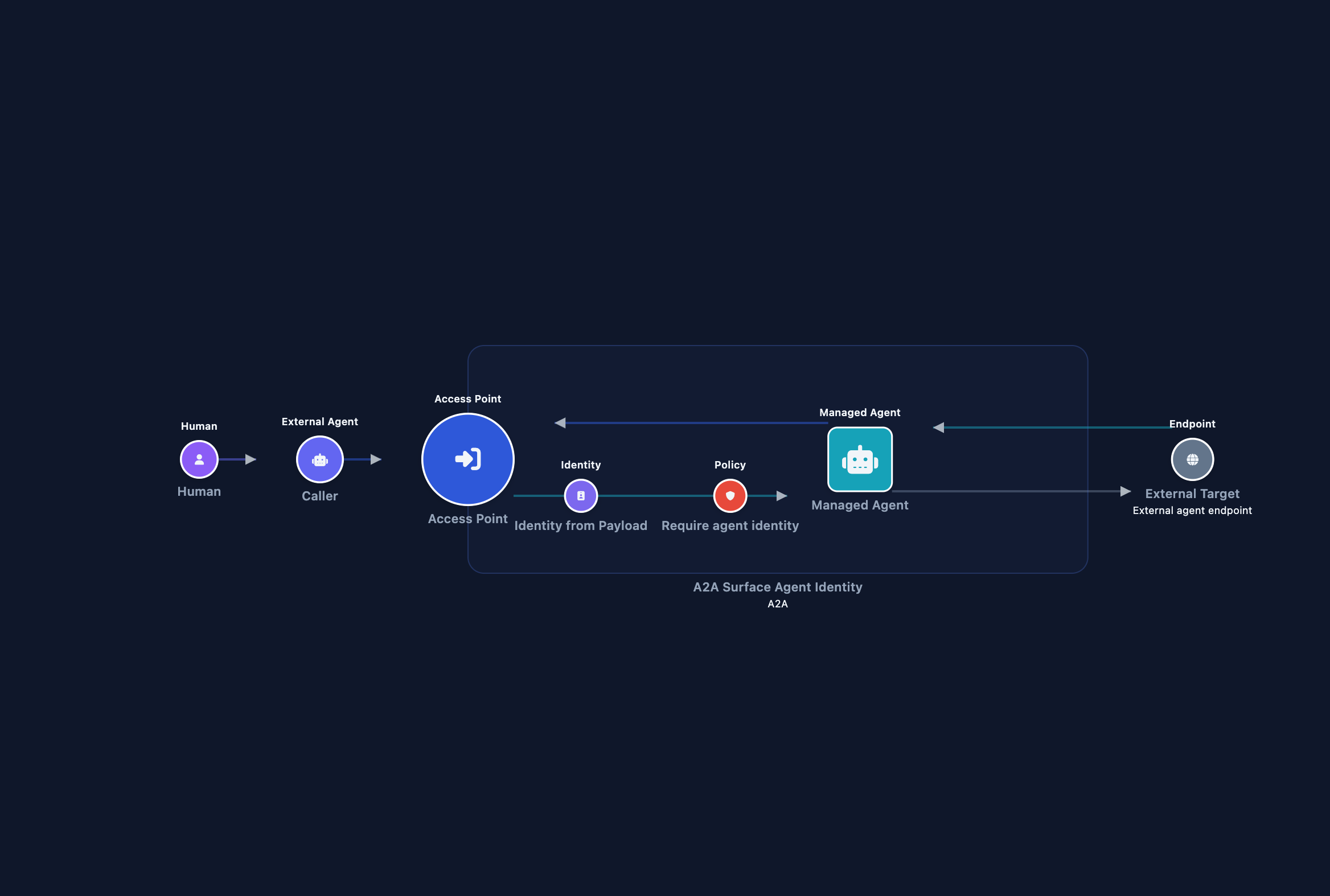
This guide adds an Identity element to a surface so the gateway derives a stable DID for each agent that calls or answers through it, and a surface policy that gates requests by that identity. For background on how identity derivation works, see Agent identity and DIDs.
Without an Identity element, every caller is anonymous to policy evaluation. Rules that reference input.agent.did always evaluate to false, and audit logs carry no stable agent identifier across sessions.
Use this guide when:
- You need to identify callers or upstream agents by a stable identifier that survives credential rotation.
- You want OPA policies to allow or deny requests by agent DID.
- Audit logs and metrics must be attributable to a specific agent across sessions.
- You need to capture the identity of your managed agent or the upstream it calls, for audit or downstream trust chains.
You do not need an Identity element if your surface only needs to authenticate callers. Authentication alone is sufficient when you have no requirement for per-agent attribution or DID-based policy.
Prerequisites
- An existing surface with at least an Access Point and a Managed Agent configured. See Restrict surface access with API key authentication if you need to create one first.
- Dashboard access with permission to create and edit surfaces and policies.
- For From API Key mode: an active API key already stored under Secrets → API Keys.
- For From JWT Claims mode: a Caller Context element using JWT Bearer authentication on the same surface. To add one, follow Restrict surface access with API key authentication and select JWT Bearer as the authentication method instead of API key.
Steps
Choose an identity slot
The Identity element can sit in three positions on the surface canvas. Each position maps to a different edge in the request–response pipeline:
| Slot | Edge | What it identifies |
|---|---|---|
| Inbound caller | Caller → Managed Agent (request leg) | Who is calling your surface from outside. |
| Protected agent | Managed Agent → Caller (response leg) | Who your managed agent is: resolved from the managed agent’s response. |
| External agent | External Target → Managed Agent (response leg) | Who the upstream target is that your managed agent called. |
Transit Points support a fourth per-upstream slot. See Apply policy to outbound calls for Transit Point configuration.
Most operators start with the Inbound caller slot: derive the caller’s DID so policies and audit logs record who made each request.
Add the Identity element to the canvas
- Open Surfaces in the dashboard and select the surface to configure.
- In the left palette, find the Identity element under Enhancements.
- Drag Identity onto the canvas and drop it on the edge that matches the slot you chose in Step 1.
- Inbound caller: drop on the arrow between the Access Point and the Managed Agent node.
- Protected agent: drop on the return arrow from the Managed Agent back toward the Access Point.
- External agent: drop on the arrow between the External Target and the Managed Agent node.
- Select the Identity node. A context banner at the top of the configuration panel confirms which slot the node occupies and what it identifies.
Configure the extraction type
Select an extraction type from the Identity Extraction Type dropdown. The type determines how the gateway derives the agent’s DID.
| Type | Derives the DID from | Prerequisite |
|---|---|---|
| From Payload | Named fields in the request or response body. | Agents that include identity metadata in their payloads. |
| From API Key | A stored API key identifier. | An active API key under Secrets → API Keys. |
| From mTLS certificate | A stored client-leaf certificate. | Visible in the dropdown but not currently selectable. |
| From JWT Claims | A claim in the validated bearer token. | A Caller Context element using JWT Bearer auth on the same surface. |
| Static DID | A fixed value you configure. | Visible in the dropdown but not currently selectable. |
From Payload (identity metadata)
Derives the DID from named fields in the request or response body. The same field values always produce the same DID.
Select From Payload (identity metadata).
Select Configure Fields… to open the field editor.
In the field editor, paste a sample payload that your agent sends. The editor extracts a JSON schema from it.
Mark the fields that uniquely identify the agent by enabling
"x-identity": trueon each one. Only marked fields contribute to the DID hash. All other fields remain available to policy evaluation but do not affect the DID.Example: an agent distinguished by LLM provider and model name.
{
  "type": "object",
  "properties": {
    "agentIdentity": {
      "type": "object",
      "properties": {
        "llmInfo": {
          "type": "object",
          "properties": {
            "provider": { "type": "string", "x-identity": true },
            "model":    { "type": "string", "x-identity": true }
          }
        }
      }
    }
  }
}
Optionally enable Strip raw identity metadata after injection. When on, the raw
_meta.[field]block is removed from the forwarded request after the gateway has injected the signed credential. This prevents the raw identity block from reaching the managed agent.Close the editor.
The meta_field defaults to agentIdentity on the request leg and serverIdentity on the response leg. These match the A2A and MCP extension conventions. Change the field name only if your agents use a different key.
For background on how the hash is computed, see Agent identity and DIDs.
From API Key
Derives the DID from a stored API key identifier. The derived DID is stable across key rotation. See Agent identity and DIDs for how this works.
- Select From API Key.
- In the API Key dropdown, select an active API key. If the list is empty, create one under Secrets → API Keys first.
From JWT Claims
Derives the DID from a claim in the caller’s validated bearer token. One stable DID is minted per distinct claim value. See Agent identity and DIDs for the full derivation model.
This mode requires a Caller Context element using JWT Bearer authentication on the same surface. If that element is absent, the dashboard flags an error on the Identity node and the surface cannot be saved in a valid state.
- Select From JWT Claims.
- In JWT Claim, enter the claim name that identifies the agent. The default value is
oid, the Microsoft Entra Agent ID object identifier. - In Namespace Claims, enter any additional claims to fold into the identity hash, separated by commas. For example, entering
iss, tidprevents the sameoidvalue across different tenants from resolving to the same DID. All listed claims must be present in the token or the request fails with a500response, since the gateway treats a validated token that lacks a required namespace claim as a surface misconfiguration rather than a caller error.
Create a surface policy that uses the derived identity
Once the Identity element is configured, the derived DID is available in OPA policy context as input.agent.did. Use a surface-scope (surface.policy) policy to gate requests based on that value.
- In the sidebar, select Policies.
- Select the Agent Surfaces tab.
- Select Define Agent Surface Policy.
- Fill in the form:
- Name: for example,
require-known-agent. - Type: select Agent Surfaces.
- Name: for example,
- In Policy Content (Rego), write the policy rule.
Deny anonymous callers (any DID is sufficient)
The simplest check: the request must have produced a DID. Callers that carry no identity extension or credential are denied.
package surface.policy

default allow = false

allow if {
  input.agent.did
}
Require a specific agent DID
Restrict access to one or more known agents by DID.
package surface.policy

default allow = false

allowed_dids := {
  "did:webvh:gateway.example.com:channel:9fd06096-0188-4979-aa99-8171cde7090a",
  "did:webvh:gateway.example.com:channel:3b2c71de-a482-4c22-b9f6-e90d3fa01abc"
}

allow if {
  allowed_dids[input.agent.did]
}
Combine identity with caller authentication
When the surface also has a Caller Context element, require both a valid credential and a resolved DID.
package surface.policy

default allow = false

allow if {
  input.source_auth.subject
  input.agent.did
}
Gate on JWT claim values directly
For surfaces using From JWT Claims, the full token claim set is also available on input.source_auth.claims.
package surface.policy

default allow = false

allow if {
  input.source_auth.claims.tid == "<expected-tenant-id>"
  input.agent.did
}
Select Save. The policy appears in the list with status Enabled.
Attach the policy to the surface
A policy definition has no effect until it is attached to a surface using the Policy canvas element.
- Open Surfaces and select the surface you added the Identity element to.
- In the left palette, find Policy under the Security & Policy category.
- Drag Policy onto the canvas and drop it on the arrow leaving the Access Point to evaluate the rule on every inbound request.
- Select the Policy element to open its config panel. In the Policy Definition dropdown, select the policy definition you created in Step 4. Only enabled Agent Surfaces definitions appear.
- Select the blue disk-icon Save button in the toolbar (tooltip: Save changes), or press Cmd+S (macOS) / Ctrl+S (Windows/Linux).
Confirm
Replace <ENTRY_POINT_URL> with the Entry point URL shown at the top of the Access Point panel.
Test 1: request without identity returns 403
curl -k -X POST "<ENTRY_POINT_URL>" \
  -H "Content-Type: application/json" \
  -d '{"jsonrpc":"2.0","id":1,"method":"message/send","params":{}}'
The -k flag disables TLS certificate verification. Use this for local testing only. Remove it in production.
Expected: 403 Forbidden. The policy ran, input.agent.did was absent, and the default false rule applied.
Test 2: request with identity metadata returns 200
curl -k -X POST "<ENTRY_POINT_URL>" \
  -H "Content-Type: application/json" \
  -d '{
    "jsonrpc": "2.0",
    "id": 1,
    "method": "message/send",
    "params": {
      "message": { "role": "user", "parts": [{"text": "hello"}] }
    },
    "extensions": ["https://fabric.affinidi.io/extensions/agent-identity/v1"],
    "metadata": {
      "https://fabric.affinidi.io/extensions/agent-identity/v1": {
        "agentIdentity": {
          "provider": "openai",
          "model": "gpt-4"
        }
      }
    }
  }'
The -k flag disables TLS certificate verification. Use this for local testing only. Remove it in production.
Expected: 200 OK. The gateway extracted the provider and model fields, derived a DID, and the policy allowed the request.
To confirm the DID was derived, open Monitoring → Logs and filter for managed_identity_resolve events on this surface. Each event carries the derived DID and the resolution result (ok_new for first derivation, ok_cached for a reused DID).
Troubleshooting
| Symptom | Likely cause | Fix |
|---|---|---|
Every request returns 403 even with identity fields in the payload. | The Identity element has no extraction type selected, or the field names in the schema do not match the actual request payload. | Open the Identity node, confirm an extraction type is selected, and check that the meta_field value and x-identity field paths match what your agent sends. |
| The Identity node has a red error badge after selecting From JWT Claims. | No Caller Context element using JWT Bearer is on this surface. | Add a Caller Context element and set Authentication Method to JWT Bearer before saving. |
input.agent.did is absent during policy evaluation even though the Identity element is configured. | The request did not carry the credential or extension the configured mode expects. | Confirm the inbound request includes the payload extension (payload mode) or the correct API key header (API key mode). |
| Derived DIDs change after a gateway restart. | The gateway’s identity-hash pepper is not configured to a stable value, so a new ephemeral one is generated on every restart. | Contact Affinidi support to confirm a stable identity-hash pepper is configured for your gateway. |
Next steps
- Agent validation via a trust registry: combine identity derivation, trust registry verification, and OPA policies into a complete trust-delegation stack.
- Agent identity and DIDs: understand how derived identities work, key rotation, and DID version history.
- OPA policies: reference for all
input.*fields available at policy evaluation time.
Glad to hear it. Thanks for letting us know.
Sorry to hear that. Thanks for letting us know.