Add identity and access control
The surface from Create your first surface forwards requests without identifying who sends them. This guide adds two capabilities. First, the Identity element derives a cryptographic identifier (a DID) for each unique agent configuration from the request payload. Second, the Policy element enforces an OPA rule that denies requests that do not carry a resolved agent identity.
By the end of this guide, your surface will assign a DID to each caller and reject requests that do not supply an agent identity.
Prerequisites
- The surface from Create your first surface is available in the Surfaces list.
Steps
Add the Identity element
Select Surfaces in the dashboard sidebar and open the surface you created.
In the element palette on the left, find the Identity element under Enhancements. Drag it onto the arrow between the Access Point and the Managed Agent nodes. The settings panel opens and shows the Inbound caller identity context block, confirming the element occupies the correct slot on the inbound request edge.
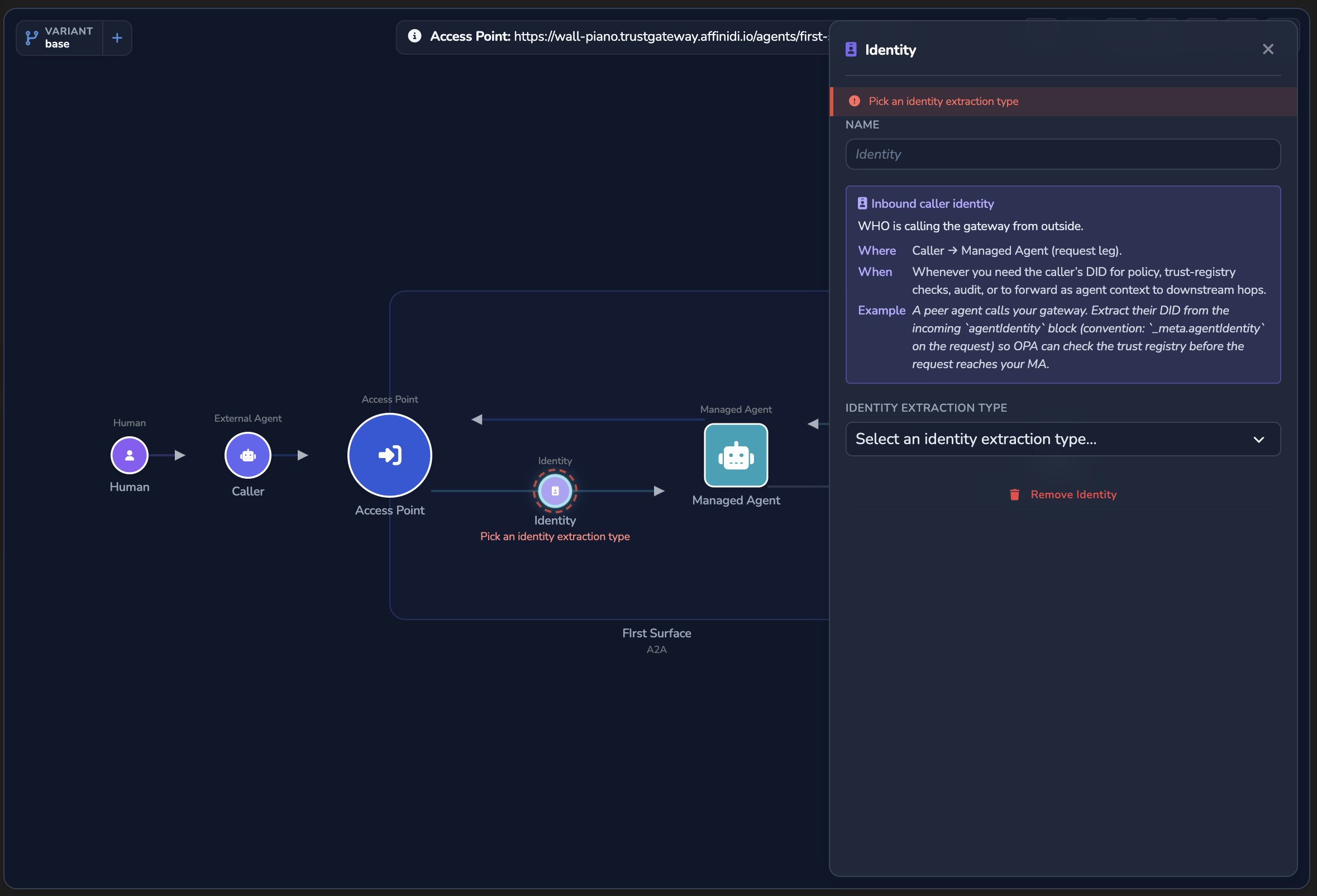
In the settings panel, locate the Identity Extraction Type dropdown and select From Payload (identity metadata).
Select Configure Fields… to open the field editor. Select Add Root Property, name it agentIdentity, and set its type to Object. Inside it, add a property named agentId, set its type to String, and select the Identity checkbox next to it. Fields with the Identity checkbox enabled contribute to the DID hash. Requests that supply the same agentId value always resolve to the same DID.
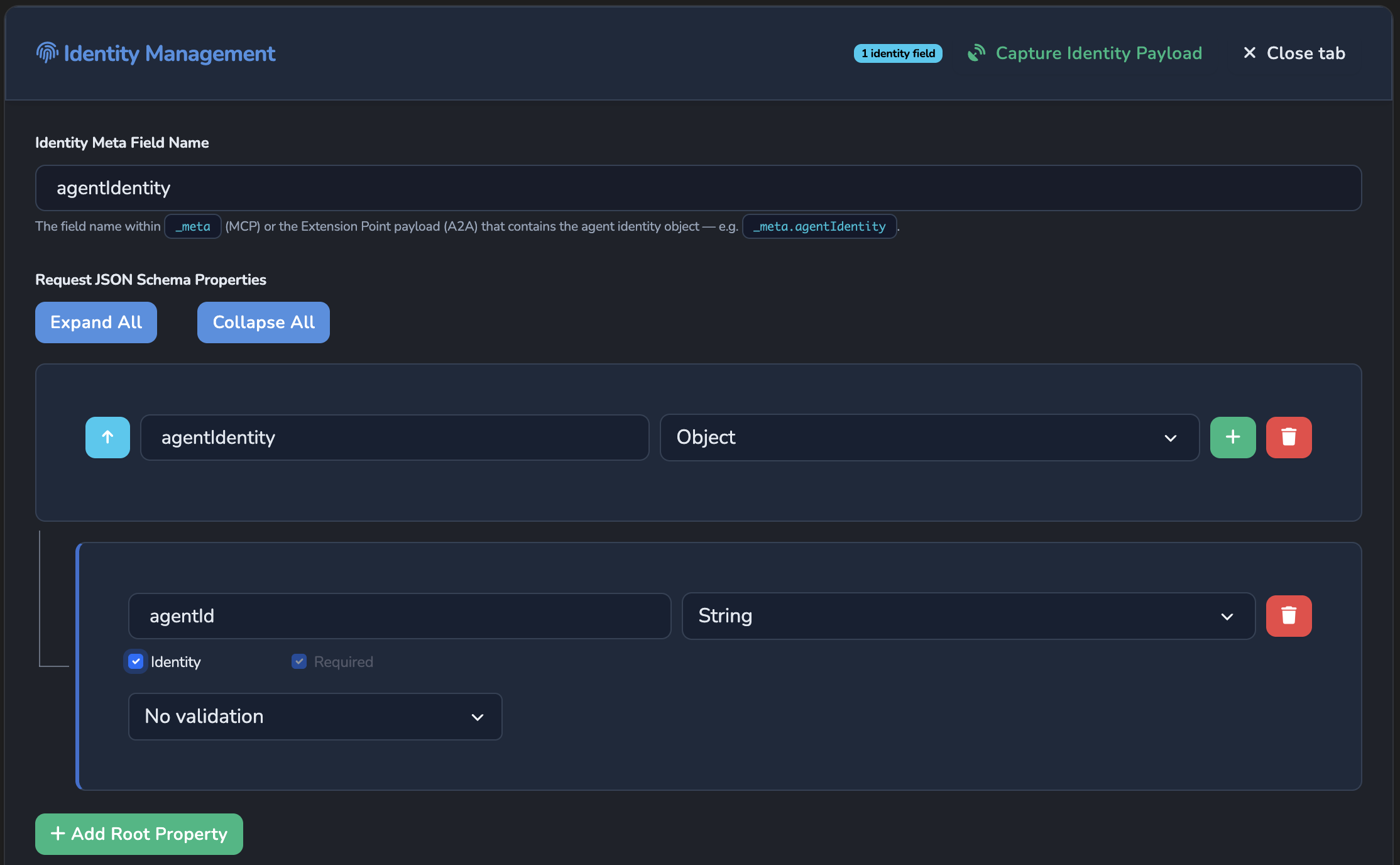
Close the field editor. Select the save icon in the toolbar to save the surface.
On an A2A surface, the gateway reads identity from the agent identity extension payload of each message, so the schema you build here describes that payload. The test request in the next step sends agentIdentity.agentId inside that extension.
Send a test request with an identity
For A2A surfaces, declare the extension URI in message.extensions and nest the identity fields under that URI key in message.metadata. Replace <ENTRY_POINT_URL> with the Entry point URL shown at the top of the surface canvas:
curl -k -X POST "<ENTRY_POINT_URL>" \
  -H "Content-Type: application/json" \
  -d '{
    "jsonrpc": "2.0",
    "method": "message/send",
    "id": "test-002",
    "params": {
      "message": {
        "role": "user",
        "messageId": "msg-002",
        "extensions": [
          "https://fabric.affinidi.io/extensions/agent-identity/v1"
        ],
        "metadata": {
          "https://fabric.affinidi.io/extensions/agent-identity/v1": {
            "agentIdentity": {
              "agentId": "my-test-agent"
            }
          }
        },
        "parts": [{ "kind": "text", "text": "Hello with identity" }]
      }
    }
}'The -k flag disables TLS certificate verification. Use this for local testing only. Remove it in production.
Select the Monitoring tab on the surface detail page. A new identity entry should appear. Every future request with "agentId": "my-test-agent" resolves to the same DID. Requests with a different agentId value receive a separate, distinct DID.
Create a policy definition
Surface-level OPA policies are defined once and can be reused across multiple surfaces.
Select Policies in the dashboard sidebar, then select the Agent Surfaces tab. Select Define Agent Surface Policy.
Fill in the form:
| Field | Value |
|---|---|
| Name | Require agent identity |
| Type | Agent Surfaces (pre-set) |
| Enabled | On |
In the Policy Content (Rego) editor, enter the following policy. It denies any request that does not carry a resolved agent DID:
package surface.policy

default allow = false

allow if {
    input.extension_identity.did
}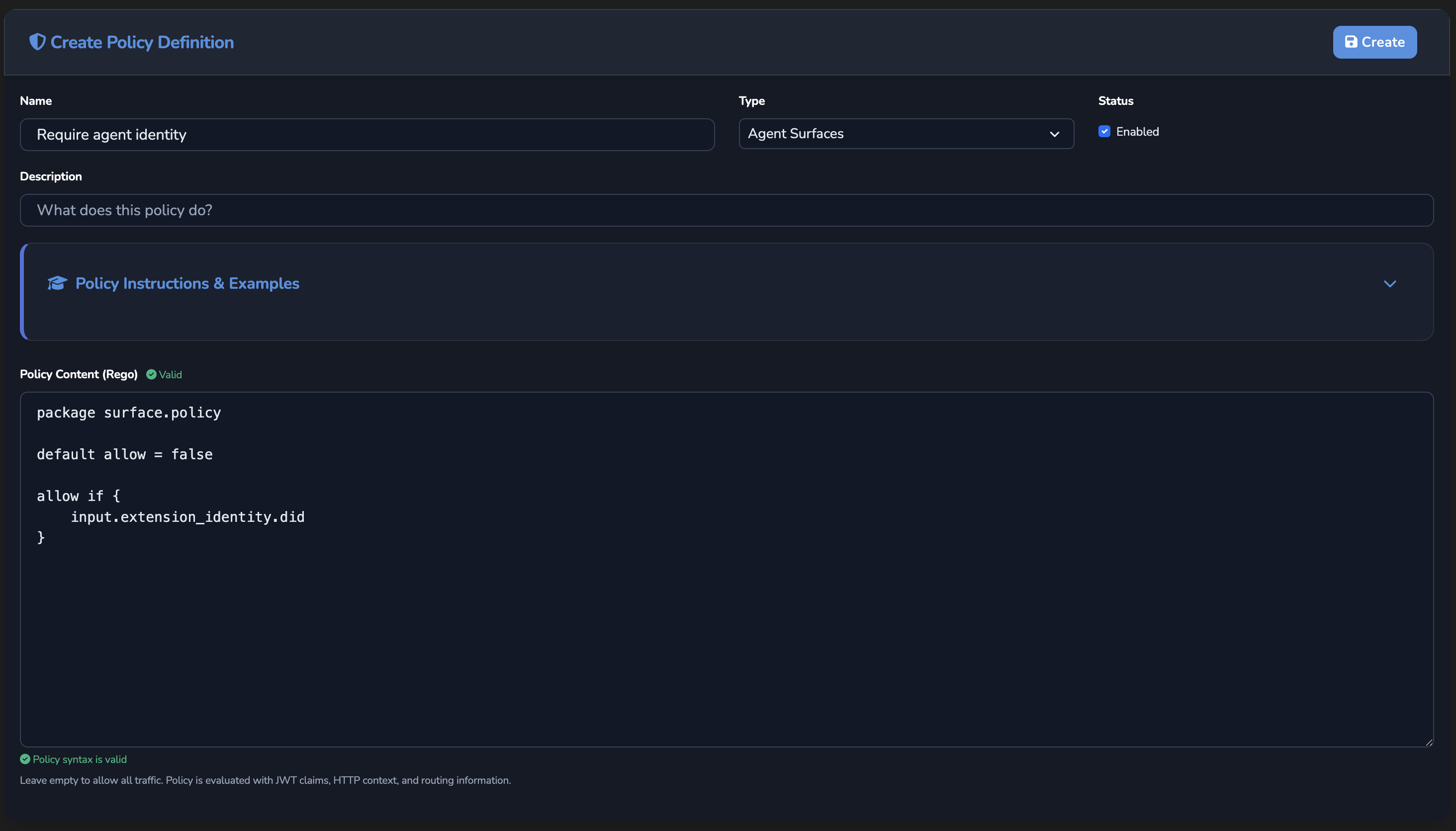
A “Valid” indicator appears next to the Policy Content (Rego) label when the syntax is accepted. Select Create.
After creating, you stay on the new policy’s own edit page (a “Policy created!” toast confirms the save). Return to your surface by selecting Surfaces in the sidebar and opening the surface from the list.
Assign the policy to the surface
In the element palette on the left, find the Policy element under Security & Policy. Drag it onto the arrow between the Access Point and the Managed Agent nodes.
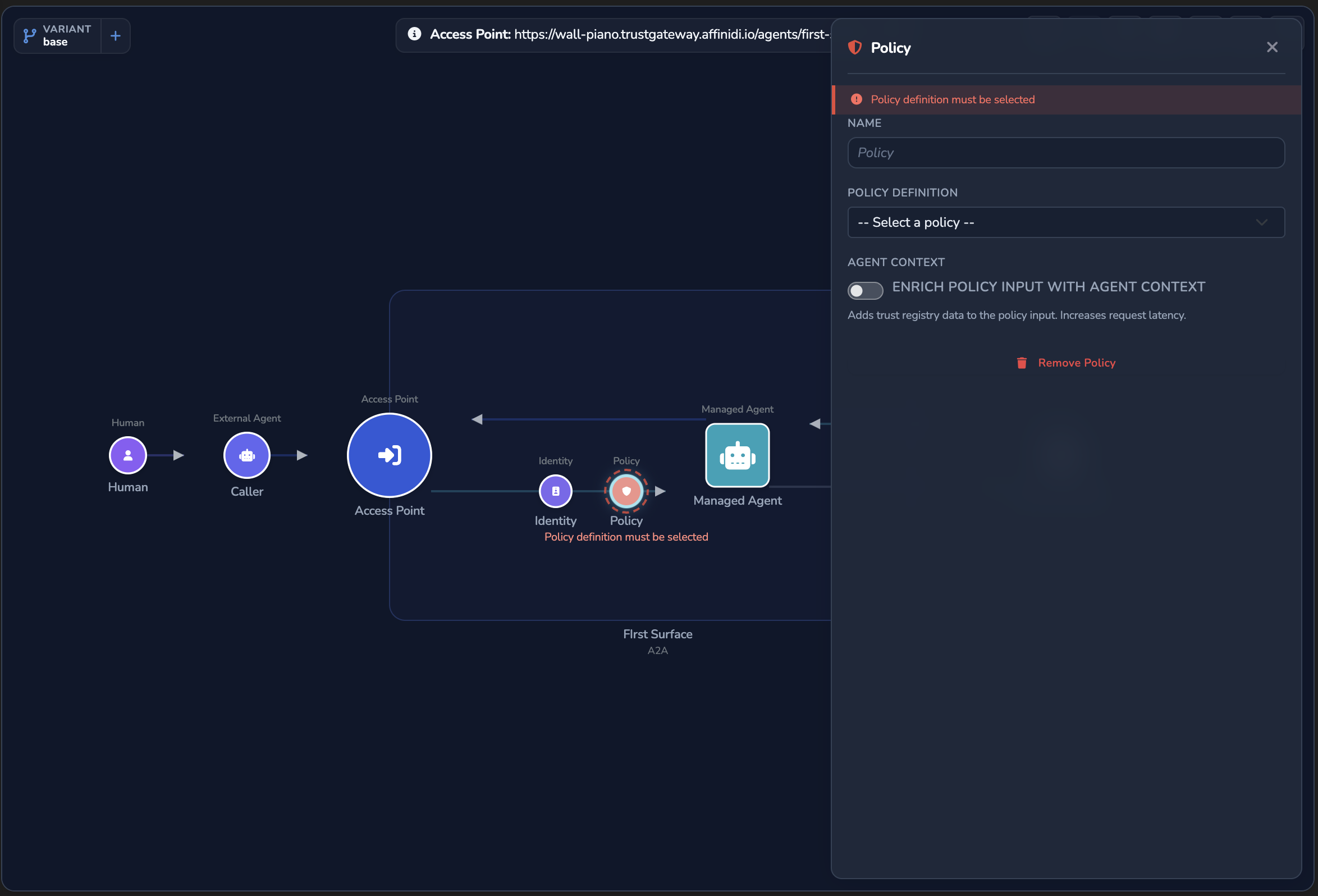
Select the Policy element to open its settings panel. In the Policy Definition dropdown, select the policy you just created (for example, Require agent identity).
Select the save icon in the toolbar to save the surface. The policy takes effect immediately.
Confirm
Send a request without the identity extension. The gateway should deny it:
curl -k -X POST "<ENTRY_POINT_URL>" \
  -H "Content-Type: application/json" \
  -d '{
    "jsonrpc": "2.0",
    "method": "message/send",
    "id": "test-003",
    "params": {
      "message": {
        "role": "user",
        "messageId": "msg-003",
        "parts": [{ "kind": "text", "text": "No identity extension" }]
      }
    }
}'The -k flag disables TLS certificate verification. Use this for local testing only. Remove it in production.
The gateway returns 422 Unprocessable Entity because the surface requires the identity extension and the request carries no extensions array:
{
  "type": "https://errors.affinidi.io/identity_validation_failed",
  "title": "Unprocessable Entity",
  "status": 422,
  "code": "identity_validation_failed",
  "slot": "inbound_identity",
  "detail": "Inbound identity required: A2A request has no `extensions` array carrying `https://fabric.affinidi.io/extensions/agent-identity/v1`"
}
Select the Monitoring tab and confirm the Rule Denies series in the Connections Over Time chart increments.
Send the request from Step 2 again (with the identity extension). If the identity resolves to a DID and the policy allow condition is satisfied, the gateway forwards the request and the Rule Accepts series increments.
Troubleshooting
| Symptom | Likely cause | Fix |
|---|---|---|
| No identity entry appears in the Monitoring tab after sending a request. | The Identity element is not configured or the surface was not saved. | Open the surface canvas and confirm the Identity element is on the AP → MA edge with Identity Extraction Type set to From Payload (identity metadata) and at least one field configured. |
Requests without the extension array return 422 Unprocessable Entity. | The surface requires the identity extension to be declared in message.extensions. The policy is not reached when the extension array is absent. | Include "extensions": ["https://fabric.affinidi.io/extensions/agent-identity/v1"] in the message object (see Step 2). |
Requests with the extension return 403 Forbidden. | input.extension_identity.did is absent, so the allow condition evaluates to false. | Confirm the Identity element is on the AP → MA edge and correctly configured. Select the Monitoring tab and inspect the request logs to see the actual input values passed to the policy. |
| The Policy Definition dropdown shows no options. | No Agent Surface policies exist, or the policy was not created under the Agent Surfaces type. | Select Policies in the sidebar, open the Agent Surfaces tab, and confirm your policy is listed. |
| Policy editor shows no “Valid” indicator after pasting the Rego code. | Rego syntax error or package mismatch. | Confirm the package declaration is package surface.policy. Review the code for missing braces, incorrect operators, or undefined references. |
Next steps
- Monitor your surface: See the test requests you just sent in the surface Monitoring tab, Capture, and the global dashboard.
- Enforce access control policies: Write more advanced OPA policies, including trust verification rules and x402 paywall configuration.
- Agent identity and DIDs: How cryptographic identity derivation and the DID format work conceptually.
Glad to hear it. Thanks for letting us know.
Sorry to hear that. Thanks for letting us know.