Create your first surface
By the end of this guide, you will have an Agent Surface that accepts requests from an AI agent and forwards them to a backend service of your choice.
Prerequisites
- You are logged in to the dashboard.
- A backend service with a publicly accessible URL for the gateway to forward requests to.
- No backend yet? Use the Echo server as a test target. Start it locally and expose it publicly using a tunnel tool of your choice.
Steps
Start a new surface
Navigate to Surfaces in the sidebar.
Select Add Surface.
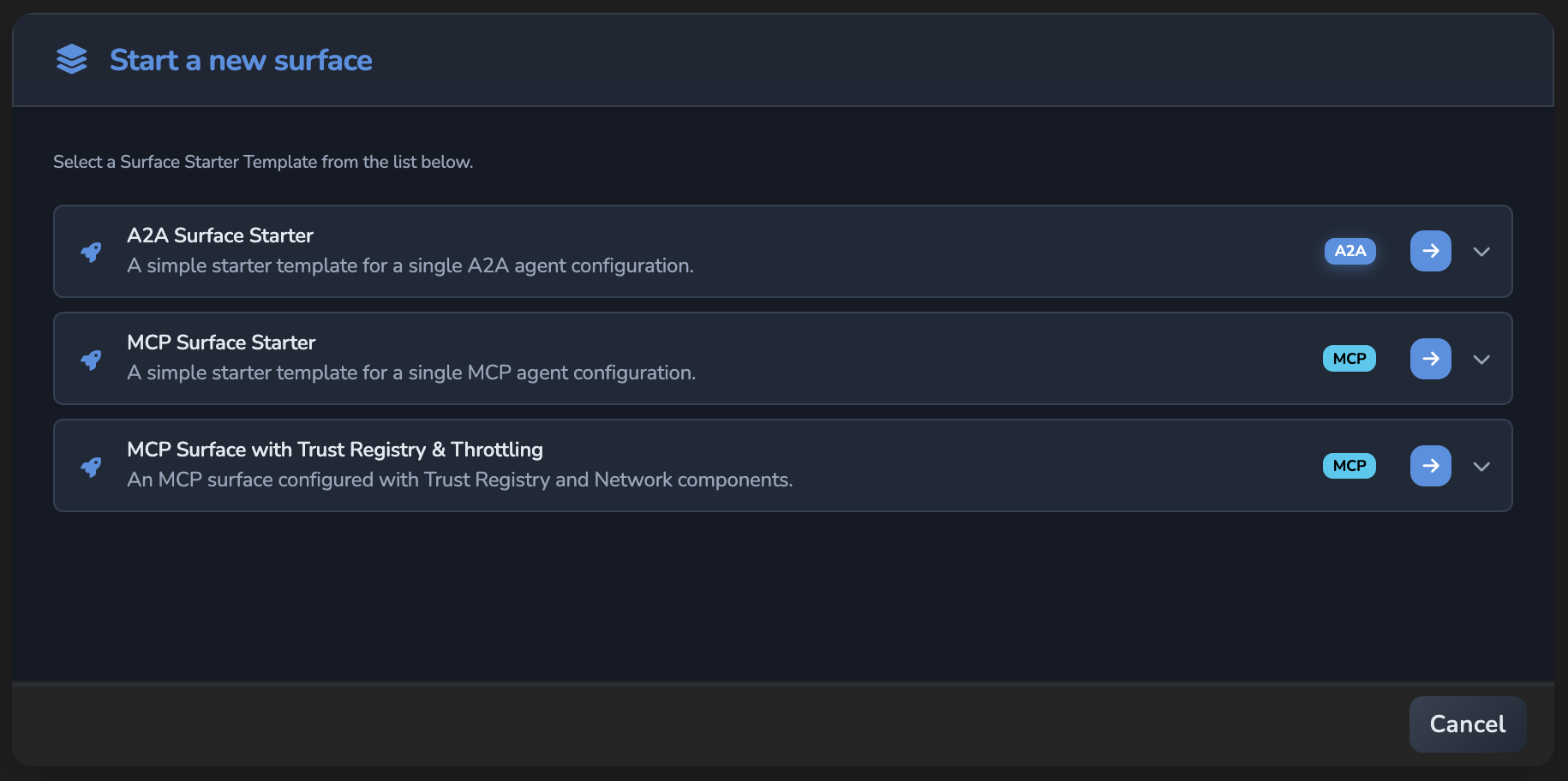
The Start a new surface dialog shows a list of starter templates. Each entry shows the template name, a short description, and its protocol badge. Select an A2A starter template for this guide.
The surface builder opens with the canvas already populated from the template.
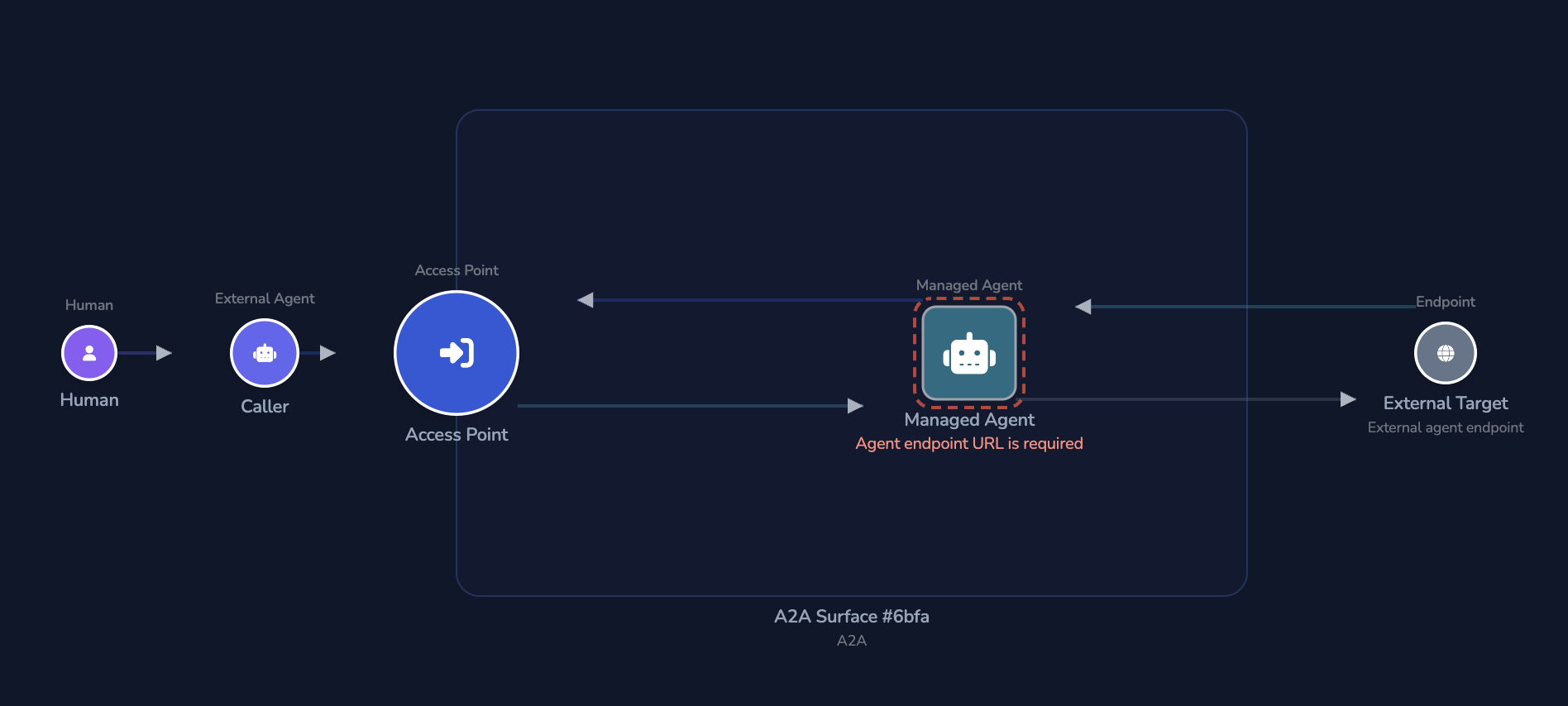
The surface is given a default name made from its protocol and a number, such as a2a_surface_1. To update it, select the blue Surface container on the canvas. The Name field is in the settings panel that opens on the right.
Configure the Access Point
The Access Point element defines how incoming traffic reaches the surface. Select it in the canvas to open its settings panel.
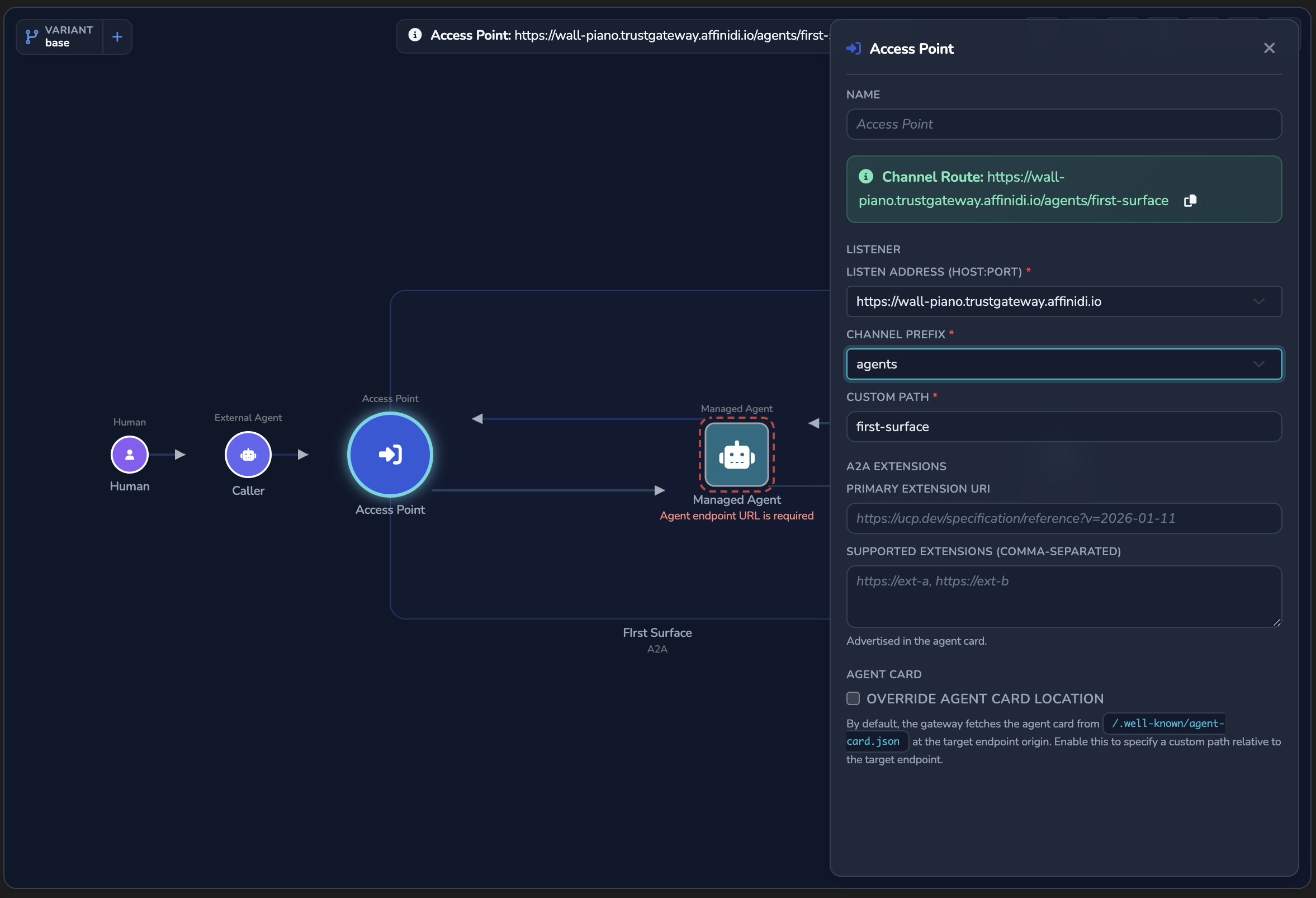
Under Routing, set the following fields:
| Field | Value for this guide | Notes |
|---|---|---|
| Surface Prefix | (auto-seeded) | Pre-filled from your gateway instance configuration. Accept the default. |
| Custom Path | first-surface | Identifies this surface in the full route. The auto-seeded value is a random two-word path. Update it to something meaningful. |
The Entry point URL banner at the top of the panel shows the full URL other agents use to reach this surface: the listen address, surface prefix, and custom path combined. The same URL also appears in a banner at the top of the canvas. Select the copy icon next to the URL and keep it for Step 5.
Configure the Managed Agent
The Managed Agent element forwards requests to your backend service. Select it in the canvas to open its settings panel.
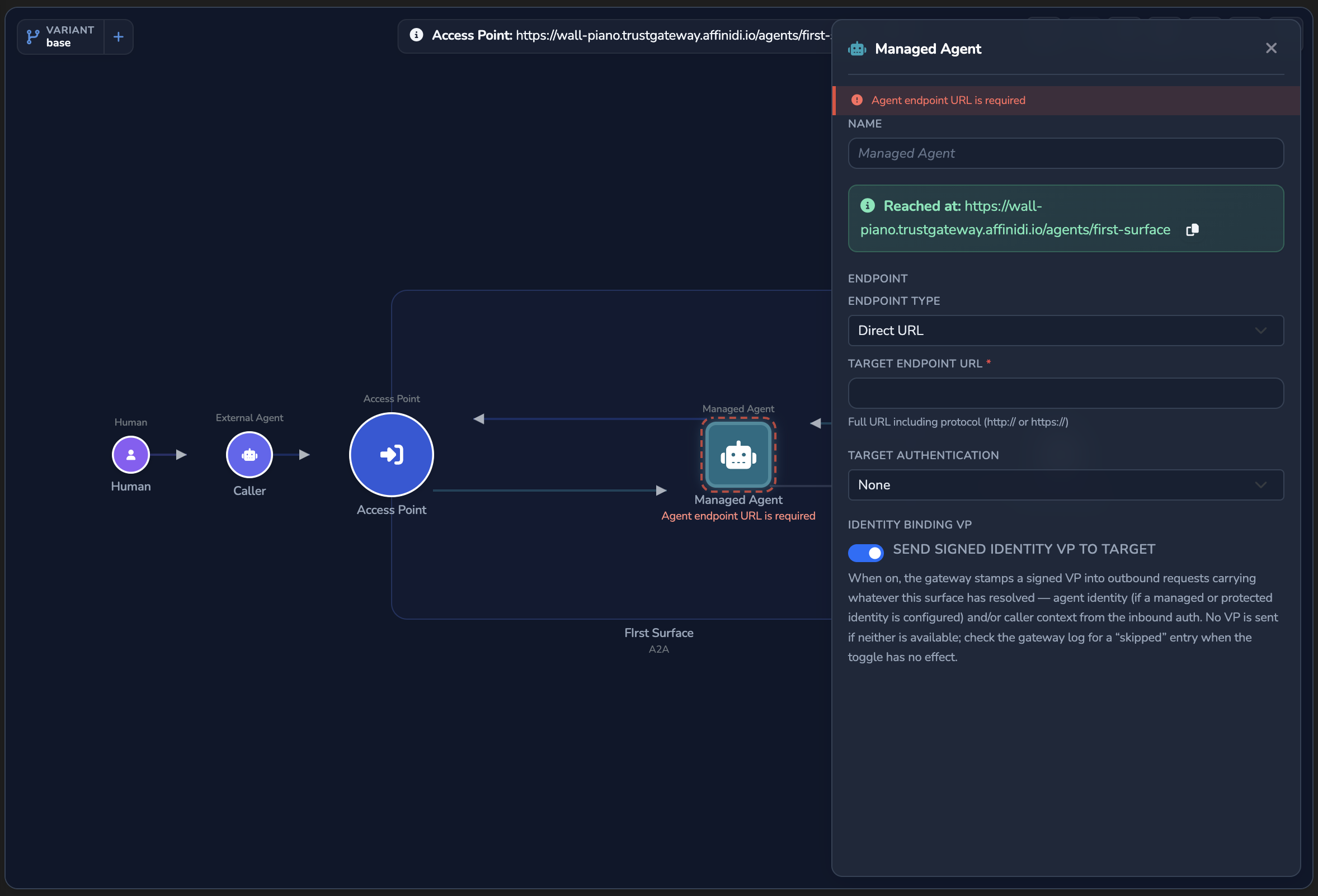
Set Target Endpoint URL to your backend service’s publicly accessible URL.
For a hosted gateway, localhost resolves to the gateway’s own host, not your machine. If your backend is running locally, expose it through a tunnelling tool and use the public tunnel URL here instead.
If required fields are missing:
- Visual alerts appear.
- Elements are highlighted.
- The Elements tab in the sidebar shows incomplete configuration.
Save the surface
Select the green ✓ button in the sidebar to save the surface.
- The surface is saved immediately.
- No restart is required.
A success notification confirms the surface was created, and you are returned to the Surfaces list where the new surface appears.
Send a test request
Replace <ENTRY_POINT_URL> in the command below with the Entry point URL you copied in Step 2.
curl -k -X POST "<ENTRY_POINT_URL>" \
  -H "Content-Type: application/json" \
  -d '{
    "jsonrpc": "2.0",
    "method": "message/send",
    "id": "test-001",
    "params": {
      "message": {
        "role": "user",
        "messageId": "msg-001",
        "parts": [{ "kind": "text", "text": "Hello from the quickstart" }]
      }
    }
}'The -k flag disables TLS certificate validation. It is appropriate for initial testing against a local or development gateway, but must not be used in production.
If using the echo server, a successful response returns 200 OK with a JSON body containing the echoed method, path, headers, and body. The full request is also printed to the echo server’s terminal. For your own backend, a successful response depends on your service.
Confirm
Select the Monitoring tab in the surface detail page. You should see a request entry recorded for the test you sent in Step 5.
Troubleshooting
| Symptom | Likely cause | Fix |
|---|---|---|
400 Bad Request on create | A required field is missing. | Ensure Surface Prefix and Custom Path are set on the Access Point element (Step 2), and that Target Endpoint URL is set on the Managed Agent element (Step 3). |
404 Not Found | The URL in the curl command does not match the Entry point URL. | Copy the exact URL from the Entry point URL banner on the canvas or the Access Point element and retry. |
Connection refused | The gateway hostname or port in your command is incorrect. | Confirm the URL uses the listen address shown in the Entry point URL banner. Contact your administrator if the connection is still refused. |
502 Bad Gateway | The target endpoint is unreachable from the gateway host. | Confirm your backend is reachable from the gateway. For a hosted gateway, localhost is not accessible. Expose your backend through a tunnel and update the Target Endpoint URL on the Managed Agent element (see Echo server for an example). |
401 Unauthorized | Unlikely to come from the surface itself: a Caller Context element passes a missing or invalid credential to policy rather than rejecting it on its own. Check whether your target backend requires its own authentication. | Confirm the target endpoint’s authentication requirements, or continue to Add identity and access control to add caller authentication with an explicit policy. |
Next steps
- Add identity and access control: Continue the tutorial with policy and identity controls.
- Surfaces: Understand protocols and request routing behavior.
Glad to hear it. Thanks for letting us know.
Sorry to hear that. Thanks for letting us know.