Send your first data request to Affinidi Vault
By the end of this guide, you will have an Affinidi Iota Framework configuration with a credential query, and you will have used it in Affinidi Portal to request your own email address from your Affinidi Vault.
Prerequisites
- An Affinidi Portal account with a project. See Sign in to Affinidi Portal.
- An Affinidi Vault account to receive the test request. See Set up Affinidi Vault.
Steps
Create a configuration
- In the Affinidi Elements section of the sidebar, go to Affinidi Iota Framework .
- Select Create configuration.
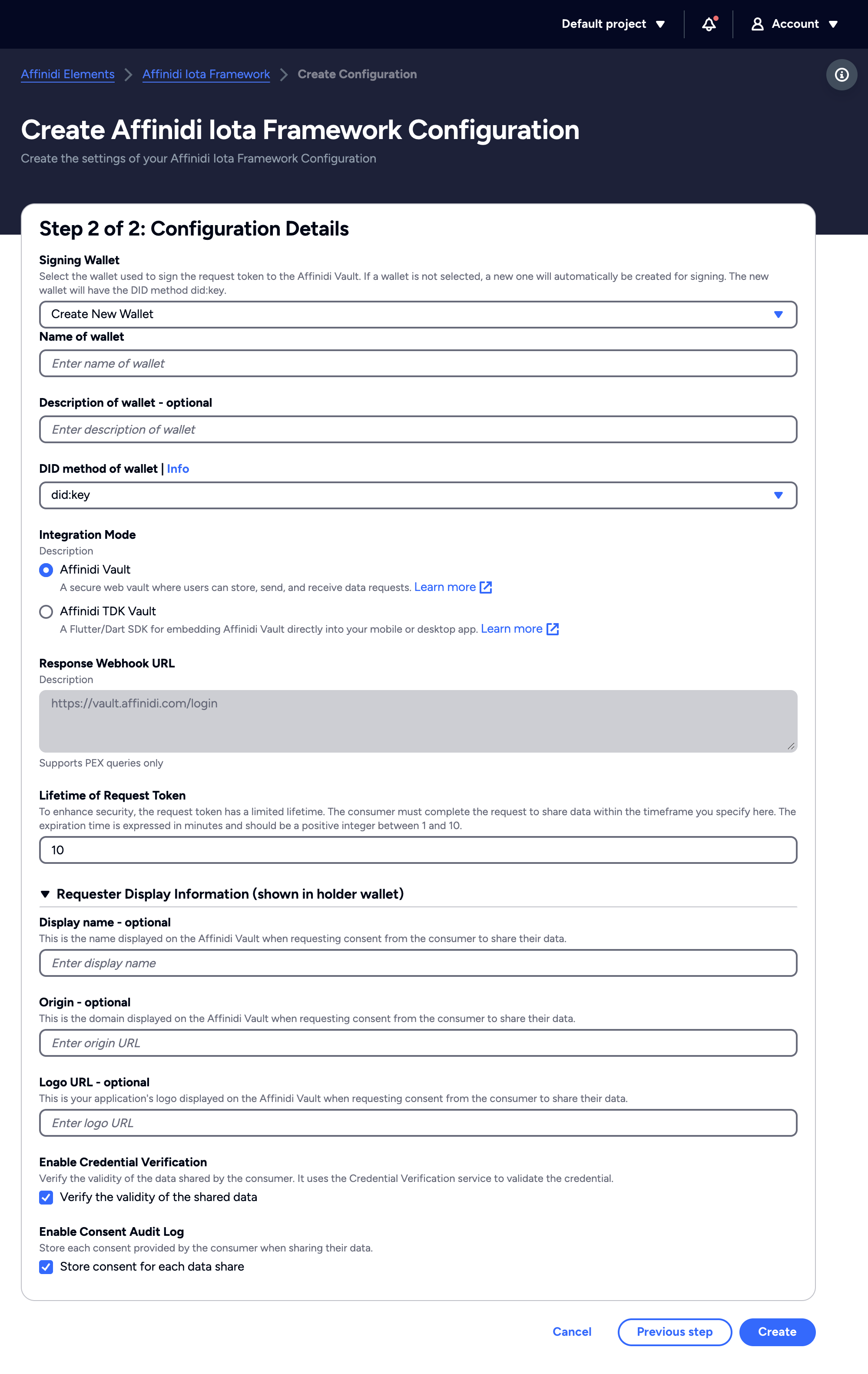
- Enter a Name of configuration, such as
First data request. - Keep Data sharing flow mode set to WebSockets, the mode that Affinidi Portal can test, and select Next step.
- Keep Signing Wallet set to Create New Wallet, which creates a
did:keywallet that signs your requests. - Keep Integration Mode set to Affinidi Vault.
- Select Create. Affinidi Portal opens the page of your new configuration.
Add a credential query
A credential query describes the data you request from the user.
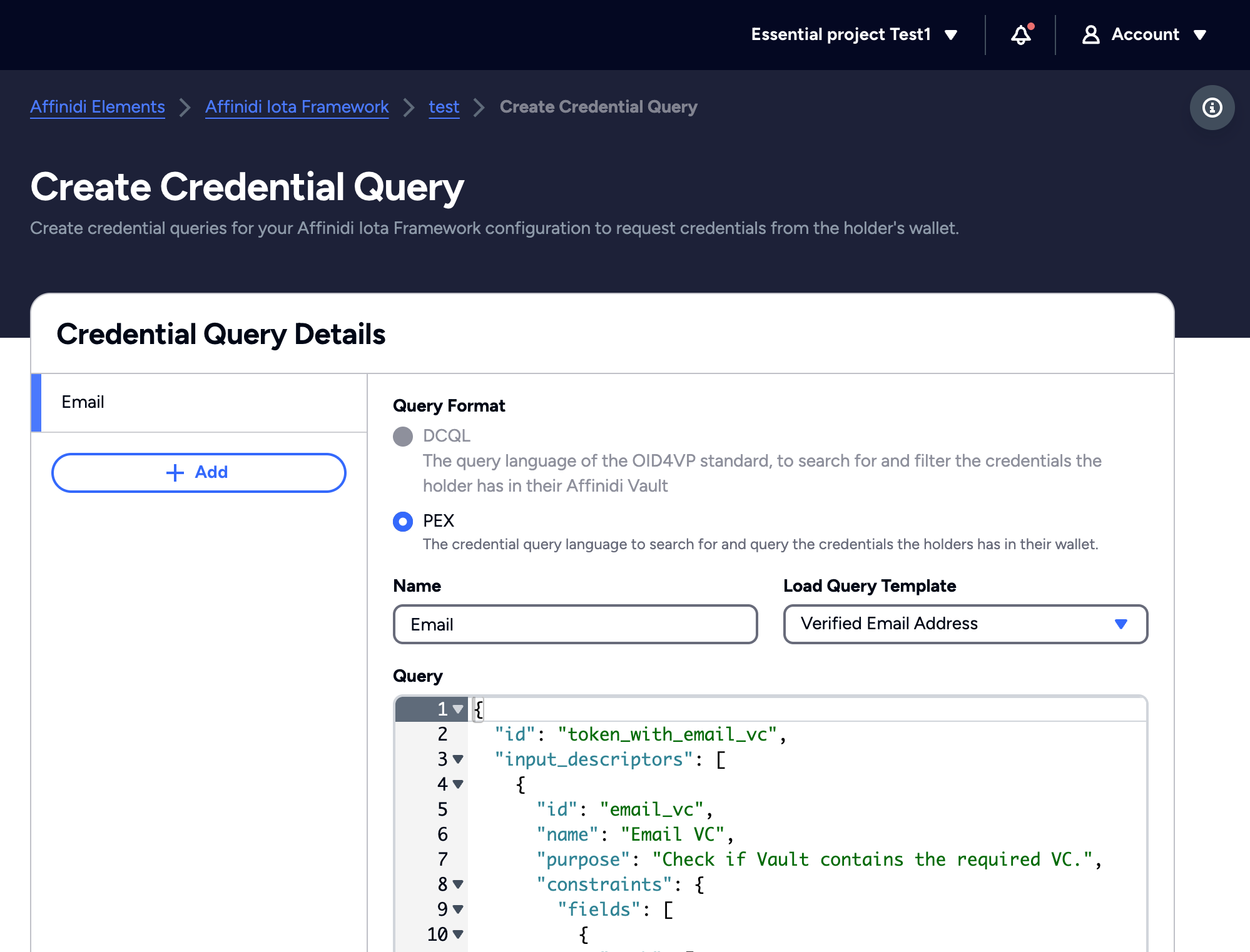
- In the Credential queries section, select Create Credential Query.
- Keep Query Format set to PEX.
- Enter a Name for the query, such as
Email. - In Load Query Template, select Verified Email Address. The template fills in a query that requests the user’s verified email address.
- Select Save all changes.
Send a test request
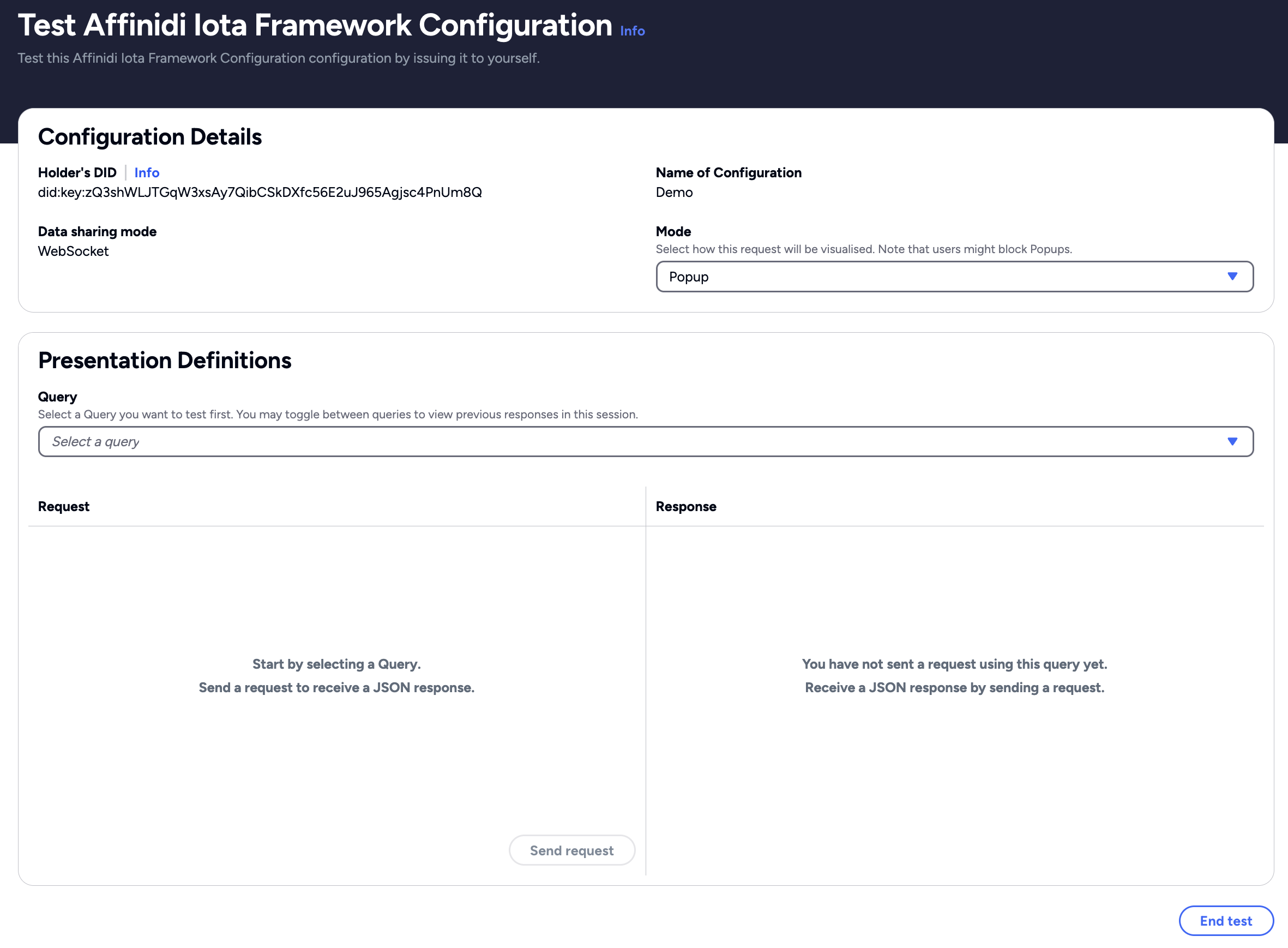
- At the top of the configuration’s page, select Test.
- Check that Holder’s DID contains your Affinidi Vault’s DID:
- Signed in to Affinidi Portal with Affinidi Login: the field is already filled in.
- Signed in with Apple, Google, GitHub, or Microsoft: copy the DID from your Affinidi Vault’s Settings page and paste it into the field. If you have no Affinidi Vault yet, select Create Vault first.
- Keep Mode set to Popup, or select New Tab if your browser blocks pop-ups.
- In Query, select the query you created, and select Send request.
Share your data
Affinidi Vault opens with the request. Review the data it asks for, and consent to share your email address.
Confirm
Back in Affinidi Portal, the Response column shows the data your Affinidi Vault shared, with the time the request was sent. The Request column shows the query you sent. When you have finished, select End test.
Troubleshooting
| Symptom | Likely cause | Fix |
|---|---|---|
| Test is unavailable on the configuration’s page. | The configuration uses the Redirect data sharing flow mode, or it has no PEX query. | Test a configuration that uses WebSockets mode and has at least one PEX query. |
| Create configuration is unavailable. | Your project has reached its plan’s limit on configurations. | See Plans, credits, and limits. |
| Nothing opens after you select Send request. | Your browser blocked the pop-up. | Allow pop-ups for Affinidi Portal, or set Mode to New Tab and send the request again. |
| Holder’s DID is empty. | You signed in to Affinidi Portal with Apple, Google, GitHub, or Microsoft. | Copy the DID from your Affinidi Vault’s Settings page and paste it into the field. |
Next steps
- Implement a consent-driven data sharing flow: request the same data from your own website.
- Run the sample app with WebSocket implementation: see a complete integration that uses the mode you tested.
- Set up configuration: every configuration field, including the Redirect mode and DCQL queries.
Glad to hear it. Thanks for letting us know.
Sorry to hear that. Thanks for letting us know.
Still stuck? Ask the community on Discord or contact us.