Domain Verification service is a security feature of Affinidi Elements that enables developers to verify the domain ownership displayed in the Affinidi Vault’s consent screen. It empowers users to decide whether to share their data with the requesting domain.
Benefits of Domain Verification
Enhanced Security: Domain Verification provides proof of control over the domain. It adds the Verified by Affinidi checkmark on the consent page, which informs users that they are securely sharing their data to the correct website.
Increased User Trust: Domain Verification strengthens user confidence in the website as Affinidi verifies the developer’s domain ownership, leading to better user engagement and data sharing.
How Domain Verification works
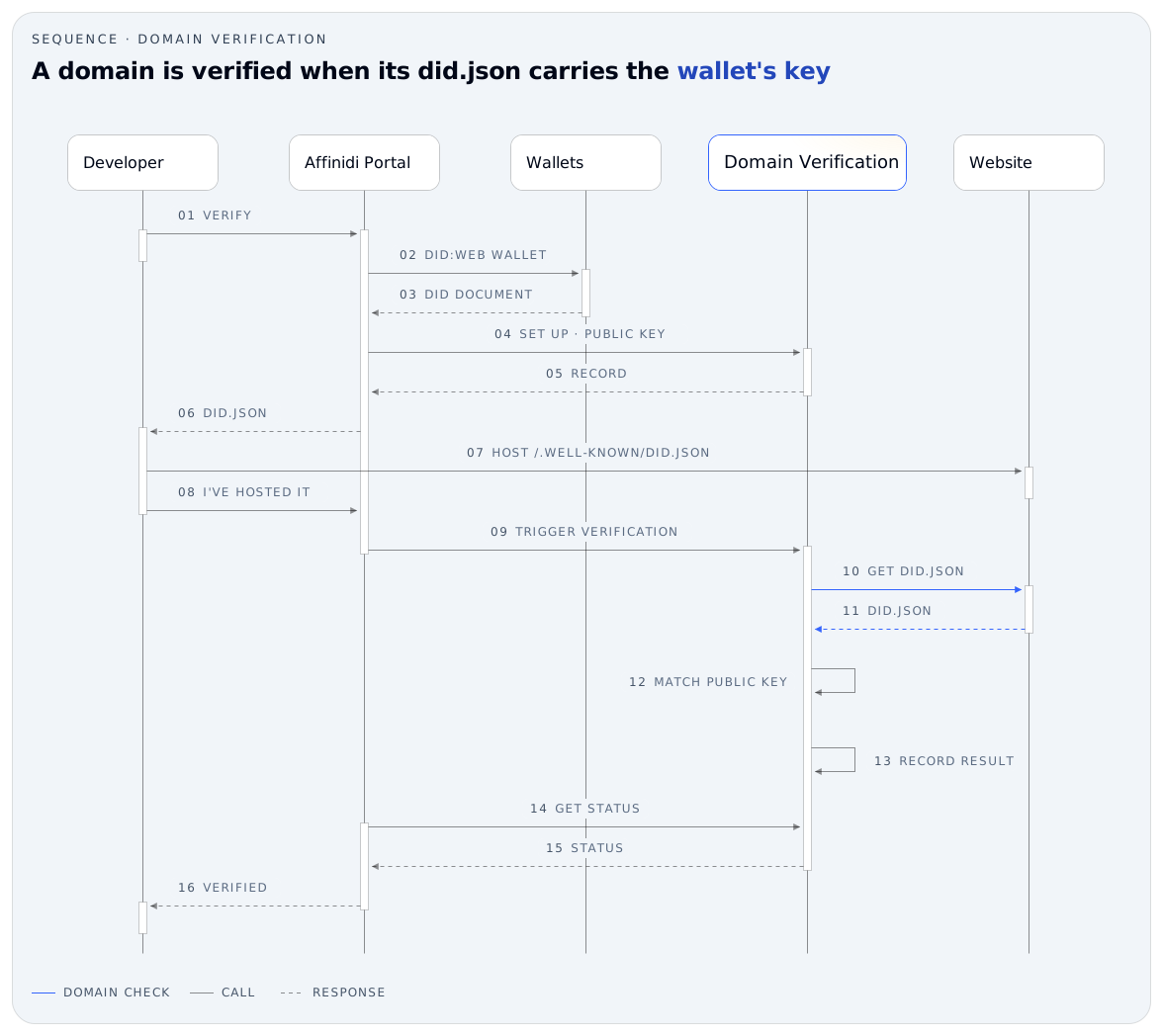
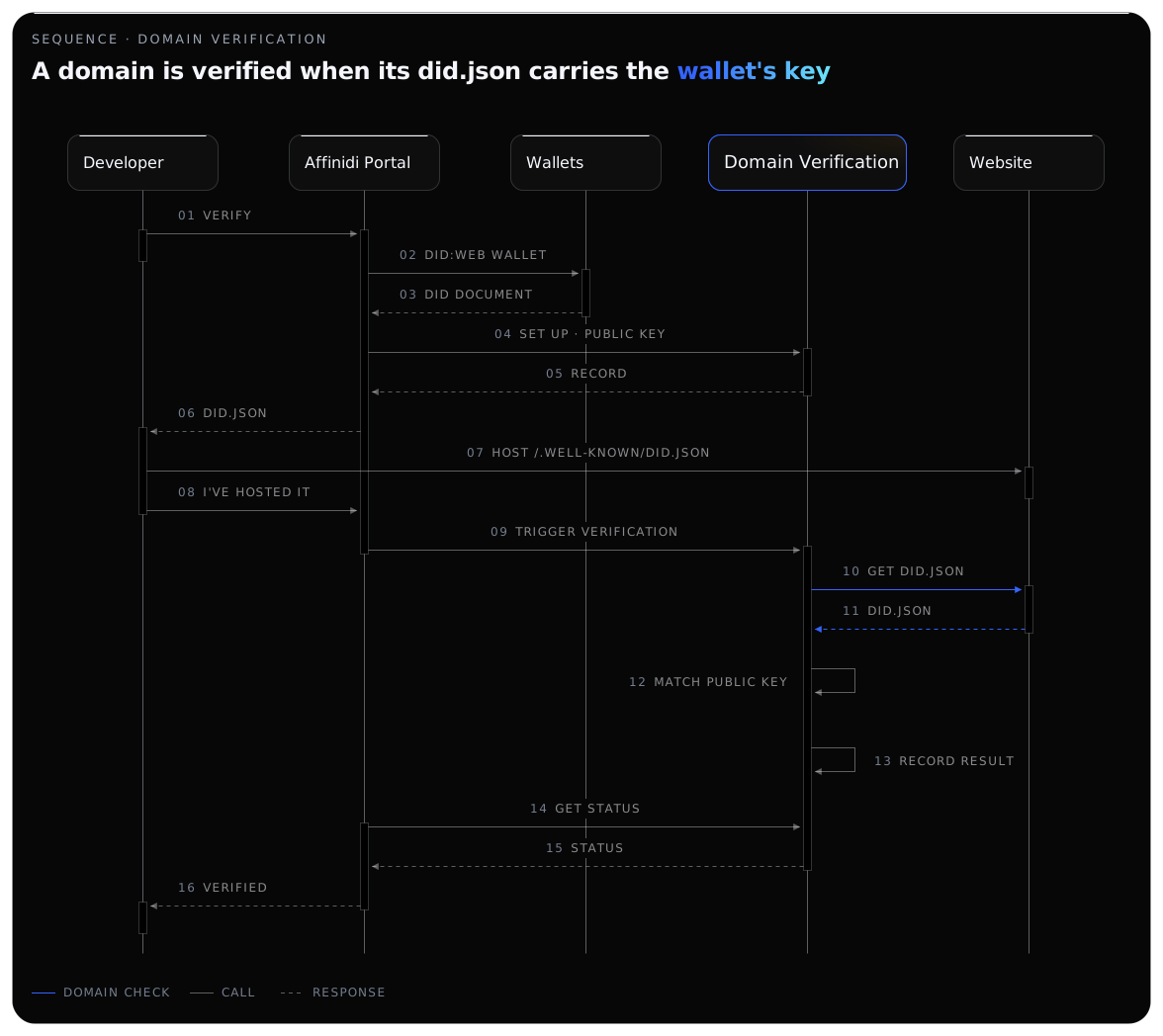
When you start Domain Verification in Affinidi Portal, the Portal creates a did:web wallet for your domain, and you host that wallet’s did:web document on your server at https://[DOMAIN]/.well-known/did.json. Once the file is hosted, Domain Verification fetches it and checks that it carries the same public key as the wallet. When the keys match, the domain is verified, and Affinidi Login marks every Login Configuration in the project whose origin is that domain as verified.
Once the configured domain is verified, users will see a checkmark on the Consent flow when sharing their data to ensure they share it with the verified domain.
How to verify the domain on Affinidi Login
To verify the domain configured on the Login Configuration, go to the Affinidi Login page of Affinidi Portal .
The domain must be secured by a TLS/SSL certificate (e.g. HTTPS) to successfully verify it.
Open the Login Configuration if you would like to have the domain verified.
Click the Verify button in the Details section. If you started a verification before, the button reads Continue Verification.

- Confirm that the domain value is correct and click on Continue button.
If you need to update the value, click on the Login Configuration Detail link and update the Origin URL field.

- Click Download DID document to download the did:web document of the wallet that Affinidi Portal created for your domain (as in the example below).
{
  "id": "did:web:mywebsite.com",
  "@context": "https://w3id.org/security/v2",
  "publicKey": [
    {
      "id": "did:web:mywebsite.com#primary",
      "type": "Secp256k1VerificationKey2018",
      "publicKeyHex": "0338e112f1ebefb3114e7b8d41d6f5068e063b0a86345a455af952285987hyfr69",
      "controller": "did:web:mywebsite.com"
    }
  ],
  "verificationMethod": [
    {
      "id": "did:web:mywebsite.com#primary",
      "controller": "did:web:mywebsite.com",
      "type": "Secp256k1VerificationKey2018",
      "publicKeyHex": "0338e112f1ebefb3114e7b8d41d6f5068e063b0a86345a455af952285987hyfr69"
    }
  ],
  "authentication": [
    "did:web:mywebsite.com#primary"
  ],
  "assertionMethod": [
    "did:web:mywebsite.com#primary"
  ]
}- Upload the downloaded did:web document in the
.well-knowndirectory of your website and ensure the file name isdid.json.
For example, if you specified the domain as https://mywebsite.com, you must upload the did:web document in the location https://mywebsite.com/.well-known/did.json.
- Once you upload the did.json file, go back to the Affinidi Portal - Domain Verification page and click on I’ve hosted it button to start the verification.

Once successful, Affinidi Login marks the Login Configuration as verified, Affinidi Portal shows Verified by Affinidi, and the same verified tag appears on Affinidi Vault’s consent page when users share their data.

If the verification fails, ensure that you have uploaded the
did.jsonfile to the correct path -https://[DOMAIN]/.well-known/did.jsonand the path is publicly accessible, then click on the Retry button.
Verified domain on consent screen

Once Affinidi verifies the domain, users will see a verified checkmark on the Consent screen of the Affinidi Vault when sharing their data, increasing user trust and providing better user experience.
Guides to verify domain on different platforms
Follow the guides below to verify your domains hosted on different platforms and get a verified checkmark on the Affinidi Vault consent screen when users share their data.
Verify domain with Shopify website
If you use a Shopify website and want to verify your domain, this guide will help you publish a did:web document on your Shopify site. By default, Shopify sites won’t allow store owners to publish any document/file at a specific path. However, following the steps below, you can host the did:web document.
- Download the DID Document
If you haven’t yet downloaded your did:web document, follow the steps here to download did.json.
Upload the did.json File as a Content File
- Go to your Shopify Admin portal and select your store.
- Click on
Content>Filesin the menu on the bottom left side. - Upload your
did.jsonfile by clicking theUpload filesbutton on the right side of the page. - Copy the file link in the screenshot once the document is uploaded.

Add a Redirection Rule
- Click on the
Sales Channels>Online Store>Navigationin the menu on the bottom left side. - Click on the
View URL redirectsbutton on the right side of the page. - Click on
Create URL redirectbutton to create a new redirection rule with the following details:- Set
Redirect fromto/.well-known/did.json - Set
Redirect toto the Content file URL copied from the previous step. - Click on
Save redirectbutton to save the rule.
- Set
- Click on the


Verify the Redirection
Ensure the redirection works by opening your did:web document URL, e.g.,
https://[DOMAIN]/.well-known/did.json.Complete Domain Verification
Return to the Affinidi Portal - Domain Verification page and click the I’ve hosted it button to start the verification.
By following these steps, you should be able to successfully publish and verify your did:web document on your Shopify website.
Once Affinidi verifies the domain, users will see a verified checkmark on the Consent screen of the Affinidi Vault when sharing their data, increasing user trust and providing a better user experience.
Works with
Glad to hear it. Thanks for letting us know.
Sorry to hear that. Thanks for letting us know.
Still stuck? Ask the community on Discord or contact us.