Issue your first credential to Affinidi Vault
By the end of this guide, you will have issued a Verifiable Credential (VC) from Affinidi Portal and claimed it in your own Affinidi Vault.
Prerequisites
- An Affinidi Portal account with a project. See Sign in to Affinidi Portal.
- An Affinidi Vault account to claim the credential with. See Set up Affinidi Vault.
Steps
Create a schema
A schema defines the data a credential holds. Create one in Schema Builder, together with the wallet that will sign your credentials.
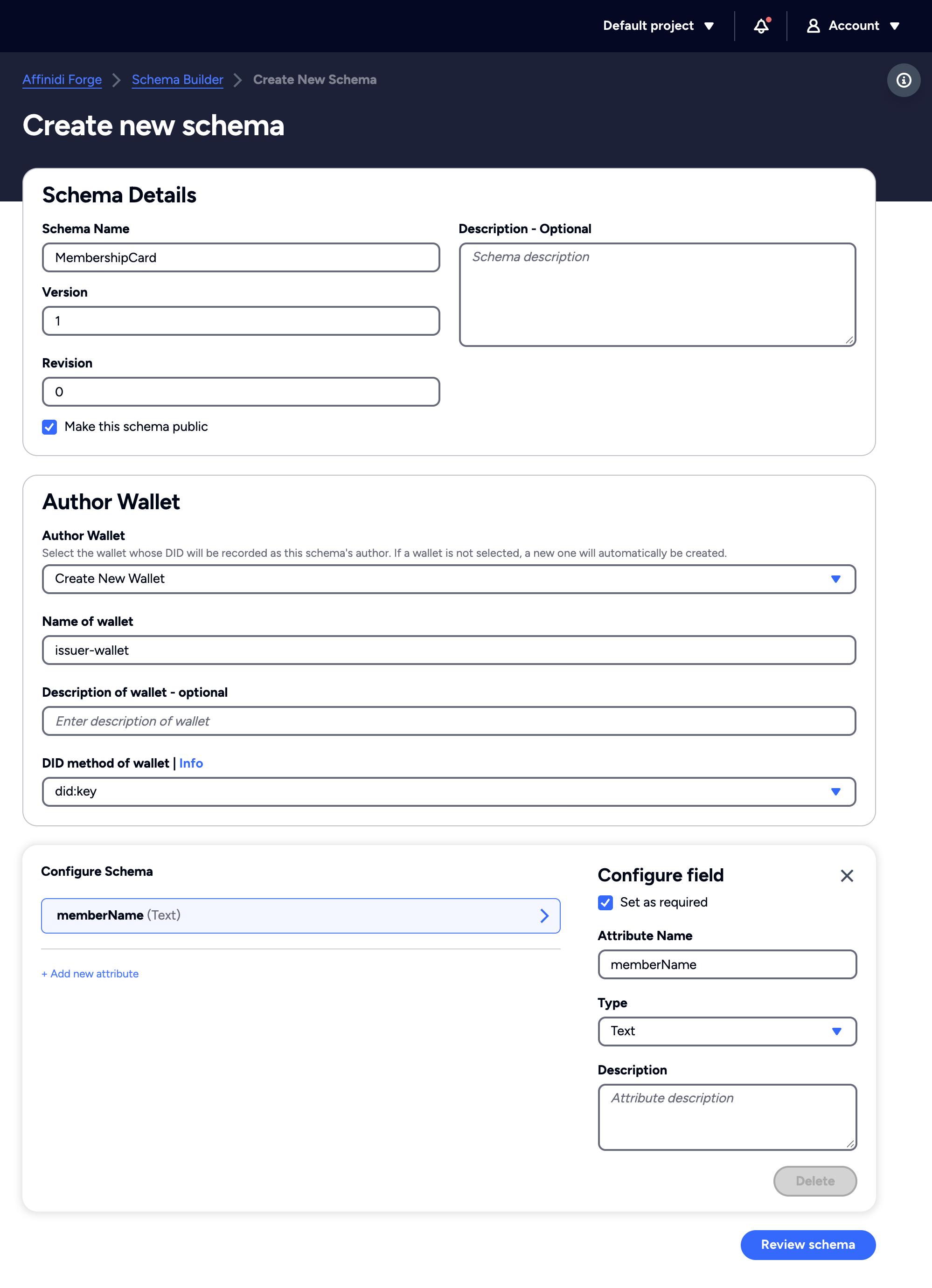
- In the Affinidi Forge section of the sidebar, go to Schema Builder , and select Create new.
- Under Schema Details, enter a Schema Name, such as
MembershipCard, and select Make this schema public. - Under Author Wallet, keep Create New Wallet and enter a Name of wallet, such as
issuer-wallet. You use the same wallet to issue credentials in the next step. - Under Configure Schema, select the attribute row. Under Configure field, enter
memberNameas the Attribute Name, keep the Type as Text, and select Set as required. - Select Review schema, then Publish schema.
Create a configuration
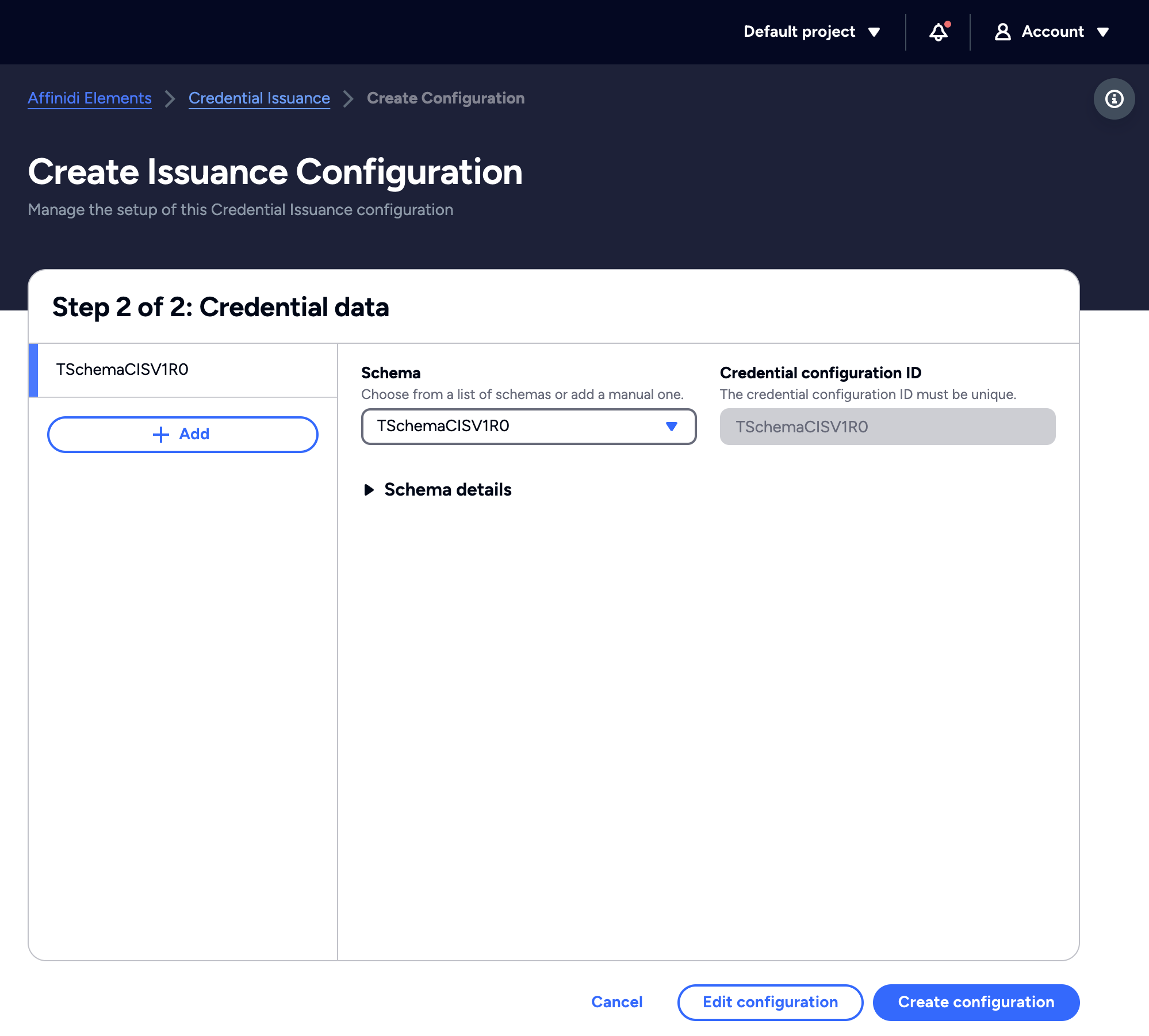
- In the Affinidi Elements section of the sidebar, go to Credential Issuance , and select Create configuration.
- Enter a Name of configuration, such as
First issuance. - In Issuing Wallet, select the wallet you created with your schema,
issuer-wallet. - Select Add Credential Data.
- In Schema, select the schema you published. Credential configuration ID fills in from the schema.
- Select Create configuration. Affinidi Portal opens the page of your new configuration.
Issue a test credential
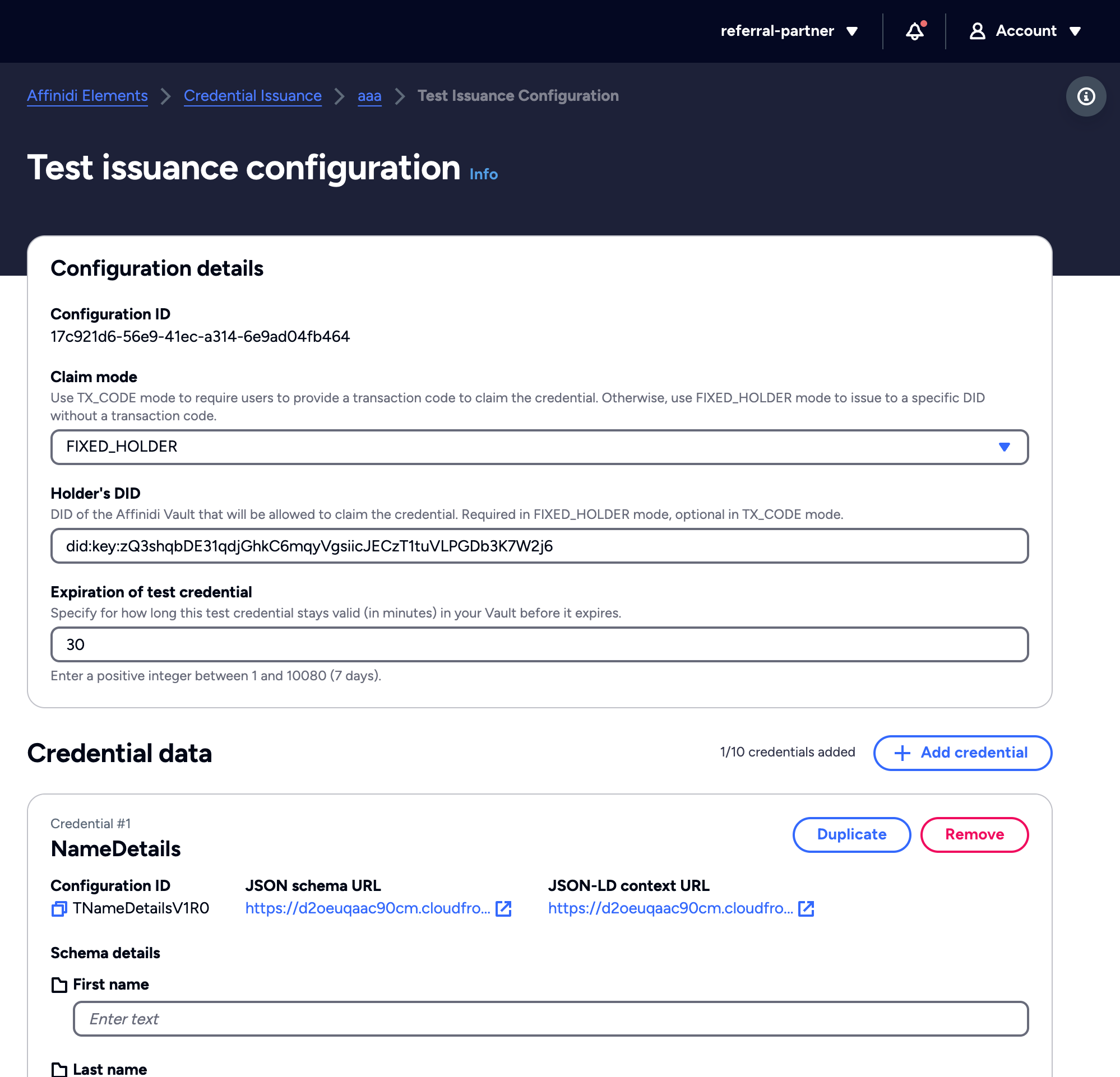
- At the top of the configuration’s page, select Test.
- Keep Claim mode set to
FIXED_HOLDER, which lets only the holder you name claim the credential. - Check that Holder’s DID contains your Affinidi Vault’s DID:
- Signed in to Affinidi Portal with Affinidi Login: the field is already filled in.
- Signed in with Apple, Google, GitHub, or Microsoft: copy the DID from your Affinidi Vault’s Settings page and paste it into the field. If you have no Affinidi Vault yet, select Create Vault first.
- Under Credential data, select Add credential, choose your schema, and enter a value for
memberName. - Select Issue credential. The Your credential offer is ready to test dialog shows a claim link and a QR code.
Claim the credential
Open the claim link in your browser, or scan the QR code with the device that runs your Affinidi Vault. Claim the credential with the same Affinidi Vault whose DID you used as the Holder’s DID, before the offer expires.
Confirm
Select Done to close the dialog, and go back to the Credential Issuance page in Affinidi Portal. Your claim is counted under Claimed Credentials, next to Issued Credentials.
Troubleshooting
| Symptom | Likely cause | Fix |
|---|---|---|
| Your schema is missing from the Schema list. | The schema is not public, or Issuing Wallet is not the schema’s author wallet. | Select the wallet you created with the schema. Or choose Manual in Schema, and paste the schema’s JSON schema URL and Ld Context URL from its page in Schema Builder into JSON schema URL and JSON-LD schema URL. |
| Create configuration is unavailable. | Each project can have one Credential Issuance configuration. | Use the project’s existing configuration, or create a new project. See Work with projects. |
| Holder’s DID is empty. | You signed in to Affinidi Portal with Apple, Google, GitHub, or Microsoft. | Copy the DID from your Affinidi Vault’s Settings page and paste it into the field. |
| The claim fails in Affinidi Vault. | You are claiming with a different Affinidi Vault from the one in Holder’s DID, or the offer has expired. | Claim with the Affinidi Vault whose DID you entered, or select Test again to issue a new offer. |
Next steps
- Issue verifiable credentials: create credential offers from your own application.
- Sample application: run a Next.js app that issues credentials with Affinidi Login and the Affinidi TDK.
- Set up configuration: every configuration field, including claim notifications.
Glad to hear it. Thanks for letting us know.
Sorry to hear that. Thanks for letting us know.
Still stuck? Ask the community on Discord or contact us.