Request user data with PEX
To request data from the user’s Affinidi Vault with their consent, the Affinidi Vault implements the Presentation Exchange (PEX) protocol published by Decentralized Identity Foundation (DIF) to enable the exchange of Verifiable Credentials (VCs) and other JSON format claims between parties for data reusability and interoperability.
The PEX protocol introduces the Presentation Definition parameter, a JSON-structure query used to define the data requirements that the user must satisfy.
PEX aims to standardise the exchange of information between two parties, in our case, the Holder (Affinidi Vault user) and the Verifier, an entity or a business requiring data from the user.
As the verifier of the data, it enables you to describe the requirements for proof and for the Holder to share the data to verify their identity.
Data request and sharing flow
The diagram below shows how a user initiates the action within a website that requests specific data from the user and how Affinidi Vault provides the mechanism to securely share the data to the website with the user’s consent.
The example shows the flow of Affinidi Login, which requests specific data from the user’s Affinidi Vault to authenticate the user.
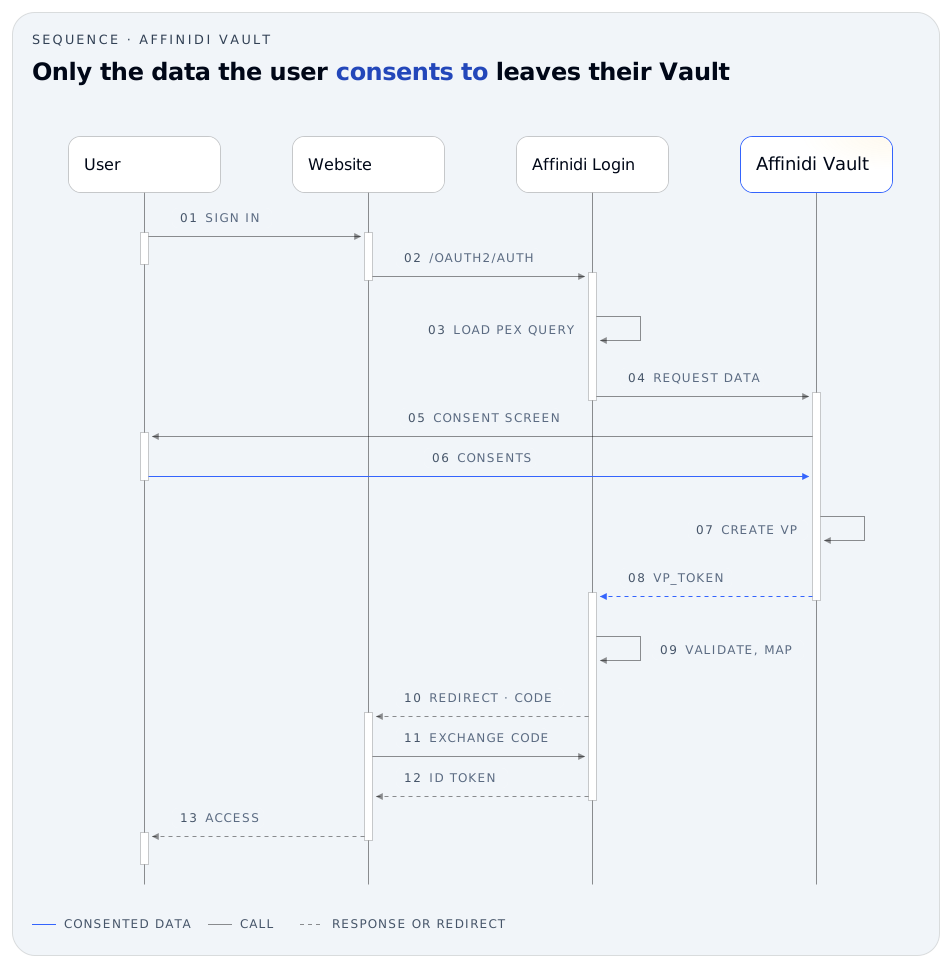
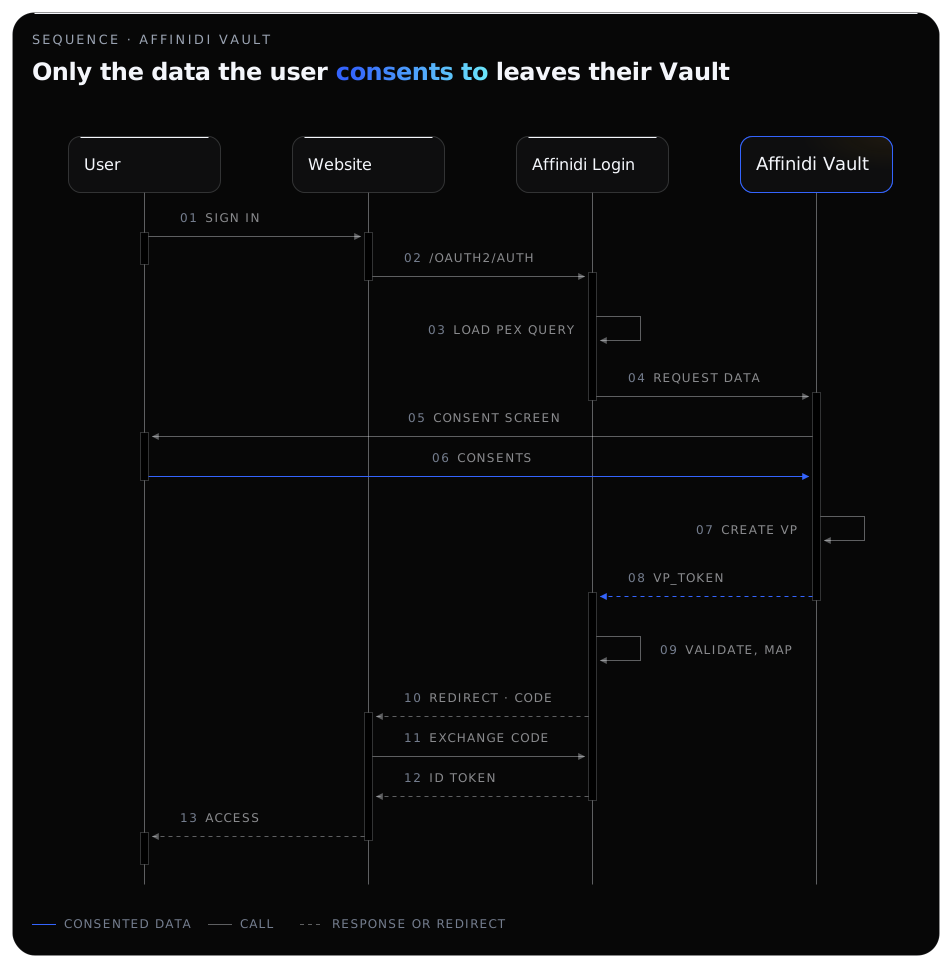
Key takeaways to note in the above flow:
The website will initiate the data request for the Affinidi Vault once the user triggers an action.
Affinidi Vault evaluates the Presentation Definition (PEX query) defined by the website and use it to query data from the user’s Affinidi Vault.
Once the user consents, Affinidi Vault creates one Verifiable Presentation (VP). It holds the matching credentials the user has claimed and, for profile data, credentials issued by the user’s Affinidi Vault.
Affinidi Vault sends the VP back to Affinidi Login, which verifies it and returns the user to the website.
Presentation definition (PEX query)
To request data from the user through Affinidi Vault, you have to define the Presentation Definition of what data you require from the user to allow them to interact with your application or access specific resources.
This definition usually comprises inputs and constraints to describe the data the user must share to satisfy the requirements.
Presentation Definition is usually consisting of:
- Unique Identifier of the presentation definition.
- Name and purpose. Affinidi Vault shows an input descriptor’s
namewhen the user doesn’t yet hold a matching credential. - List of Input Descriptors consisting of filters and fields to query the data from the user’s Affinidi Vault.
- Optionally, Submission Requirements, which apply to claimed credentials. Affinidi Vault supports
min,max,countandfrom, with onegroupper input descriptor. You can read more about the submission requirements through this link.
Consider the presentation definition below:
{
  "id": "profile_data",
  "input_descriptors": [
    {
      "id": "profile_vc",
      "name": "Profile VC",
      "purpose": "Get some profile data",
      "constraints": {
        "fields": [
          {
            "path": [
              "$.@context"
            ],
            "purpose": "Verify VC Context",
            "filter": {
              "type": "array",
              "contains": {
                "type": "string",
                "pattern": "^https://schema.affinidi.io/profile-template/context.jsonld$"
              }
            }
          },
          {
            "path": [
              "$.type"
            ],
            "purpose": "Verify VC Type",
            "filter": {
              "type": "array",
              "contains": {
                "type": "string",
                "pattern": "^ProfileTemplate$"
              }
            }
          },
          {
            "path": [
              "$.credentialSubject.person.email"
            ],
            "purpose": "Require email address"
          },
          {
            "path": [
              "$.credentialSubject.person.birthdate"
            ],
            "purpose": "Require birthdate"
          }
        ]
      }
    }
  ]
}
In the above example, we are defining the following data points that are required from the user to share:
- First, we defined that the data must come from a specific schema type, in this case, we added a filter using the following fields
$.@contextwhere the value must be the schema of the profile template.$.typewhere the value must be theProfileTemplate.
- Lastly, we defined the fields to request data from the user in the following path based on the structure of the profile template schema:
$.credentialSubject.person.email$.credentialSubject.person.birthdate
Defining individual fields in the input_descriptors must match the structure and field names of the Profile Template Verifiable Credential (VC) stored in the user’s Affinidi Vault for the PEX query to be valid.
Best practices
When creating presentation definition (PEX query) to query data from Affinidi Vault, we recommend following some of these best practices to avoid unexpected issues, like mismatch on the requested VC type, when requesting data either through Affinidi Login or Affinidi Iota Framework.
Use exact match on filters
Use the filter available in the Presentation Definition to ensure that you request only the data you require the user to provide. A filter can use a pattern, a regular expression, or a const value.
For the $.@context, $.type and issuer fields, Affinidi Vault reads the filter as one value, not as a regular expression. Write it as ^value$ or as a const, without escaping characters such as . and without alternatives such as a|b. Without ^ and $, the value also matches any type, context or issuer that contains it.
Exact values also keep the request from matching other Verifiable Credentials. For example, this definition uses a type and a context without ^ and $:
Request the Personal Email of the user from a specific Verifiable Credential:
{
  "id": "profile_data",
  "input_descriptors": [
    {
      "id": "profile_vc",
      "name": "Profile VC",
      "purpose": "Get some profile data",
      "constraints": {
        "fields": [
          {
            "path": [
              "$.@context"
            ],
            "purpose": "Verify VC Context",
            "filter": {
              "type": "array",
              "contains": {
                "type": "string",
                "pattern": "profile-template/context.jsonld"
              }
            }
          },
          {
            "path": [
              "$.type"
            ],
            "purpose": "Verify VC Type",
            "filter": {
              "type": "array",
              "contains": {
                "type": "string",
                "pattern": "ProfileTemplate"
              }
            }
          },
          {
            "path": [
              "$.credentialSubject.person.email"
            ],
            "purpose": "Require email"
          }
        ]
      }
    }
  ]
}
Affinidi Vault treats a request as a Profile Template request only when the type and context are exact values, so with this definition it shares no profile data. The unanchored pattern can also match other credentials the user holds, for example one whose type is AlternateProfileTemplate.
Instead of just using the ProfileTemplate and profile-template/context.jsonld pattern in the filter, we will use an exact match for the type of credential your application requires.
{
  "id": "profile_data",
  "input_descriptors": [
    {
      "id": "profile_vc",
      "name": "Profile VC",
      "purpose": "Get some profile data",
      "constraints": {
        "fields": [
          {
            "path": [
              "$.@context"
            ],
            "purpose": "Verify VC Context",
            "filter": {
              "type": "array",
              "contains": {
                "type": "string",
                "pattern": "^https://schema.affinidi.io/profile-template/context.jsonld$"
              }
            }
          },
          {
            "path": [
              "$.type"
            ],
            "purpose": "Verify VC Type",
            "filter": {
              "type": "array",
              "contains": {
                "type": "string",
                "pattern": "^ProfileTemplate$"
              }
            }
          },
          {
            "path": [
              "$.credentialSubject.person.email"
            ],
            "purpose": "Require email"
          }
        ]
      }
    }
  ]
}
Using the exact match on the filter for the type $.type and Schema context $.@context ensures that you request data from the specific credential type with the expected structure and format of data your application can understand.
Avoid special characters
Special characters often require additional encoding, which increases the URL length when added as a query string. URL encoding is done to prevent any conflict or mistranslation of the data by the web platforms receiving the request.
To minimise the URL length and prevent any unexpected issue when processing the request, avoid using special characters such as +, ?, &, etc., when defining the id, name, and purpose in the Presentation Definitions. For example:
A space ( ) encoded as a plus sign (+) or
%20.A plus sign (+) encoded as
%2B.An ampersand (&) encoded as
%26.
Such encodings can significantly increase the URL length, leading to potential failures when processing the query.
Keep string short
When possible, keep the text in the id, name, and purpose short while still keeping the meaning of the text as it contributes to the length and size of the query string in the URL. For example:
id: Instead of “extract_birthdate_for_verification”, use “verify_birthdate”.
name: Instead of “Check if VC data contains necessary fields”, use “VC Data Check”.
purpose: Instead of “Ensure the VC type is correct”, use “Verify VC Type”.
Below is an example of Presentation Definition applying the best practices:
{
  "id": "profile_data",
  "input_descriptors": [
    {
      "id": "profile_vc",
      "name": "Profile VC",
      "purpose": "Get some profile data",
      "constraints": {
        "fields": [
          {
            "path": [
              "$.@context"
            ],
            "purpose": "Verify VC Context",
            "filter": {
              "type": "array",
              "contains": {
                "type": "string",
                "pattern": "^https://schema.affinidi.io/profile-template/context.jsonld$"
              }
            }
          },
          {
            "path": [
              "$.type"
            ],
            "purpose": "Verify VC Type",
            "filter": {
              "type": "array",
              "contains": {
                "type": "string",
                "pattern": "^ProfileTemplate$"
              }
            }
          },
          {
            "path": [
              "$.credentialSubject.person.birthdate"
            ],
            "purpose": "Require birthdate"
          }
        ]
      }
    }
  ]
}
By following these recommendations, you can ensure that your Presentation Definitions are concise and efficient, preventing unexpected issues with your application when requesting data from Affinidi Vault.
Consent screen with requested data
Once you define the presentation definition, below is the sample screen of how it looks for the end-user with the data points requiring the user’s consent to share the data.

It is important to note that the data requested from the Affinidi Vault and shared by the user is a snapshot of the data available at the time of request. The user may update the data anytime, and as a developer, you must initiate another request to get the latest snapshot.
Available user data
Each of these pages lists the data points you can request in a presentation definition, with the path to use for each:
For complete presentation definitions that filter by email domain, credential type, issuer, or country, see Filter user data with PEX.
Glad to hear it. Thanks for letting us know.
Sorry to hear that. Thanks for letting us know.
Still stuck? Ask the community on Discord or contact us.