Reference app
By the end of this guide, you will have the Meeting Place Flutter reference app running locally on a simulator or physical device.
The reference app demonstrates peer-to-peer and group messaging over DIDComm v2.1 and Matrix, verifiable credential exchange via R-Cards and VRCs, and an optional Human ZKP liveness demo. It is designed as a working baseline. Explore its architecture and integration patterns before building your own application.
If you only need the SDK API reference, see the Meeting Place SDK docs.
Prerequisites
- Flutter
3.44.1. - Dart SDK
^3.12.0, bundled with Flutter.
You also need the following services running before the app starts:
- DIDComm Mediator: routes encrypted messages between participants. See Mediator deployment options.
- Control Plane API: manages connection offers and establishes DIDComm channels. See Control Plane deployment options.
- Firebase project: required for push notifications. Create one at firebase.google.com.
After deploying each service, copy its DID value. You need both DEFAULT_MEDIATOR_DID and CONTROL_PLANE_DID in Step 3.
Matrix E2EE (optional)
Matrix transport uses flutter_vodozemac, a Rust-based Olm/Megolm implementation, and requires Rust to build. Skip this section if you use DIDComm only (ENABLED_INDIVIDUAL_CHAT_TRANSPORTS='["didcomm"]').
Transport capabilities
Both transports include
DIDComm
Lightweight peer-to-peer transport
Exclusive features
- ✅ Presence indicator
Not supported
- ❌ Group chat
- ❌ Voice, file, audio/video attachments
- ❌ Message edit / delete
Matrix
Full-featured group messaging
Exclusive features
- ✅ Group chat
- ✅ Voice messages
- ✅ File, audio/video attachments
- ✅ Message edit / delete
Not supported
- ❌ Presence indicator
Steps
Configure environment variables
Edit configurations/.env and set the required variables.
Control Plane API
# Your Control Plane DID (did:web value from your API server)
CONTROL_PLANE_DID=""
DIDComm Mediator
# Your Mediator DID
DEFAULT_MEDIATOR_DID=""
Chat transport
# DIDComm only (default — no transport picker shown)
ENABLED_INDIVIDUAL_CHAT_TRANSPORTS='["didcomm"]'

# Matrix only (requires MATRIX_HOMESERVER)
ENABLED_INDIVIDUAL_CHAT_TRANSPORTS='["matrix"]'

# Both — shows a picker when creating an offer
ENABLED_INDIVIDUAL_CHAT_TRANSPORTS='["didcomm", "matrix"]'
Group chats always use Matrix. Enabling group chat also requires MATRIX_HOMESERVER.
DIDComm vs Matrix: choosing a transport
Use Matrix if you need group chat, voice messages, file or audio/video attachments, or message editing and deletion. Use DIDComm if you need presence indicators or a lighter-weight transport without media support. For a full breakdown, see Transport capabilities above.
When both transports are enabled, the app shows a transport picker at offer creation.
Matrix Homeserver (required for Matrix transport)
Deploy a Matrix Synapse server configured for JWT-based login using the Control Plane’s public key as the JWT secret. See the Control Plane API: Matrix Authentication guide for full setup details.
MATRIX_HOMESERVER=""Push notifications (Firebase)
# Shared
FIREBASE_MESSAGING_SENDER_ID=""
FIREBASE_PROJECT_ID=""
FIREBASE_STORAGE_BUCKET=""

# iOS
FIREBASE_IOS_APIKEY=""
FIREBASE_IOS_APP_ID=""
FIREBASE_IOS_BUNDLE_ID=""

# Android
FIREBASE_ANDROID_APIKEY=""
FIREBASE_ANDROID_APP_ID=""
Optional variables (all have defaults; override only when needed)
# App
APP_VERSION_NAME=""
BIOMETRICS_ENABLED="true"                       # Default: true
DATABASE_LOGGING_ENABLED="false"                # Default: false
FOREGROUND_NOTIFICATIONS_ENABLED="false"        # Default: false
TAPS_TO_UNLOCK_DEBUG="7"                        # Default: 7

# Chat
CHAT_ACTIVITY_EXPIRES_IN_SECONDS="3"            # Default: 3
CHAT_PRESENCE_SEND_INTERVAL_IN_SECONDS="60"     # Default: 60
CHAT_IMAGE_MAX_SIZE="800"                       # Default: 800 px
CHAT_IMAGE_QUALITY_PERCENT="80"                 # Default: 80 %

# Profile
PROFILE_IMAGE_MAX_SIZE="100"                    # Default: 100 px
PROFILE_IMAGE_QUALITY_PERCENT="80"              # Default: 80 %

# Marketplace
MARKETPLACE_QR_PREFIX=""

# Out-of-Band flow type (distinguishes multiple OOB flows so QR validation does not interfere)
DIRECT_INTERACTIVE_OOB_TYPE=""

# Human ZKP demo — enables ZKP and the Credentials tab
ZKP_ENABLED="false"                             # Default: false

# Matrix media cache
MATRIX_MEDIA_MAX_CACHE_MB=""                    # Default: 30 MB per Matrix account
MATRIX_MEDIA_CACHE_TTL_DAYS=""                  # Default: 30 days
Find all configuration options and their defaults in app/lib/infrastructure/configuration/environment.dart.
Set up Firebase configuration files
- Follow the iOS Firebase setup guide to download
GoogleService-Info.plist. Copy the file toapp/ios/Runner/. - Follow the Android Firebase setup guide to download
google-services.json. Copy the file toapp/android/app/.
You only need the configuration files. Skip the other SDK setup steps in the Firebase guides.
Activate Melos and install dependencies
Melos manages the monorepo packages. Activate it globally and add it to your PATH:
dart pub global activate melos && export PATH="$PATH":"$HOME/.pub-cache/bin"Add the export PATH line to your ~/.zshrc or ~/.bashrc so it persists across sessions.
Then install all package dependencies:
melos pubgetRun the app
cd app
flutter run
If multiple devices are available, select one from the prompt.
VS Code: Copy the template launch configuration to set up device IDs and environment targets:
mkdir -p .vscode && cp templates/.example.launch.json .vscode/launch.jsonSimulators: See the Flutter documentation for Android emulator setup and iOS simulator setup. For Face Liveness testing, use a physical device. The camera challenge does not work on simulators or emulators.
Explore the app
Once the app is running, try these flows to see the SDK capabilities in action:
Generate one or more decentralised identities. Switch between identities based on context.
Create a connection offer with a custom passphrase, usage limit, or expiry date.
Open a private DIDComm or Matrix channel and exchange end-to-end encrypted messages.
Share an R-Card (your signed contact card) or initiate a VRC handshake to establish a verifiable relationship record.
Set ZKP_ENABLED=true in your .env file to enable the liveness proof demo without sharing biometric data.
Feature walkthroughs
Each section below shows a feature as a step-by-step flow. Click any screenshot to view it full size.
R-Card exchange
Your R-Card is a signed digital contact card. Automatic flow: the app sends it when a new channel opens. Manual flow: tap + in chat and select Share R-Card.
View walkthrough
Automatic flow
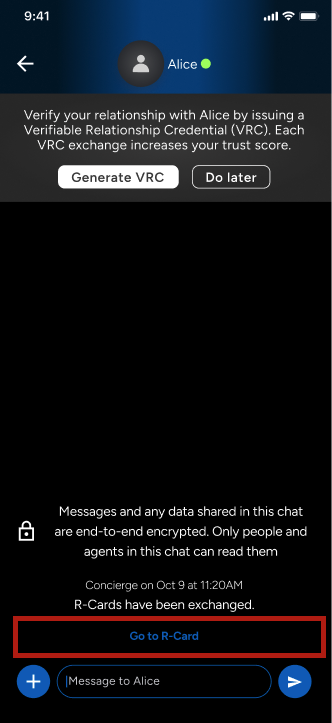
R-Card sent on channel open
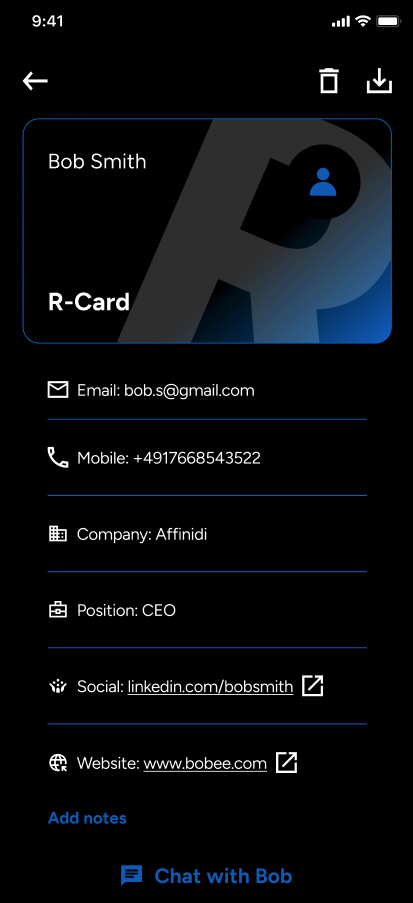
Received in thread
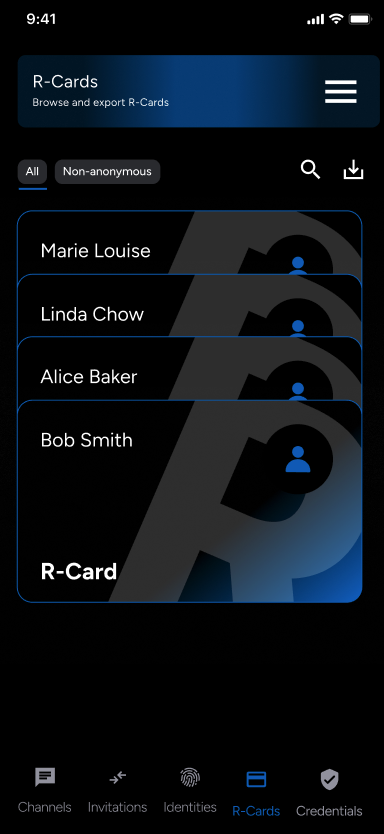
Saved to Credentials tab
Manual flow
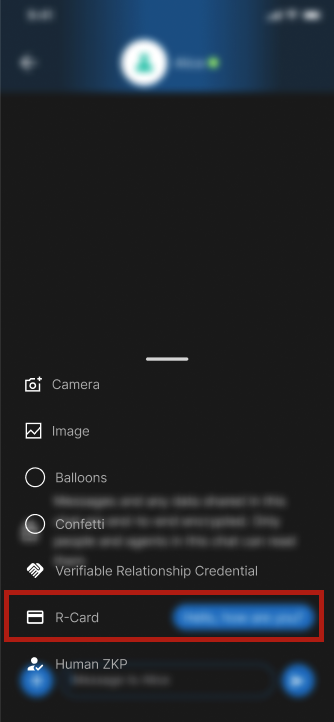
Open chat action menu
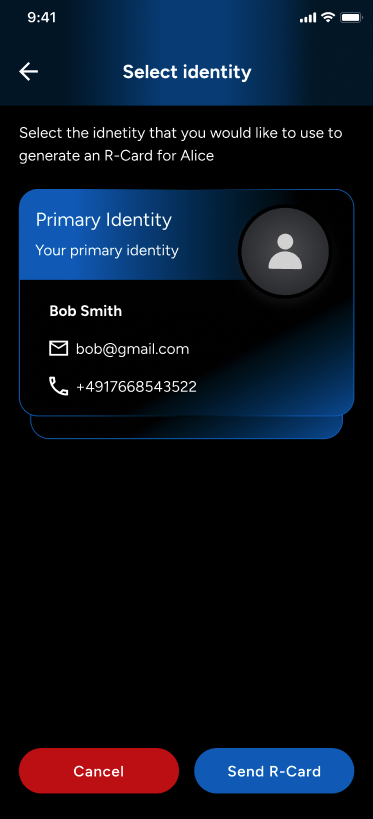
Select R-Card to share
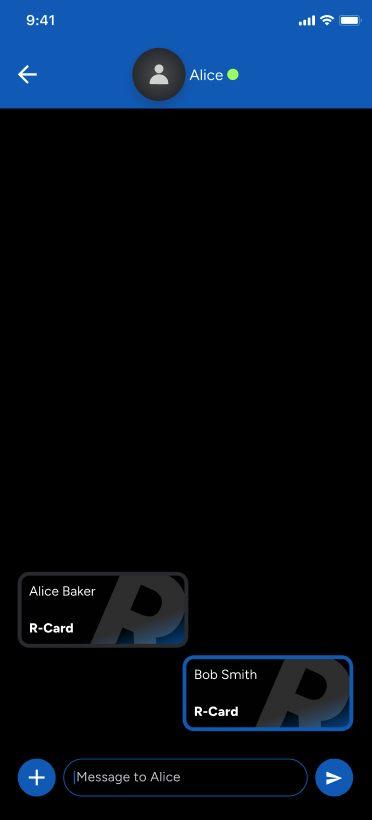
Visible to both parties
VRC exchange
A Verifiable Relationship Credential (VRC) encodes the DIDs of both participants and the timestamp of exchange. One party initiates, the other reciprocates, and both receive a signed copy in their Credentials tab.
View walkthrough
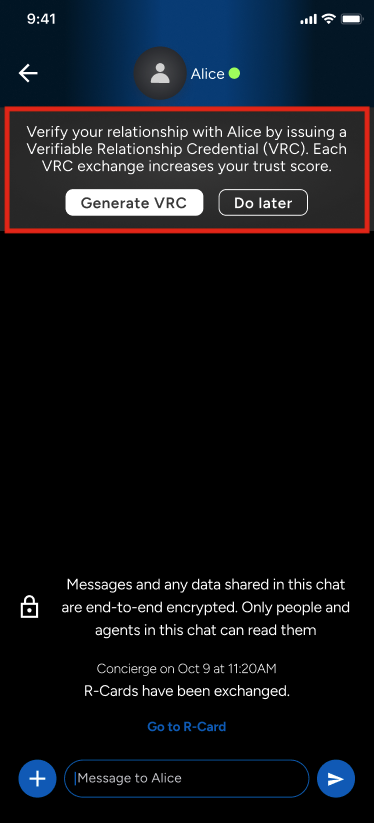
Initiate request
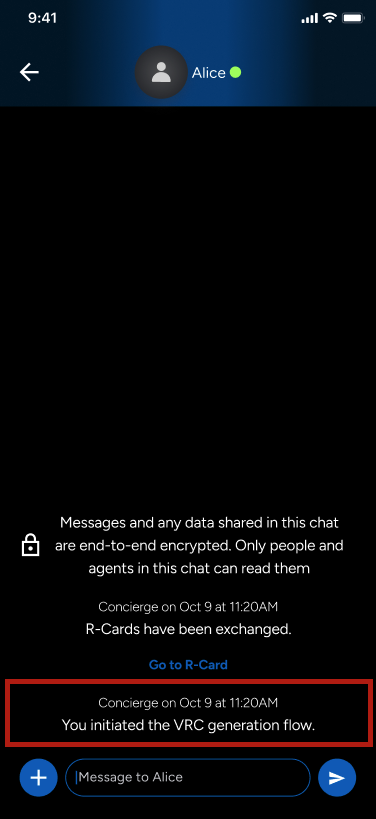
Request sent
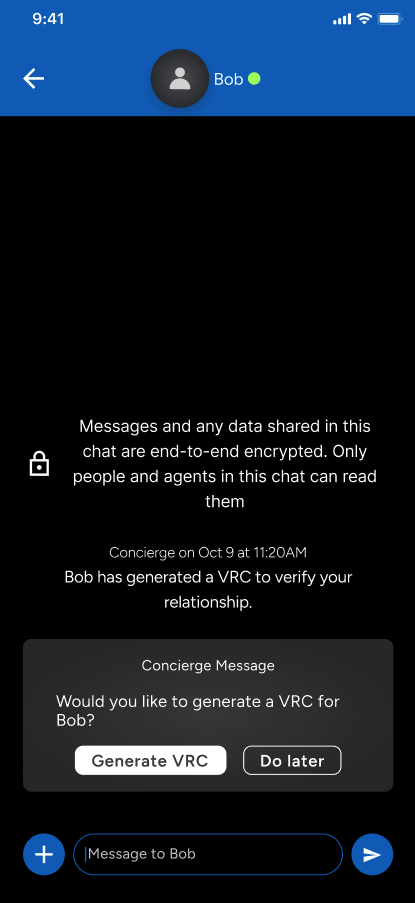
Contact prompted
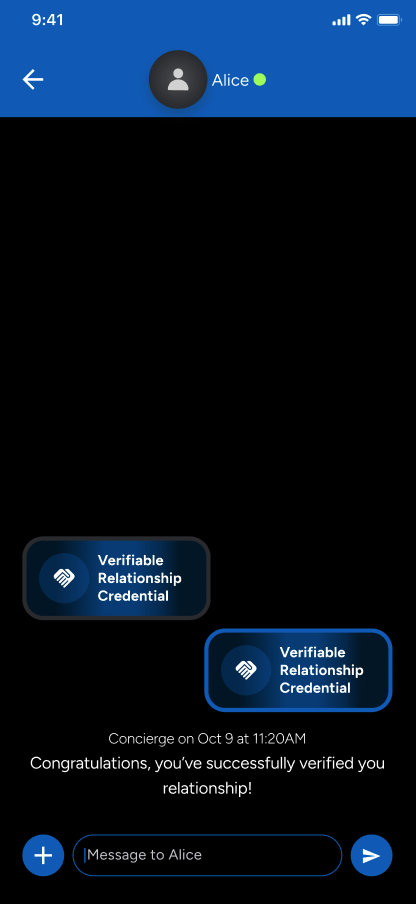
Both parties sign
Matrix-based features
Matrix enables group chat and richer message types: voice messages, reactions, edit and delete, and media attachments. Set ENABLED_INDIVIDUAL_CHAT_TRANSPORTS='["matrix"]' to activate it.
View walkthrough
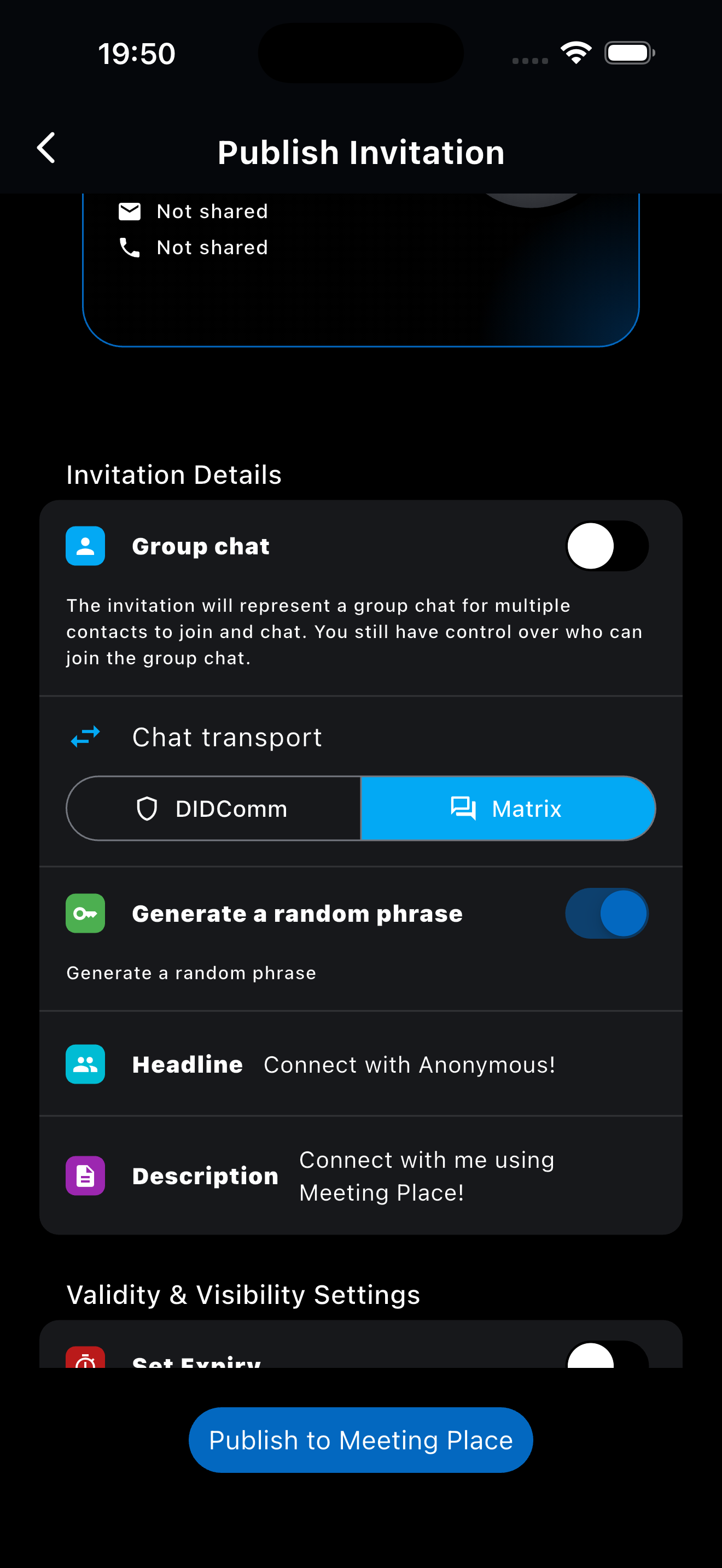
Transport picker
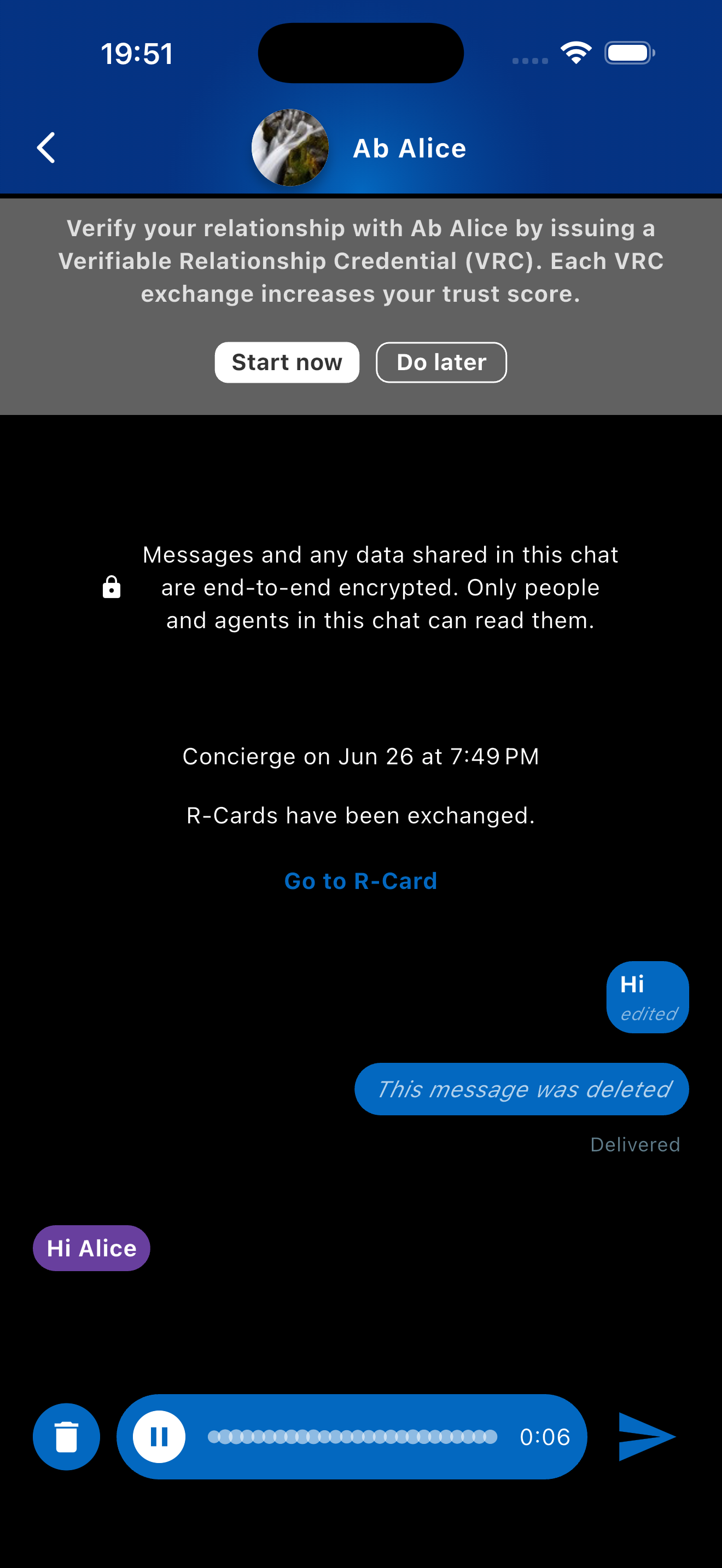
Voice messages
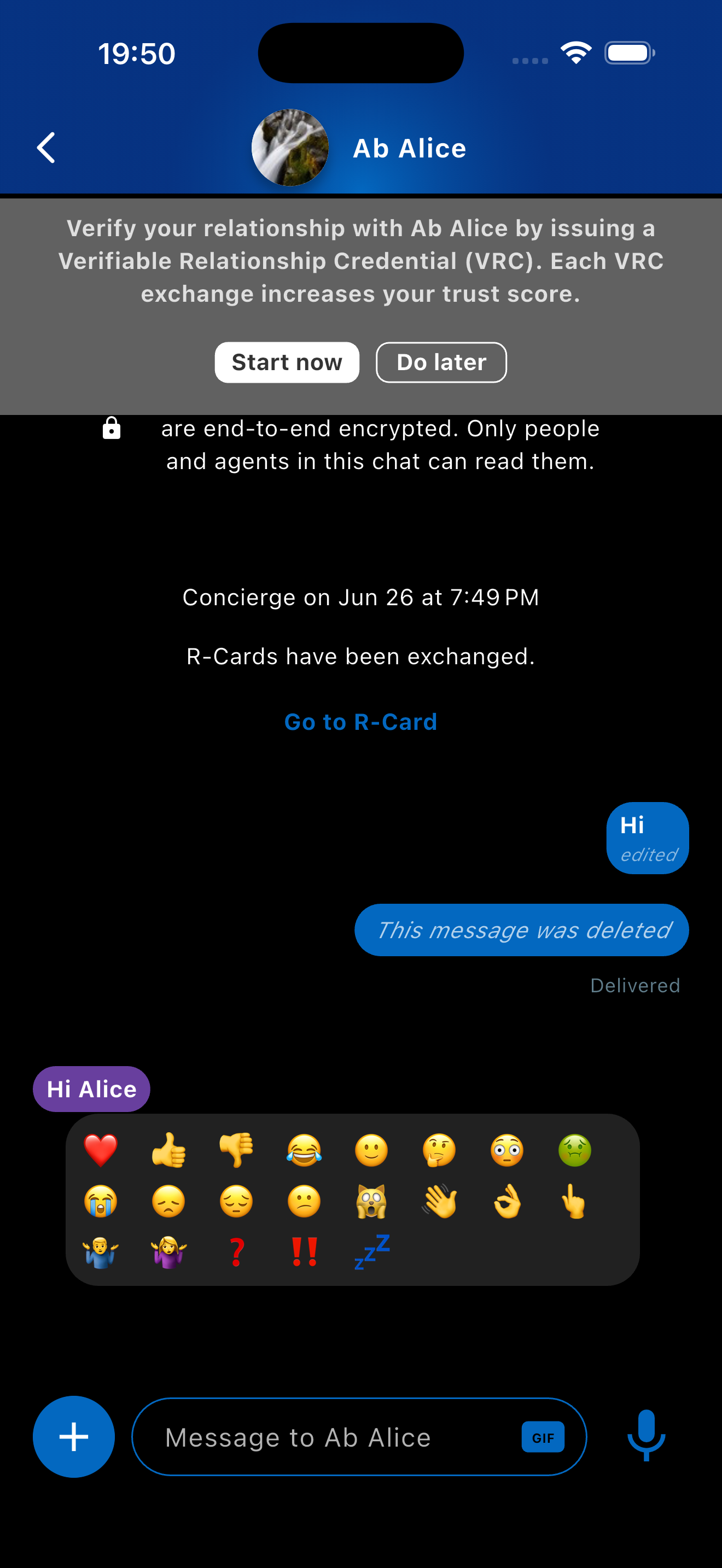
Reactions
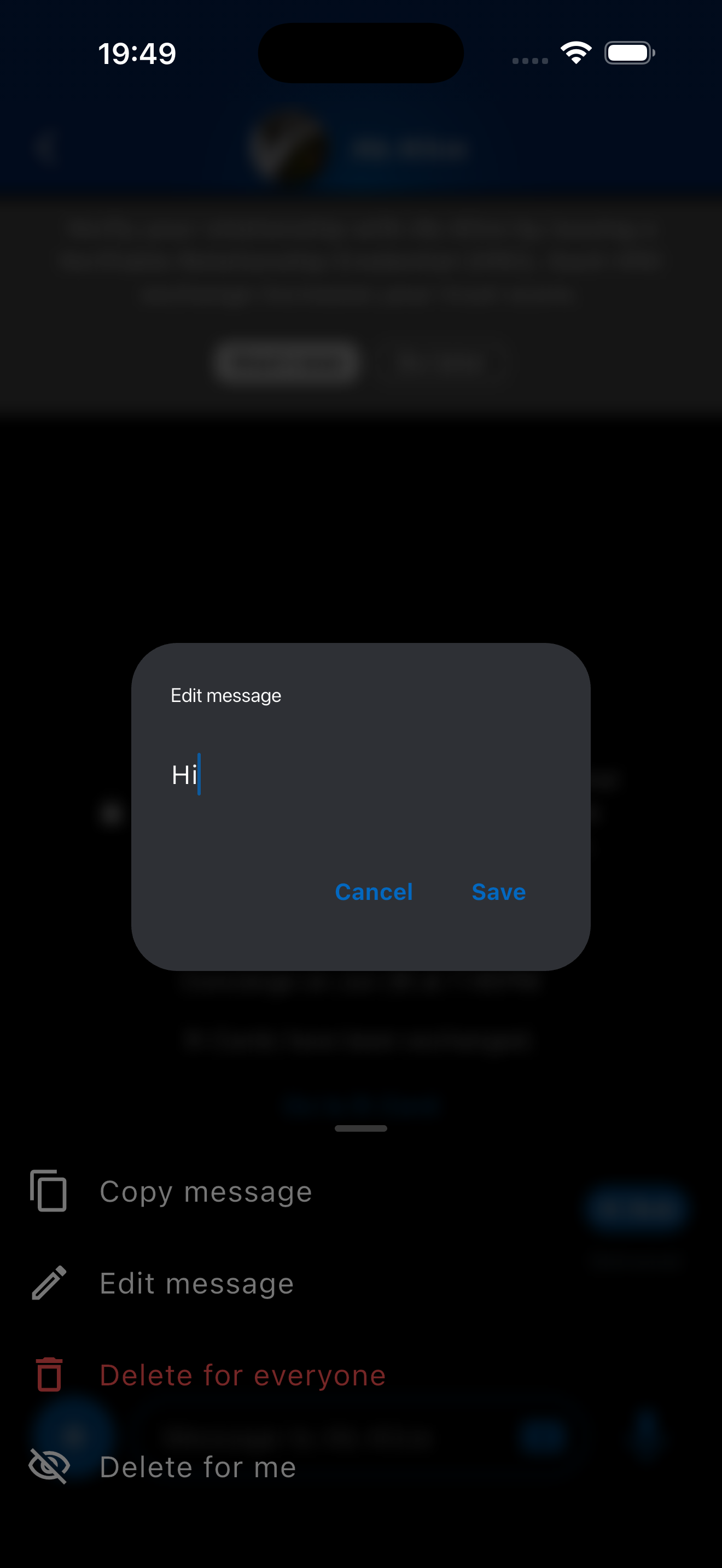
Edit message
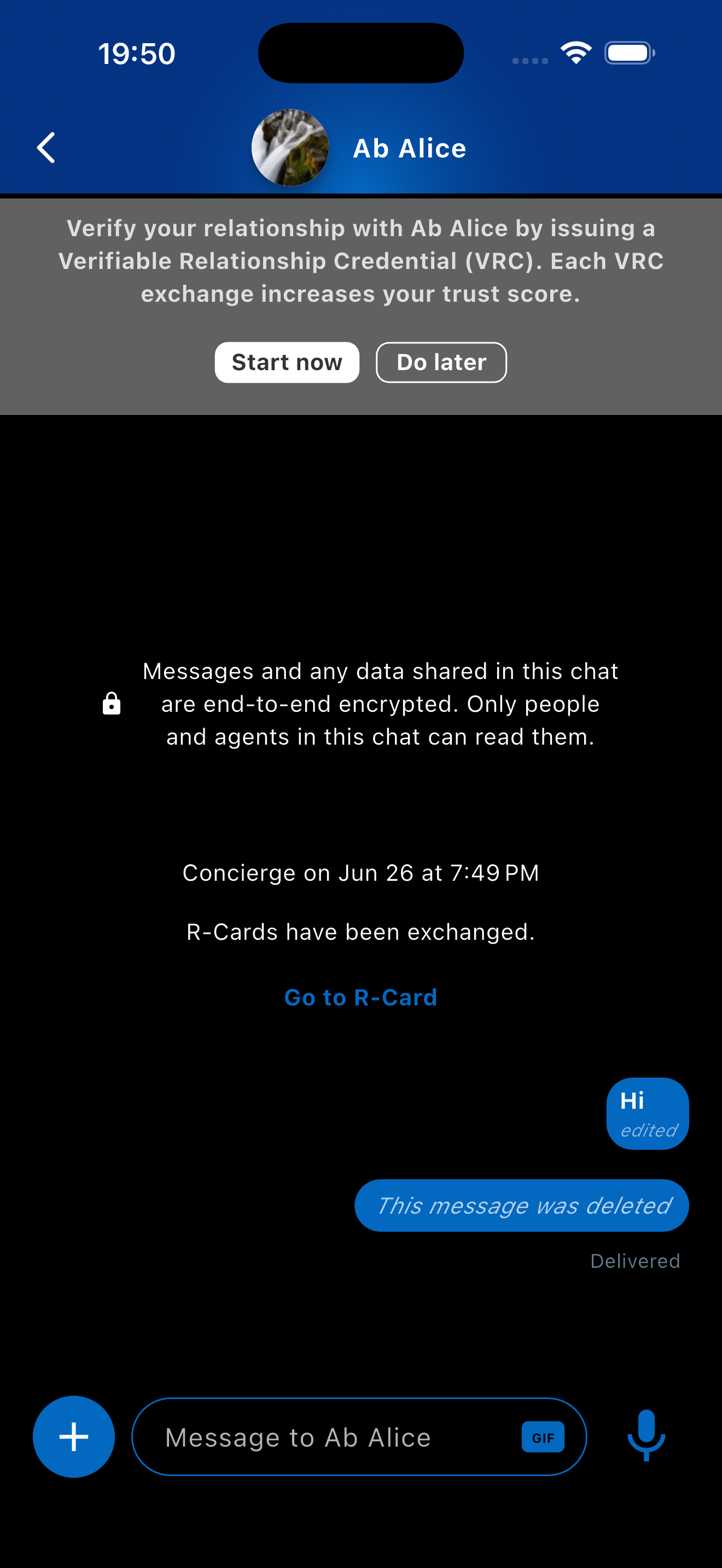
Delete message
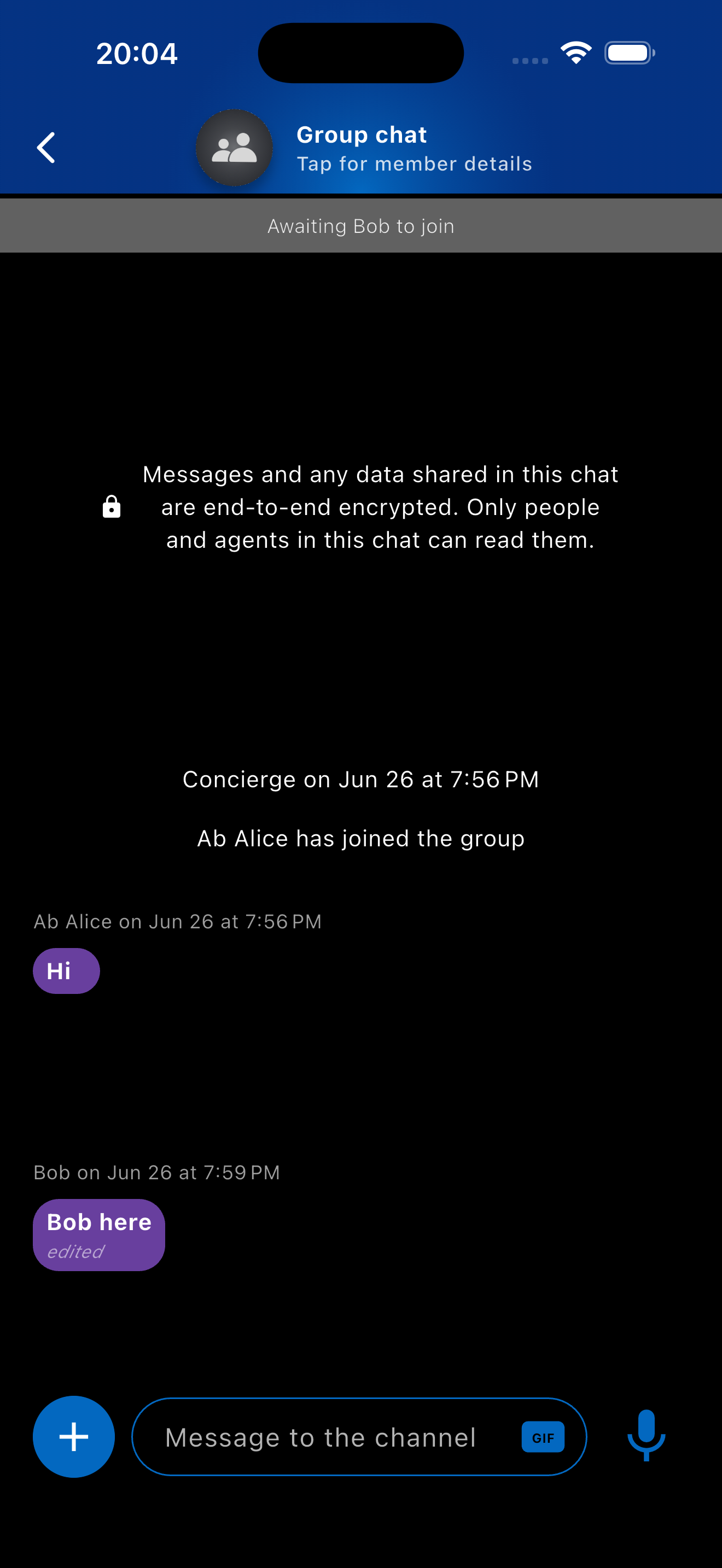
Group chat
Human ZKP demo
Enable with ZKP_ENABLED=true. A Credentials tab appears. Request a liveness proof from a contact. They complete a face challenge and you receive a Zero Knowledge Proof that confirms humanness without sharing biometric data.
View walkthrough
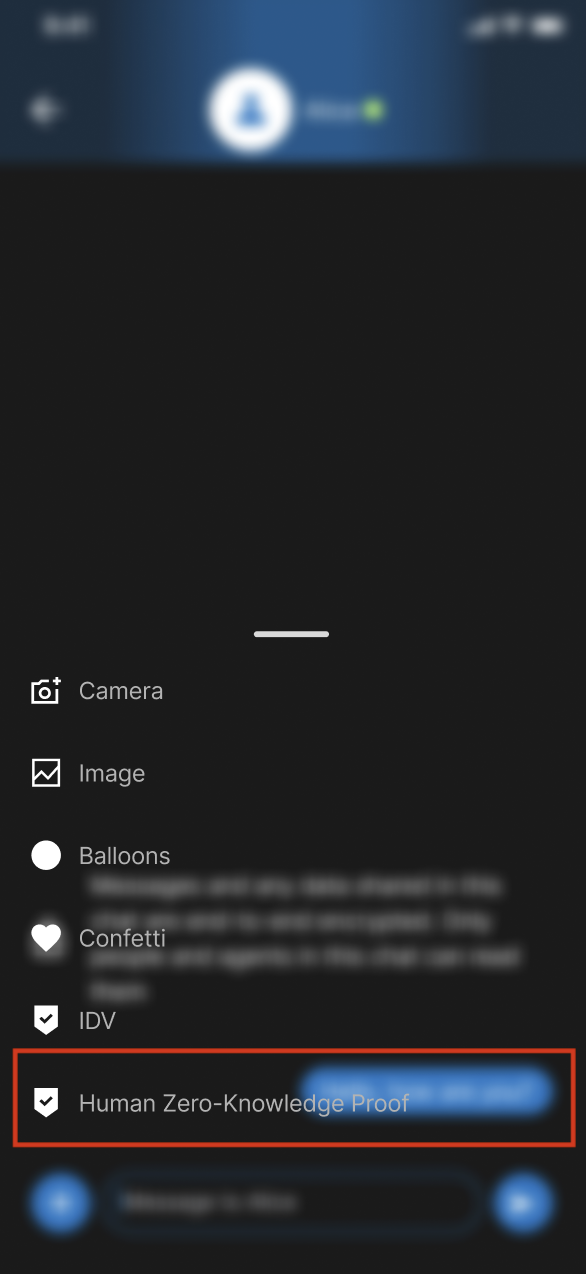
Open chat
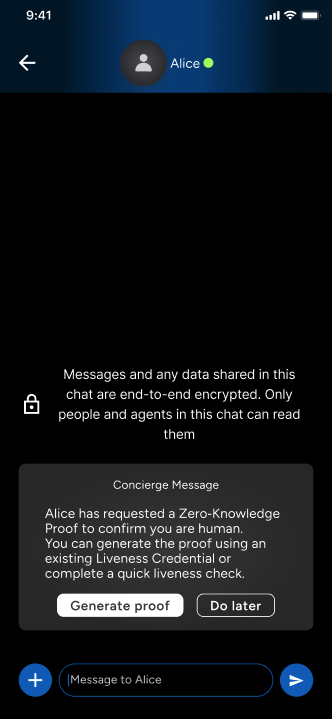
Send liveness request
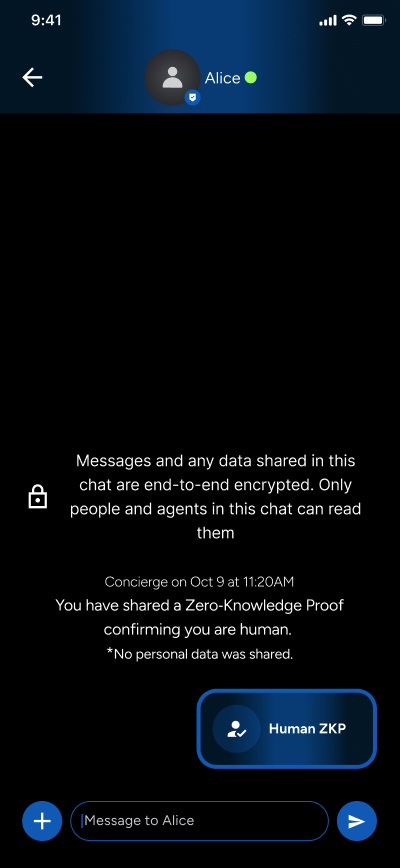
Proof sent
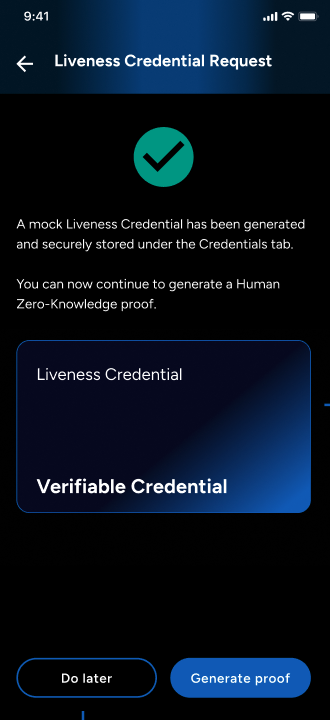
Liveness complete
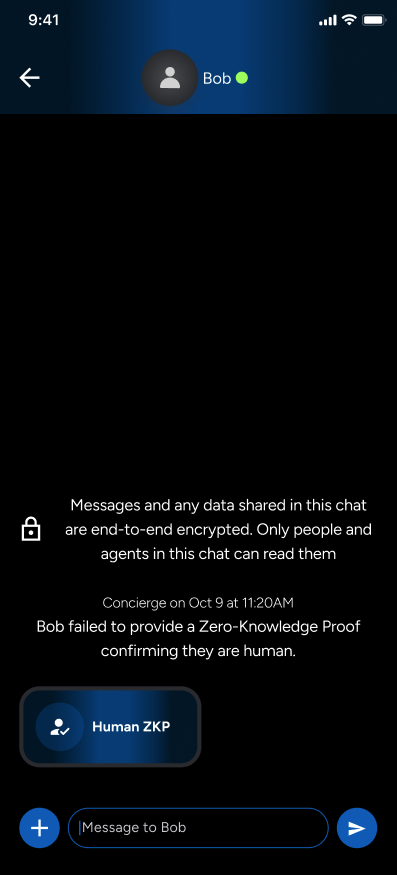
Verification failure
Troubleshooting
| Symptom | Likely cause | Fix |
|---|---|---|
FirebaseException ([core/duplicate-app] A Firebase App named "[DEFAULT]" already exists) | The Firebase configuration files do not match the environment variables in configurations/.env. | Check that FIREBASE_PROJECT_ID, FIREBASE_MESSAGING_SENDER_ID, and FIREBASE_STORAGE_BUCKET match across google-services.json, GoogleService-Info.plist, and your .env file. |
Build fails after flutter clean with Matrix enabled | Stale Vodozemac build artefacts. | Run rm -rf app/build/flutter_vodozemac then flutter run. |
What’s next
Glad to hear it. Thanks for letting us know.
Sorry to hear that. Thanks for letting us know.