Login configuration details
To integrate Affinidi Login into your application and offer a passwordless login experience, you need to create a Login Configuration.
Configuration details
Below are the relevant fields when managing Login Configuration:
Required fields
name: The name of your Login Configuration to quickly identify the purpose of the config you are creating e.g Insurance Website Dev.
redirectUris: The URL of your application where the user gets redirected after the successful authentication.
auth method: Determins how client authentication is handled when requesting an access token. By default the parameter of the field is client_secret_post where the client credentials are sent as part of the request body when making a token request.
tokenEndpointAuthMethod: Indicates the preferred authentication technique when connecting to Affinidi Login. Set the value to
noneif you want to implement PKCE flow on Affinidi Login.failOnMappingConflict: A boolean flag indicates whether to interrupt and fail the Login flow if the ID Token Mapping definition contains duplicate field mapping. The default value is
True.
Optional fields
clientMetadata.name: This name appears on the consent page, signifying to the user who is asking for their data.
clientMetadata.origin: The domain displayed on the consent page, clarifying to the user the source of the request.
clientMetadata.logo: A logo presented on the consent page, symbolising the entity requesting the user’s information.
Auto-generated fields
clientMetadata: Determines the specifics shown on the consent page as users authenticate with your website.
presentationDefinition: Specifies the data you request from the user to verify their identity. By default, Affinidi Login requests an Email VC, issued by Affinidi upon user registration. This is stipulated in the default
presentationDefinitionduring Login Configuration creation.idTokenMapping: Defines the method of extracting data from the VP Token supplied by the Affinidi Vault and transforming it into an idToken. Affinidi Login then sends this back to the website or the IdP Solution. This process is set out in the default
idTokenMappingwhen crafting a Login Configuration.
auth: Refers to the client credentials generated post-Login Configuration creation. These details are employed to adjust your OIDC settings and embed Affinidi Login in your application.
auth.clientId: Identifies the client within Affinidi Login.
auth.clientSecret: In tandem with
clientId, it validates the integration with Affinidi Login.auth.issuer: A URL identifier, this accepts and manages the authentication request via Affinidi Login. Furthermore, this URL facilitates OpenID information discovery, presented by Affinidi Login.
ari: Refers to a resource identifier of the Login Configuration created under a Project. Use this value to define a policy to grant access to other users for this particular record. Use this guide to learn how to configure policy to grant access to other users on your projects.
Note
You can only create up to 10 Configurations per Project. If you wish to create more than 10 Configurations, you must create a new Project.You can manage your Login Configurations using Affinidi CLI or Affinidi Portal .
Presentation definition and ID token mapping
When creating a Login Configuration, it’s not necessary to define a custom presentationDefinition or idTokenMapping. By default, the Login Configuration utilises a presentationDefinition alongside idTokenMapping that requests the Email VC issued to every Affinidi Vault user upon registration.
Here are the default definitions and their evaluation during the Login Flow:
Default presentation definition
Within the standard presentation definition of the Login Configuration, we request users to share their Email VC, which is issued by Affinidi. In addition to requesting the Email VC from Affinidi, we also verify the following conditions:
- The Verifiable Credentials (VC) must be of the
Emailtype. - The email address must adhere to the following JSON structure within the VC:
$.credentialSubject.email.
From this presentation definition, the Affinidi Vault produces the Verifiable Presentation (VP) sent to Affinidi Login.
{
  "id": "vp_token_with_email_vc",
  "input_descriptors": [
    {
      "id": "email_vc",
      "name": "Email VC",
      "purpose": "Check if data contains necessary fields",
      "constraints": {
        "fields": [
          {
            "path": [
              "$.type"
            ],
            "purpose": "Check if VC type is correct",
            "filter": {
              "type": "array",
              "contains": {
                "type": "string",
                "pattern": "^Email$"
              }
            }
          },
          {
            "path": [
              "$.credentialSubject.email"
            ],
            "purpose": "Check if VC contains email field",
            "filter": {
              "type": "string"
            }
          },
          {
            "path": [
              "$.issuer"
            ],
            "purpose": "Check if VC Issuer is Trusted",
            "filter": {
              "type": "string",
              "pattern": "^did:key:zQ3shtMGCU89kb2RMknNZcYGUcHW8P6Cq3CoQyvoDs7Qqh33N"
            }
          }
        ]
      }
    }
  ]
}
Default ID token mapping
In the default ID token mapping of the Login Configuration, we are mapping on where and how to extract the information from the Verifiable Presentation (VP) sent by Affinidi Vault to generate the idToken that is sent back to the website.
[
  {
    "sourceField": "$.type",
    "idTokenClaim": "$.custom[0].type",
    "inputDescriptorId": "email_vc"
  },
  {
    "sourceField": "$.credentialSubject.email",
    "idTokenClaim": "$.custom[1].email",
    "inputDescriptorId": "email_vc"
  }
]
Use this guide to learn how to modify the presentation definition to include additional data depending on your requirements that must be satisfied by the user from their Affinidi Vault.
Create login configuration
To create a Login Configuration, you can either use Affinidi CLI or Affinidi Portal .
Note
You can only create up to 10 Configurations per Project. If you wish to create more than 10 Configurations, you must create a new Project.Using Affinidi CLI
- Log in to Affinidi CLI by running:
affinidi start- Once you have successfully logged in, create the Login Configuration by running:
affinidi login create-config \
--name='<Name>' \
--redirect-uris='<Redirect URIs>'--nameis what you want your login configuration to be called.--redirect-urisis the URL on your application where the user gets redirected after the successful authentication.
Sample response:
{
  "ari": "ari:identity:ap-southeast-1:687b8872-a618-dt63-8978-e72ac32daeb1:login_configuration/c4f74d936cd31bde1c1fd3c1050bb76s",
  "projectId": "687b8872-a618-4e52-8978-e72ac32daec2",
  "configurationId": "c4f74d936cd31bde1c1fd3c1050bb62d",
  "name": "...",
  "auth": {
    "clientId": "<AUTH.CLIENT_ID>",
    "clientSecret": "<AUTH.CLIENT_SECRET>",
    "issuer": "https://<PROJECT_ID>.apse1.login.affinidi.io"
  },
  "redirectUris": [
    "..."
  ],
  "clientMetadata": {
    "name": "Login Config Name",
    "logo": "https://login.affinidi.com/default-client-logo.svg",
    "origin": "https://example.com"
  },
  "creationDate": "2023-08-11T06:26:37Z",
  "tokenEndpointAuthMethod": "client_secret_post"
}
Learn more on how to manage your Login Configurations using Affinidi CLI.
Using Affinidi Portal
In the Affinidi Elements section of the sidebar, go to Affinidi Login .
In the Configurations section, select Create configuration.
Under Configuration Details, enter the required details:
- Name: a name for your own reference, shown only in Affinidi Portal.
- Allowed Redirect URIs: the URLs in your application that users return to after they sign in. Enter each URI on a new line.
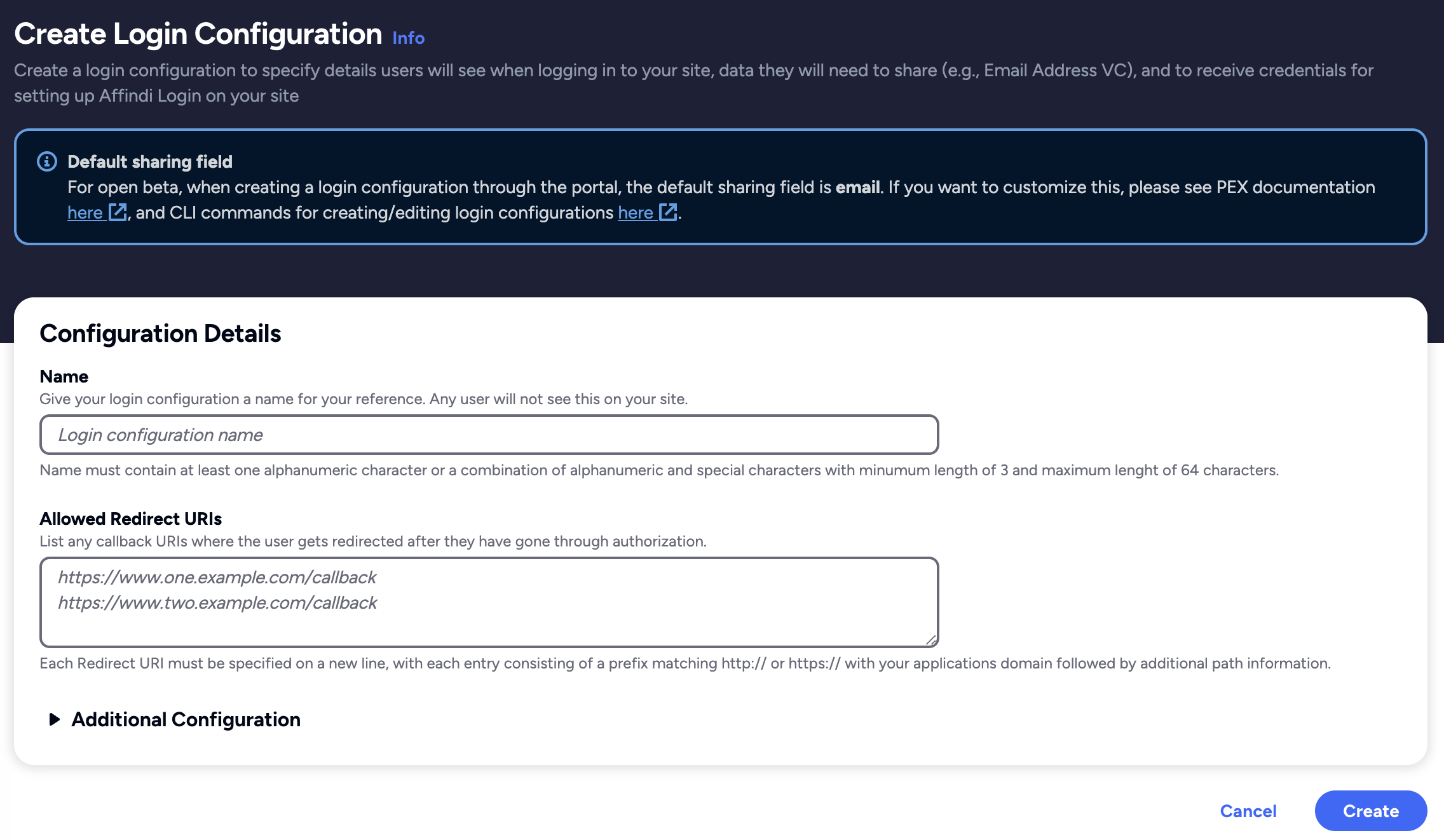
Optionally, expand Additional Configuration to set what users see when they sign in and how your application authenticates:
- Display Name: the application name shown to users when they sign in. It defaults to the configuration name.
- Origin: the URL shown to users when they sign in. It defaults to the domain of the first redirect URI.
- Logo URL: the logo shown to users when they sign in. A default logo is used if you leave it empty.
- Auth method: how your application authenticates when it requests an access token: Client secret basic, Client secret post, or None.
- Presentation Definition and ID token mapping: the data users share when they sign in. The default requests the user’s email address. Select Edit to change it. See Edit the presentation definition in Affinidi Portal.
Select Create. The Store client secret dialog shows the Client ID, Client Secret, and Issuer for your configuration.
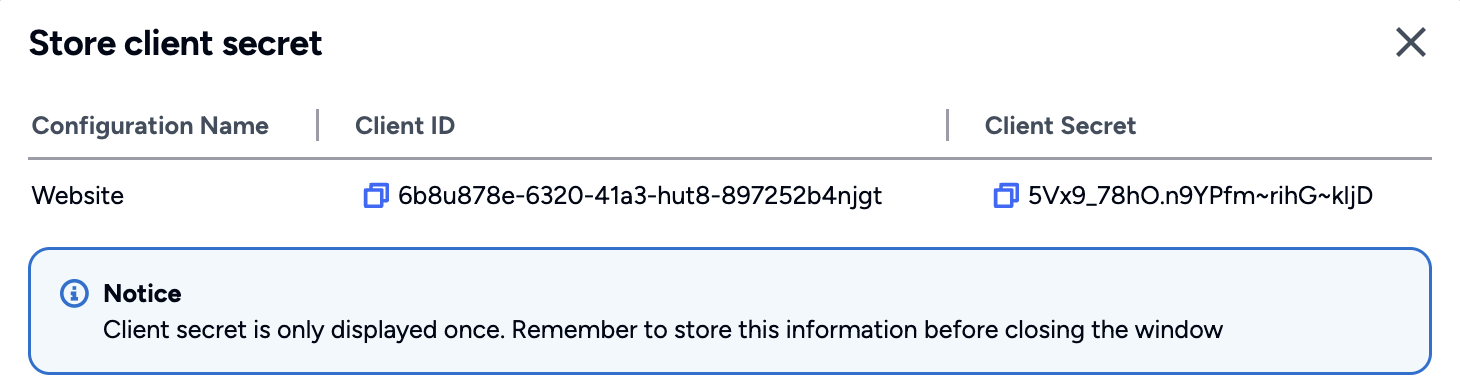
Copy the Client ID, Client Secret, and Issuer, and store them securely. You use them to integrate your application with Affinidi Login, and the dialog shows the Client Secret only once.
Close the dialog. Affinidi Portal opens the details page of your new configuration.
Login Configuration uses the default Presentation Definition (presentationDefinition) and ID Token Mapping (idTokenMapping) that is used to request the user’s email address during the authentication flow.
Important
Safeguard the Client ID and Client Secret diligently; you'll need them for setting up your IdP or OIDC-compliant applications. Remember, the Client Secret will be provided only once.
Once you have successfully created a Login Configuration, you can copy the contents of the auth field and configure it on your OIDC settings.
Update login configuration
Sometimes, you may want to request fields from the user’s profile stored on their Affinidi Vault during authentication. To do this, we must update the Login Configuration and modify the default Presentation Definition and ID Token Mapping.
- Extract the existing Presentation Definition and ID Token Mapping from the Login Configuration.
affinidi login get-config --id <LOGIN_CONFIG_ID>The above command will return the Login Configuration record in a JSON format that we can use as a template to update the Presentation Definition and ID Token Mapping.
{
  .....
  "presentationDefinition": {
    "id": "vp_token_with_email_vc",
    "input_descriptors": [
      {
        "id": "email_vc",
        "name": "Email VC",
        "purpose": "Check if data contains necessary fields",
        "constraints": {
          "fields": [
            {
              "path": [
                "$.type"
              ],
              "purpose": "Check if VC type is correct",
              "filter": {
                "type": "array",
                "contains": {
                  "type": "string",
                  "pattern": "^Email$"
                }
              }
            },
            {
              "path": [
                "$.credentialSubject.email"
              ],
              "purpose": "Check if VC contains email field",
              "filter": {
                "type": "string"
              }
            },
            {
              "path": [
                "$.issuer"
              ],
              "purpose": "Check if VC Issuer is Trusted",
              "filter": {
                "type": "string",
                "pattern": "^did:key:zQ3shtMGCU89kb2RMknNZcYGUcHW8P6Cq3CoQyvoDs7Qqh33N"
              }
            }
          ]
        }
      }
    ]
  },
  "idTokenMapping": [
    {
      "sourceField": "$.type",
      "idTokenClaim": "$.custom[0].type",
      "inputDescriptorId": "email_vc"
    },
    {
      "sourceField": "$.credentialSubject.email",
      "idTokenClaim": "$.custom[1].email",
      "inputDescriptorId": "email_vc"
    }
  ],
  .....
}- Copy the values from presentationDefinition and idTokenMapping and save it in a JSON file. We will use the JSON file to update the config later.
{
    "presentationDefinition": {
        "id": "vp_token_with_email_vc",
        "input_descriptors": [
          {
            "id": "email_vc",
            "name": "Email VC",
            "purpose": "Check if data contains necessary fields",
            "constraints": {
              "fields": [
                {
                  "path": [
                    "$.type"
                  ],
                  "purpose": "Check if VC type is correct",
                  "filter": {
                    "type": "array",
                    "contains": {
                      "type": "string",
                      "pattern": "^Email$"
                    }
                  }
                },
                {
                  "path": [
                    "$.credentialSubject.email"
                  ],
                  "purpose": "Check if VC contains email field",
                  "filter": {
                    "type": "string"
                  }
                },
                {
                  "path": [
                    "$.issuer"
                  ],
                  "purpose": "Check if VC Issuer is Trusted",
                  "filter": {
                    "type": "string",
                    "pattern": "^did:key:zQ3shtMGCU89kb2RMknNZcYGUcHW8P6Cq3CoQyvoDs7Qqh33N"
                  }
                }
              ]
            }
          }
        ]
    },
    "idTokenMapping": [
        {
          "sourceField": "$.type",
          "idTokenClaim": "$.custom[0].type",
          "inputDescriptorId": "email_vc"
        },
        {
          "sourceField": "$.credentialSubject.email",
          "idTokenClaim": "$.custom[1].email",
          "inputDescriptorId": "email_vc"
        }
    ]
}
Update the presentation definition
- Update the Presentation Definition to include a field from the user profile. See the example below:
{
    "presentationDefinition": {
        "id": "vp_combined_email_user_profile_combined",
        "submission_requirements": [
        {
            "rule": "pick",
            "min": 1,
            "from": "A"
        }
        ],
        "input_descriptors": [
          {
            "id": "email_vc",
            "name": "Email VC",
            "purpose": "Check if data contains necessary fields",
            "group": ["A"],
            "constraints": {
              "fields": [
                {
                  "path": [
                    "$.type"
                  ],
                  "purpose": "Check if VC type is correct",
                  "filter": {
                    "type": "array",
                    "contains": {
                      "type": "string",
                      "pattern": "^Email$"
                    }
                  }
                },
                {
                  "path": [
                    "$.credentialSubject.email"
                  ],
                  "purpose": "Check if VC contains email field",
                  "filter": {
                    "type": "string"
                  }
                },
                {
                  "path": [
                    "$.issuer"
                  ],
                  "purpose": "Check if VC Issuer is Trusted",
                  "filter": {
                    "type": "string",
                    "pattern": "^did:key:zQ3shtMGCU89kb2RMknNZcYGUcHW8P6Cq3CoQyvoDs7Qqh33N"
                  }
                }
              ]
            }
          },
          {
            "id": "profile_vc",
            "name": "Profile VC",
            "purpose": "Check if data contains necessary fields",
            "group": ["A"],
            "constraints": {
              "fields": [
                {
                  "path": [
                    "$.type"
                  ],
                  "purpose": "Check if VC type is correct",
                  "filter": {
                    "type": "array",
                    "pattern": "^UserProfile$"
                  }
                },
                {
                  "path": ["$.credentialSubject.address.country"]
                }
              ]
            }
          }
        ]
    }
}
In the definition above, we request the user profile country address field from the Affinidi Vault.
Update the ID token mapping
- Update the ID Token Mapping to map the additional fields defined in the Presentation Definition to include in the idToken that we will send to the application after successful authentication.
{
    "idTokenMapping": [
    {
      "sourceField": "$.type",
      "idTokenClaim": "$.custom[0].type",
      "inputDescriptorId": "email_vc"
    },
    {
      "sourceField": "$.credentialSubject.email",
      "idTokenClaim": "$.custom[1].email",
      "inputDescriptorId": "email_vc"
    },
    {
      "sourceField": "$.credentialSubject.address.country",
      "idTokenClaim": "$.custom[2].country",
      "inputDescriptorId": "profile_vc"
    }
    ]
}
In the mapping above, we have added the country field of the user profile into the idToken that we will send to the application.
- After updating both Presentation Definition and ID Token Mapping on your JSON file created previously, use this file to update the target Login Configuration to use the new definition and mapping.
affinidi login update-config --id <LOGIN_CONFIG_ID> --file <JSONFILE>.jsonUpdating other fields
When updating other fields like redirectUris, name, and clientMedata, you can use either Affinidi CLI or Affinidi Portal. See Manage in Affinidi Portal.
Manage in Affinidi Portal
The Affinidi Login page in Affinidi Portal lists your project’s login configurations under Configurations and its user groups under User groups. Its Actions menu also lets you view all users, view blocked users, and export or import login configurations and groups. See Export and import using Affinidi Portal.
To manage user groups in Affinidi Portal, see How to create groups and add users.
Update a login configuration in Affinidi Portal
In the Affinidi Elements section of the sidebar, go to Affinidi Login .
Select the login configuration you want to update to open its details page.
Select Edit. The Edit Login Configuration page opens with the same fields you set when you created the configuration, including the fields under Additional Configuration.
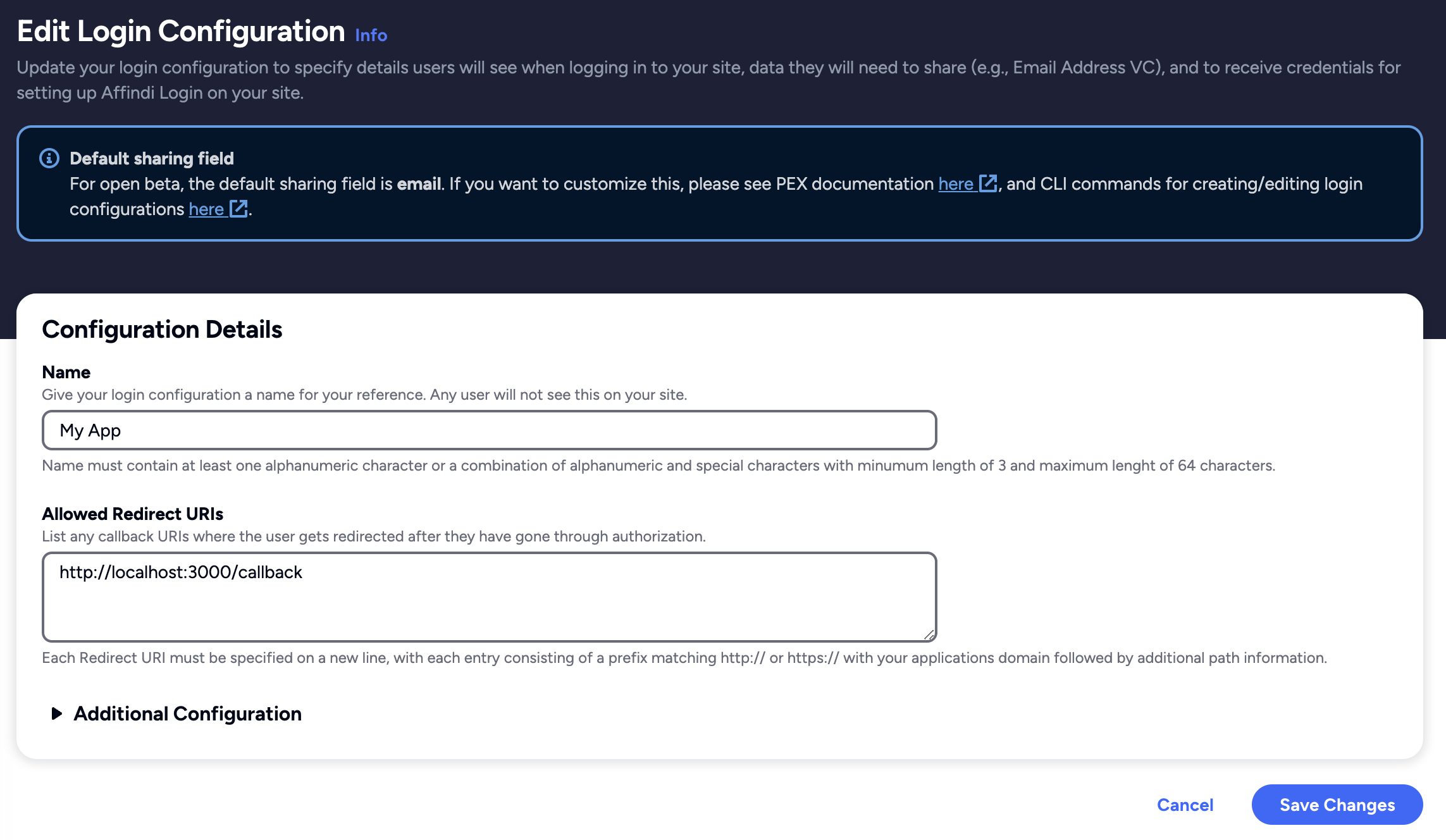
- Update the fields you want to change and select Save Changes.
Edit the presentation definition in Affinidi Portal
Every login configuration comes with a default presentation definition that asks the user to share their email address. Edit it in Affinidi Portal to request other data from the user’s Affinidi Vault or to add constraints to the requested data.
- Open the login configuration’s create or edit page, and expand Additional Configuration.
- Under Presentation Definition, select Edit. If the configuration has no presentation definition, select Create New instead.
- In the PEX editor step, edit the presentation definition JSON. Affinidi Portal checks the JSON for formatting errors as you type. Select Reset to default at any time to go back to the email-only definition.
- Select Continue.
- In the ID token mapping preview step, review the ID token mapping that Affinidi Portal generates from your presentation definition. Edit it if needed, or select Re-generate from presentation definition to discard your edits.
- Select Done, then save the login configuration.
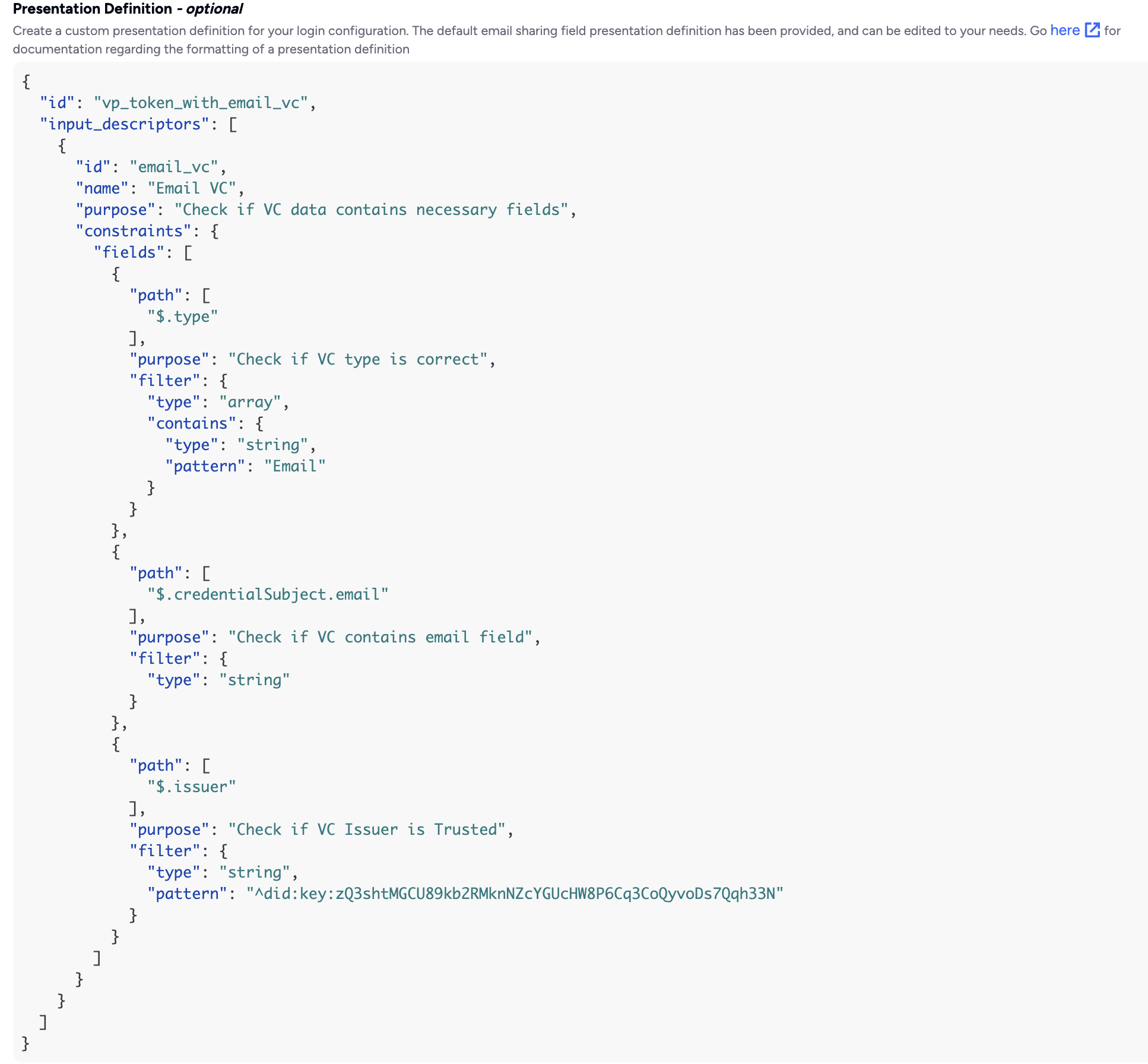
Fail on mapping conflict makes user sign-ins fail when the ID token mapping has a conflict. In the ID token mapping preview step it’s selected by default. The same option on the configuration form is cleared by default.
Delete a login configuration in Affinidi Portal
In the Affinidi Elements section of the sidebar, go to Affinidi Login .
Select the login configuration you want to delete to open its details page.
Select Delete. The Delete Selected Login Configuration dialog opens.
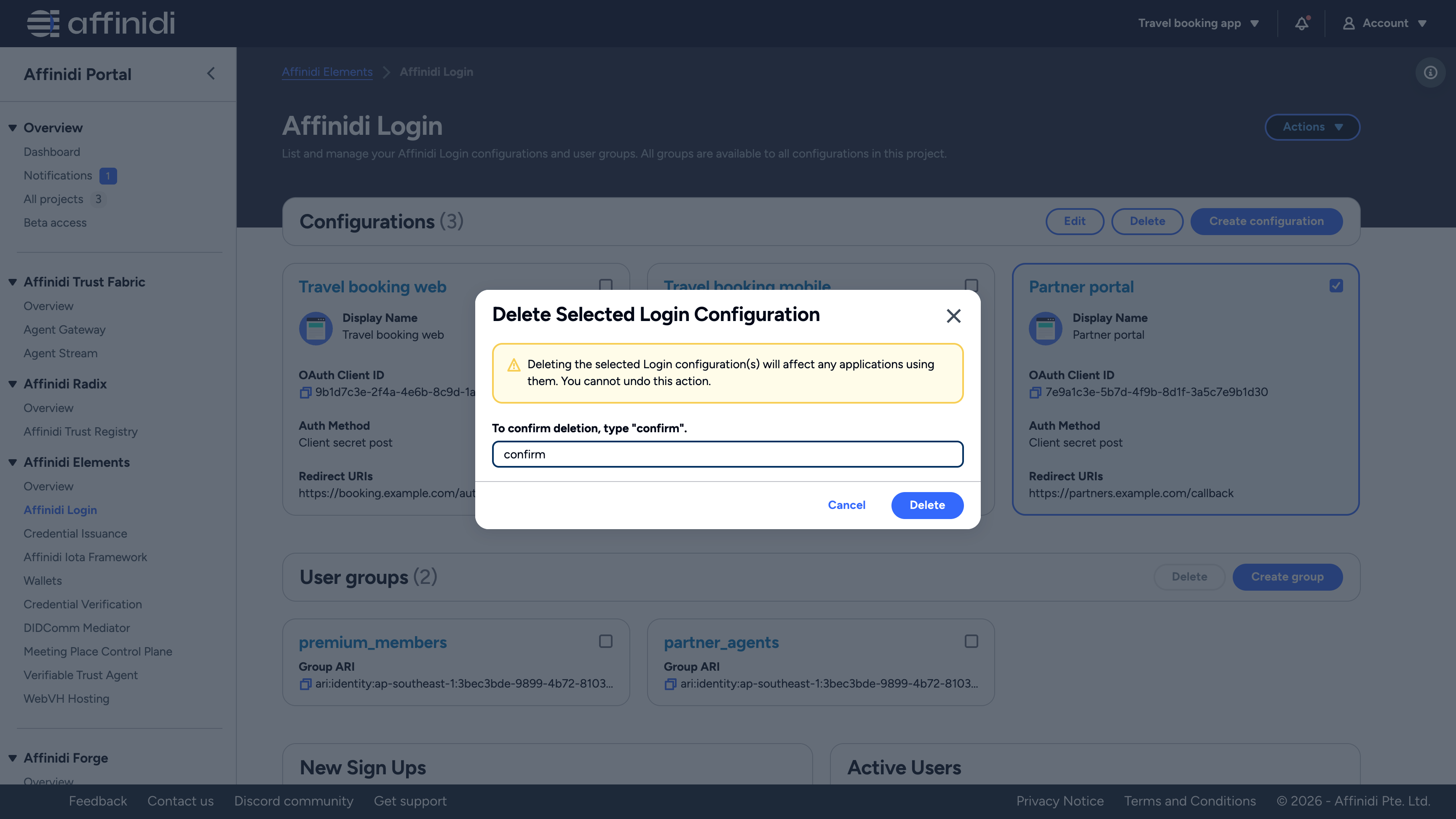
- Type
confirmin the text box, then select Delete. The Delete button stays disabled until the text matches.
Deleting a login configuration is permanent and affects every application that uses it.
To delete several login configurations at once, select them on the Affinidi Login page and select Delete above the list. The same confirmation applies.
Configuring OIDC settings
In a usual OIDC-enabled application, it requires the following details to enable the OAuth flow:
Client ID: This is the identifier of your application. This is the
LoginConfig.clientIdproperty from Login Configuration.Client Secret: This is a piece of sensitive information known by the application and authorisation server. It is used to authenticate the application to the authorisation server. This is the
LoginConfig.clientSecretproperty from Login Configuration.Issuer URL: This is used to fetch and exchange access tokens, as well as fetch identity information. This is the
LoginConfig.issuerproperty from Login Configuration. Some IdP platforms support auto-discovery based on the Issuer URL. In the case the IdP does not support auto-discovery, the typical two endpoints required are:Authorisation URL: The authorisation server’s endpoint to retrieve the authorisation code.
Token URL: The authentication server’s endpoint to exchange an authorisation code for an access token.
Scope: This is used by the application during authentication to authorise access to a user’s details and will be part of the returned ID Token. When configuring the integration of Affinidi Login, the scopes are usually set into the following values:
openid: This indicates that the application will use the OIDC standard to authenticate the user.
offline_access: This indicates that the access requests include the refresh token after successful authentication of the user.
To view the well-known configuration of the Affinidi Login, use the Issuer URL from the Login Configuration and append the /.well-known/openid-configuration.
<LoginConfig.IssuerURL>/.well-known/openid-configurationWhat’s next
Glad to hear it! Please tell us how we can improve more.
Sorry to hear that. Please tell us how we can improve.
Thank you for sharing your feedback so we can improve your experience.