Project page
A project’s page in Affinidi Portal shows the project’s details, its usage against its plan, the Personal Access Tokens that can access it, and the other users who can access it. To open it, select All projects in the sidebar, then select the project’s name.
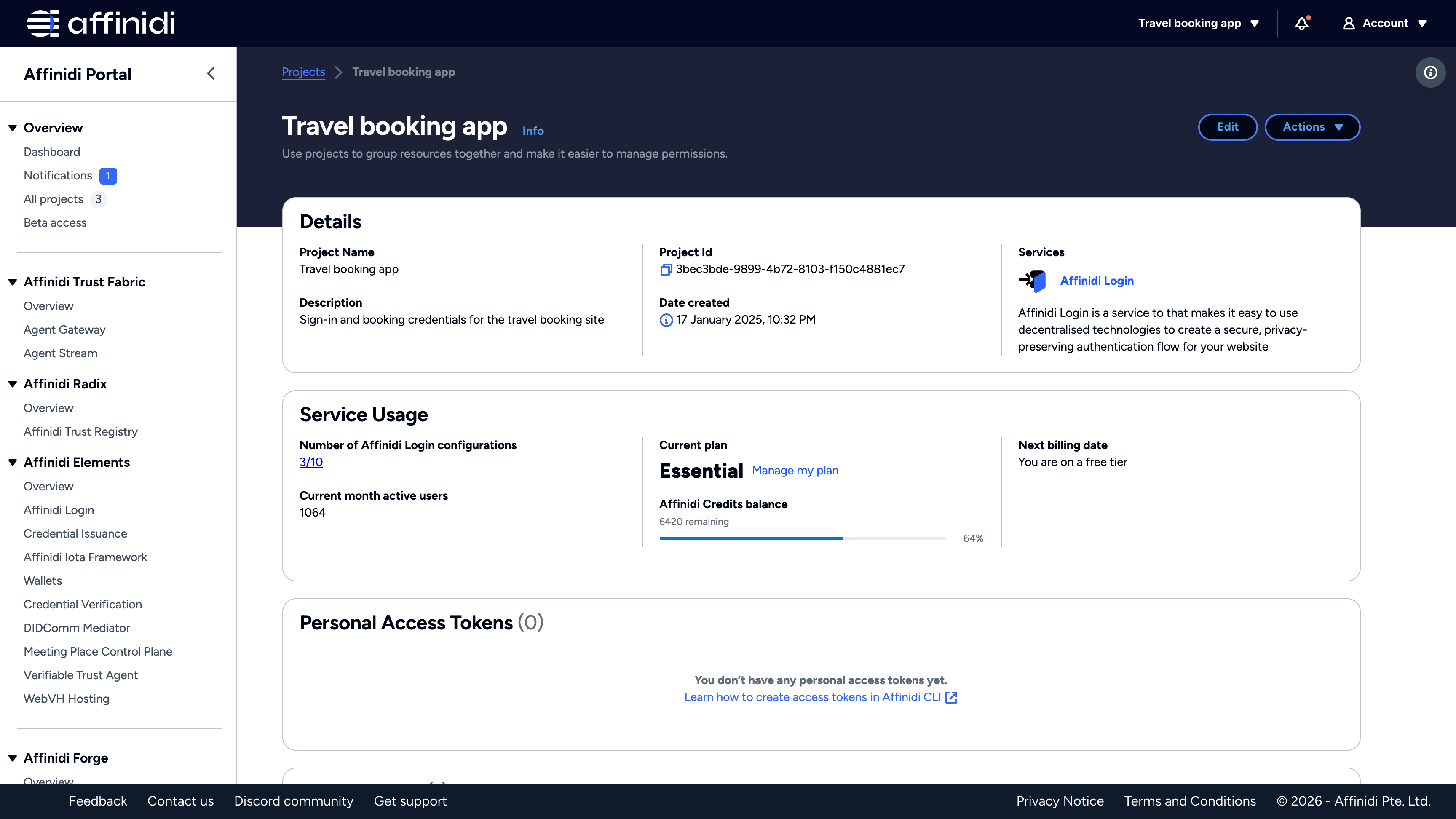
Header
The header shows the project’s name. The project’s owner also sees:
| Control | What it does |
|---|---|
| Edit | Opens Edit Project Settings to change the project’s name and description. See Edit a project. |
| Actions > View All Plans | Opens the Affinidi pricing page in a new tab. |
| Actions > Manage my plan | Opens the plan dialog. See Upgrade your plan. |
Details
| Field | Description |
|---|---|
| Project Name | The project’s name. |
| Description | The project’s description, if it has one. |
| Project Id | The project’s unique identifier. Select it to copy the value. |
| Date created | When the project was created. |
| Services | Lists Affinidi Login, with a link to its page. |
Service usage
| Field | Description |
|---|---|
| Number of Affinidi Login configurations | The login configurations in the project, out of the 10 a project can have. Select it to open the Affinidi Login page. |
| Current month active users | The number of unique users who signed in to your applications through the project’s Affinidi Login configurations this month. |
| Current plan | The project’s plan, such as Essential or Community, with a Manage my plan link. |
| Affinidi Credits balance | The credits the project has left, as a number and a progress bar. Each API call the project makes uses some of its credits. |
| Next billing date | The date of the next charge on a paid plan, or “You are on a free tier” on a free plan. |
When the project has used up its credits, a message with a Join the Affinidi Community Tier link replaces this section and every section below it, including Personal Access Tokens and Collaborators. The link opens the Affinidi website, where you upgrade the project to the Community plan for more free credits.
Personal Access Tokens
Lists the Personal Access Tokens that can access the project’s resources. A token owned by another user carries an Owned by others badge. To create and manage tokens, see Manage Personal Access Tokens.
Collaborators
Lists the other users who can access the project.
| Column | Description |
|---|---|
| Principal ID | The collaborator’s User Principal ID. Your own row carries a Me badge. |
| Policy | Select View Policy to see the policy that sets what the collaborator can do with the project’s resources. |
To add a collaborator, see Give a team member access.
Related
Glad to hear it. Thanks for letting us know.
Sorry to hear that. Thanks for letting us know.